Album
Overview
The Album feature allows users to create albums, upload photos, and showcase them on the dashboard gallery section.
This module helps organizations maintain and display visual content such as events, celebrations, and announcements in a structured manner.
1. Album List
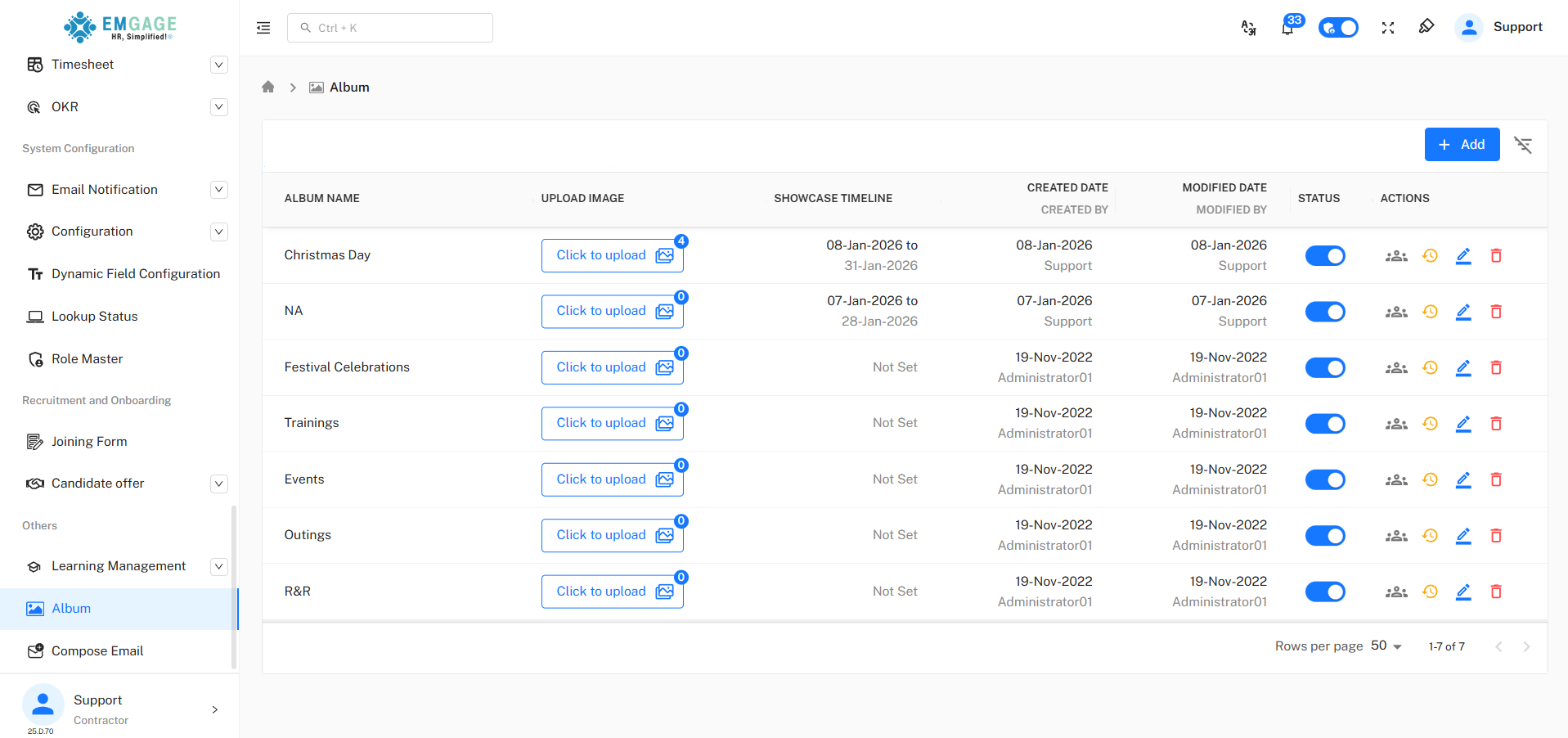
This page displays all albums created in the system.
Key Highlights
- View the list of existing albums
- Each album represents a collection of photos
- Easy access to manage and upload images within albums
Users can quickly browse through available albums from this page.
2. Create New Album
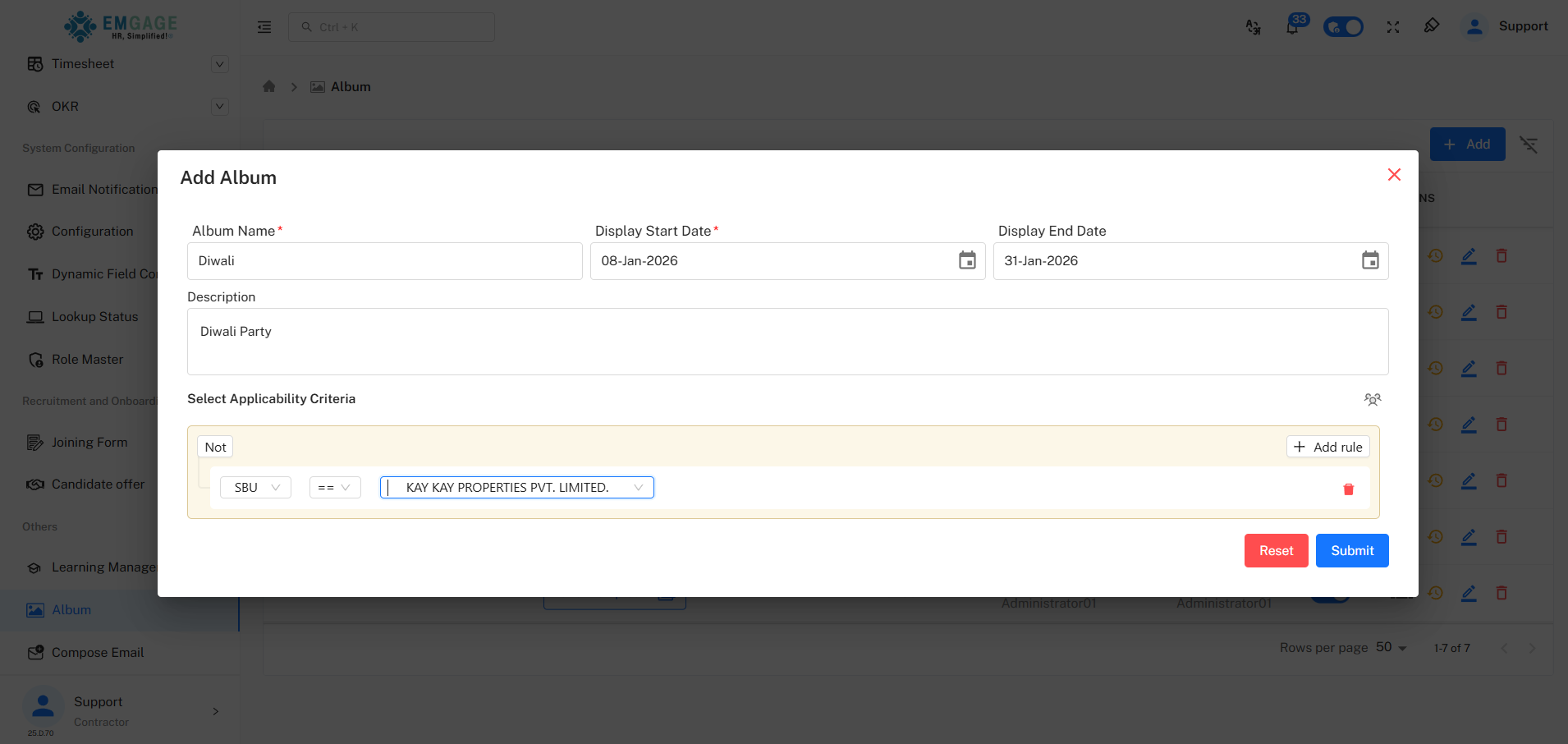
By clicking on the Add button, users can create a new album.
Steps to Create an Album
- Click on the Add button
- Enter the Album Name
- Add a brief Description (optional)
- Save the album
Once created, the album becomes available for photo uploads.
3. Upload Photos to Album
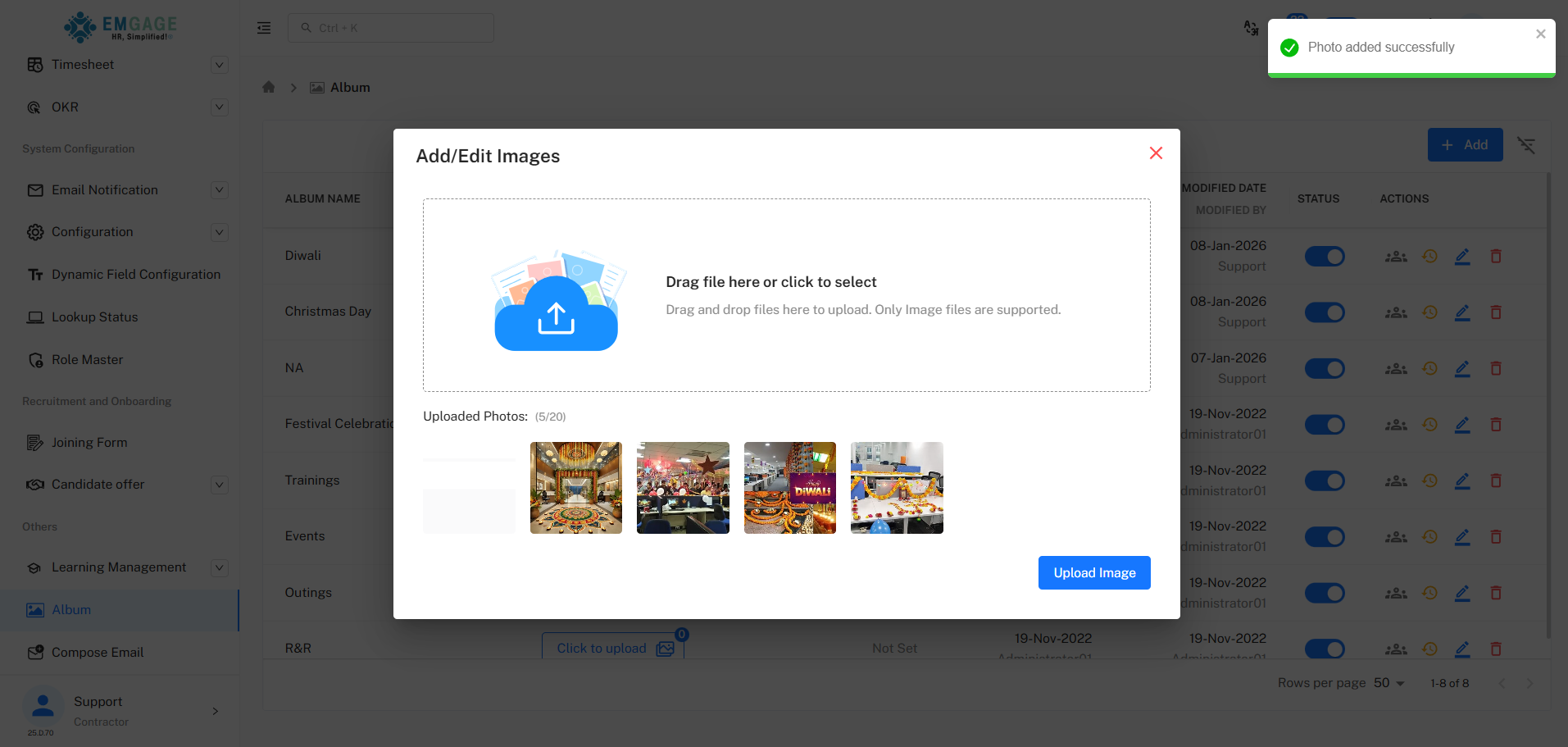
Clicking on the Upload button allows users to upload photos to the selected album.
Upload Actions
- Select one or multiple photos
- Upload images to the chosen album
- View uploaded photos instantly within the portal
This helps keep all related photos organized under a single album.
4. View Gallery on Dashboard
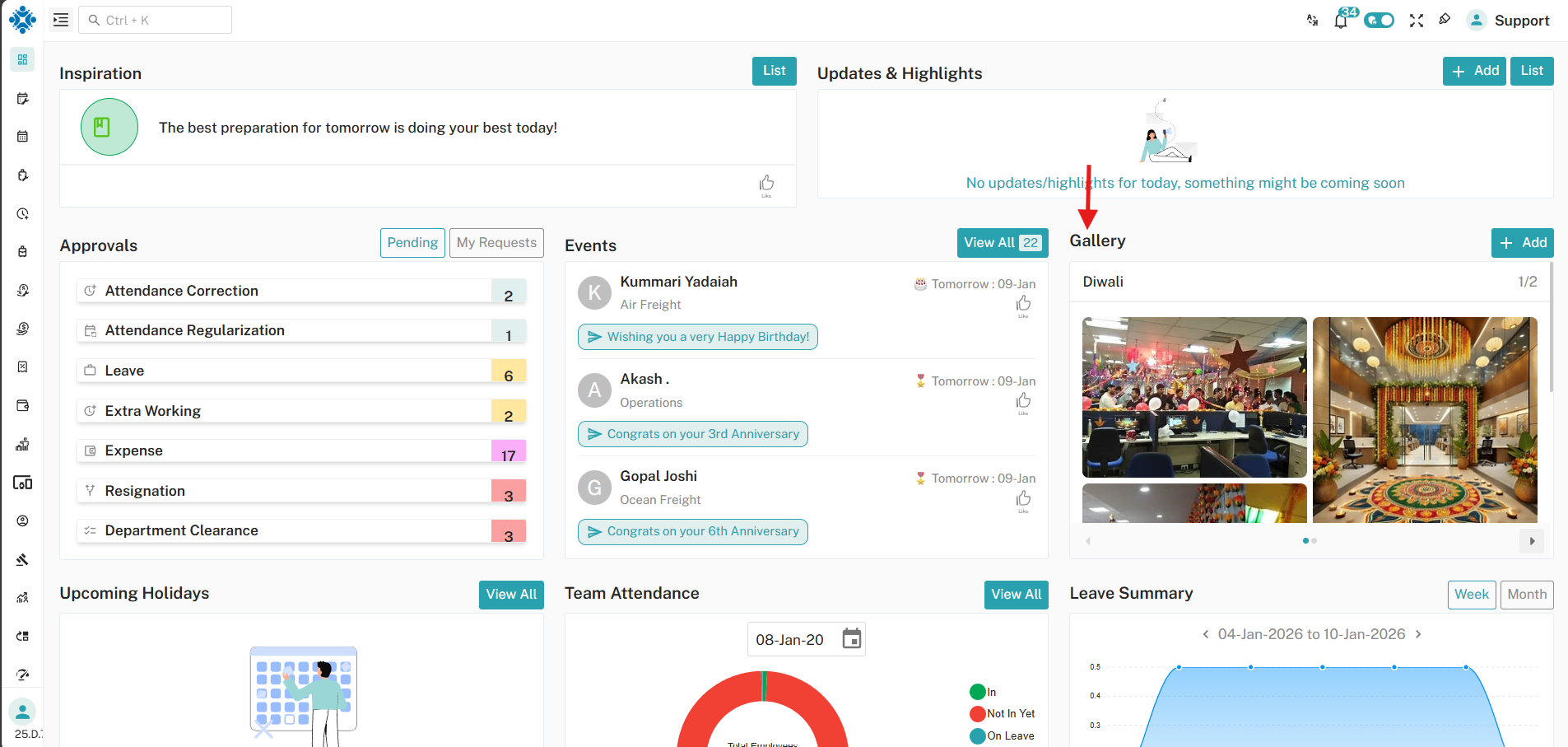
Uploaded photos are displayed in the Gallery section on the Dashboard.
Album Features
- Displays images from created albums
- Provides a visual overview of events and activities
- Accessible to users directly from the dashboard
This ensures that important moments and updates are visible to all users.
Album Workflow
- View existing albums in the system
- Create a new album using the Add button
- Upload photos to the album using the Upload button
- View uploaded images in the Dashboard Gallery section
Key Benefits
- Organized album-based photo management
- Easy photo uploads and visibility
- Centralized gallery accessible from the dashboard
- Enhances user engagement with visual content
- Simple and user-friendly interface