Asset Approvals – All Requests
Last Updated: January 9, 2026
Document Version: 1.0
Prepared for: Emgage HRMS Implementation Team
The Asset Approvals – All Requests screen provides administrators and approvers with a centralized, read-only overview of all asset requests raised by employees.
This tab acts as the default landing page when navigating to Asset → Asset Approvals, ensuring complete visibility of asset allocation and return-related activities.
Navigation Path
Asset → Asset Approvals
- When the Asset Approvals menu is selected from the left sidebar, the All Requests tab opens by default.
Available Tabs (Overview Only)
The Asset Approvals module contains the following tabs:
- All Requests (default)
- Request Approval
- Return Requests
- Return Overdue
- Due List
This document covers only the All Requests tab. Other tabs are not explained here.
All Requests – Overview
The All Requests tab displays a consolidated list of all asset-related requests, regardless of their approval status.
It allows approvers to track request details, monitor timelines, and view final approval status at a glance.
Asset Requests Table
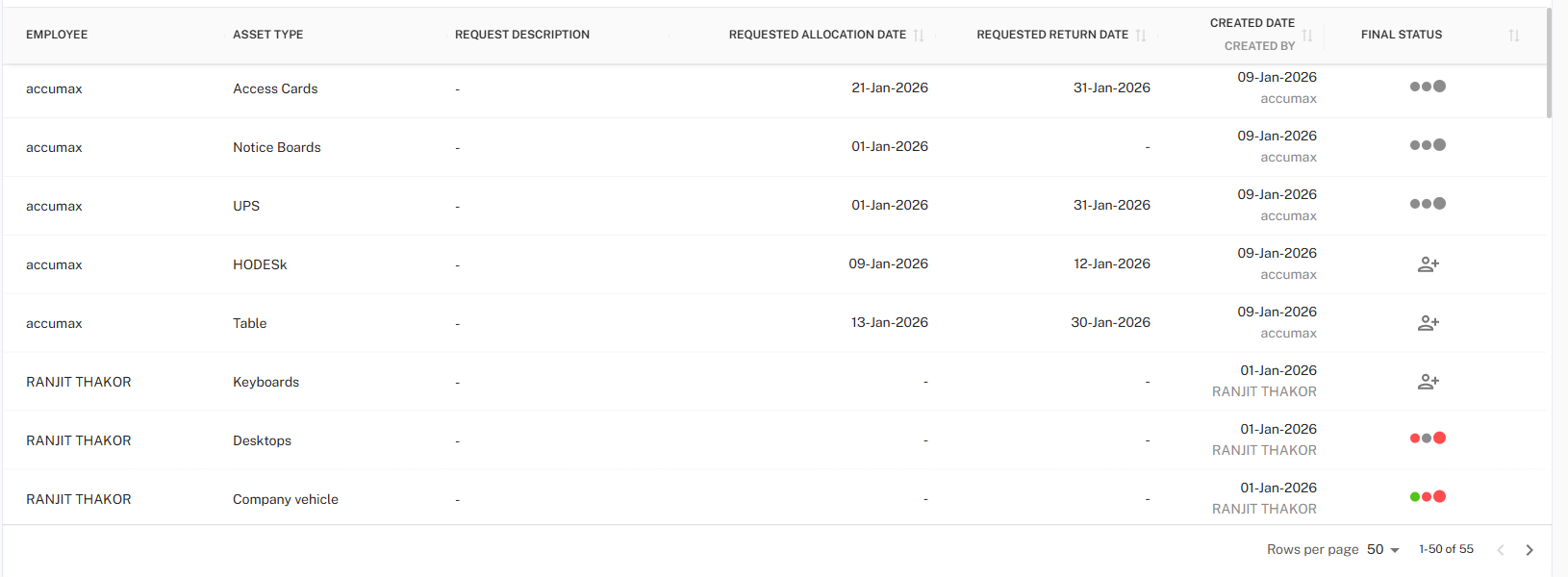
The Asset Requests Table is the core component of the All Requests tab.
Table Columns
| Column Name | Description |
|---|---|
| Employee | Name of the employee who raised the asset request. |
| Asset Type | Category of the requested asset (e.g., HOD Desk, Table, Keyboard). |
| Request Description | Additional information or remarks provided by the requester. |
| Requested Allocation Date | Date on which the employee requested asset allocation. |
| Requested Return Date | Expected date for asset return (if provided). |
| Created Date | Date when the request was created along with creator name. |
| Final Status | Visual representation of the request’s approval status. |
Final Status Indicators
The Final Status column uses visual indicators to represent the approval workflow state.
| Indicator | Meaning |
|---|---|
| 🟢 Green Dot | Approved |
| 🔴 Red Dot | Rejected |
| ⚪ Grey Dot | Pending |
These indicators help approvers quickly understand the request outcome without opening individual records.
Action Icon (Allocate / Assign)
In applicable rows, an action icon (👤➕) is displayed:
| Icon | Description |
|---|---|
| 👤➕ | Opens the Allocate Asset form to assign an asset to the employee. |
Allocate Asset Modal
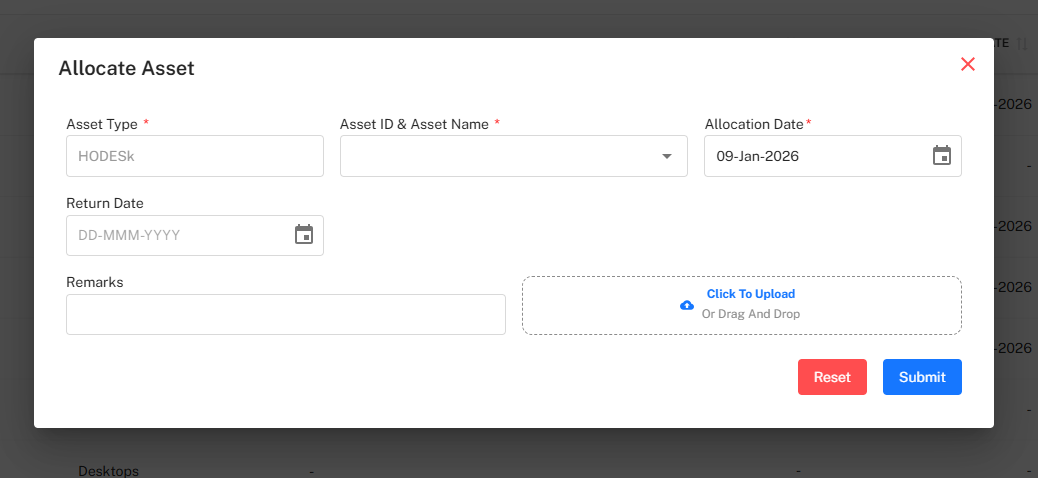
The Allocate Asset modal is used to allocate an asset against an approved request.
Mandatory Fields
| Field | Description |
|---|---|
| Asset Type | Auto-populated based on the request. |
| Asset ID & Asset Name | Select the specific asset to allocate. |
| Allocation Date | Date on which the asset is allocated to the employee. |
Optional Fields
| Field | Description |
|---|---|
| Return Date | Expected return date of the asset. |
| Remarks | Additional notes related to allocation. |
| Attachment Upload | Upload supporting documents (optional). |
Actions
- Reset – Clears all entered data
- Submit – Confirms asset allocation
Toolbar Controls
Located at the top-right of the All Requests table.

Available Actions
- Export – Download request data
- Filter – Open advanced filter panel
Export Data
Users can export the All Requests data for reporting or audit purposes.

Supported Formats
| Format | Description |
|---|---|
| CSV | Lightweight data export |
| Excel | Structured export for analysis and internal reporting |
| Static report format |
Filter Panel
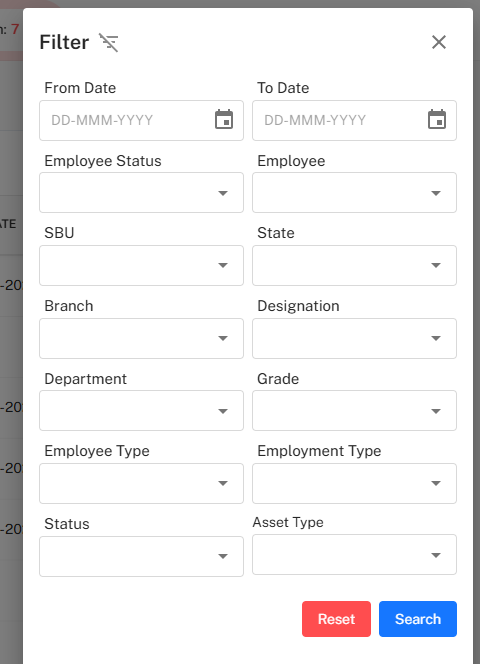
The Filter panel allows users to narrow down asset requests based on multiple criteria.
Available Filter Fields
| Category | Fields |
|---|---|
| Date Range | From Date, To Date |
| Employee Details | Employee, Employee Status |
| Organization | SBU, State, Branch, Department |
| Job Details | Designation, Grade |
| Employment | Employee Type, Employment Type |
| Asset | Asset Type |
| Request Status | Status |
Filter Actions
- Search – Apply selected filters
- Reset – Clear all filters
Key Behaviors
- The All Requests tab is read-only for tracking and visibility.
- Allocation actions are available only when permitted by workflow.
- Pagination and row count controls are available at the bottom of the table.
Best Practices
- Use filters to quickly locate employee-specific requests.
- Monitor Final Status indicators for pending or rejected requests.
- Export data periodically for audits and reconciliation.
- Ensure allocation details are accurate before submission.