Asset Approvals – Request Approval
Last Updated: January 9, 2026
Document Version: 1.0
Prepared for: Emgage HRMS Implementation Team
The Asset Approvals – Request Approval tab allows authorized users to review pending asset requests and take approval actions.
This screen is used specifically for decision-making on asset requests before allocation.
Navigation Path
Asset → Asset Approvals → Request Approval
- By default, the All Requests tab opens.
- Clicking on Request Approval opens this tab and displays only pending approval requests.
Available Tabs (Overview Only)
The Asset Approvals module contains the following tabs:
- All Requests
- Request Approval
- Return Requests
- Return Overdue
- Due List
This document covers only the Request Approval tab.
Request Approval – Overview
The Request Approval tab displays all asset requests that are awaiting approval or rejection.
Approvers can select one or multiple requests, add remarks, and take bulk actions.

Request Approval Table
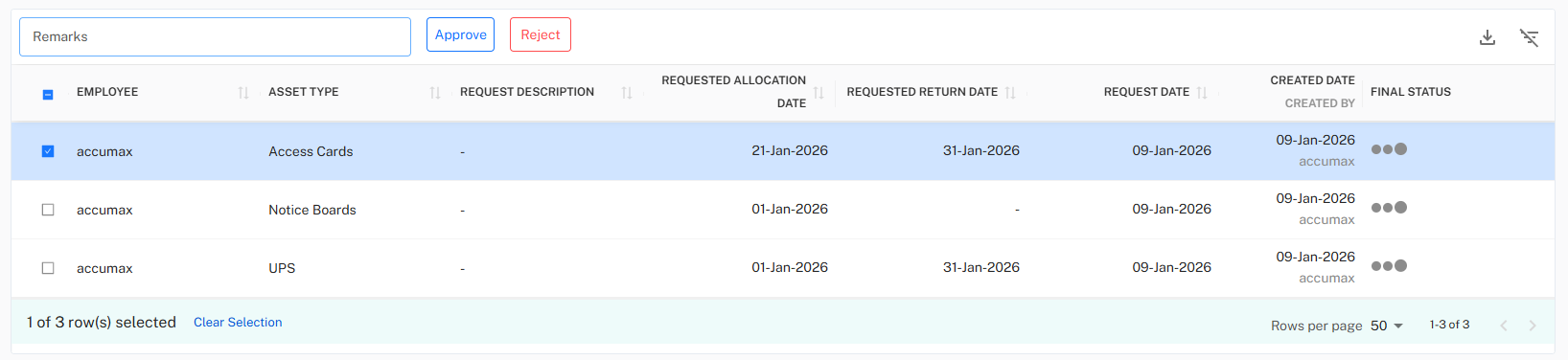
The table lists all pending asset requests requiring action.
Table Columns
| Column Name | Description |
|---|---|
| Select Checkbox | Allows selection of one or multiple requests for bulk action. |
| Employee | Name of the employee who raised the asset request. |
| Asset Type | Category of the requested asset (e.g., Access Cards, UPS). |
| Request Description | Additional details or remarks from the requester. |
| Requested Allocation Date | Date requested for asset allocation. |
| Requested Return Date | Expected return date, if applicable. |
| Request Date | Date on which the request was submitted. |
| Created Date | Date and user who created the request. |
| Final Status | Displays the current approval status (pending). |
Row Selection Behavior
- Users can select single or multiple rows using checkboxes.
- Once selected, a summary appears showing the number of selected rows.
- A Clear Selection option is available to deselect all rows.
Approval Action Panel
When one or more requests are selected, the approval action panel becomes available.
Action Fields
| Field | Description |
|---|---|
| Remarks | Optional while approving a request, but mandatory while rejecting a request. |
Action Buttons
| Button | Description |
|---|---|
| Approve | Approves the selected asset request(s). |
| Reject | Rejects the selected asset request(s). |
Remarks are recommended when rejecting a request for audit clarity.
Toolbar Controls
Located at the top-right of the Request Approval table.

Available Actions
- Export – Download pending request data
- Filter – Open advanced filter panel
Export Data
Pending asset requests can be exported for review or audit purposes.

Supported Formats
| Format | Description |
|---|---|
| CSV | Lightweight data export |
| Excel | Structured export for analysis |
| Static report format |
Filter Panel
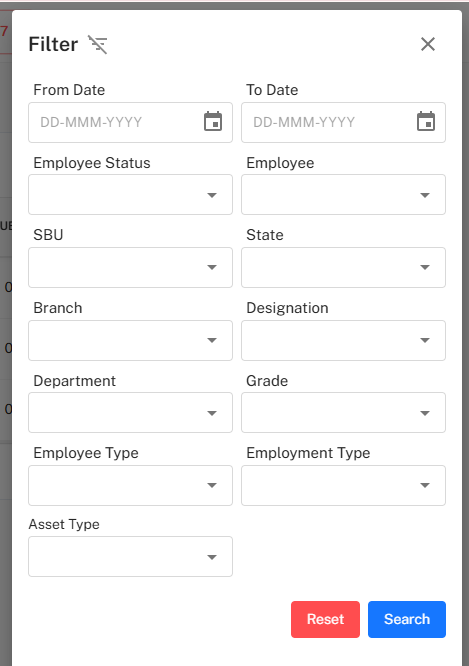
The Filter panel allows approvers to narrow down pending requests.
Available Filter Fields
| Category | Fields |
|---|---|
| Date Range | From Date, To Date |
| Employee Details | Employee, Employee Status |
| Organization | SBU, State, Branch, Department |
| Job Details | Designation, Grade |
| Employment | Employee Type, Employment Type |
| Asset | Asset Type |
Filter Actions
- Search – Apply selected filters
- Reset – Clear all filters
Key Behaviors
- Only pending requests appear in this tab.
- Bulk approval or rejection is supported.
- Approval actions immediately update the request status.
- Pagination and row count controls are available at the bottom of the table.
Best Practices
- Review request details carefully before approval.
- Use remarks especially while rejecting requests.
- Apply filters to handle large request volumes efficiently.
- Approve requests promptly to avoid operational delays.