Asset Approvals – Return Overdue
Last Updated: January 9, 2026
Document Version: 1.0
Prepared for: Emgage HRMS Implementation Team
The Asset Approvals – Return Overdue tab provides administrators and asset managers with a focused view of assets whose return dates have passed or are nearing return deadlines.
This screen helps ensure timely follow-ups, accountability, and compliance with asset return policies.
Navigation Path
Asset → Asset Approvals → Return Overdue
- When Asset Approvals is selected from the left sidebar, the All Requests tab opens by default.
- Clicking on Return Overdue opens the Return Overdue tab.
Available Tabs (Overview Only)
The Asset Approvals module contains the following tabs:
- All Requests
- Request Approval
- Return Requests
- Return Overdue
- Due List
This document covers only the Return Overdue tab.
Return Overdue – Overview
The Return Overdue tab displays assets that are past their requested return date or approaching the due date.
It highlights overdue duration, allocation details, and allows administrators to send reminder communications.
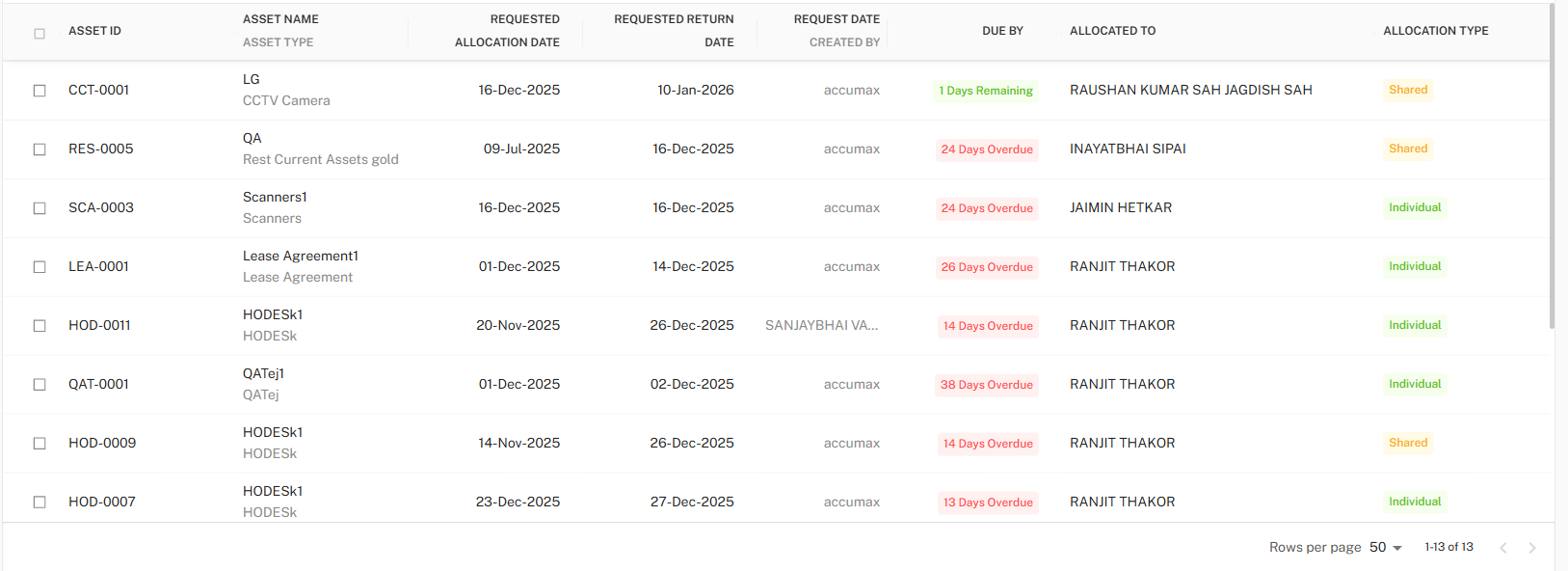
Return Overdue Table
The table provides a comprehensive list of overdue assets along with their allocation details.
Table Columns
| Column Name | Description |
|---|---|
| Select Checkbox | Allows selection of one or more records for bulk actions. |
| Asset ID | Unique identifier assigned to the asset. |
| Asset Name / Asset Type | Name and category of the allocated asset. |
| Requested Allocation Date | Date on which the asset was allocated. |
| Requested Return Date | Expected return date of the asset. |
| Request Date | Date when the allocation request was created. |
| Due By | Displays overdue status or remaining days (e.g., 24 Days Overdue, 1 Day Remaining). |
| Allocated To | Employee currently holding the asset. |
| Allocation Type | Indicates whether the asset is Individual or Shared. |
Due Status Indicators
The Due By column visually indicates the urgency of the return:
| Indicator | Meaning |
|---|---|
| Green – Days Remaining | Asset is nearing return date |
| Red – Days Overdue | Asset return date has passed |
These indicators help prioritize follow-ups.
Row Selection Behavior
- Users can select single or multiple rows using checkboxes.
- A selection summary appears at the bottom of the table once rows are selected.
- Clear Selection option allows deselecting all selected records.
Reminder Action
When one or more overdue assets are selected, the Send Reminder Mail button becomes available.
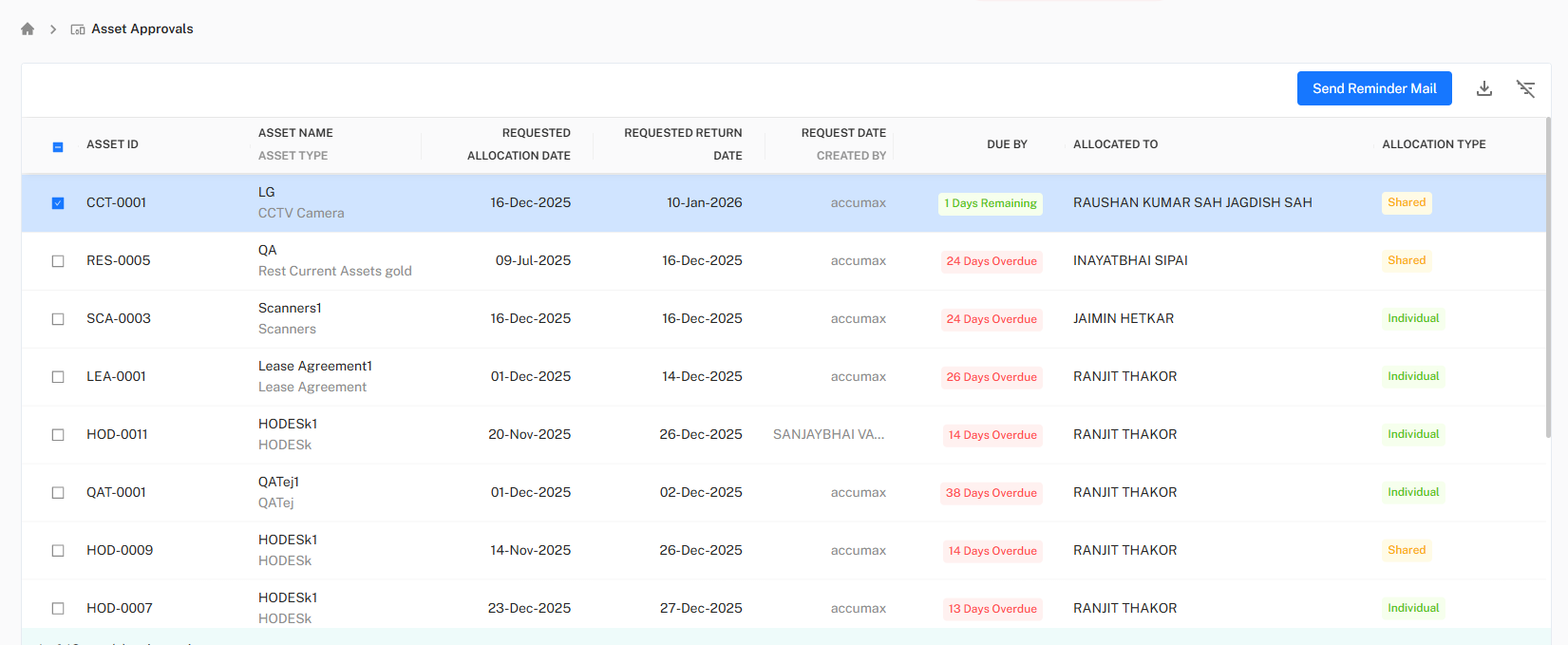
Send Reminder Mail
- Sends reminder notifications to employees holding overdue assets.
- Helps enforce timely asset returns without manual follow-up.
Toolbar Controls
Located at the top-right corner of the Return Overdue table.

Available Actions
- Export – Download overdue asset data
- Filter – Open advanced filter panel
Export Data
Overdue asset records can be exported for reporting and compliance tracking.

Supported Formats
| Format | Description |
|---|---|
| CSV | Lightweight data export |
| Excel | Structured export for analysis and tracking |
| Static report format |
Filter Panel
The Filter panel allows narrowing down overdue assets using organizational and employee criteria.
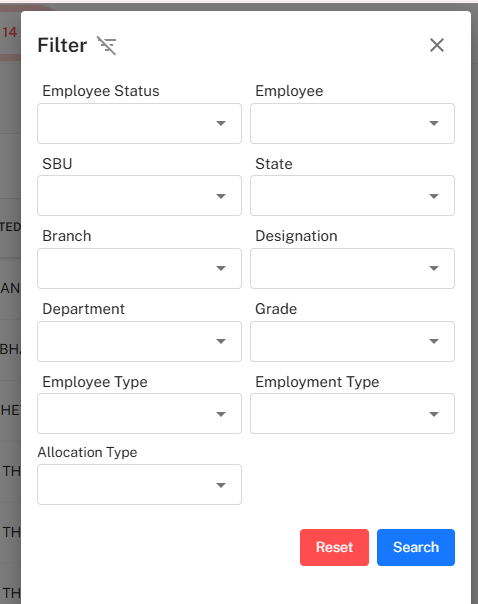
Available Filter Fields
| Category | Fields |
|---|---|
| Employee Details | Employee, Employee Status |
| Organization | SBU, State, Branch, Department |
| Job Details | Designation, Grade |
| Employment | Employee Type, Employment Type |
| Allocation | Allocation Type |
Filter Actions
- Search – Apply selected filters
- Reset – Clear all filters
Key Behaviors
- Only overdue or near-due assets appear in this tab.
- Overdue duration is calculated automatically based on return date.
- Bulk reminder emails can be sent.
- Pagination and row count controls are available at the bottom of the table.
Best Practices
- Monitor the Return Overdue tab daily.
- Send reminder mails promptly for overdue assets.
- Prioritize assets with higher overdue duration.
- Export overdue data regularly for compliance audits.
- Coordinate with department heads for unresolved overdue assets.