Assets Notifications
Last Updated: January 2026
📋 What is Assets Notifications?
Assets Notifications helps you send reminder emails to employees about overdue or upcoming asset returns. Track asset status and maintain accountability with automated notifications.
Key Features:
- 📧 Send reminder emails for overdue assets
- ⏰ Track return dates and overdue items
- ✅ Get instant confirmation when reminders are sent
🚀 How to Send Reminder Notifications
Step 1: Navigate to Assets Notifications
- Go to Asset → Assets Setup in the sidebar
- Click on Due Notification Configuration tab
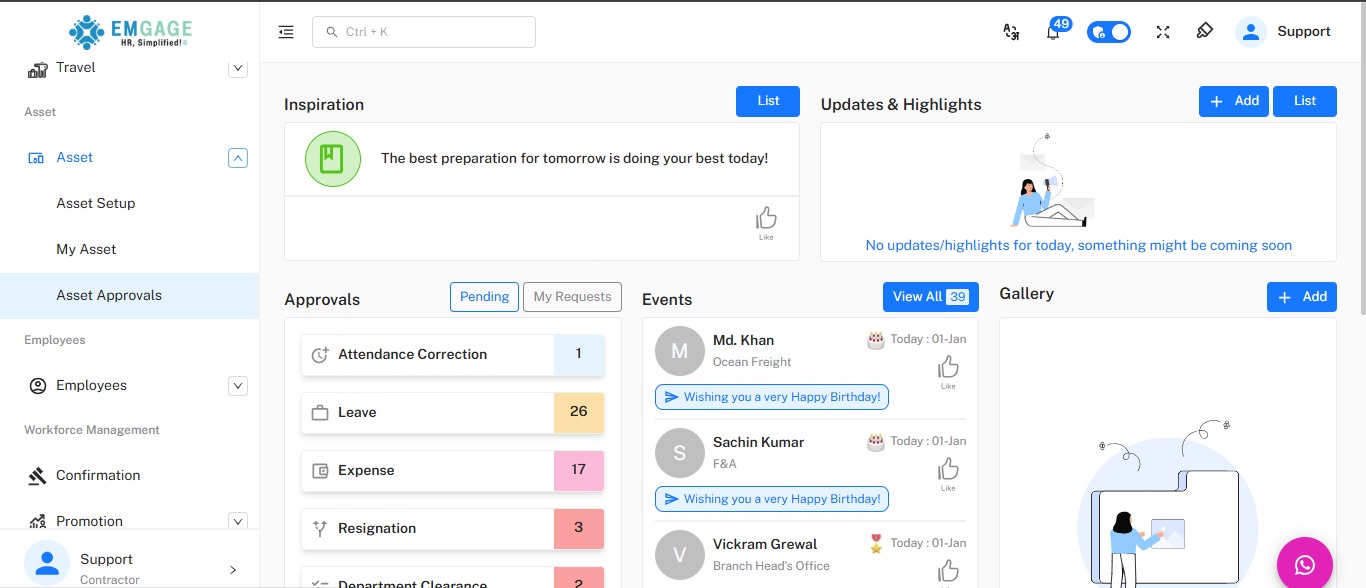
Navigate to Asset module, then select Assets Setup from the submenu.
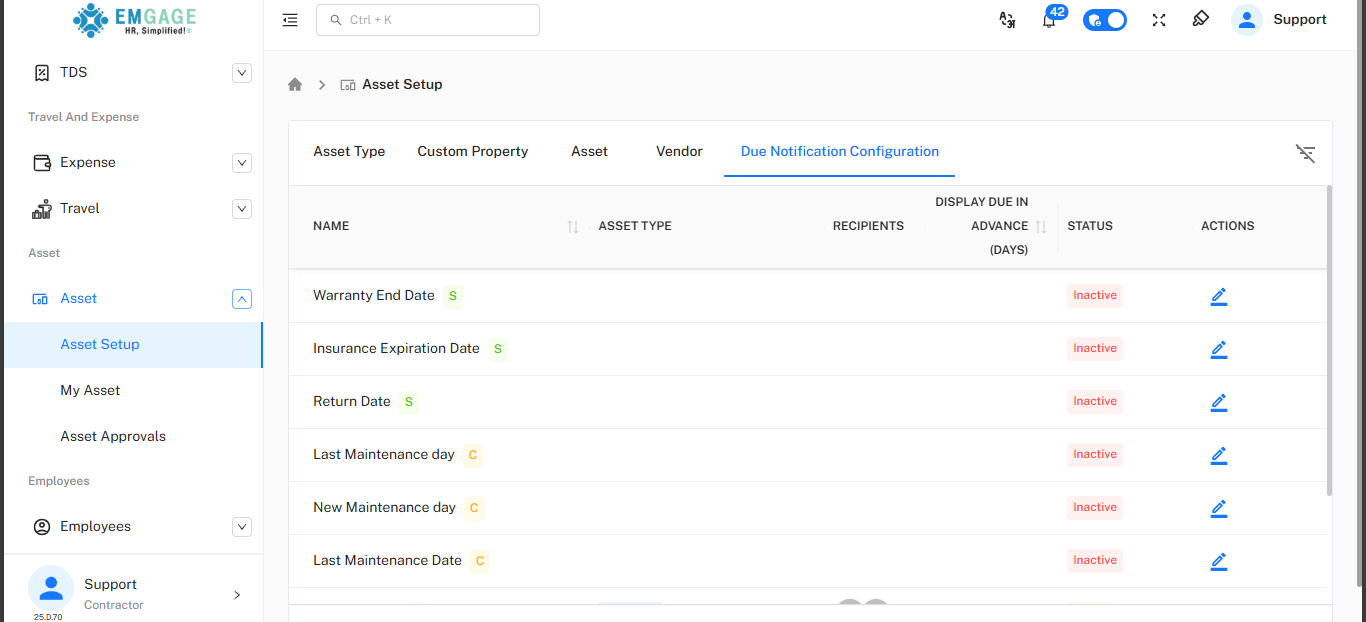
Now Click on Edit Button from the actions.
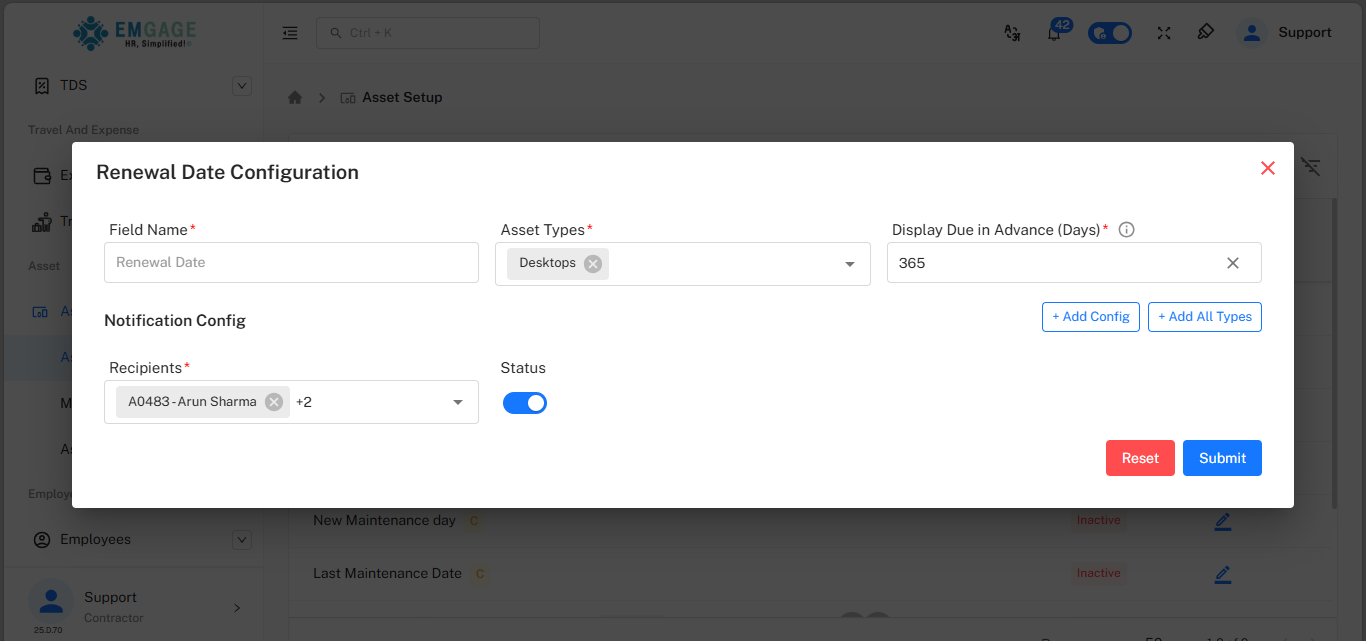
Fill All the fields then click on submit.
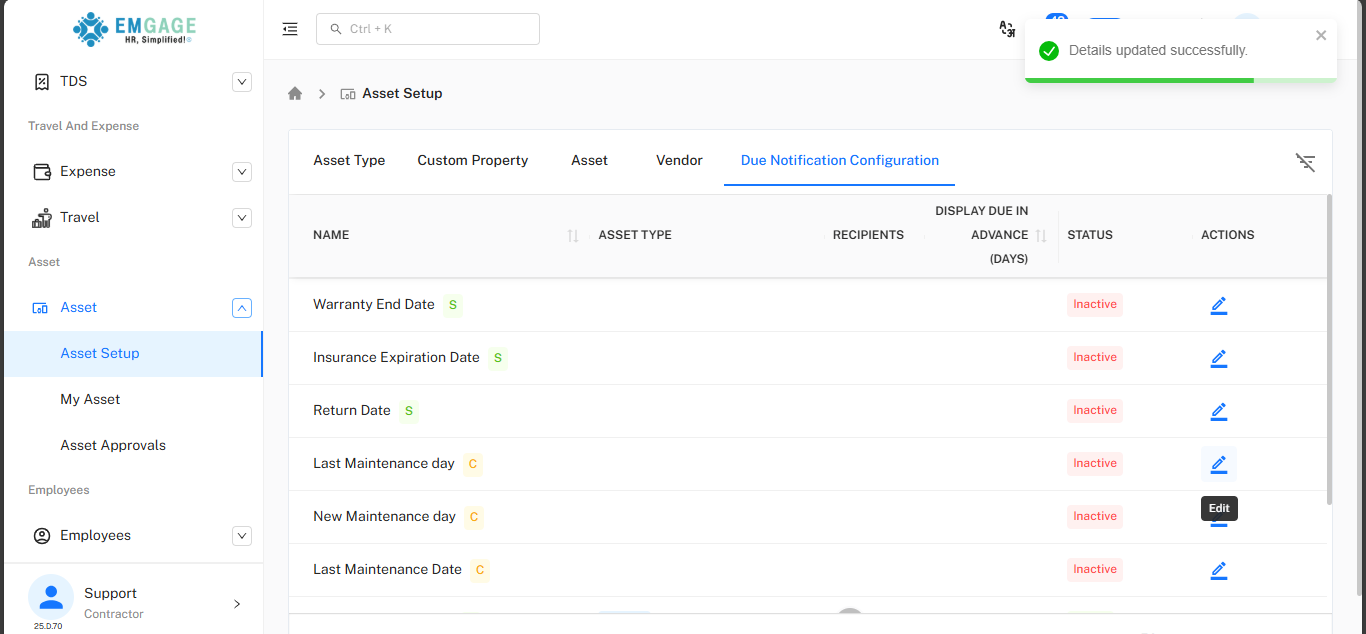
The success toast will appear.
Step 2: Select Assets
- Review the list of overdue assets
- Check the boxes next to assets that need reminders
- You can select one or multiple assets
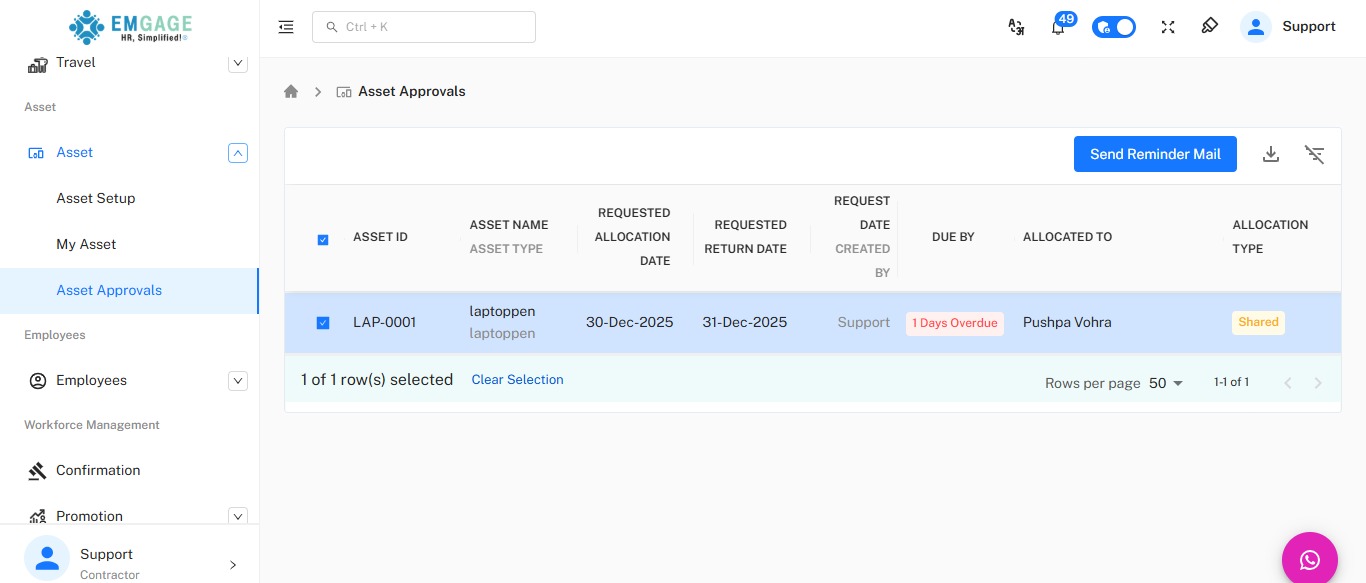
Select assets using checkboxes in the first column. The table shows asset details, allocation dates, and overdue status.
Step 3: Send Reminder
- Click Send Reminder Mail button
- Wait for confirmation
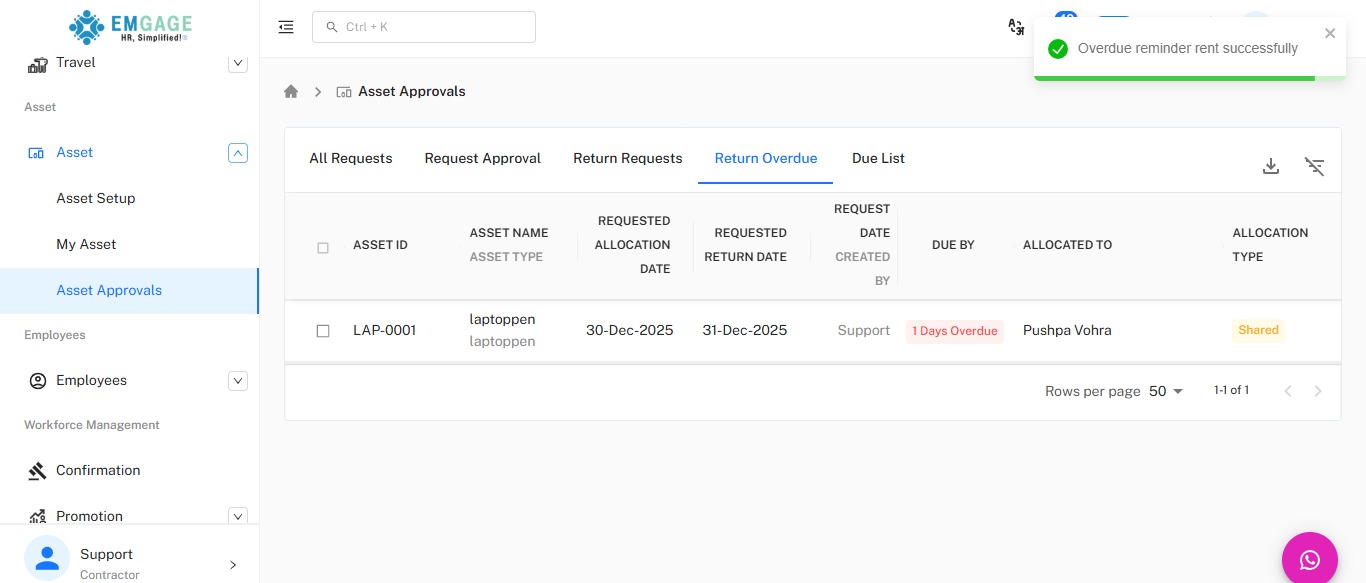
Green success notification confirms the reminder email was sent successfully.
📊 Understanding Status Indicators
| Badge | Meaning |
|---|---|
| 🔴 Red | Asset is overdue (e.g., "1 Days Overdue") |
| 🟡 Yellow | Asset is shared among users |
| 🟢 Green | Asset is dedicated to one user |
📑 Available Tabs
| Tab | Purpose |
|---|---|
| All Requests | View all asset requests |
| Request Approval | Approve new allocation requests |
| Return Requests | Process return requests |
| Return Overdue | View and manage overdue assets |
| Due List | See assets approaching return date |
🔔 Notification Types
| Type | When Sent | Recipient |
|---|---|---|
| 📧 Allocation Approval | When request is approved | Employee who requested |
| ⏰ Return Reminder | Before return date | Employee with asset |
| 🔴 Overdue Alert | After return date passed | Employee with overdue asset |
| ✅ Return Confirmation | When return is processed | Employee who returned |
🎯 Quick Tips
- ✅ Check Return Overdue tab daily
- ✅ Use Due List tab to send reminders before assets become overdue
- ✅ Select multiple assets to send bulk reminders
🆘 Quick Troubleshooting
Reminder Email Not Sent
- Check email configuration in Settings
- Verify employee email address is correct
- Check email logs for errors
Cannot See Overdue Assets
- Check you have permissions for Assets Notifications
- Make sure you're on the Return Overdue tab
- Refresh browser (Ctrl+F5)
Success Notification Not Appearing
- Refresh the page (F5)
- Check email logs in Settings
- Confirm with recipient if email was received
Cannot Select Multiple Assets
- Use checkboxes in the first column
- Make sure you're on Return Overdue or Due List tab
- Refresh the page (F5)