Asset Approvals
Last Updated: January 2026
📋 What is Asset Approvals?
The Asset Approvals module is used by administrators or approvers to review, approve, or reject asset allocation and return requests raised by employees.
From this screen, approvers can manage the full lifecycle of requests, allocate new assets, monitor overdue items, and trigger reminder notifications.
🧭 Navigating to Asset Approvals
- Go to Asset → Asset Approvals from the left sidebar.
- The page opens with multiple tabs such as All Requests, Request Approval, Return Requests, Return Overdue, and Due List.
📂 All Requests Tab
The All Requests tab shows every asset-related request in one consolidated list.
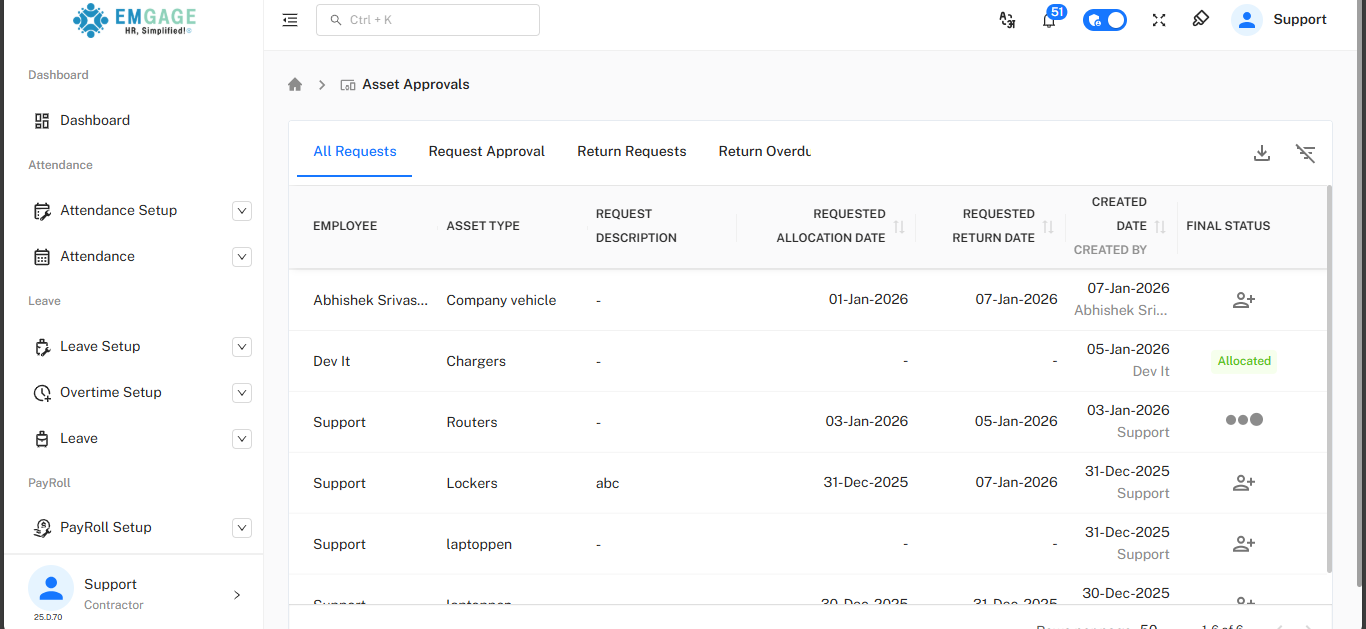
Key Columns
- Employee: Employee who raised or owns the request.
- Asset Type / Asset Name: Type of asset (e.g., Company vehicle, Routers, Lockers) and its name.
- Requested Allocation / Return Dates: Dates for allocation and expected return.
- Created Date / Created By: When and by whom the request entry was made.
- Final Status: Overall status (e.g., Allocated, Pending, etc.).
Use this tab for an overview of all ongoing and completed asset requests.
✅ Request Approval Tab
The Request Approval tab is where approvers review and act on new allocation requests.
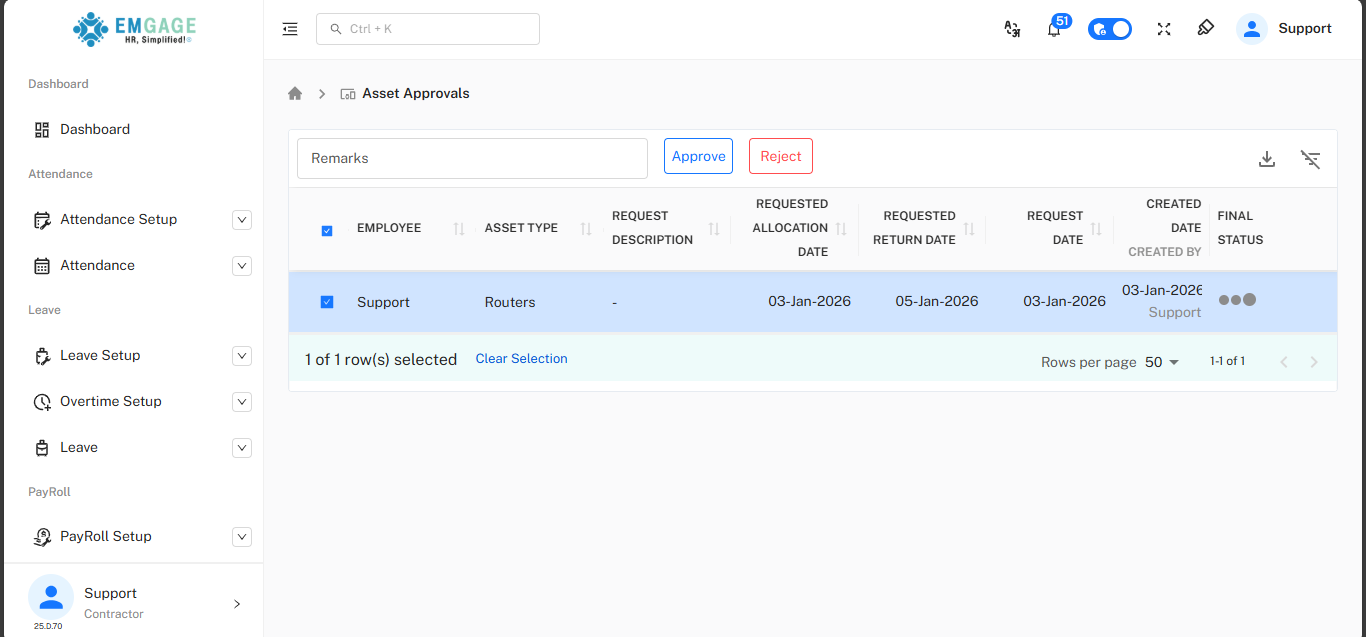
Approving or Rejecting Requests
- Select one or more rows using the checkbox in the Employee column.
- Optionally enter Remarks in the input field above the table.
- Click Approve to allocate the asset or Reject to decline the request.
After approval, the request moves out of the Request Approval queue and appears as processed in other relevant tabs.
🧾 Allocating an Asset (Allocate Asset Modal)
When approving or manually allocating an asset, an Allocate Asset popup appears.
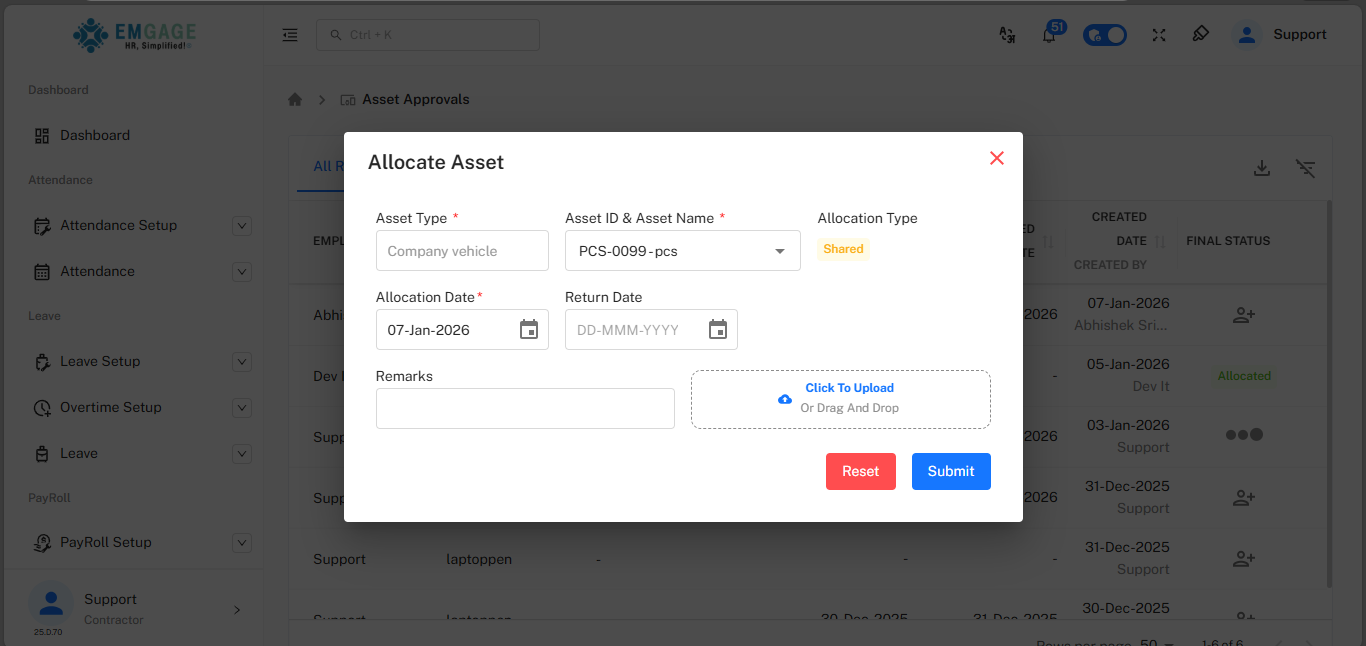
Fields in the Allocate Asset Modal
- Asset Type: The asset category (e.g., Company vehicle).
- Asset ID & Asset Name: Select the specific asset record to allocate.
- Allocation Type: Indicates if the asset is Shared or dedicated.
- Allocation Date: Start date from which the asset is allocated.
- Return Date: Optional end date when the asset should be returned.
- Remarks & Attachment: Add comments and upload supporting documents if needed.
Click Submit to confirm the allocation or Reset to clear entered values.
🔄 Return Requests Tab
The Return Requests tab lists assets for which employees have initiated a return.
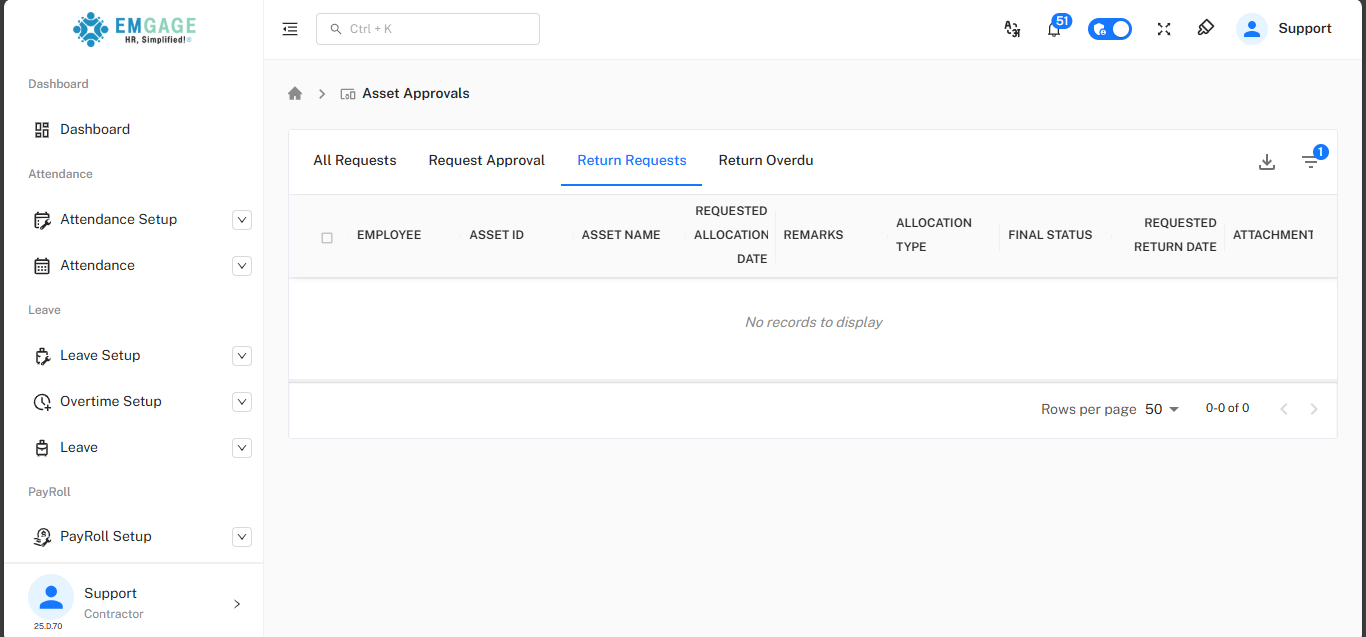
- Each entry shows employee, asset details, requested allocation date, remarks, allocation type, requested return date, and any attachments.
- Use this tab to verify return details, check attachments, and update final status after physical handover.
If there are no active return requests, the grid displays No records to display.
⏰ Return Overdue Tab
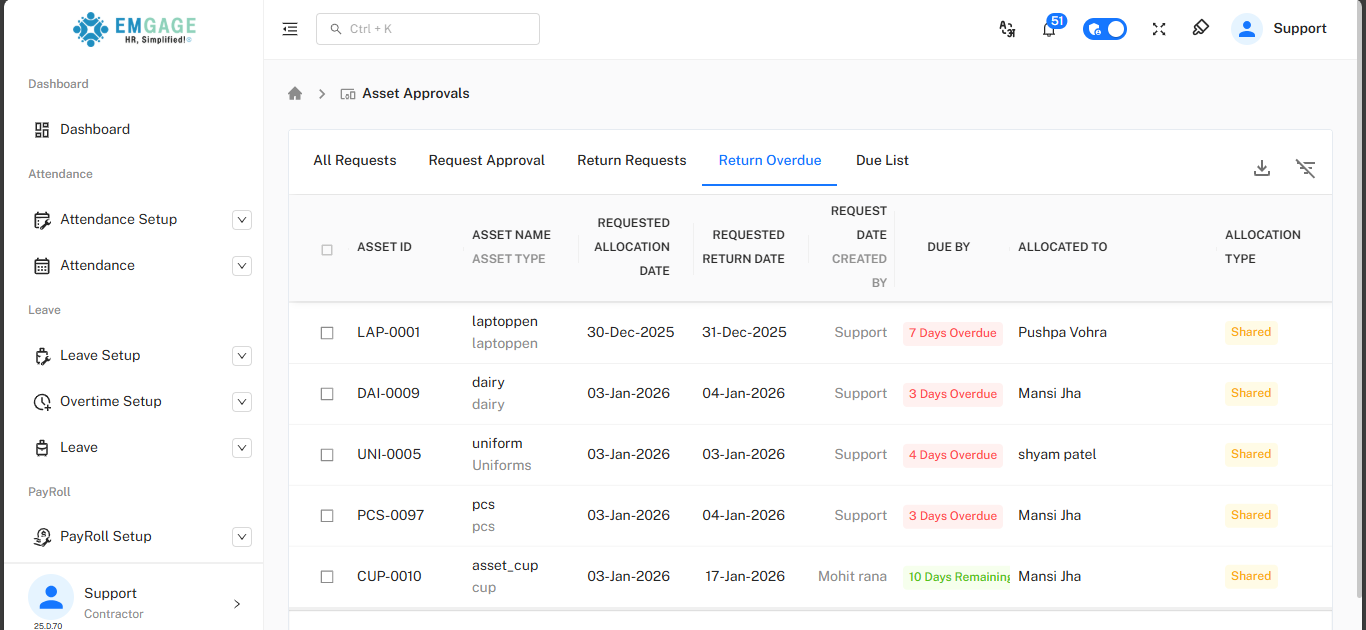
The Return Overdue tab highlights assets whose return dates have passed or are close to overdue.
Information Displayed
- Asset ID / Asset Name & Type
- Requested Allocation & Return Dates
- Request Date / Created By
- Due By: Shows badges like “3 Days Overdue”, “4 Days Overdue”, or “10 Days Remaining” in colored labels.
- Allocated To / Allocation Type: Employee name and whether the asset is Shared.
This tab is used together with reminder emails so approvers can quickly act on overdue or soon‑due assets.
📬 Sending Reminder Emails
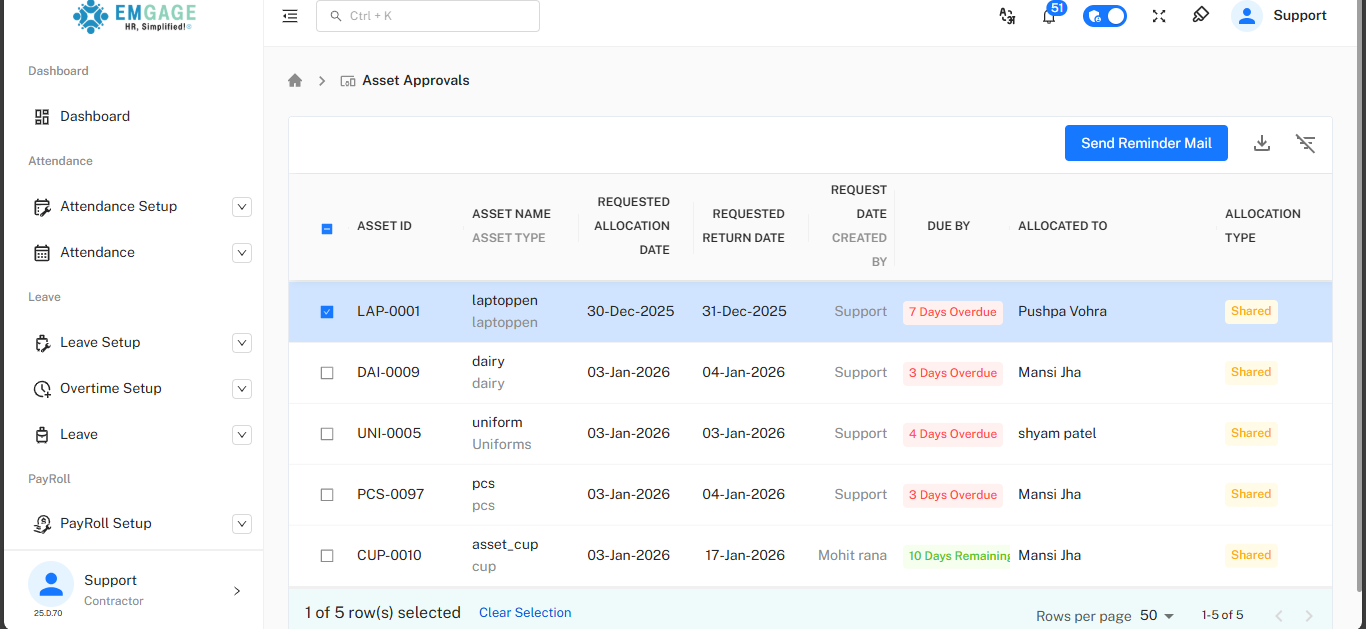
From the Return Overdue tab, approvers can send reminder emails to employees with overdue or near‑due assets.
Steps to Send Reminder Mail
- Select one or more assets using the checkboxes.
- Click the Send Reminder Mail button at the top‑right of the grid.
- A green success notification confirms that the reminder email has been sent.
Use this feature regularly to reduce overdue assets and maintain accountability.
📅 Due List Tab
The Due List tab shows assets that are approaching their return date but are not yet overdue.
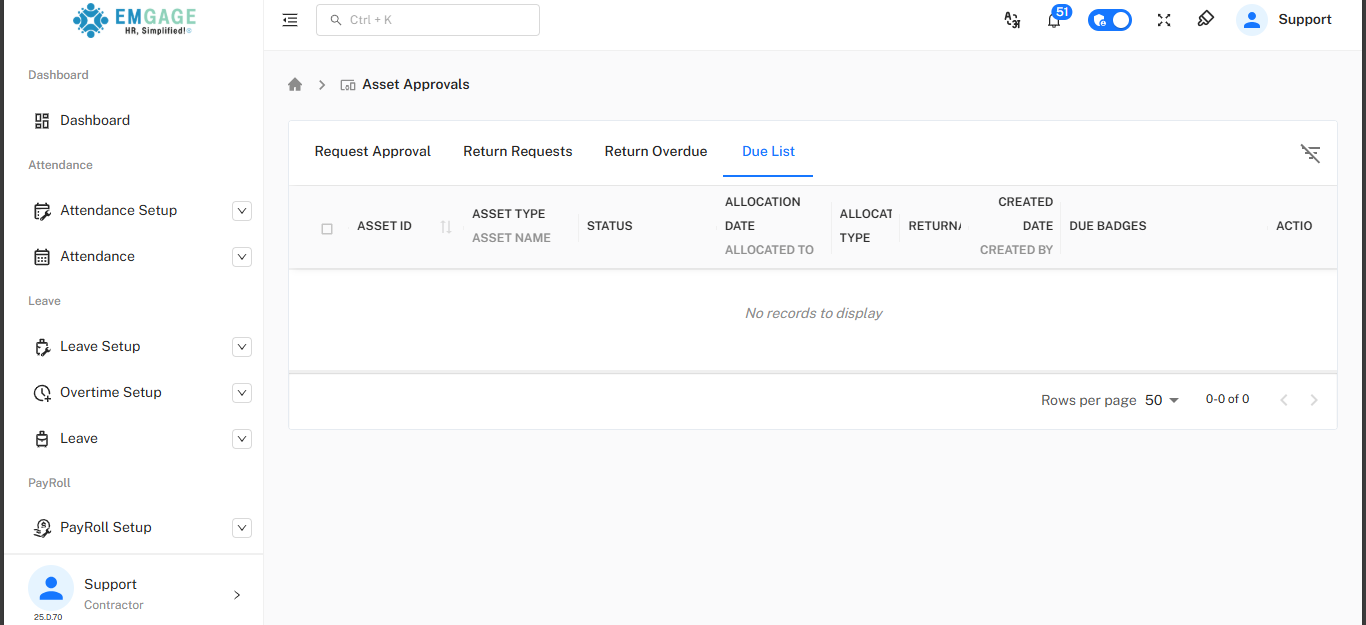
- Columns include Asset ID, Asset Type / Asset Name, Status, Allocation Date, Allocation Type, Return / Created Date, Due Badges, and Actions.
- Use this tab to proactively follow up before assets become overdue, often in combination with reminder notifications.
If no assets are currently nearing due date, this tab will also show No records to display.
🔔 Status & Badges
Across the Asset Approvals tabs, colored badges and statuses convey quick information.
- Overdue badges (e.g., “3 Days Overdue”) help approvers prioritize urgent actions.
- Remaining badges (e.g., “10 Days Remaining”) indicate assets that will soon be due and may require reminders.