Asset Type
Last Updated: December 30, 2025
Document Version: 1.0
Prepared for: Emgage HRMS Implementation Team
The Asset Type module allows administrators to define asset categories and configure the fields, rules, and metadata that determine how assets are recorded and managed in the system.
Asset Types act as templates for asset records, ensuring consistency across asset tracking, allocation, auditing, and lifecycle management.
This module supports custom field configuration, applicability rules, status control, and structured asset classification.
System Overview
The Asset Type module consists of the following key components:
- Asset Type Table – Displays all configured asset categories
- Toolbar Controls – Create new asset types and apply filters
- Add Asset Type Form – Define asset category and field structure
- Custom Fields Configuration – Add, enable, disable, or mandate fields
- Applicability Rule Builder – Restrict asset type usage (optional)
- Edit Asset Type – Modify existing configurations
- Filter Panel – Search and refine asset type records
Asset Type Table
The Asset Type Table displays configured asset categories and their usage statistics.
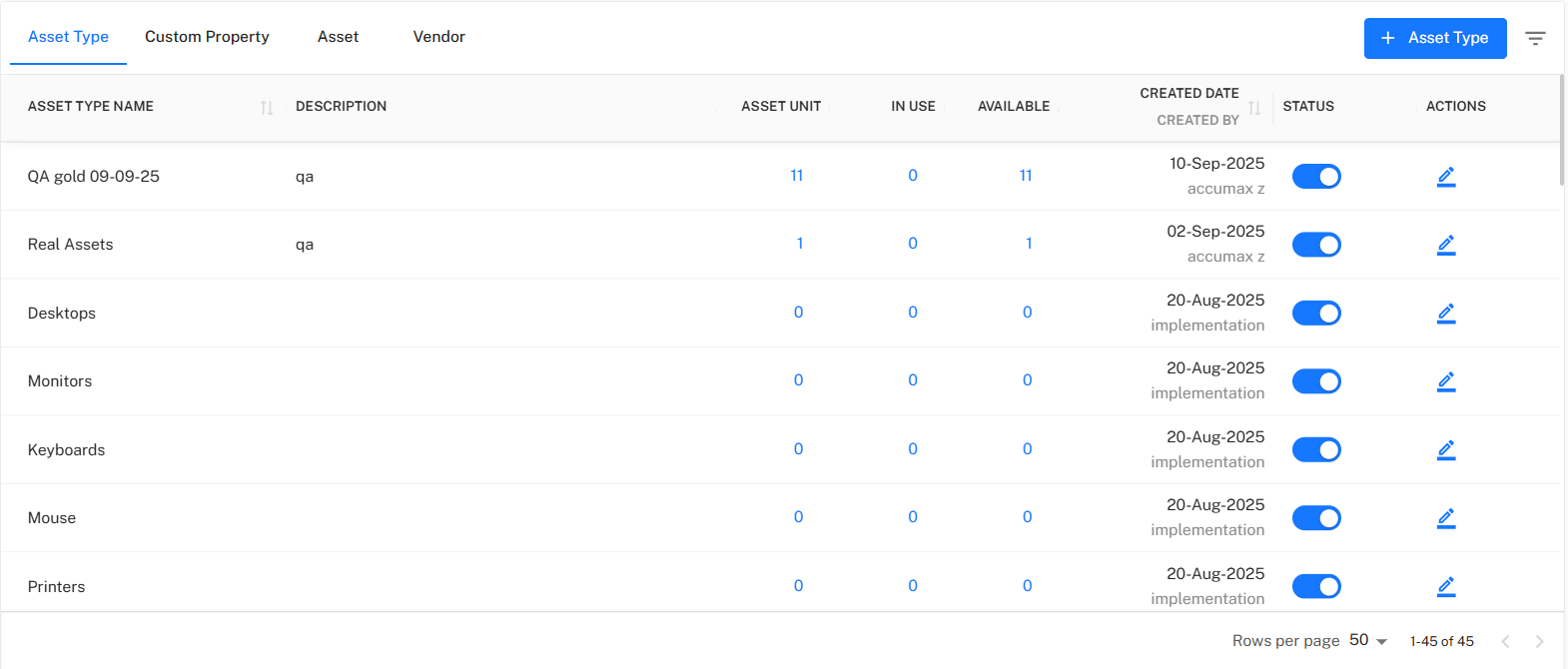
Table Columns
| Column | Description |
|---|---|
| Asset Type Name | Name of the asset category (e.g., Laptop, Desktop, Monitor). |
| Description | Additional details explaining asset purpose or classification. |
| Asset Unit | Total number of assets created under this type. |
| In Use | Number of assets currently allocated. |
| Available | Number of assets not in use. |
| Created Date / Created By | User name and timestamp when the asset type was created. |
| Status | Toggle to Activate / Deactivate asset type. |
| Actions | Edit asset type and field configurations. |
Toolbar Controls
The Toolbar allows administrators to create and manage asset type records.

Toolbar Options
- + Asset Type → Create a new asset type
- Filter → Search asset types using specific criteria
Add Asset Type
Administrators can create a new asset type and configure the fields associated with it.
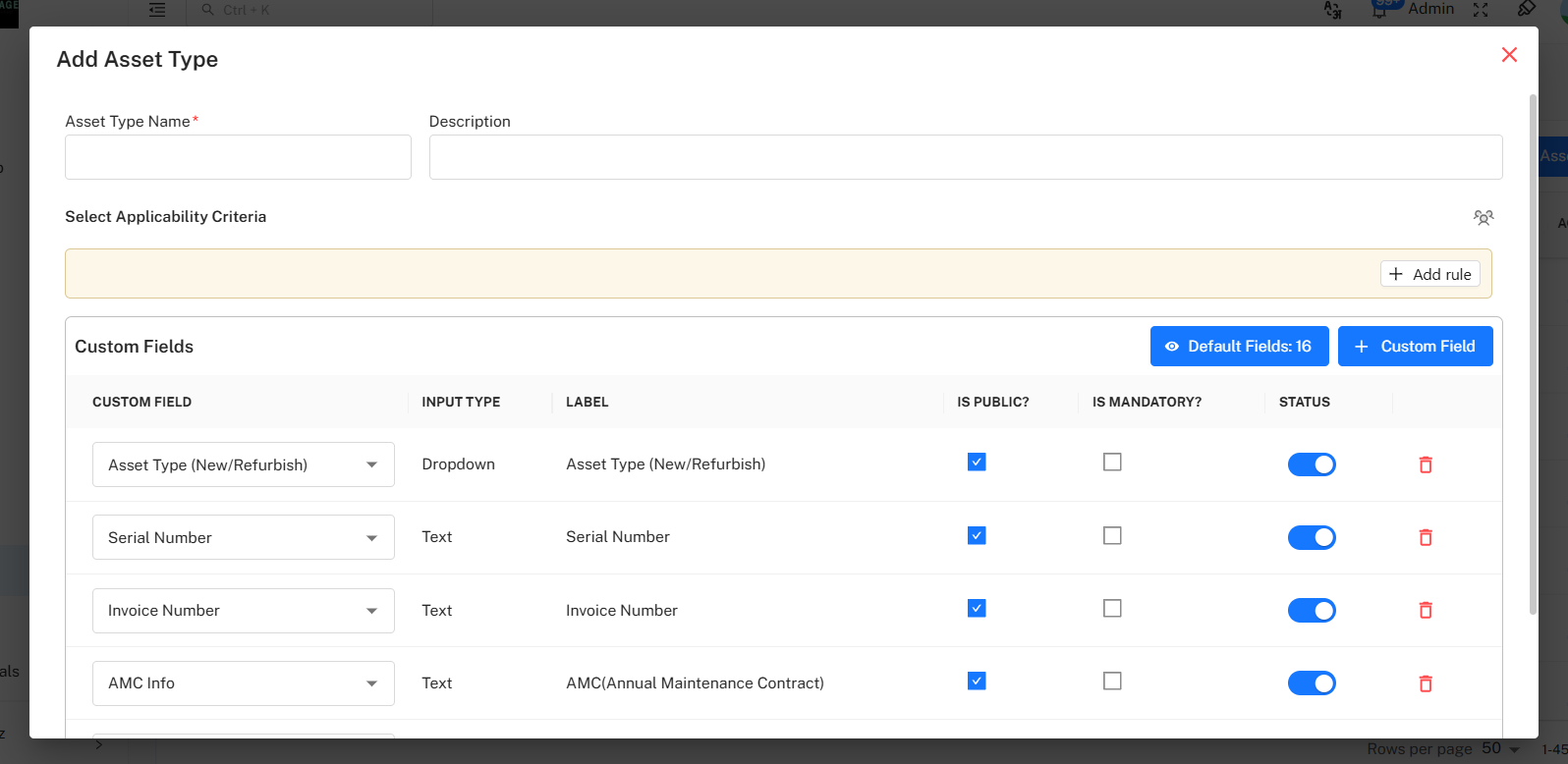
Mandatory Fields
| Field | Description |
|---|---|
| Asset Type Name | Unique name assigned to the asset category. |
| Description | Optional remarks describing the asset type. |
Applicability Rule Builder (Optional)
Rules can be defined to restrict where an asset type can be used.
Examples include:
- Department = IT
- Location = Head Office
- Grade = Operations
- Employee = Specific Owner
If no rules are defined, the asset type is globally applicable.
Actions
- Add Rule → Insert applicability condition
- Reset → Clear criteria before saving
Custom Fields Configuration
Custom fields allow organizations to capture asset-specific data.
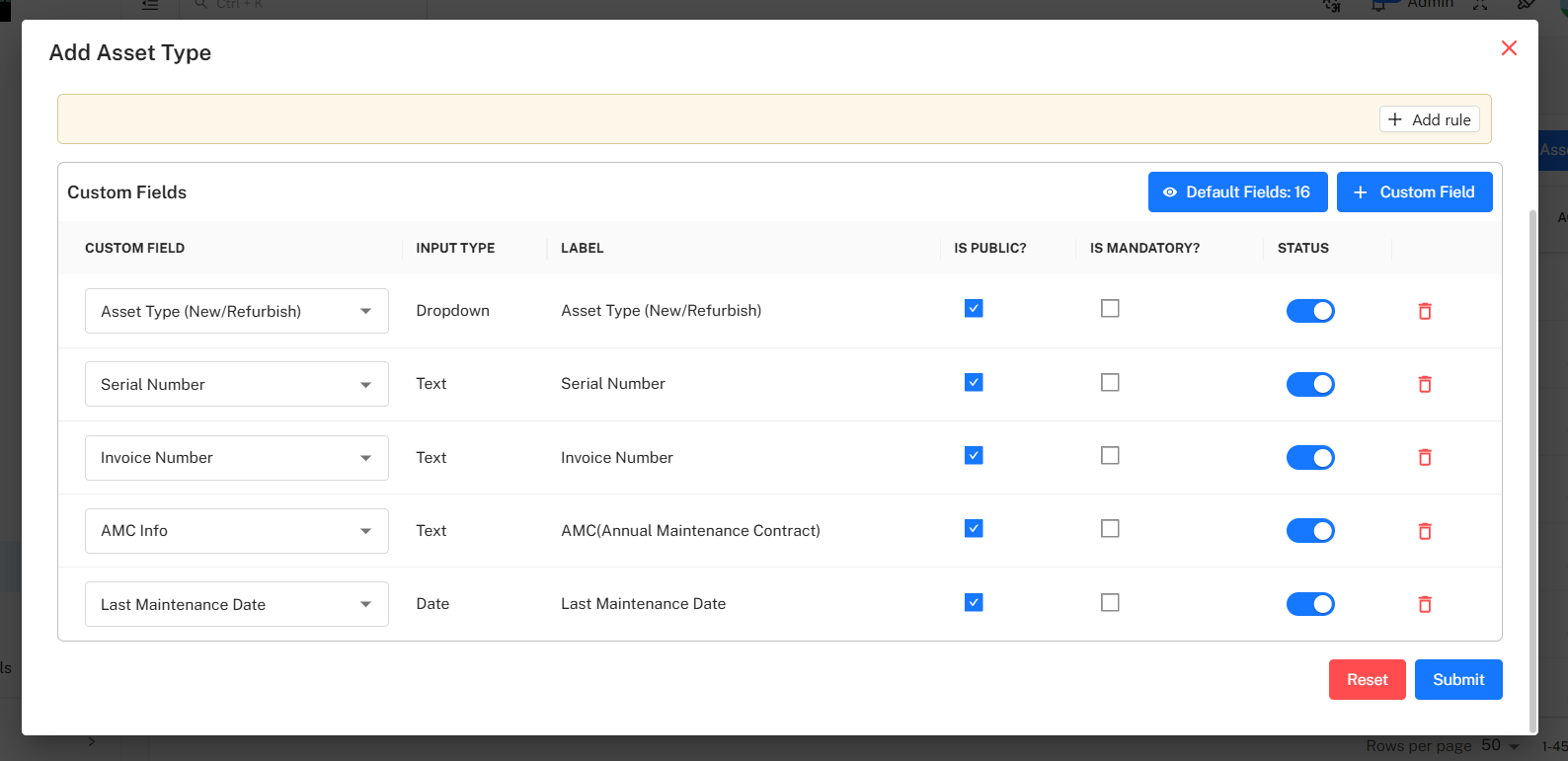
Field Configuration Columns
| Column | Description |
|---|---|
| Custom Field | Name or key of the field. |
| Input Type | Data format (Text, Dropdown, Date, etc.). |
| Label | Display name visible to users. |
| Is Public? | Controls field visibility in asset records. |
| Is Mandatory? | Marks the field as required. |
| Status | Enable / Disable custom field. |
| Delete | Remove custom field (if not in use). |
Example Custom Fields
- Serial Number
- Invoice Number
- AMC Details
- Asset Condition (New / Refurbished)
- Last Maintenance Date
Edit Asset Type
The Edit Asset Type screen is accessed via the action icon in the table.
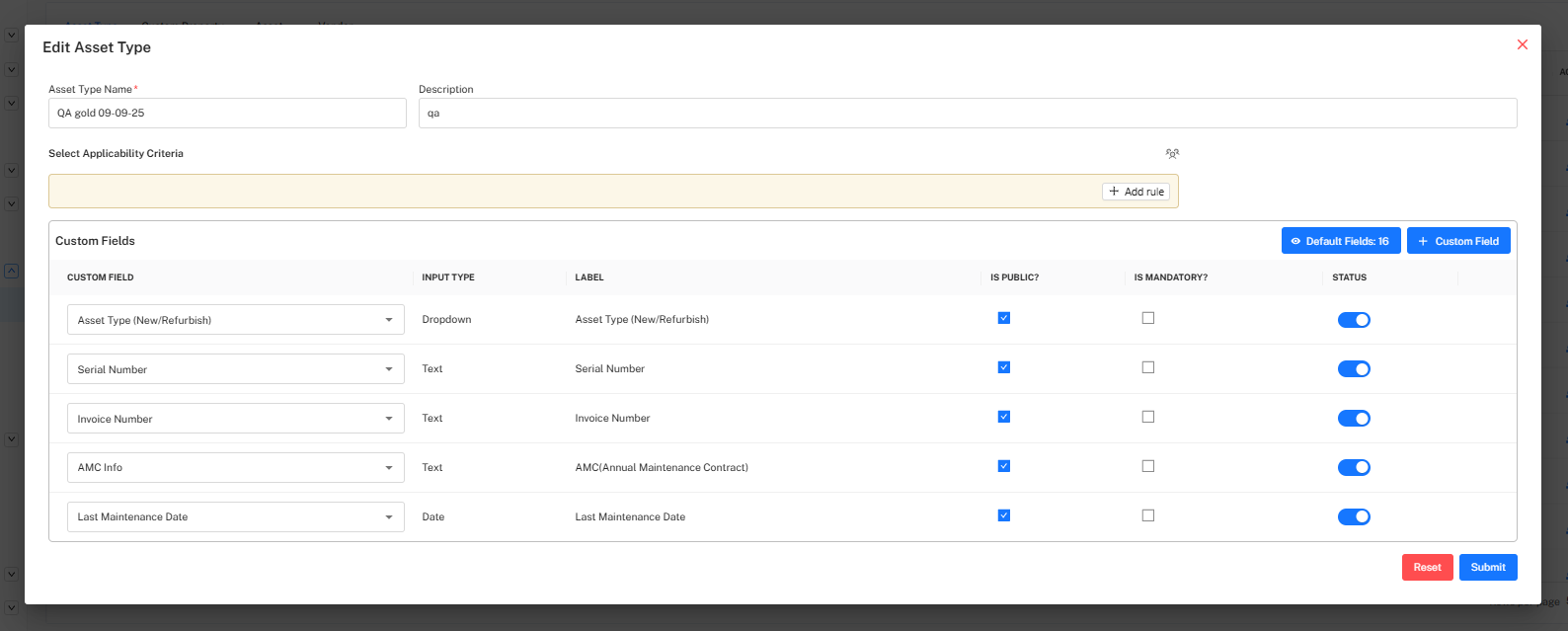
Editable Sections
- Asset Type Name and Description
- Applicability Rules
- Custom Field Properties
- Field Status, Visibility, and Mandatory Controls
Actions
- Add Rule → Add new applicability condition
- Enable / Disable Fields → Control usage
- Submit → Save modifications
Filter Panel
The Filter panel allows administrators to search asset types quickly.
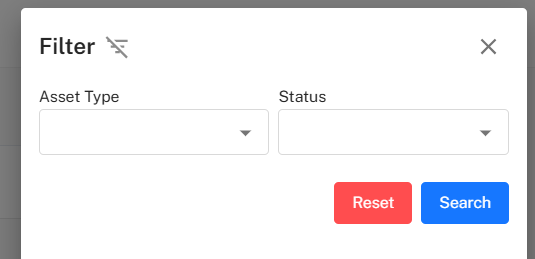
Available Filters
| Filter | Description |
|---|---|
| Asset Type | Search by category name |
| Status | Active / Inactive asset types |
Filter Actions
- Search → Apply filter
- Reset → Clear selections
Implementation Guidelines
For System Administrators
- Define clear and meaningful asset type names.
- Configure only necessary custom fields to avoid clutter.
- Use applicability rules only where required.
- Avoid disabling fields already used in asset records.
For Asset Managers
- Review asset type configuration before creating new assets.
- Use descriptive labels for better reporting.
- Keep maintenance-related attributes enabled for audits.
Common Issues & Solutions
| Issue | Possible Cause | Solution |
|---|---|---|
| Asset fields not visible | Field status disabled | Enable field in configuration. |
| Asset Type not selectable | Applicability rule restricted | Update or remove rule. |
| Duplicate asset types | Multiple similar entries created | Merge and standardize naming. |
| Missing asset records | Asset type deactivated | Re-activate the asset type. |
Best Practices
- Standardize asset type naming (e.g., Laptop – IT, Monitor – Office).
- Use meaningful descriptions for audit clarity.
- Enable mandatory fields for compliance tracking.
- Periodically review and optimize unused fields.
- Avoid unnecessary deletion to maintain history integrity.