Custom Property
Last Updated: December 30 , 2025
Document Version: 1.0
Prepared for: Emgage HRMS Implementation Team
The Custom Property module allows administrators to define reusable data fields that can be attached to asset records across categories.
These fields support additional asset attributes such as serial number, invoice details, maintenance dates, warranty information, brand details, and more.
This module enables flexible metadata configuration, validation control, field-level activation, and centralized property management.
System Overview
The Custom Property module consists of the following key components:
- Custom Property Table – Displays configured custom fields and their attributes
- Toolbar Controls – Add new property fields and apply filters
- Add Custom Property – Create new asset-level custom fields
- Edit Custom Property – Modify existing property attributes
- Filter Panel – Search and refine property records
Custom Property Table
The Custom Property Table lists all configured asset properties and their current status.
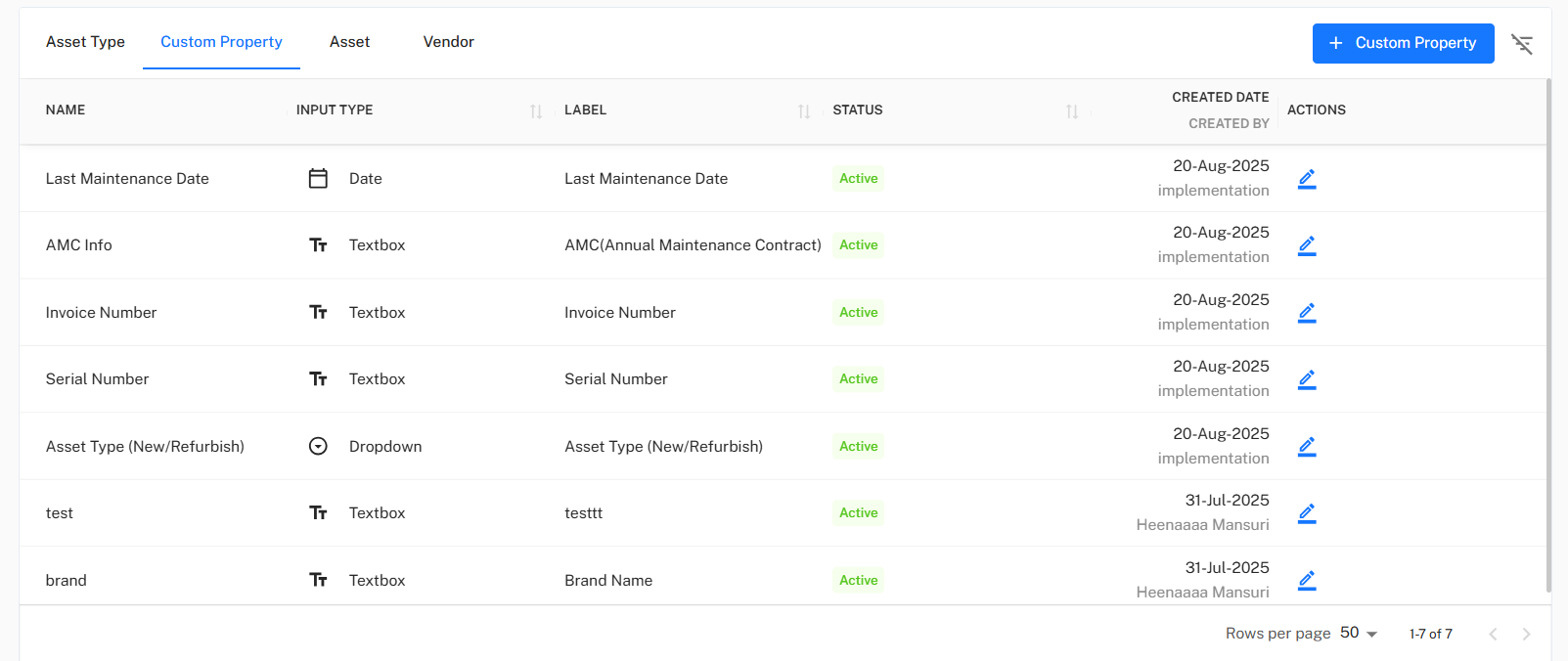
Table Columns
| Column | Description |
|---|---|
| Name | Internal name assigned to the custom property field. |
| Input Type | Field data type (Textbox, Dropdown, Date, etc.). |
| Label | User-facing caption displayed inside asset forms. |
| Status | Indicates whether the field is Active / Inactive. |
| Created Date / Created By | Tracks when and by whom the field was configured. |
| Actions | Allows editing of an existing custom property. |
Toolbar Controls
Located above the property list, the Toolbar provides core field-management actions.

Toolbar Options
- + Custom Property → Create a new custom property field
- Filter → Search or refine fields using parameters such as name, label, type, or status
Add Custom Property
Administrators can create reusable custom fields that appear across relevant asset forms.
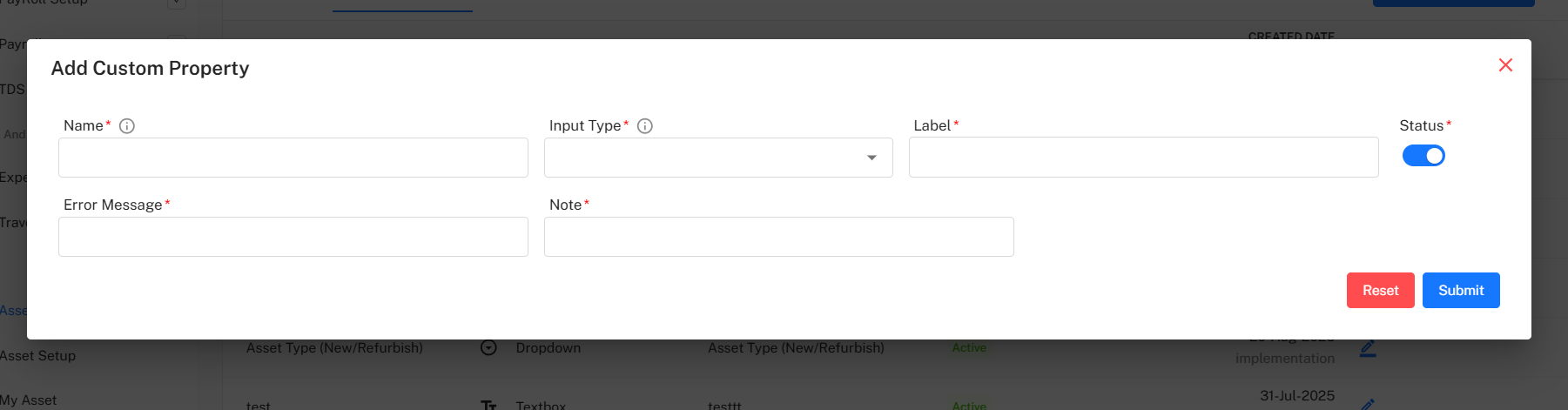
Mandatory Fields
| Field | Description |
|---|---|
| Name | System name of the custom property. |
| Input Type | Determines the field format (Textbox, Dropdown, Date, etc.). |
| Label | User-visible name displayed inside asset records. |
| Error Message | Validation message shown when incorrect input is entered. |
| Note | Help text describing the purpose of the field. |
| Status | Activate or deactivate field availability. |
Actions
- Reset → Clear input fields
- Submit → Save and activate the custom property
Edit Custom Property
Used to modify an existing property field without deleting or recreating it.
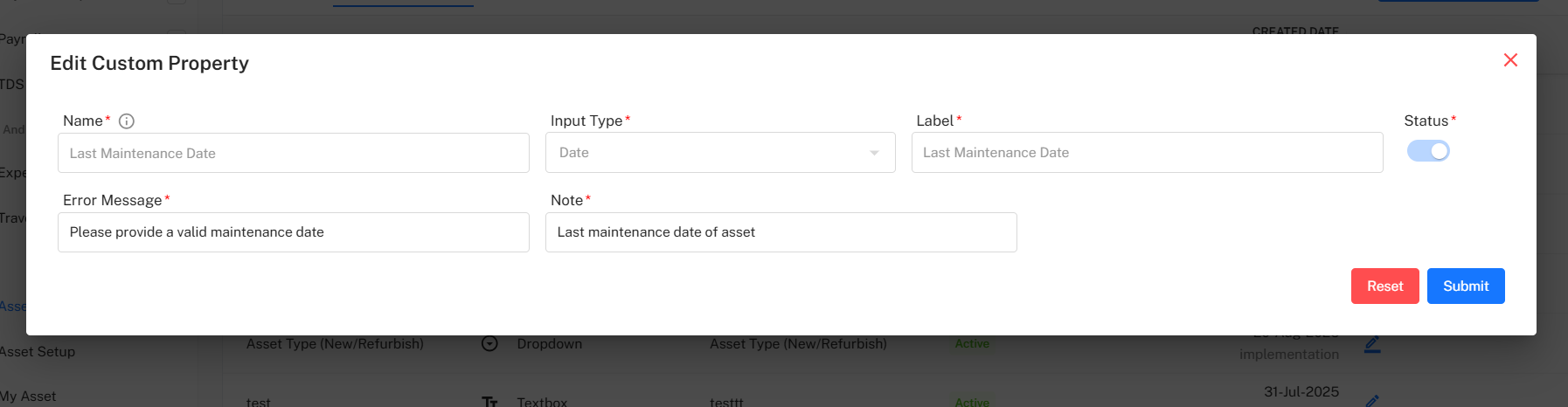
Editable Attributes
- Field Name
- Input Type
- Label
- Error Message
- Note / Description
- Field Status (Active / Inactive)
Actions
- Reset → Revert unsaved changes
- Submit → Save updated configuration
Filter Panel
The Filter panel allows administrators to search and refine custom property records.
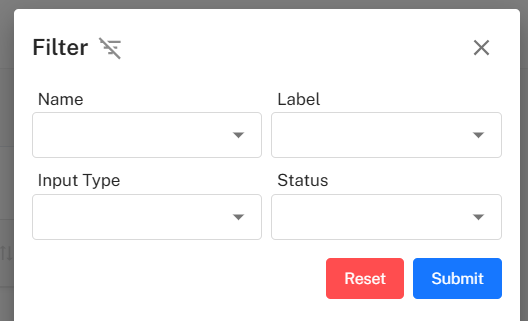
Available Filters
| Filter | Description |
|---|---|
| Name | Search by field name |
| Label | Search by displayed caption |
| Input Type | Filter by data type (Date, Textbox, etc.) |
| Status | Active / Inactive |
Filter Actions
- Submit → Apply filter conditions
- Reset → Clear all selections
Implementation Guidelines
For System Administrators
- Define commonly used asset fields as custom properties to maintain consistency.
- Use meaningful field names and labels to improve user understanding.
- Keep only relevant fields Active to avoid clutter in asset forms.
- Configure validation and error messages thoughtfully to reduce data-entry mistakes.
For Asset Managers
- Review property activation before attaching fields to asset records.
- Avoid duplicating existing properties — reuse standardized fields.
- Document purpose of each property using the Note field.
- Periodically review and deactivate unused properties.
Common Issues & Solutions
| Issue | Possible Cause | Solution |
|---|---|---|
| Field not visible in asset form | Property status is Inactive | Activate field in Edit Property. |
| Duplicate property created | Similar field already exists | Reuse or update existing field. |
| Validation error during entry | Incorrect data type input | Update or refine error message. |
Best Practices
- Prefer standardized reusable properties over one-off fields.
- Use clear, descriptive labels to support end-users.
- Keep error messages user-friendly and instructive.
- Review fields periodically to maintain a clean asset metadata structure.
- Align custom property definitions with compliance and audit requirements.