My Assets
Last Updated: January 9, 2026
Document Version: 1.0
Prepared for: Emgage HRMS Implementation Team
Overview
The My Assets tab allows employees to view all assets that have been successfully allocated to them.
An asset is displayed in this tab only after:
- The employee’s asset request final status is approved, and
- The asset is officially allocated by the administrator.
This tab provides employees with complete visibility into their allocated assets, along with options to filter, export, view asset details, and raise asset return requests.
My Assets Tab
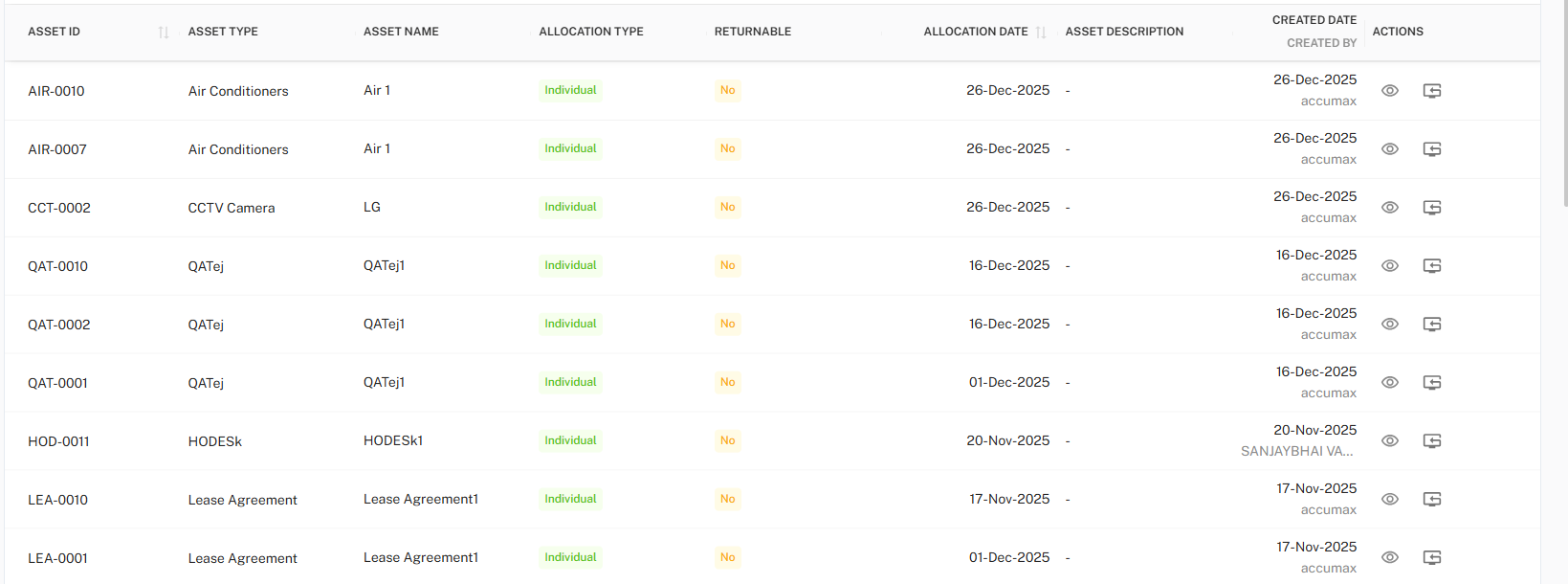
The My Assets tab displays a table listing all assets allocated to the logged-in employee.
Asset Visibility Rules
- Only allocated assets are visible.
- Pending or rejected asset requests do not appear.
- Each record represents a single allocated asset.
Asset Table
The asset table provides a structured overview of allocated assets.
Table Columns
| Column Name | Description |
|---|---|
| Asset ID | Unique identifier assigned to the asset |
| Asset Type | Category of the asset (e.g., Current Assets) |
| Asset Name | Name of the allocated asset |
| Allocation Type | Indicates whether allocation is Individual or Shared |
| Returnable | Specifies whether the asset can be returned |
| Allocation Date | Date when the asset was allocated |
| Asset Description | Additional asset information (if available) |
| Created Date | Date when the allocation record was created |
| Actions | View asset details or initiate return request |
Toolbar Controls
The toolbar is located at the top-right of the table.

Available Options
-
Export
Download asset data based on applied filters. -
Filter
Refine asset records using specific criteria.
Export Options

Employees can export the filtered asset list in the following formats:
| Format | Purpose |
|---|---|
| CSV | Lightweight format for data tracking |
| Excel | Sorting, analysis, and record keeping |
| Static documentation and offline reference |
Exported data always respects applied filters.
Filter Panel
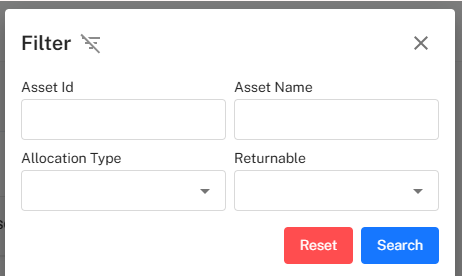
The Filter panel allows employees to narrow down asset records.
Available Filters
| Filter Field | Description |
|---|---|
| Asset ID | Search by asset identifier |
| Asset Name | Search by asset name |
| Allocation Type | Individual or Shared |
| Returnable | Yes or No |
Filter Actions
- Search → Apply selected filters
- Reset → Clear filters and reload full data
Asset Actions
Each asset record includes two action buttons.

View Asset Details
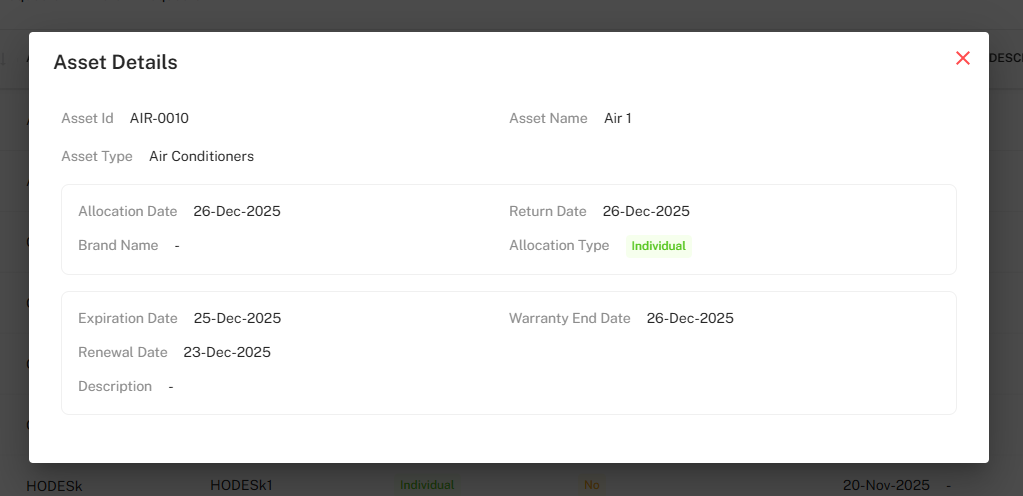
Clicking the View (👁) action opens the Asset Details popup.
Information Displayed
- Asset ID
- Asset Name
- Asset Type
- Allocation Date
- Allocation Type
- Brand Name (if applicable)
- Expiration Date
- Warranty End Date
- Renewal Date
- Asset Description
This view is read-only and for reference purposes only.
Raise Asset Return Request
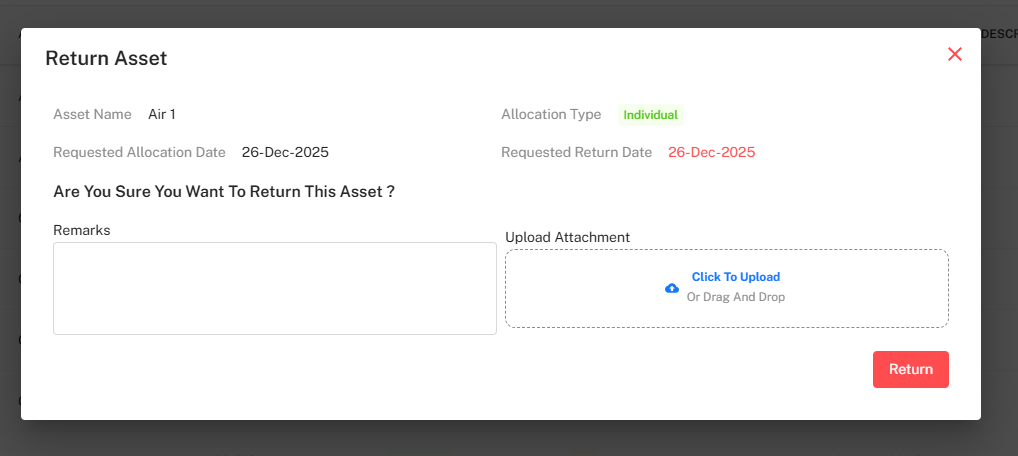
Clicking the Return (R) action allows the employee to initiate a return request.
Return Request Workflow
- Employee clicks the Return action
- Return Request popup opens
- Employee enters:
- Remarks (if required)
- Attachment (optional)
- Employee submits the request by clicking on Return
- Request moves to the asset approval workflow
Until approval, the asset remains visible in My Assets.
Business Rules
- Only allocated assets can be returned.
- Non-returnable assets may restrict return requests.
- Duplicate return requests for the same asset are not allowed.
- Employees cannot edit asset details.
Best Practices
- Review asset details before submitting return requests.
- Use filters to quickly locate specific assets.
- Export asset data for personal tracking or audits.
- Submit return requests in advance to avoid delays.
Summary
The My Assets tab enables employees to:
- View all allocated assets
- Filter and export asset data
- Access detailed asset information
- Initiate asset return requests
This ensures transparency and smooth asset lifecycle management from allocation to return.