My Asset – Return Requests
Last Updated: January 9, 2026
Document Version: 1.0
Prepared for: Emgage HRMS Implementation Team
The Return Requests tab under My Asset allows employees to track the status of asset return requests they have raised for assets previously allocated to them.
This tab provides complete visibility into:
- Submitted return requests
- Approval or rejection status
- Allocation type (Individual / Shared)
- Ability to cancel eligible return requests
- Exporting records for reference or audit
Navigation Path
Asset → My Asset → Return Requests
System Overview
The Return Requests module consists of the following components:
- Return Requests Table – Displays all asset return requests raised by the employee
- Toolbar Controls – Export data and apply filters
- Return Request Status Indicators – Approved / Rejected
- Cancel Request Action – Withdraw pending or eligible requests
- Filter Panel – Narrow down return requests by status
Return Requests Table
The Return Requests table lists all return requests initiated by the logged-in employee.
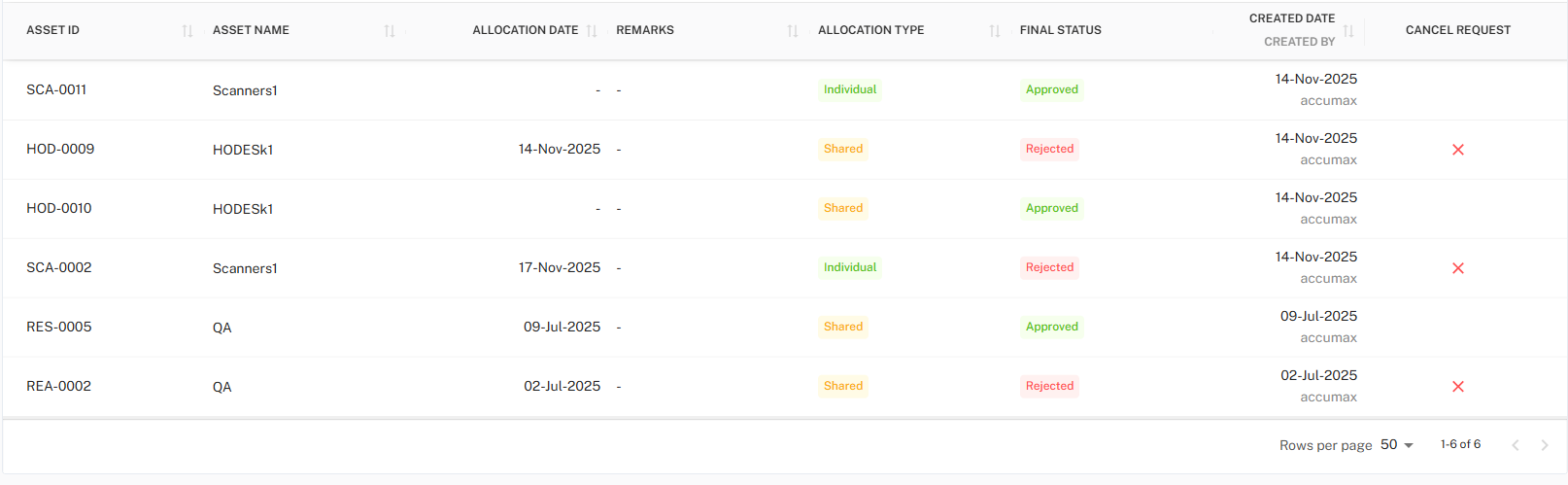
Table Columns
| Column Name | Description |
|---|---|
| Asset ID | Unique identifier of the allocated asset |
| Asset Name | Name of the asset requested for return |
| Allocation Date | Date on which the asset was originally allocated |
| Remarks | Remarks provided during return request (if any) |
| Allocation Type | Indicates whether the asset is Individual or Shared |
| Final Status | Approval status of the return request |
| Created Date | Date when the return request was created |
| Created By | Employee who raised the request |
| Cancel Request | Option to cancel eligible return requests |
Return Request Status
The Final Status column reflects the outcome of the return request:
| Status | Meaning |
|---|---|
| Approved | Return request has been approved |
| Rejected | Return request has been rejected |
Status is visually highlighted using color indicators for easy identification.
Toolbar Controls
Located at the top-right of the table, the toolbar provides quick actions.

Toolbar Options
- Export → Download return request records
- Filter → Refine the list using specific criteria
Export Options
Employees can export the Return Requests table data based on applied filters.

Supported Export Formats
| Format | Purpose |
|---|---|
| CSV | Reporting, audits, and bulk analysis |
| Excel | Sorting, filtering, and tracking |
| Sharing and record-keeping |
⚠️ Exported data respects currently applied filters.
Filter Panel
The Filter panel helps narrow down return requests based on status.

Available Filters
| Filter | Description |
|---|---|
| Status | Filter requests by Approved / Rejected |
Filter Actions
- Search → Apply selected filter
- Reset → Clear applied filters
Cancel Return Request
In certain cases, employees can cancel a return request.
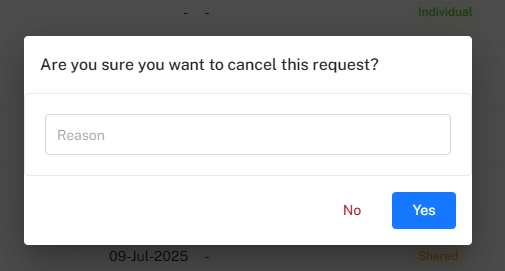
Cancel Request Rules
- Cancel option is visible only for eligible requests
- Typically available when:
- Request is not finalized, or
- System configuration allows cancellation after rejection
- Once cancelled, the request is removed from active processing
End-to-End Workflow
- Employee raises a Return Request from the My Assets tab.
- Request moves through the configured approval workflow.
- Approval authority approves or rejects the request.
- Final status is reflected in Return Requests tab.
- Employee can:
- View the final status
- Export the request history
- Cancel eligible requests (if allowed)
Implementation Guidelines
For Employees
- Regularly track return request status.
- Use filters to quickly locate specific requests.
- Export records for personal or compliance reference.
- Cancel incorrect requests immediately if allowed.
For HR / Asset Admins
- Ensure approval workflows are correctly configured.
- Clearly define cancellation rules.
- Maintain audit trails for approved and rejected returns.
Common Issues & Solutions
| Issue | Possible Cause | Solution |
|---|---|---|
| Cancel option not visible | Request already finalized | Cancellation not permitted |
| Missing return request | Request not submitted successfully | Re-submit from My Assets |
| Export not reflecting data | Filters applied | Reset filters and export again |
Best Practices
- Verify asset details before submitting a return request.
- Avoid duplicate return requests for the same asset.
- Export records periodically for documentation.
- Track approval status before planning physical asset return.