Vendor
Last Updated: December 30, 2025
Document Version: 1.0
Prepared for: Emgage HRMS Implementation Team
The Vendor Management module enables organizations to maintain structured vendor records linked to asset and procurement workflows.
Administrators can create vendor profiles, capture contract and banking details, define payment terms, and maintain SPOC (Single Point of Contact) information.
This module also supports status control, record filtering, export reporting, and contract lifecycle tracking — ensuring accountability and audit-ready vendor data.
System Overview
The Vendor module consists of the following key components:
- Vendor List Table – Displays all configured vendor records
- Toolbar Controls – Add Vendor, Export Records, and Apply Filters
- Add Vendor Form – Register new vendors with contract & banking details
- SPOC Section – Maintain vendor contact representatives
- Edit Vendor Record – Modify stored vendor details
- Export Options – Download vendor records
- Filter Panel – Search and refine vendor listings
Vendor List Table
The Vendor List Table provides a structured view of all vendors configured in the system.

Table Columns
| Column | Description |
|---|---|
| Company Name | Legal name of the vendor organization |
| Vendor Name | Display/vendor identity name |
| Industry | Business industry category |
| GST Number | Registered GST identification |
| City – Pincode | Vendor operating city & postal code |
| State – Country | Geographic location details |
| Contract Start / End Date | Validity period of contract agreement |
| Payment Terms | Agreed payment cycle / mode |
| Status | Vendor availability (Active / Inactive) |
| Actions | Edit vendor details |
Toolbar Controls
Located above the table, the toolbar provides vendor creation, reporting and filtering capabilities.

Toolbar Options
- + Vendor → Register a new vendor
- Export → Download vendor list
- Filter → Search vendors by status, company, or industry
Export Options

The Export option allows administrators to download vendor records for reporting or audits.
Supported Export Formats
| Format | Purpose |
|---|---|
| CSV | Data processing & integrations |
| Excel | Financial / procurement review |
| Static archival & compliance sharing |
Add Vendor
The Add Vendor Form is accessed by clicking the + Vendor button.
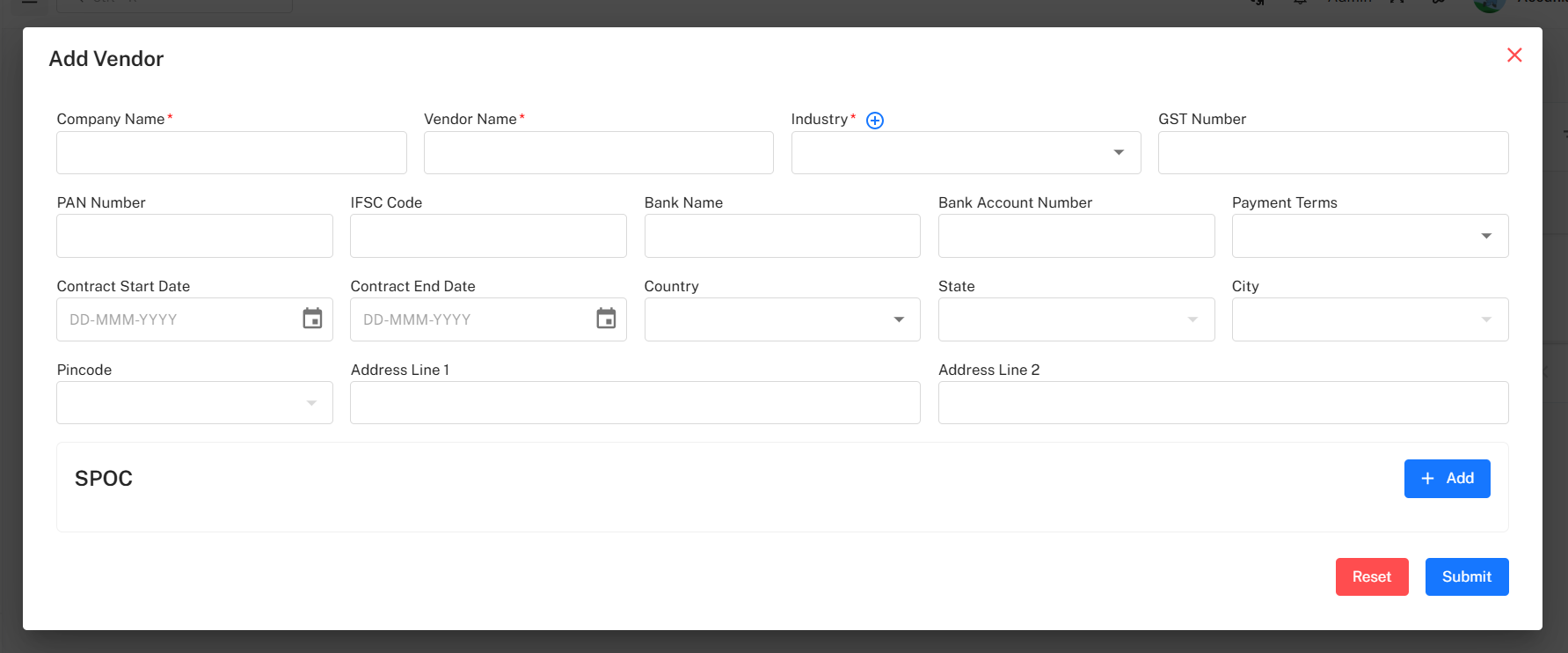
This form captures organizational details, contract validity, financial identifiers, location, and SPOC contacts.
Mandatory Fields
| Field | Description |
|---|---|
| Company Name | Legal registered vendor entity |
| Vendor Name | Name recognized within internal systems |
| Industry | Business category classification |
Vendor Details – Field Overview
Company & Registration Details
| Field | Purpose |
|---|---|
| Company Name | Vendor organization name |
| Vendor Name | Friendly reference name |
| GST Number | Tax compliance identifier |
| PAN Number | Financial registration |
| Industry | Business sector |
Banking & Finance
| Field | Purpose |
|---|---|
| Bank Name | Associated banking institution |
| Bank Account Number | Vendor receiving account |
| IFSC Code | Bank routing identifier |
| Payment Terms | Agreed payment cycle |
Contract Information
| Field | Purpose |
|---|---|
| Contract Start Date | Beginning of contract validity |
| Contract End Date | Expiry of vendor contract |
Location & Address
| Field | Purpose |
|---|---|
| Country / State / City | Vendor geographical location |
| Pincode | Postal identifier |
| Address Line 1 & 2 | Office or operation address |
SPOC (Single Point of Contact)
The SPOC section records primary communication staff from the vendor side.
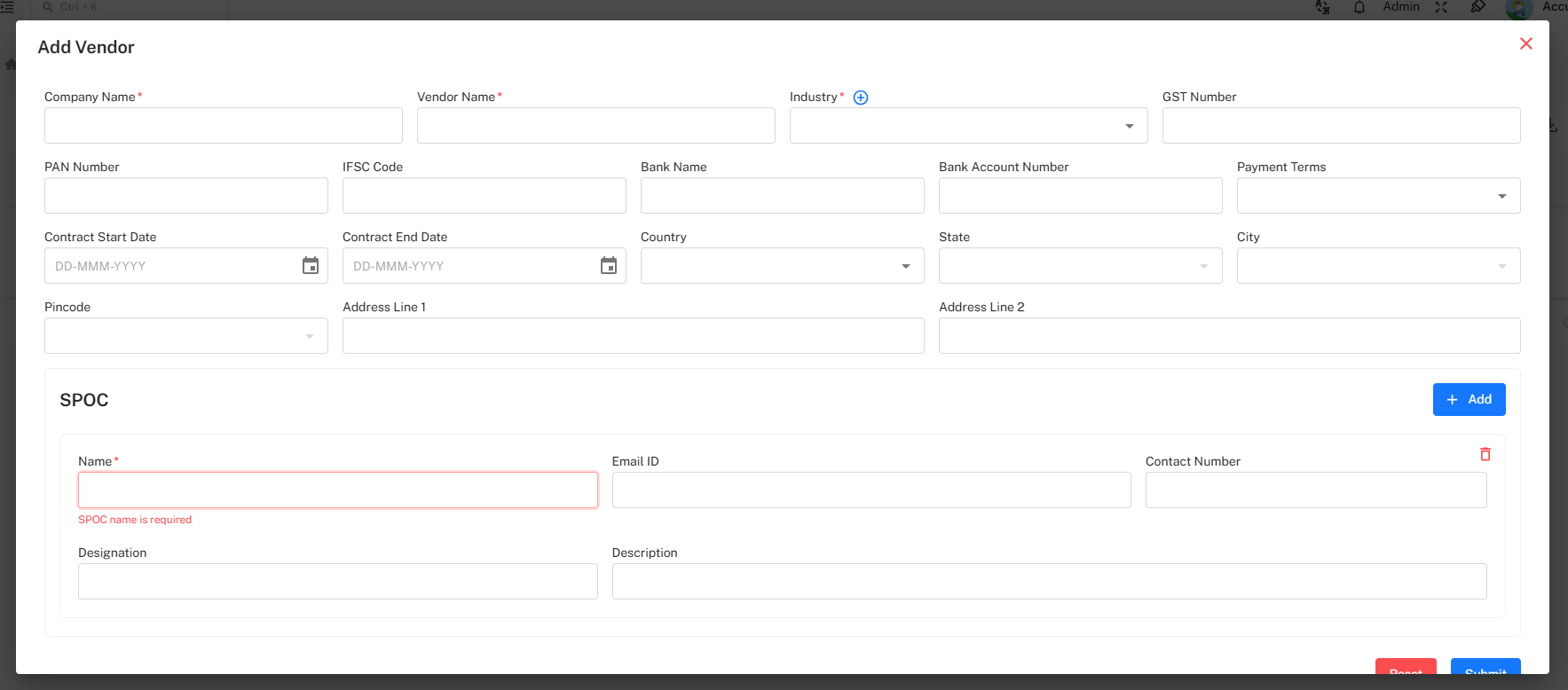
SPOC Fields
| Field | Description |
|---|---|
| Name* | SPOC Name (Mandatory) |
| Email ID | Contact email |
| Contact Number | Phone / mobile contact |
| Designation | Role / position |
| Description | Additional remarks |
Multiple SPOC entries may be added where required.
Edit Vendor
Existing vendor records may be updated for corrections or renewed contracts.
Editable fields include:
- Contract Dates
- Banking Information
- Address Details
- SPOC Contacts
- Status Toggle
Filter Panel
The Filter Panel allows administrators to refine listed vendor records.
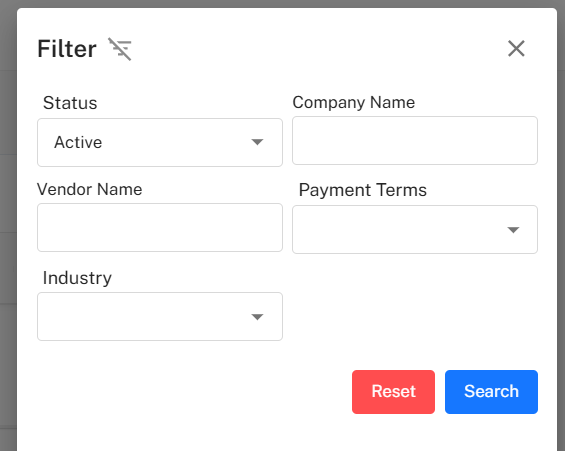
Available Filters
| Filter | Description |
|---|---|
| Status | Active / Inactive |
| Company Name | Vendor organization |
| Vendor Name | Search by stored vendor name |
| Industry | Industry classification |
| Payment Terms | Billing & settlement mode |
Filter Actions
- Search → Apply filter criteria
- Reset → Clear selections
Implementation Guidelines
For Procurement & Finance Teams
- Capture complete banking & tax identifiers to avoid invoice rejection.
- Ensure contract start & end dates are always updated.
- Maintain at least one active SPOC per vendor.
- Review vendor status before processing asset purchases.
For System Administrators
- Avoid duplicate vendor records.
- Use filters to periodically audit vendor data.
- Export reports for procurement & compliance stakeholders.
Common Issues & Solutions
| Issue | Possible Cause | Solution |
|---|---|---|
| Vendor not appearing in list | Status set to inactive | Activate vendor record |
| Payments blocked | Missing banking details | Update bank information |
| Duplicate vendor entries | Multiple manual entries | Merge or delete duplicate record |
| Contract expired | Contract end date passed | Renew & extend contract dates |
Best Practices
- Always verify tax & banking compliance before onboarding a vendor.
- Maintain SPOC logs for communication traceability.
- Regularly review contract expiry and renewal schedules.
- Export & audit vendor data quarterly.