My Asset – Asset Requests
Last Updated: January 9, 2026
Document Version: 1.0
Prepared for: Emgage HRMS Implementation Team
Overview
The Asset Requests tab under My Asset enables employees to:
- Raise new asset requests
- Track the approval workflow and final allocation status
- Filter and export asset request data
- Cancel requests where applicable
This module ensures transparent asset request handling, from submission to final allocation or rejection.
Navigation Path
System Workflow Summary
- Employee submits an Asset Request
- Request goes through the approval workflow
- Final Status is updated:
- Allocation Pending
- Asset Allocated
- Rejected
- Once Asset Allocated, the asset appears in:
- My Asset → My Assets tab
- Employees can:
- View request history
- Export request data
- Cancel eligible requests
Asset Requests Tab – Main Interface
Image Placeholder:
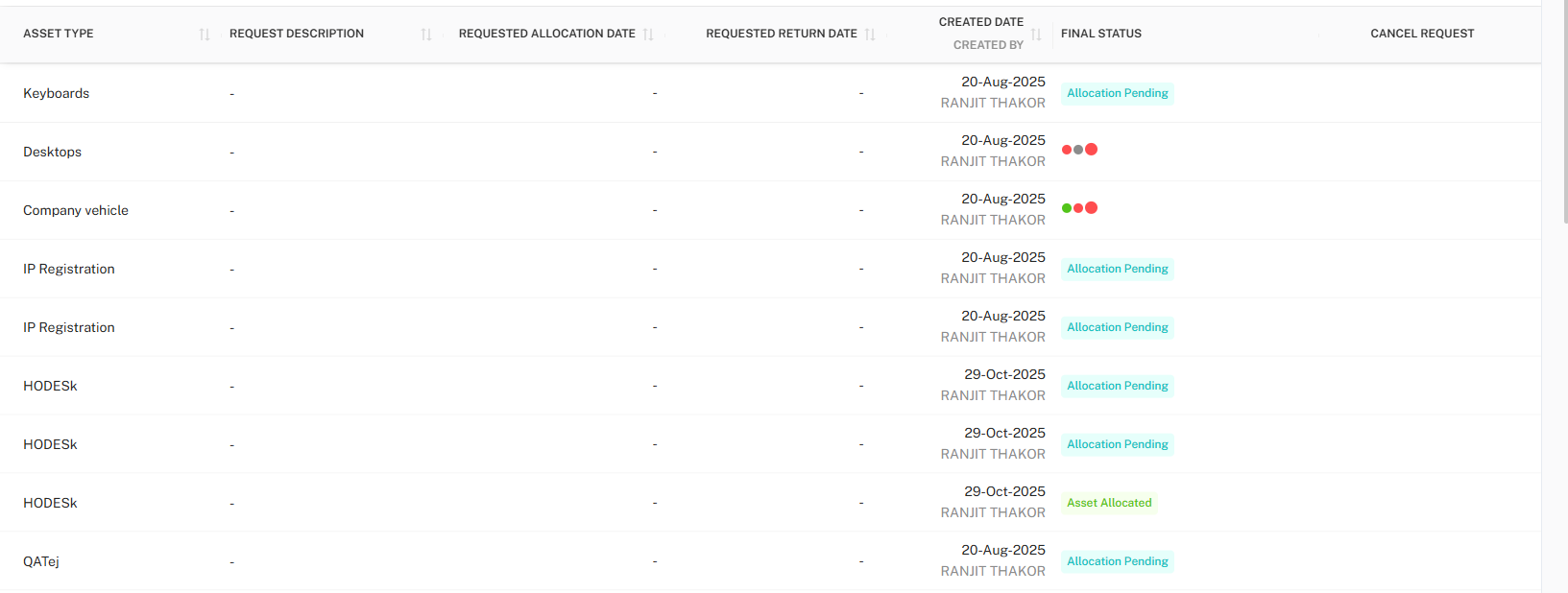
The Asset Requests table displays all asset requests raised by the logged-in employee.
Table Columns
| Column Name | Description |
|---|---|
| Asset Type | Type/category of asset requested (e.g., Keyboard, Desktop, Vehicle) |
| Request Description | Additional details entered during request submission |
| Requested Allocation Date | Date on which asset allocation is requested |
| Requested Return Date | Expected return date (if applicable) |
| Created Date / Created By | Date when request was raised and employee name |
| Final Status | Current approval/allocation status |
| Cancel Request | Option to cancel eligible requests |
Final Status Indicators
| Status Label | Meaning |
|---|---|
| Allocation Pending | Request submitted and pending approval |
| Asset Allocated | Request approved and asset assigned |
| Rejected | Request rejected by approver |
Colored indicators and status badges provide quick visual understanding.
Toolbar Controls
Image Placeholder:

The toolbar provides quick access to request, export, and filter actions.
Toolbar Options
- + Request → Raise a new asset request
- Export → Download table data
- Filter → Apply search criteria
Export Options
Image Placeholder:

Employees can export asset request data based on applied filters.
Supported Export Formats
| Format | Use Case |
|---|---|
| CSV | Data analysis and reporting |
| Excel | Detailed filtering and review |
| Official records and sharing |
Export respects the currently applied filters.
Raise Asset Request
Clicking + Request opens the Request Asset form.
Image Placeholder:
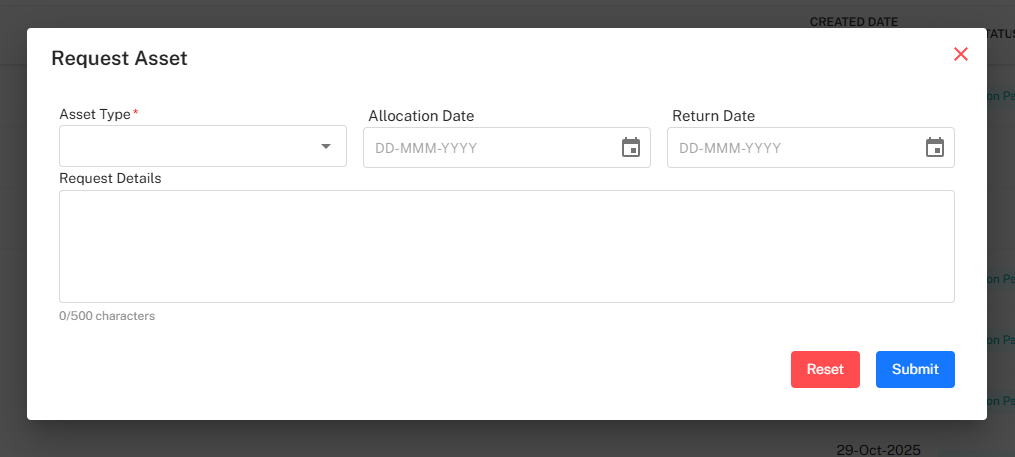
Mandatory Fields
| Field | Description |
|---|---|
| Asset Type | Select asset category |
| Allocation Date | Expected allocation date |
| Return Date | Expected return date (if applicable) |
| Request Details | Reason or justification for request |
Actions
- Reset → Clears entered data
- Submit → Sends request for approval
Filter Panel
Image Placeholder:

Employees can narrow down request records using filters.
Available Filters
| Filter | Description |
|---|---|
| Asset Type | Filter by requested asset category |
| Status | Filter by request status |
Filter Actions
- Search → Apply selected filters
- Reset → Clear all filters
Business Rules
- Only the logged-in employee’s requests are visible
- Asset appears in My Assets only after:
- Request Final Status = Asset Allocated
- Export respects filter conditions
- Cancel option depends on request state
- Rejected requests cannot be edited or resubmitted directly
Common Scenarios
| Scenario | System Behavior |
|---|---|
| Request submitted | Status = Allocation Pending |
| Approved & allocated | Status = Asset Allocated |
| Rejected | Status = Rejected |
| Allocation completed | Asset visible in My Assets tab |
Best Practices
- Provide clear Request Details to speed up approval
- Verify dates before submission
- Use filters for quick tracking
- Export records for personal tracking if required
- Cancel unused or incorrect requests early
Troubleshooting
| Issue | Possible Reason | Resolution |
|---|---|---|
| Asset not visible in My Assets | Allocation not completed | Check Final Status |
| Cancel button missing | Request already processed | Contact administrator |
| Export missing records | Filters applied | Reset filters and retry |
Conclusion
The Asset Requests tab provides a structured and transparent way for employees to request, track, and manage asset requests while maintaining compliance with organizational approval workflows.