Attendance Email Notification Setup
Last Updated: October 3, 2025 Document Version: 1.0 Prepared for: Emgage HRMS Implementation Team
The Attendance Email Notification Setup allows administrators to configure automated email alerts for various attendance scenarios. This system ensures timely communication about attendance issues, policy violations, and schedule deviations to relevant stakeholders.
System Overview
The notification system consists of five main components:
- Notification Categories - Five different attendance violation types
- Email Frequency - Daily, weekly, or monthly notification schedules
- Recipient Selection - Choose who receives notifications
- Employee Targeting - Select specific employees when needed
- Configuration Management - Save and manage notification settings
Notification Categories
The system provides five distinct notification categories for comprehensive attendance monitoring:
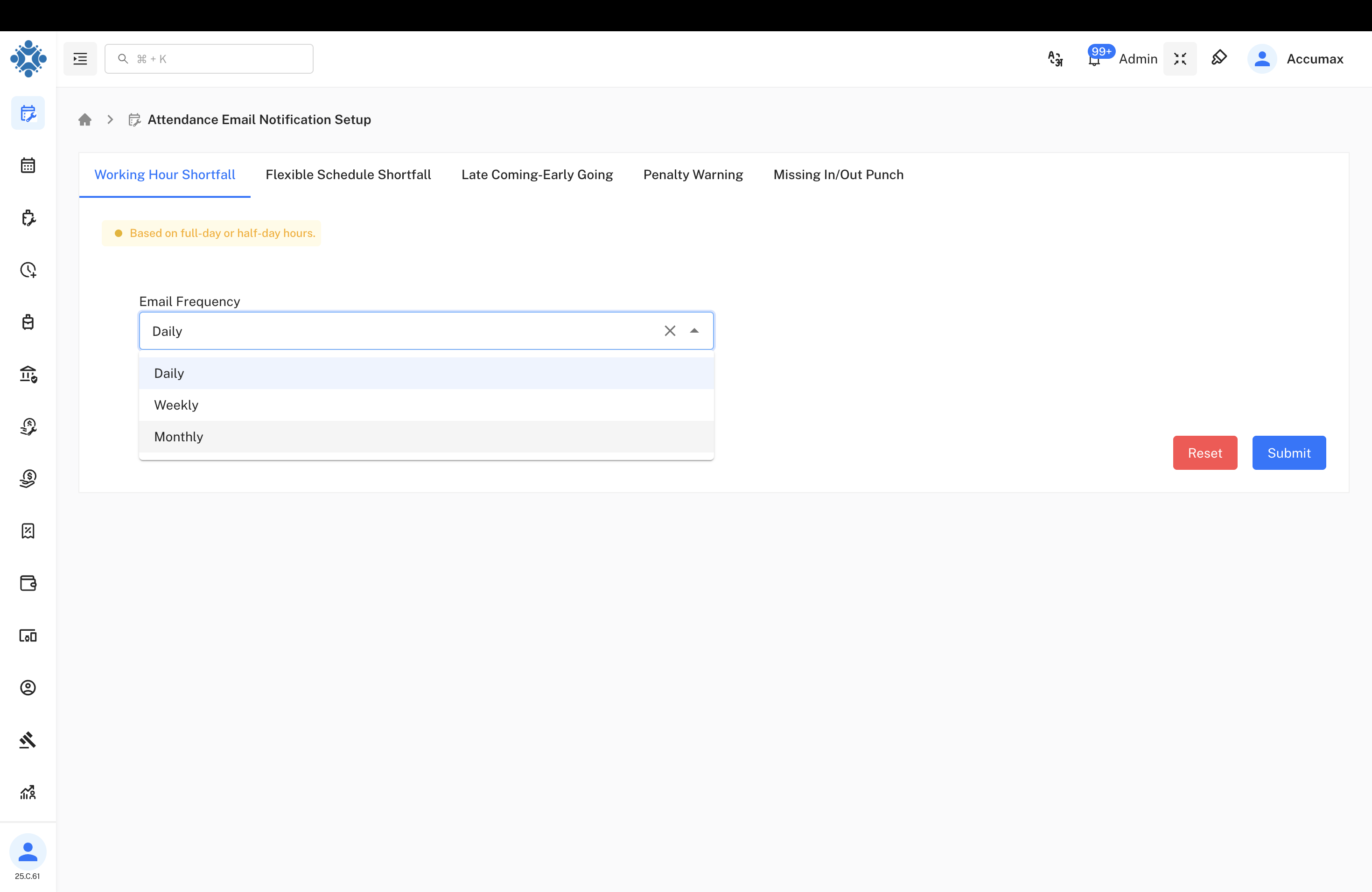
1. Working Hour Shortfall
Purpose: Monitor employees who don't meet required working hour thresholds
Use Cases:
- Employees not completing minimum daily working hours
- Tracking part-time vs full-time requirements
- Identifying patterns of insufficient work time
- Compliance with labor regulations
2. Flexible Schedule Shortfall
Purpose: Track deviations from flexible working schedule arrangements
Use Cases:
- Remote work hour compliance issues
- Hybrid work schedule violations
- Flexible time arrangement non-compliance
- Work-from-home hour tracking
3. Late Coming-Early Going
Purpose: Alert for tardiness and early departure patterns
Use Cases:
- Frequent late arrivals or early departures
- Pattern analysis for attendance behavior
- Policy violation tracking
- Performance impact assessment
4. Penalty Warning
Purpose: Issue automated warnings for attendance policy violations
Use Cases:
- Progressive disciplinary notifications
- Attendance policy violation alerts
- Warning system for repeated infractions
- HR documentation support
5. Missing In/Out Punch
Purpose: Monitor when employees forget to punch in or punch out
Use Cases:
- Employee forgot to punch-in at start of shift
- Employee forgot to punch-out at end of shift
- Incomplete attendance records due to forgetfulness
- Tracking habitual punch forgetting patterns
Email Frequency Configuration
Configure how often notifications are sent to recipients.
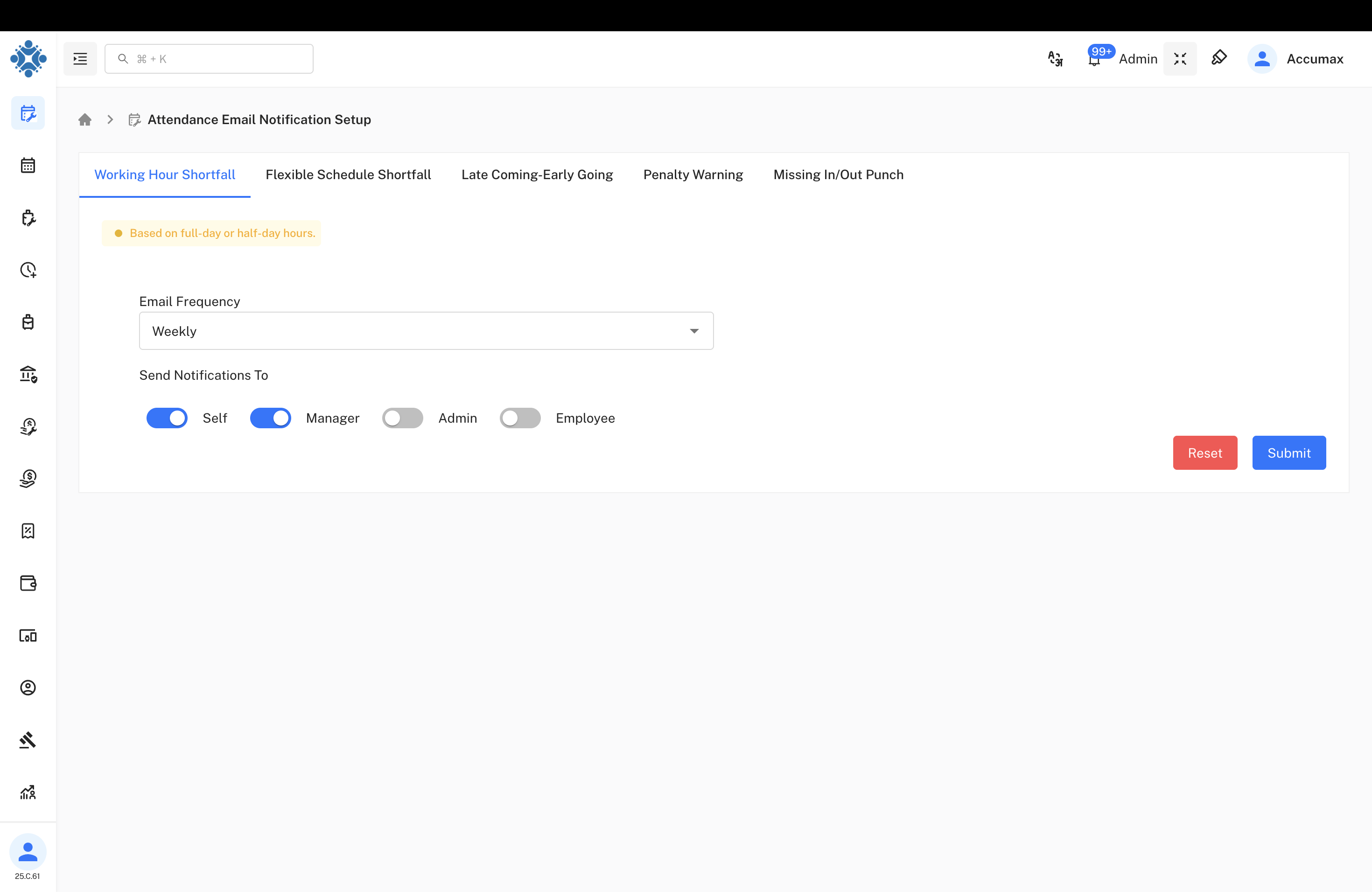
Available Options:
| Frequency | Description | Best For |
|---|---|---|
| Daily | Send notifications every day | Immediate alerts, real-time monitoring |
| Weekly | Send weekly summary notifications | Pattern analysis, reduced email volume |
| Monthly | Send monthly attendance reports | Long-term trends, performance reviews |
Configuration Features:
- Dropdown selection for easy frequency choice
- Real-time preview of notification timing
- Flexible scheduling based on organizational needs
Recipient Configuration
Choose who receives the attendance notifications based on roles and requirements.
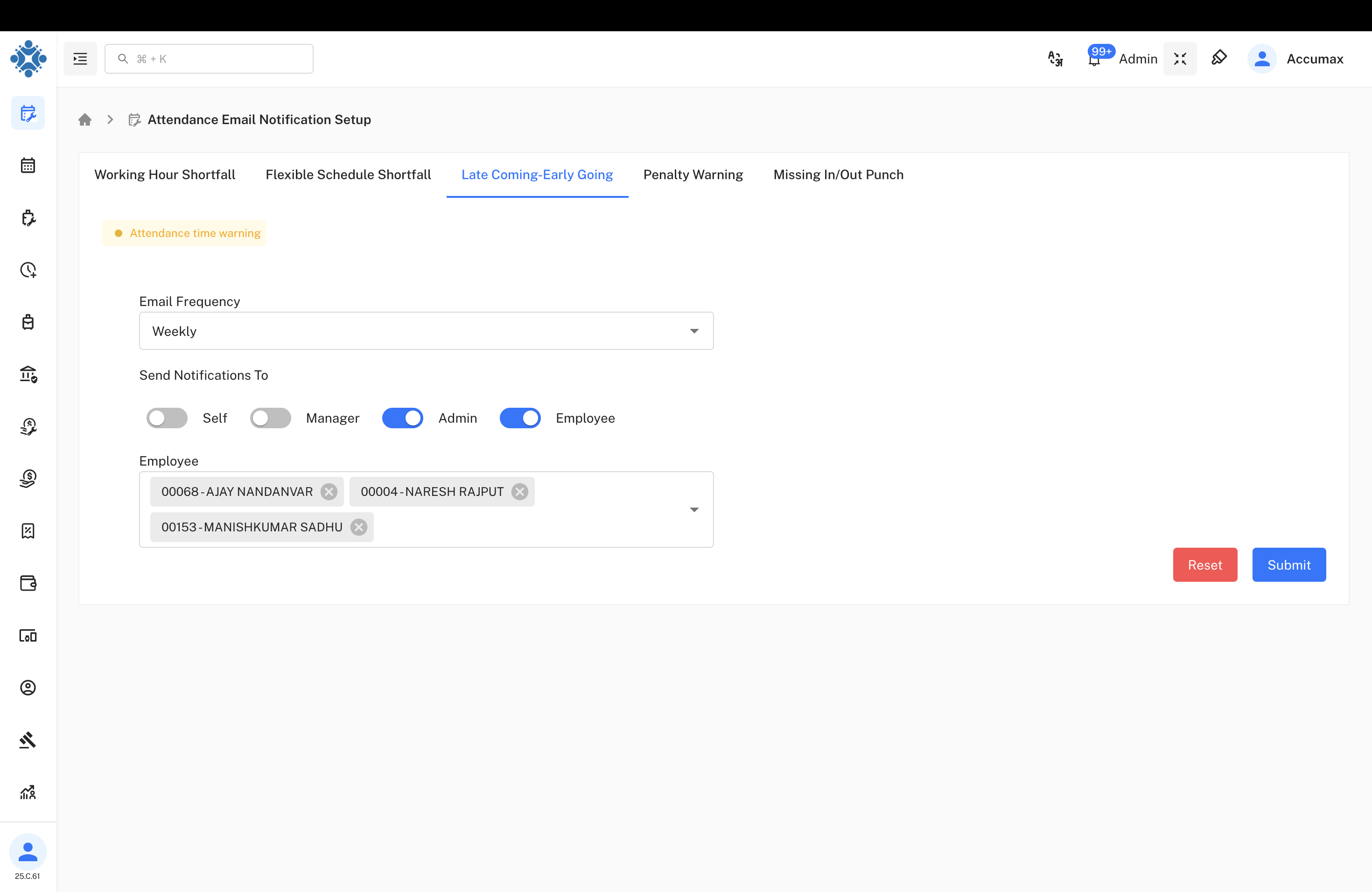
Recipient Types
Available Recipients:
| Recipient | Description | When To Use |
|---|---|---|
| Self | Employee receives their own notifications | Personal attendance tracking |
| Manager | Direct supervisor receives team alerts | Team management and oversight |
| Admin | System administrators receive alerts | System monitoring and compliance |
| Employee | Specific employees can be selected | Targeted notifications |
Employee Selection
When "Employee" is selected, a dropdown opens to choose specific employees:
Selection Features:
- Employee ID and name display
- Multiple employee selection capability
- Easy removal with close buttons
- Role-based filtering
Configuration Process
Step-by-Step Setup
Configuration Steps:
- Select Notification Category - Choose from the five available types
- Set Email Frequency - Pick daily, weekly, or monthly schedule
- Choose Recipients - Toggle on/off for Self, Manager, Admin, Employee
- Select Specific Employees - If Employee is enabled, choose individuals
- Save Configuration - Use Submit button to activate settings
Example Configuration
Working Hour Shortfall Setup:
- Category: Working Hour Shortfall selected
- Warning Message: "Based on full-day or half-day hours"
- Frequency: Weekly notifications
- Recipients: Self and Manager enabled
- Action Buttons: Reset and Submit available
Implementation Guidelines
For HR Administrators:
- Configure notifications based on organizational policies
- Set appropriate frequency to avoid email overload
- Target specific roles based on management hierarchy
- Test configurations before full deployment
- Monitor notification effectiveness and adjust as needed
For Managers:
- Enable manager notifications for direct reports
- Use weekly frequency for team oversight
- Combine with employee notifications for transparency
- Review patterns and take corrective actions
Best Practices:
- Start with weekly notifications to avoid overwhelming users
- Enable both Self and Manager for accountability
- Use Employee targeting for specific monitoring needs
- Reset configurations when changing attendance policies
Common Issues and Solutions
Configuration Problems:
- Issue: Notifications not being sent
- Solution: Verify email settings and recipient toggles are enabled
Frequency Issues:
- Issue: Too many daily notifications
- Solution: Switch to weekly or monthly frequency for better management
Employee Selection Problems:
- Issue: Cannot find specific employee
- Solution: Check employee status and ensure they are active in system