Attendance Policy
Last Updated: October 4, 2025 Document Version: 1.0 Prepared for: Emgage HRMS Implementation Team
Attendance Policy
The Attendance Policy module in Emgage HRMS helps organizations create and manage attendance rules for employees. This guide provides step-by-step instructions for configuring attendance policies.
Overview
Attendance policies define how your organization tracks and manages employee attendance. You can configure multiple policies for different departments, roles, or employee groups with specific rules for:
- Attendance capture methods (Mobile App, Web, Biometric)
- Working hours calculation
- Grace periods and penalties
- Request types and limits
- Notifications and alerts
Main Dashboard
The dashboard shows all attendance policies with options to view, manage, and edit each policy.
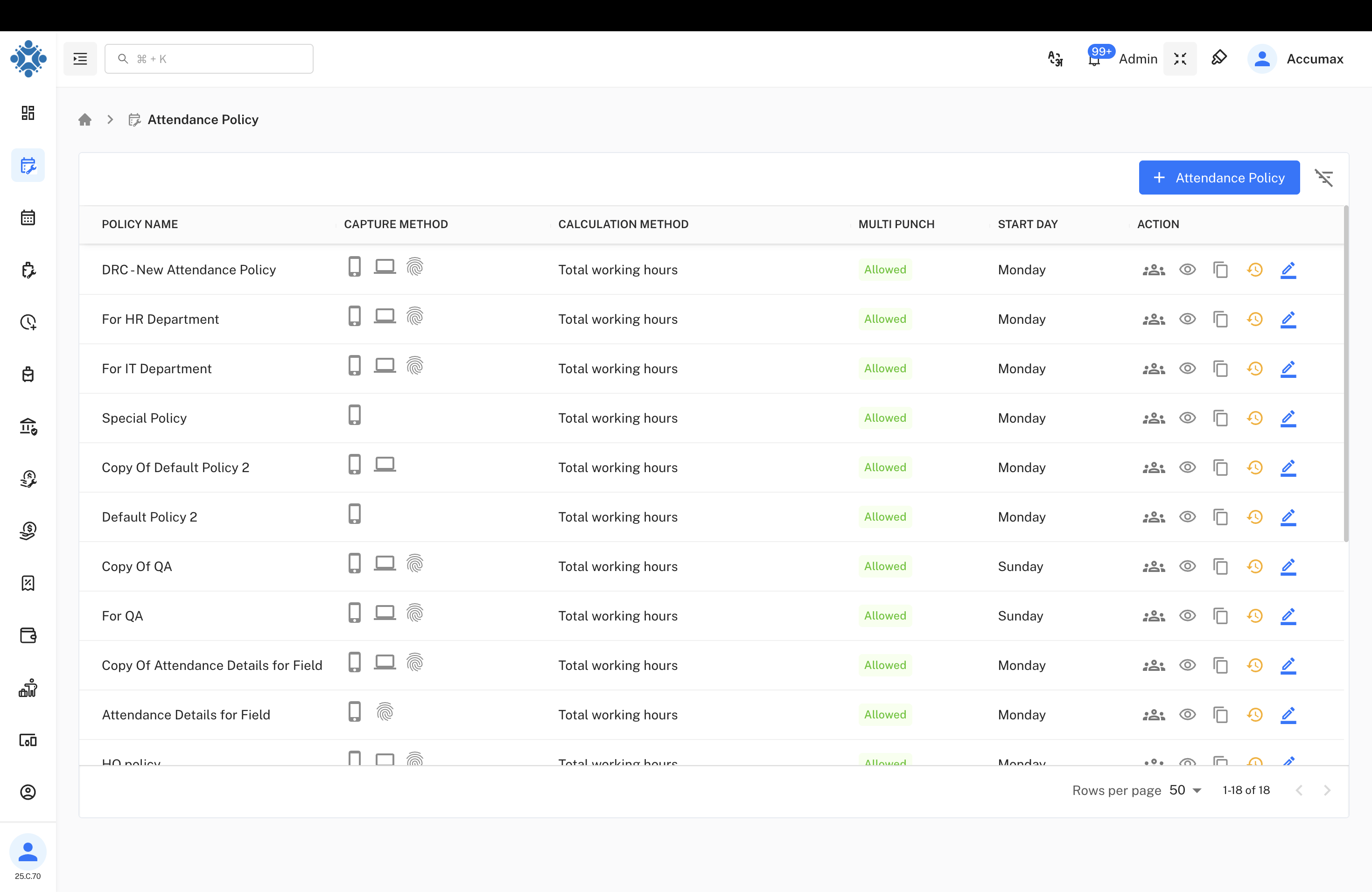
Dashboard Features
- Policy Name: Identifies each policy
- Capture Method: Shows attendance logging methods (App/Web/Biometric)
- Calculation Method: Working hours calculation logic
- Multi Punch: Indicates if multiple punches per day are allowed
- Actions: Management buttons for each policy
Policy Management Actions
1. View Employee List

Shows employees assigned to the policy with search functionality to easily find specific team members.
2. View Policy Details
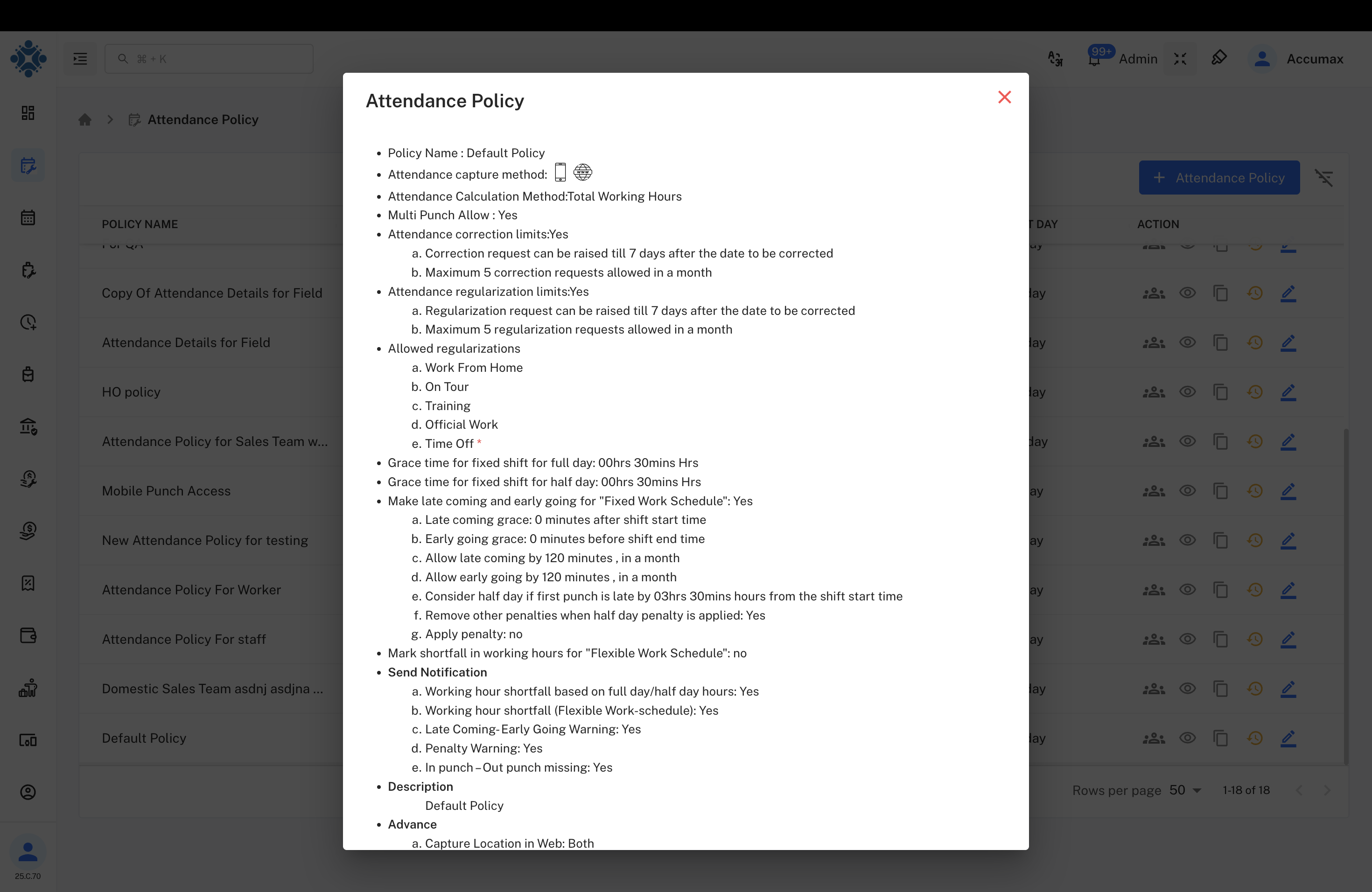
Displays complete policy configuration including:
- Capture methods and settings
- Calculation rules and limits
- Grace periods and penalties
- Regularization options
3. Copy Policy
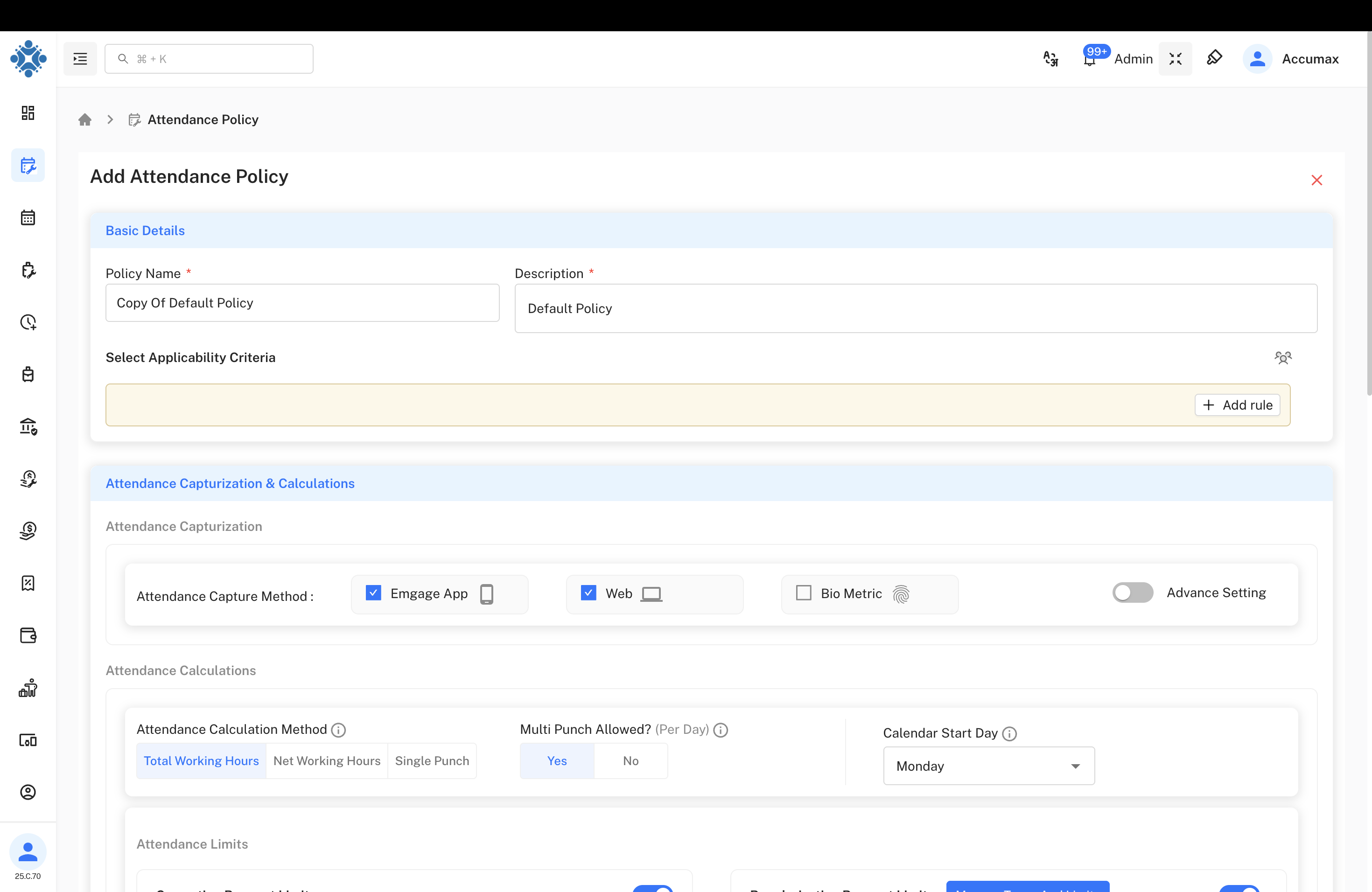
Create new policies based on existing configurations for efficiency. This is useful when setting up similar policies for different departments.
4. View History
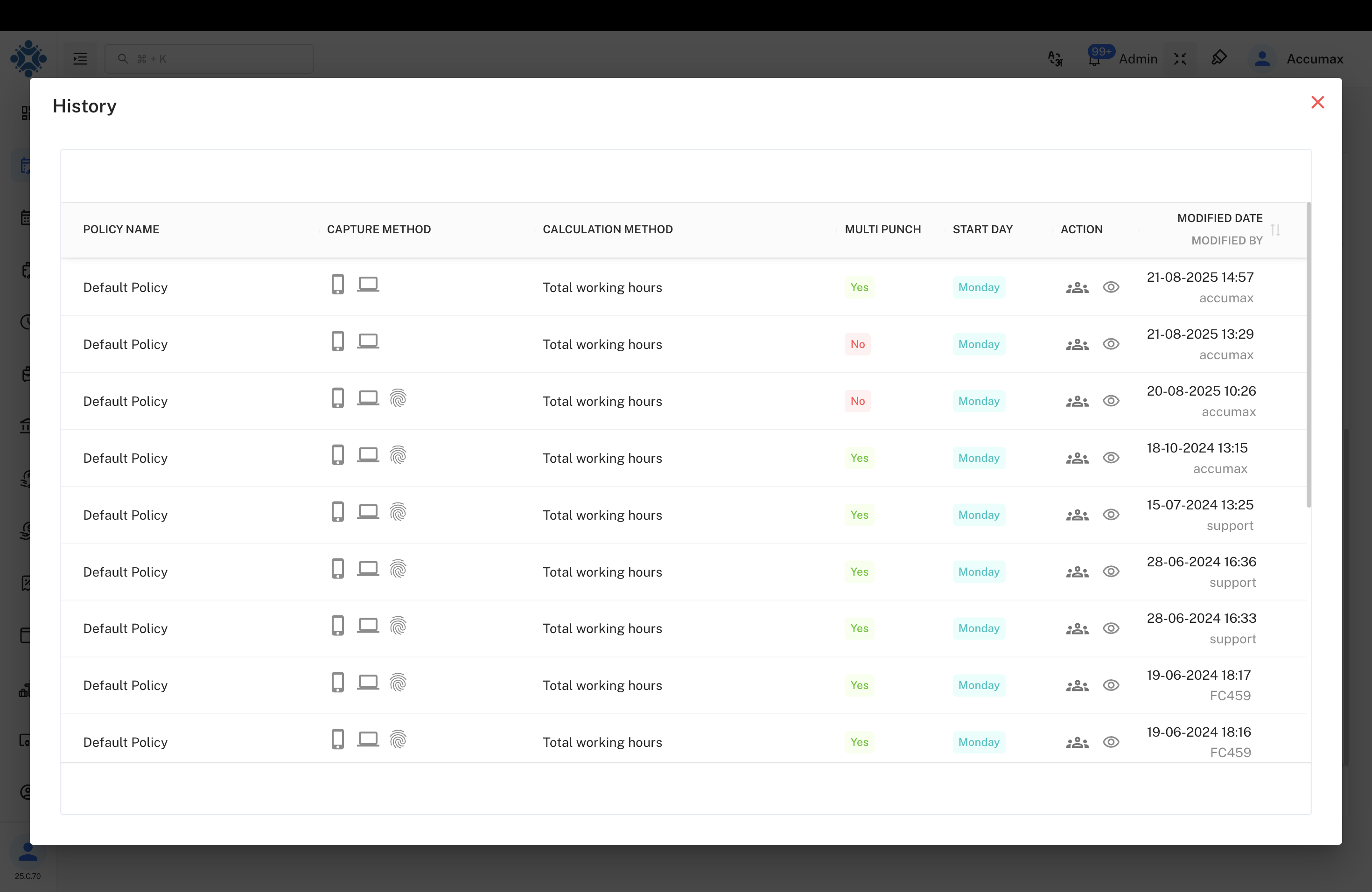
Track all changes made to the policy with:
- Timestamps of modifications
- User details who made changes
- What specific changes were made
5. Edit Policy
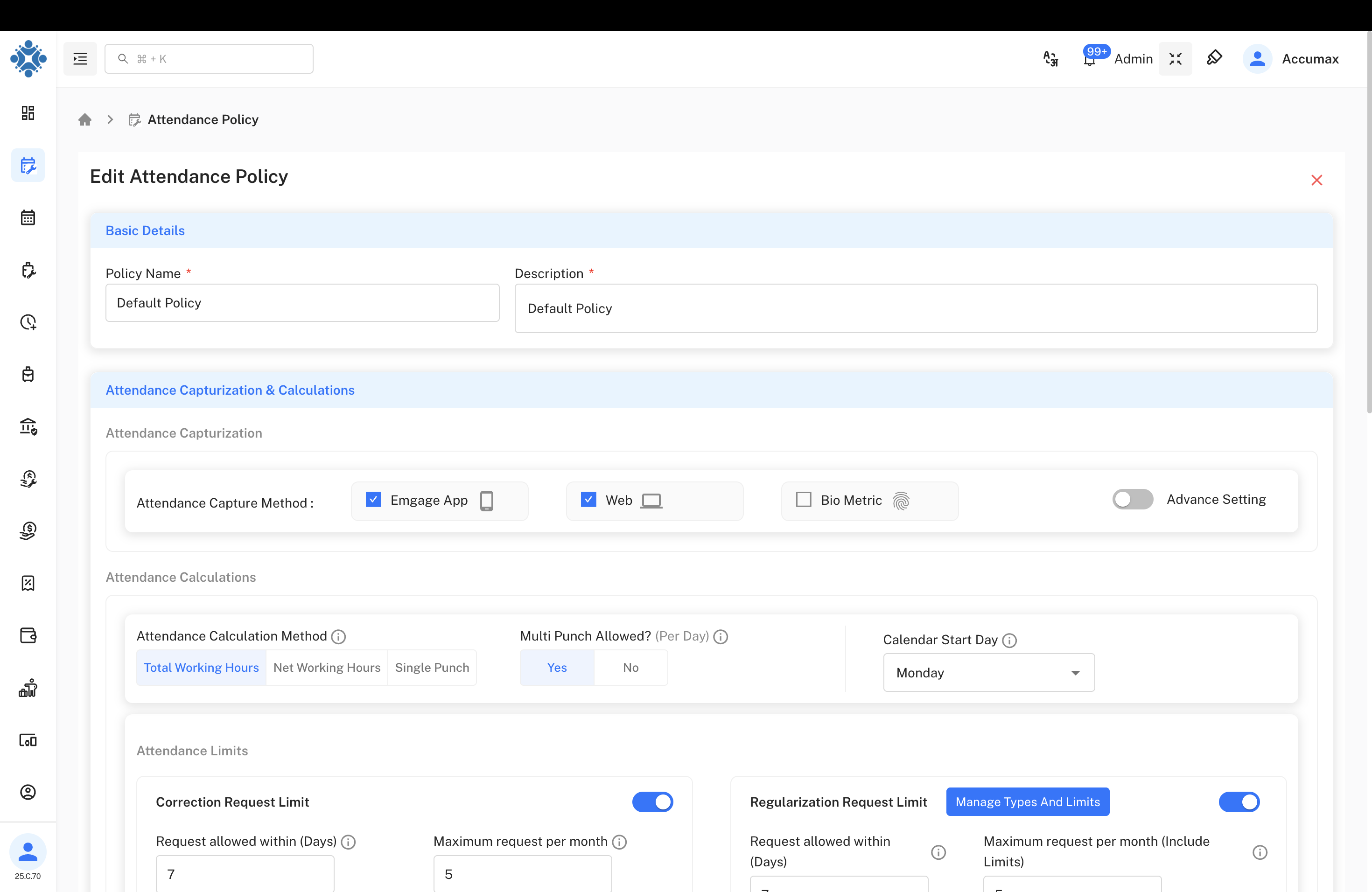
Modify existing policy settings and configurations. All changes are tracked in the history for audit purposes.
Creating New Attendance Policy
Follow these steps to create a comprehensive attendance policy for your organization.
Step 1: Basic Information
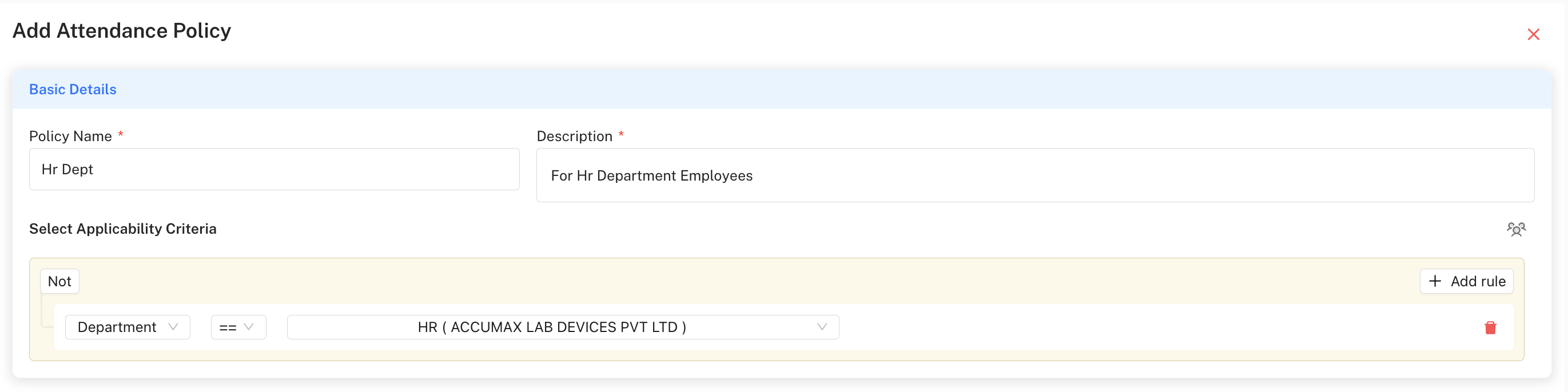
Configure the foundational settings:
- Policy Name: Enter a descriptive name (e.g., "Hr Dept")
- Description: Add details about the policy purpose (e.g., "For Hr Department Employees")
- Select Applicability Criteria: Define which employees are covered by this policy
Step 2: Attendance Capture Configuration
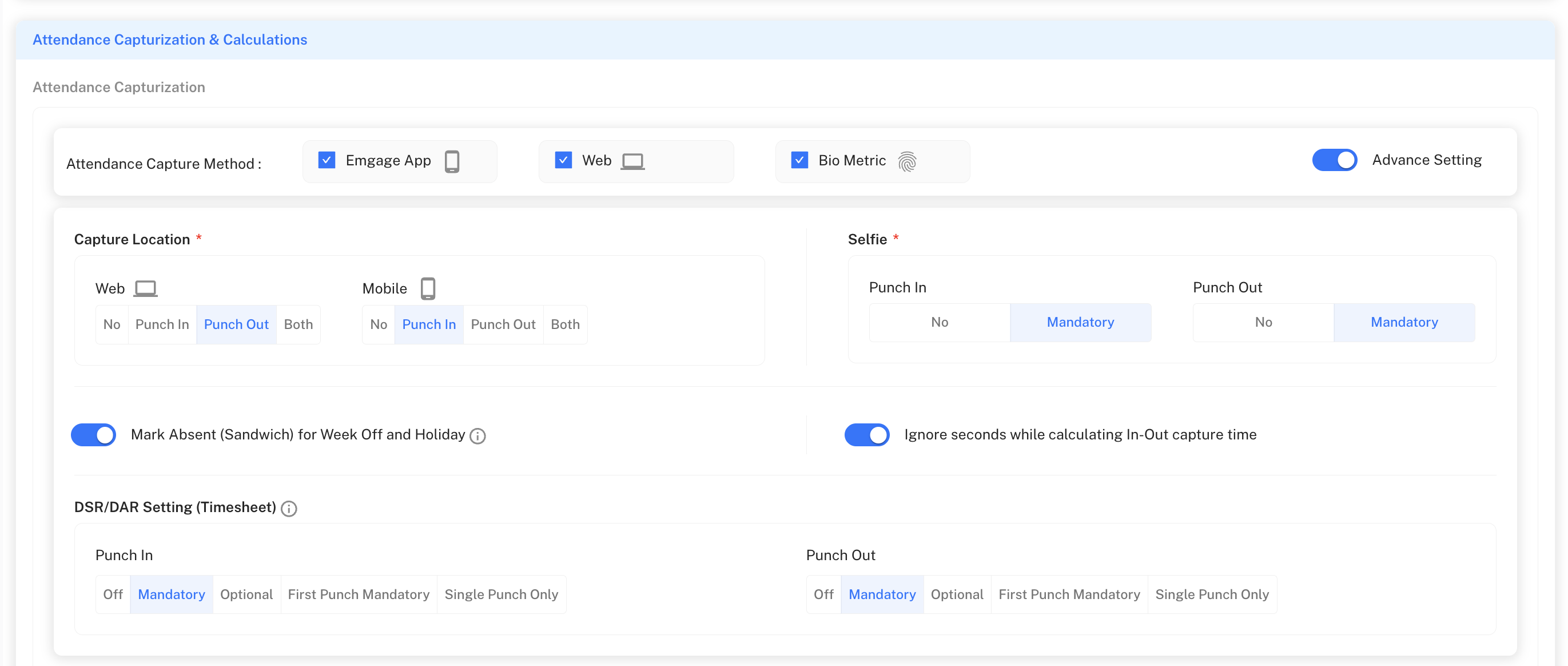
Choose how employees will log their attendance:
- Emgage App: Mobile attendance tracking with phone icon
- Web: Browser-based attendance logging with computer icon
- Bio Metric: Integration with biometric devices with fingerprint icon
- Toggle Advanced Setting for additional configuration options
Advanced Capture Settings
Configure detailed capture requirements:
Capture Location Settings:
- Web: Choose from No / Punch In / Punch Out / Both
- Mobile: Choose from No / Punch In / Punch Out / Both
Selfie Configuration:
- Punch In: Select No or Mandatory
- Punch Out: Select No or Mandatory
Additional Settings:
- Mark Absent (Sandwich) for Week Off and Holiday: Auto-mark attendance
- Ignore seconds while calculating In-Out capture time: Precision setting
DSR/DAR Setting (Timesheet):
- Punch In: Off / Mandatory / Optional / First Punch Mandatory / Single Punch Only
- Punch Out: Off / Mandatory / Optional / First Punch Mandatory / Single Punch Only
Step 3: Attendance Calculations & Limits
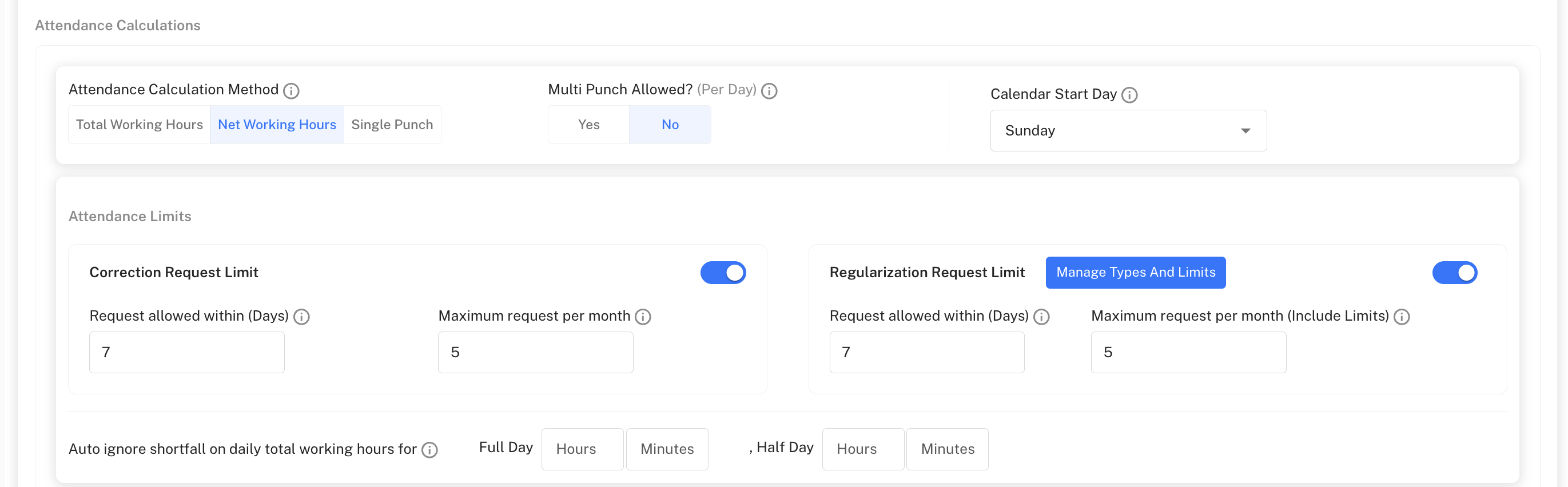
Set up calculation rules and request limits:
Attendance Calculation Method:
- Total Working Hours: Calculate based on total time logged (default selected)
- Net Working Hours: Calculate excluding breaks and non-work time
- Single Punch: Simple single entry/exit system
Multi Punch Configuration:
- Multi Punch Allowed? (Per Day): Select Yes or No
Calendar Settings:
- Calendar Start Day: Choose from dropdown (Sunday is shown selected)
Attendance Limits:
-
Correction Request Limit: Toggle to enable
-
Request allowed within (Days): Set number (e.g., 7)
-
Maximum request per month: Set limit (e.g., 5)
-
Regularization Request Limit: Toggle to enable with "Manage Types And Limits" button
-
Request allowed within (Days): Set number (e.g., 7)
-
Maximum request per month (Include Limits): Set limit (e.g., 5)
Auto-ignore Shortfall Settings:
- Full Day: Set Hours and Minutes tolerance
- Half Day: Set Hours and Minutes tolerance
Step 4: Grace Periods & Penalty Configuration
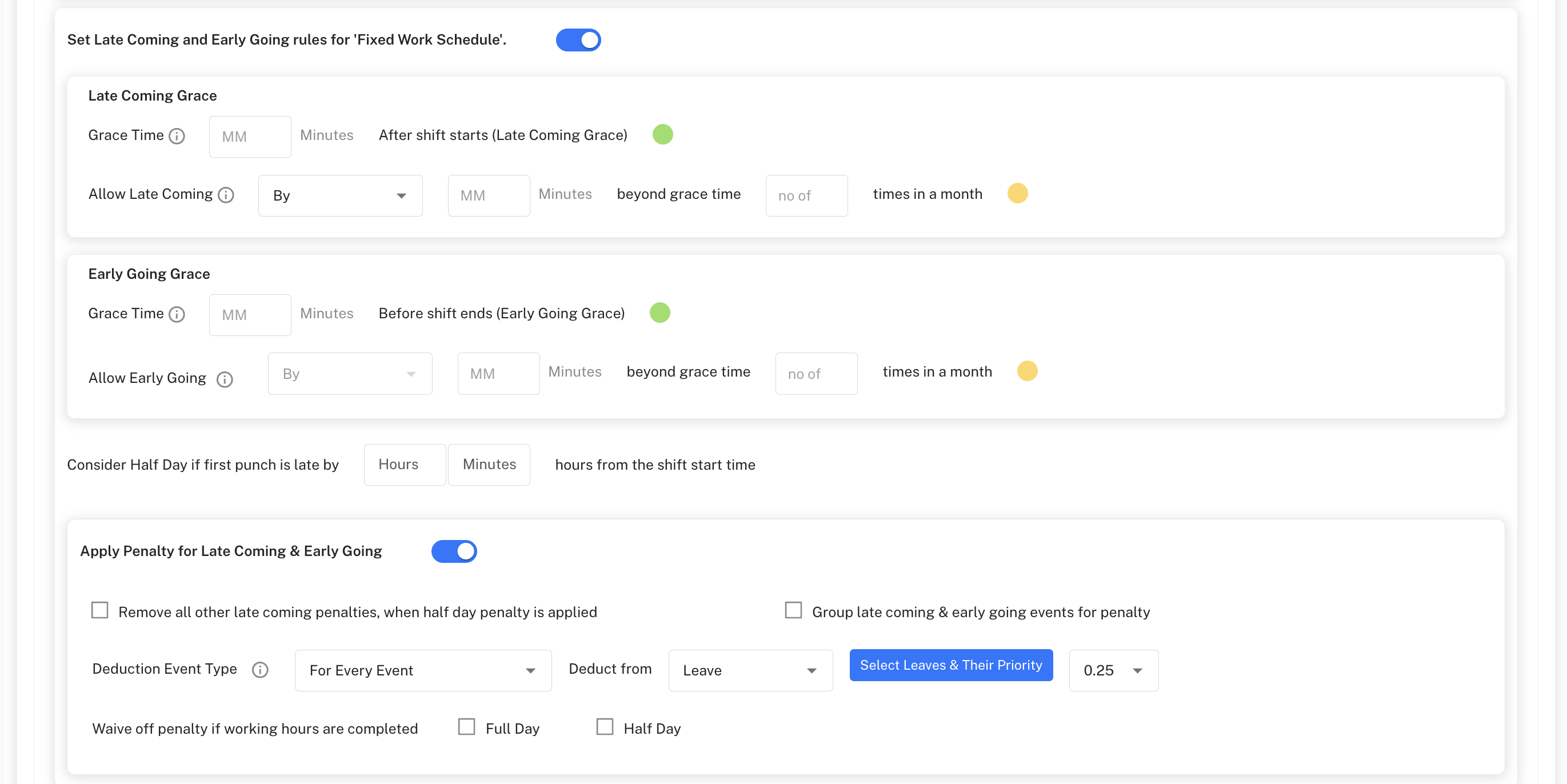
Configure tolerance and penalty settings for fixed work schedules:
Late Coming and Early Going Rules:
- Toggle Set Late Coming and Early Going rules for 'Fixed Work Schedule'
Late Coming Grace:
- Grace Time: Set MM Minutes "After shift starts (Late Coming Grace)"
- Allow Late Coming: Configure "By" MM Minutes "beyond grace time" for "no of" times "times in a month"
Early Going Grace:
- Grace Time: Set MM Minutes "Before shift ends (Early Going Grace)"
- Allow Early Going: Configure "By" MM Minutes "beyond grace time" for "no of" times "times in a month"
Half Day Configuration:
- Consider Half Day if first punch is late by: Set Hours and Minutes "hours from the shift start time"
Penalty Application:
- Toggle Apply Penalty for Late Coming & Early Going
- Remove all other late coming penalties, when half day penalty is applied
- Group late coming & early going events for penalty
Deduction Settings:
- Deduction Event Type: Select "For Every Event" from dropdown
- Deduct from: Select "Leave" from dropdown
- Select Leaves & Their Priority: Button to configure leave hierarchy
- Penalty Amount: Set value (e.g., 0.25)
Waive Penalty Conditions:
- Full Day: Waive penalties for complete day attendance
- Half Day: Waive penalties for half-day attendance
Step 5: Flexible Work Schedule Configuration

Configure settings for flexible work schedules:
Shortfall Management:
- Toggle Set Working hour shortfalls for 'Flexible Work Schedule'
Grace Time Configuration:
- Grace Time Weekly/Monthly Shortfall Upto: Set Hours and Minutes
- Additional text: "hour is allowed (excluding daily auto ignored shortfall)"
Deduction Settings:
- Deduct from: Select "Leave" from dropdown
- Select Leaves & Their Priority: Button to configure leave type priority
Shortfall Hours Slabs: Configure progressive deduction system with checkboxes:
- MM to MM → Deduction: 0.25
- MM to MM → Deduction: 0.50
- MM to MM → Deduction: 0.75
- MM to MM → Deduction: 1.00
Step 6: Request Types Management
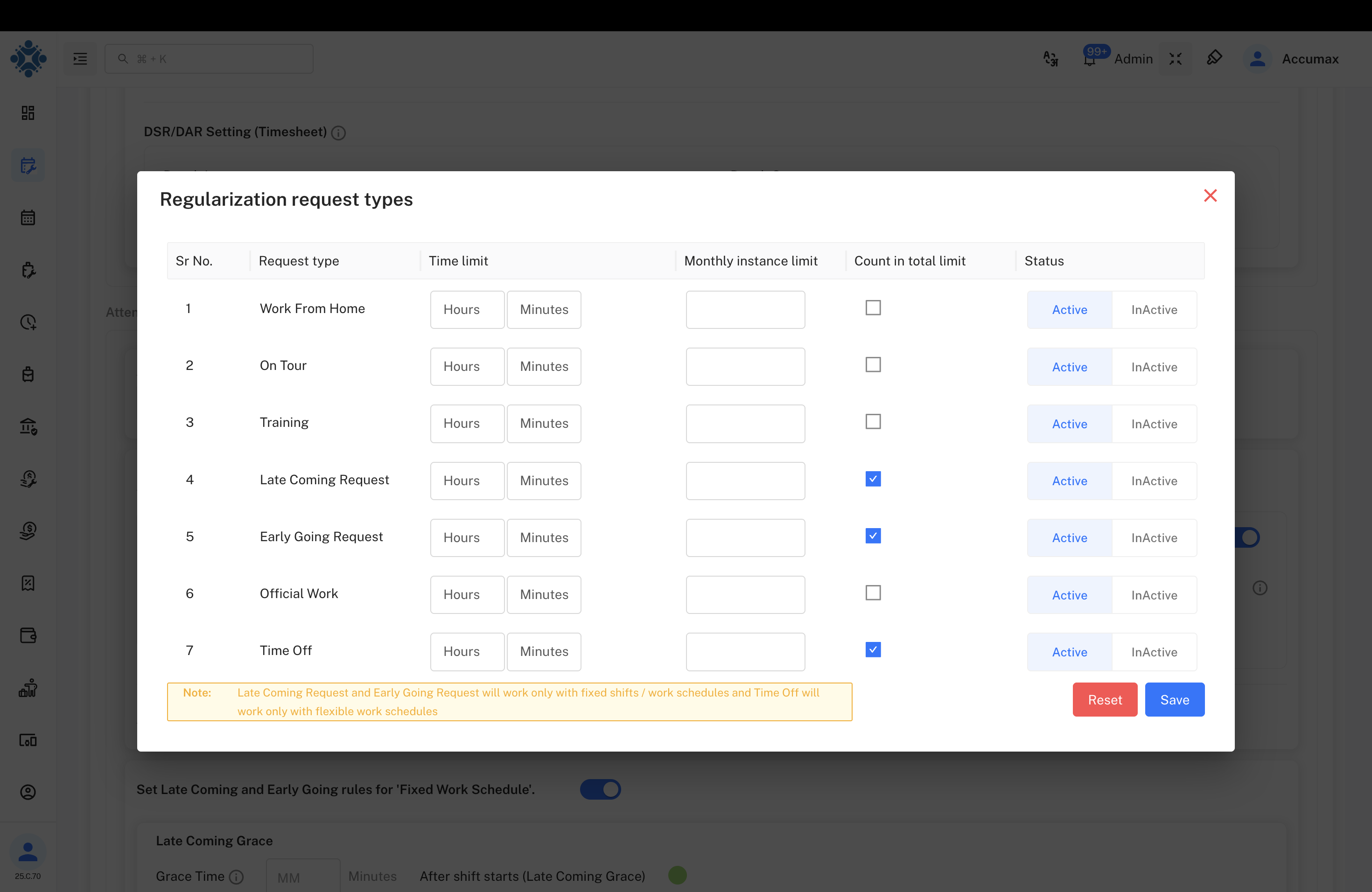
Configure available regularization request types in the modal dialog:
Configuration Options:
- Time Limit: Set Hours and Minutes allowed for each request type
- Monthly Instance Limit: Number of times allowed per month
- Count in Total Limit: Checkbox to include in overall monthly limits
- Status: Toggle between Active and Inactive
Late Coming Request and Early Going Request will work only with fixed shifts / work schedules and Time Off will work only with flexible work schedules.
Actions:
- Reset: Clear all changes
- Save: Apply configuration
Step 7: Leave Deduction Priority (Flexible Schedule)
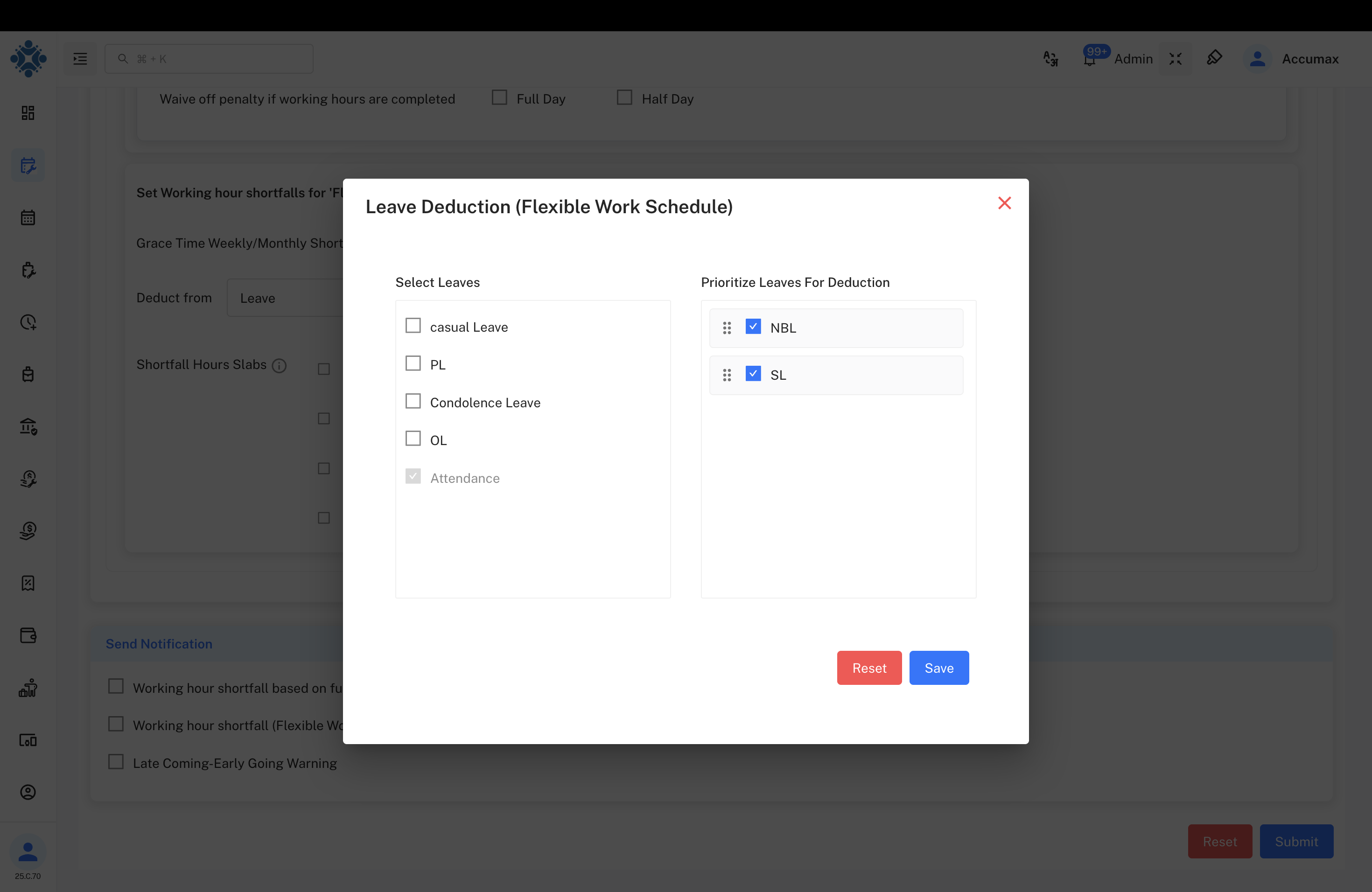
Configure leave deduction hierarchy for flexible work schedules:
Select Leaves:
- Casual Leave
- PL (Privilege Leave)
- Condolence Leave
- OL (Other Leave)
- Attendance
Prioritize Leaves For Deduction:
- ⋮⋮ NBL (drag handle for reordering)
- ⋮⋮ SL (drag handle for reordering)
Use the drag handles (⋮⋮) to reorder leave types by priority. Higher priority leaves will be deducted first when shortfalls occur.
Actions:
- Reset: Clear all changes
- Save: Apply leave priority configuration
Step 8: Notification Configuration
Enable automated notifications for various attendance scenarios:
Available Notification Types:
- Working hour shortfall based on full day/half day hours
- Working hour shortfall (Flexible Work Schedule)
- Late Coming-Early Going Warning
- In punch - Out punch missing
- Penalty Warning
Select the checkboxes for notifications you want to enable. These will automatically alert employees and managers about attendance issues.
Final Actions:
- Reset: Clear all form data and start over
- Submit: Save the attendance policy configuration
Video Demonstrations
Complete Attendance Policy Setup
This video demonstrates the complete process of setting up an attendance policy from start to finish.
Advanced Configuration Options
This video covers advanced configuration options and best practices for attendance policy setup.
Best Practices and Recommendations
Policy Design Guidelines
- Start Simple: Begin with basic policies and gradually add complexity as needed
- Test Thoroughly: Test policies with a small group before organization-wide deployment
- Department-Specific: Create separate policies for different departments or roles
- Regular Reviews: Review and update policies quarterly based on usage patterns
- Clear Communication: Ensure employees understand policy rules and procedures
Common Configuration Scenarios
Traditional Office Environment
- Capture Methods: Web + Biometric
- Fixed Schedule: Single punch with grace periods
- Strict Compliance: Limited correction requests
- Clear Penalties: Progressive deduction system
Hybrid Work Model
- Capture Methods: App + Web + Biometric
- Flexible Scheduling: Multi-punch capability
- Work from Home: Extended regularization options
- Location Tracking: Enhanced monitoring for remote work
Field-Based Operations
- Capture Methods: Mobile App primary
- Location Capture: Mandatory for all punches
- Flexible Timing: Accommodates travel and client meetings
- Extended Grace: Accounts for operational realities
Security and Compliance
- Location Tracking: Use capture location features judiciously, considering privacy concerns
- Biometric Data: Ensure compliance with local privacy laws when using biometric capture
- Access Controls: Limit policy management access to authorized HR personnel only
- Audit Trails: Regularly review policy change history for compliance purposes
Troubleshooting
Common Issues and Solutions
Policy Not Applying to Employees
- Check Applicability Criteria: Verify employee matches policy rules
- Review Active Status: Ensure policy is enabled and active
- Validate Date Ranges: Confirm policy effective dates
Incorrect Working Hours Calculation
- Verify Calculation Method: Check Total vs Net working hours setting
- Review Multi-Punch Settings: Ensure alignment with work patterns
- Check Calendar Settings: Validate week start day configuration
Regularization Requests Not Working
- Confirm request type is active in policy
- Check monthly limits haven't been exceeded
- Verify request is within allowed time limit
- Ensure schedule type matches request type (fixed vs flexible)
Missing Notifications
- Enable Notification Types: Verify required alerts are activated
- Check Email Configuration: Ensure system email settings are correct
- Review User Preferences: Validate individual notification settings