Shift Management
Last Updated: October 7, 2025 Document Version: 1.0 Prepared for: Emgage HRMS Implementation Team
The Shift Management module enables administrators to create, organize, and maintain both individual shifts and shift groups within the HRMS system. It simplifies scheduling, ensures compliance with working hour policies, and provides flexible options for data export, reporting, and real-time management.
System Overview
The Shift Management system is built around five key components:
- Shift Table – Centralized view for all configured shifts
- Toolbar – Controls for adding, filtering, and exporting shift data
- Add Shift – Form for creating new individual shifts
- Add Shift Group – Configuration for bundling multiple shifts
- Filter & Export Tools – Options for reporting and data analysis
This modular design allows for efficient setup, editing, and tracking of working hours across various teams and departments.
Shift Table
The Shift Table serves as the core dashboard for all shift-related configurations. It provides a complete overview of all shifts and their respective details, allowing administrators to monitor and manage schedules easily.
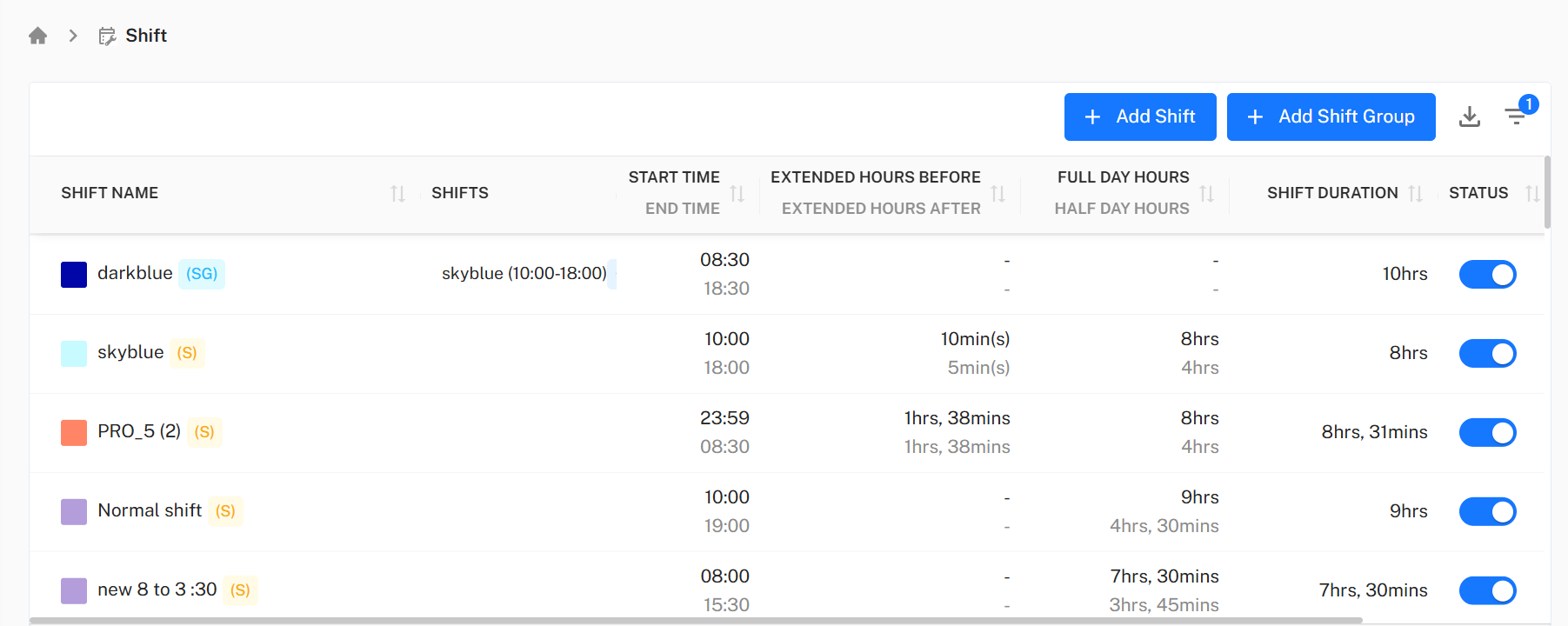
Table Columns
| Column | Description |
|---|---|
| Shift Name | The name assigned to the shift. |
| Shifts | Lists all individual shifts if the entry represents a group shift. |
| Start Time / End Time | Defines working hours for the shift. |
| Extended Hours (Before / After) | Buffer time allowed before and after a shift, in minutes. |
| Full Day / Half Day Hours | Displays calculated hours for full and half-day work. |
| Shift Duration | Total duration of the shift. |
| Status | Indicates whether the shift is Active or Inactive (toggle button). |
| Actions | Quick-access management controls — Copy, History, Edit, Delete. |
Action Buttons
Each row in the shift table provides several management actions:
| Action | Icon | Description |
|---|---|---|
| Copy | Opens the “Add Shift” form with all fields pre-filled (except Shift Name). Useful for creating similar shifts quickly. | |
| History | Displays the shift’s modification history and version logs. | |
| Edit | Opens the shift details in edit mode for modification. | |
| Delete | Permanently removes the selected shift from the system. |
Toolbar Controls
Located above the Shift Table, the Toolbar provides quick actions for data management and configuration.

Available Options:
- + Add Shift – Opens the shift creation form.
- + Add Shift Group – Opens the group creation form.
- Export Data – Allows exporting shift data in multiple formats.
- Filter – Enables quick filtering by shift name, type, time, or status.
These options provide fast access to all essential setup and data management tools.
Add Shift
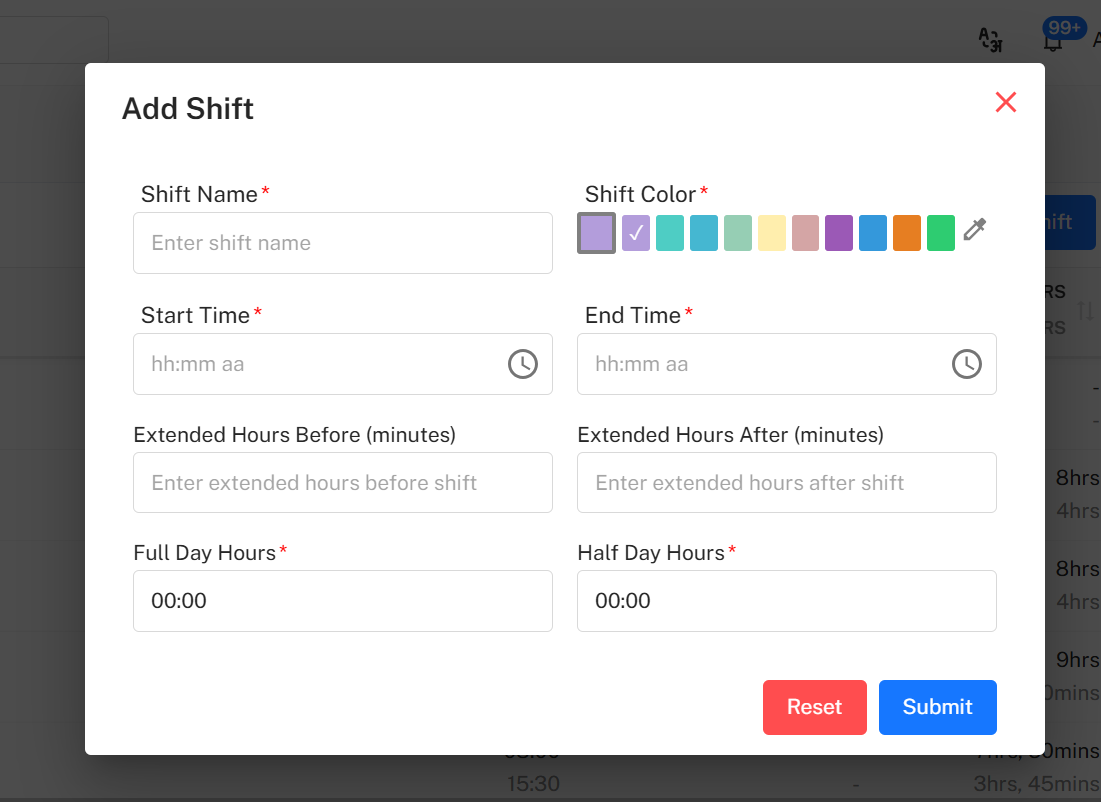
Administrators can define and configure new individual shifts through the Add Shift form. This form captures essential details such as shift timings, working hours, and color identifiers.
Mandatory Fields
| Field | Description |
|---|---|
| Shift Name | Enter the shift name (e.g., “Morning Shift”). |
| Shift Colour | Select from the color palette or use a custom color picker. |
| Start Time | Define the start time of the shift. |
| End Time | Define the end time of the shift. |
| Full Day Hours | Automatically calculated based on the time duration. |
| Half Day Hours | Automatically calculated based on the time duration. |
Optional Fields
| Field | Description |
|---|---|
| Extended Hours Before Shift | Allow buffer time before shift starts (in minutes). |
| Extended Hours After Shift | Allow buffer time after shift ends (in minutes). |
Actions
- Reset – Clears all entered data from the form.
- Submit – Saves and activates the new shift configuration.
Add Shift Group
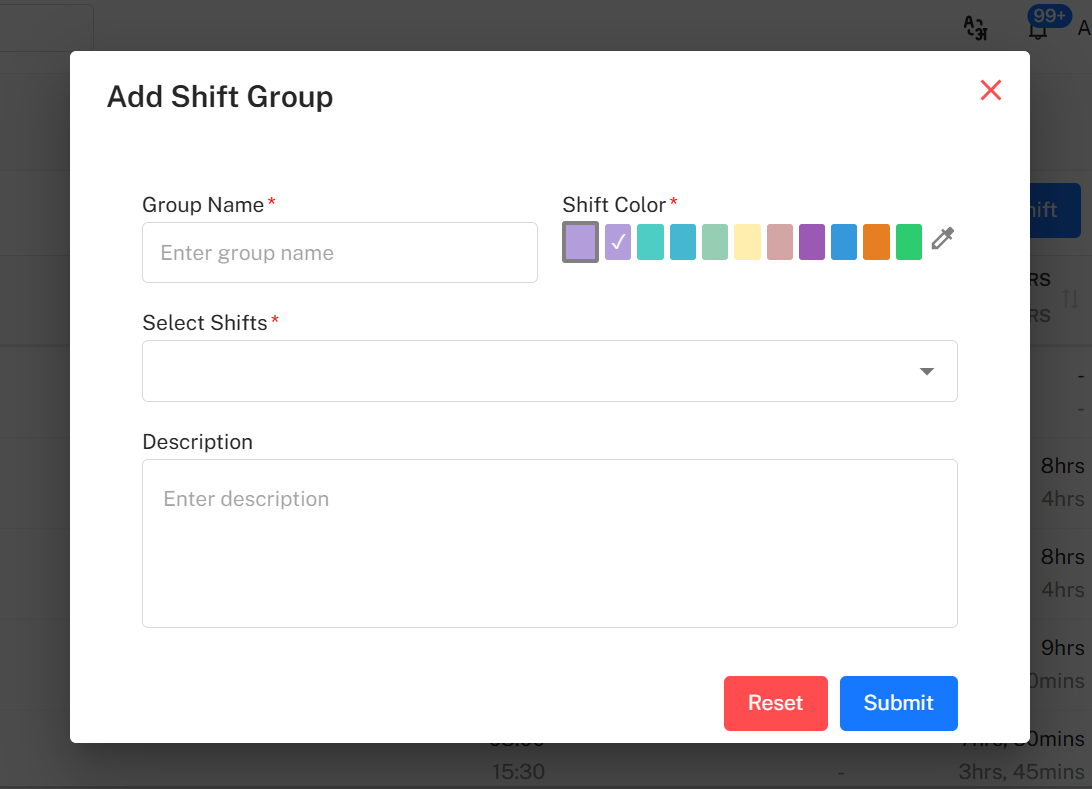
Shift Groups enable administrators to bundle multiple shifts together for easier management — ideal for rotating or department-based schedules.
Mandatory Fields
| Field | Description |
|---|---|
| Group Name | Enter a name for the shift group. |
| Shift Colour | Assign a color for easy identification. |
| Select Shifts | Use the dropdown to select one or more existing shifts. |
Optional Field
| Field | Description |
|---|---|
| Description | Additional notes or details about the group. |
Actions
- Reset – Clears the form fields.
- Submit – Saves and activates the group configuration.
Export Data
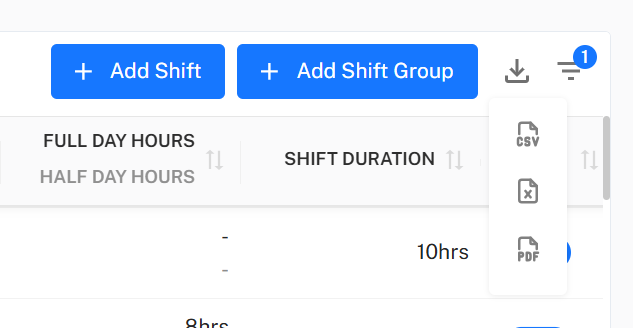
Administrators can export current shift configurations for reporting, backup, or audit purposes.
Supported Formats:
| Format | Use Case |
|---|---|
| CSV | For lightweight exports and integration with external tools. |
| Excel | For detailed analysis and internal HR reporting. |
| For static reports or sharing with management. |
Filter Shifts
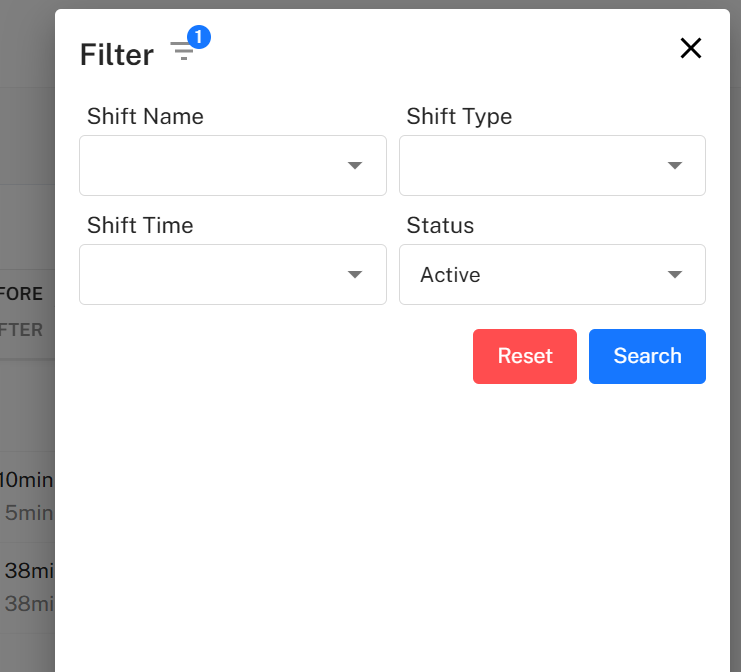
The Filter feature allows narrowing down visible results in the Shift Table. It ensures quick access to specific shifts or shift groups based on defined parameters.
Available Filters
| Filter Type | Description |
|---|---|
| Shift Name | Search by shift title or keyword. |
| Shift Type | Filter between individual shifts and group shifts. |
| Shift Time | Select by time category (Day / Night). |
| Status | Show only Active or Inactive shifts. |
Filter Actions
- Search – Applies the selected filter criteria to the shift table.
- Reset – Clears all filters and displays the full list.
Implementation Guidelines
For HR Administrators:
- Create base shifts before defining shift groups.
- Use consistent naming conventions (e.g., Morning Shift, Night Shift).
- Assign distinct colors to visually separate shift types.
- Verify all timing configurations before submission.
- Regularly export shift data for backup and compliance reviews.
For Managers:
- Review assigned shifts weekly to ensure accuracy.
- Utilize filters to monitor active and inactive shifts.
- Export and analyze shift duration for performance evaluation.
- Report discrepancies to HR or administrators promptly.
Common Issues and Solutions
| Issue | Possible Cause | Recommended Solution |
|---|---|---|
| Shift not visible in table | Shift status set to Inactive | Toggle status to Active. |
| Duplicate shift names | Existing shift with same name | Use a unique shift name before saving. |
| Incorrect working hours | Misconfigured start/end time | Recalculate and update Full/Half Day hours. |
| Export not working | Browser pop-up blocked | Enable pop-ups or allow download permissions. |
Best Practices
- Start with individual shifts before creating shift groups.
- Use color coding for better visual organization.
- Export regularly for reporting and auditing.
- Test new configurations before assigning them to employees.
- Maintain consistency in shift naming and timing conventions.