Shift Attendance Update
Last Updated: October 3, 2025 Document Version: 1.0 Prepared for: Emgage HRMS Implementation Team
The Shift Attendance Update module allows administrators to manually update employee attendance records and modify shift assignments. This system provides two main sections: Attendance Summary for updating attendance records and Shift Summary for managing shift assignments.
System Overview
The system consists of two main sections with specific functions:
- Attendance Summary - View and update employee attendance records
- Shift Summary - Manage and modify employee shift assignments
- Calendar Interface - Visual attendance tracking with color-coded status
- Bulk Operations - Update multiple employees simultaneously
- Filter System - Target specific employees or groups
Attendance Summary Section
Calendar View Interface
The main attendance calendar displays employee attendance across daily periods with color-coded status indicators.

Calendar Features:
| Feature | Description |
|---|---|
| Employee List | Left sidebar showing all employees with checkboxes |
| Daily Columns | Individual date columns showing attendance status |
| Color Coding | Different colors for Present, Absent, Late, etc. |
| Selection Tools | Checkboxes for selecting employees |
| Date Range | Calendar spans across multiple days/weeks |
Mark Present Functionality
Administrators can mark employees present for specific dates using the "Mark Present" dropdown feature.
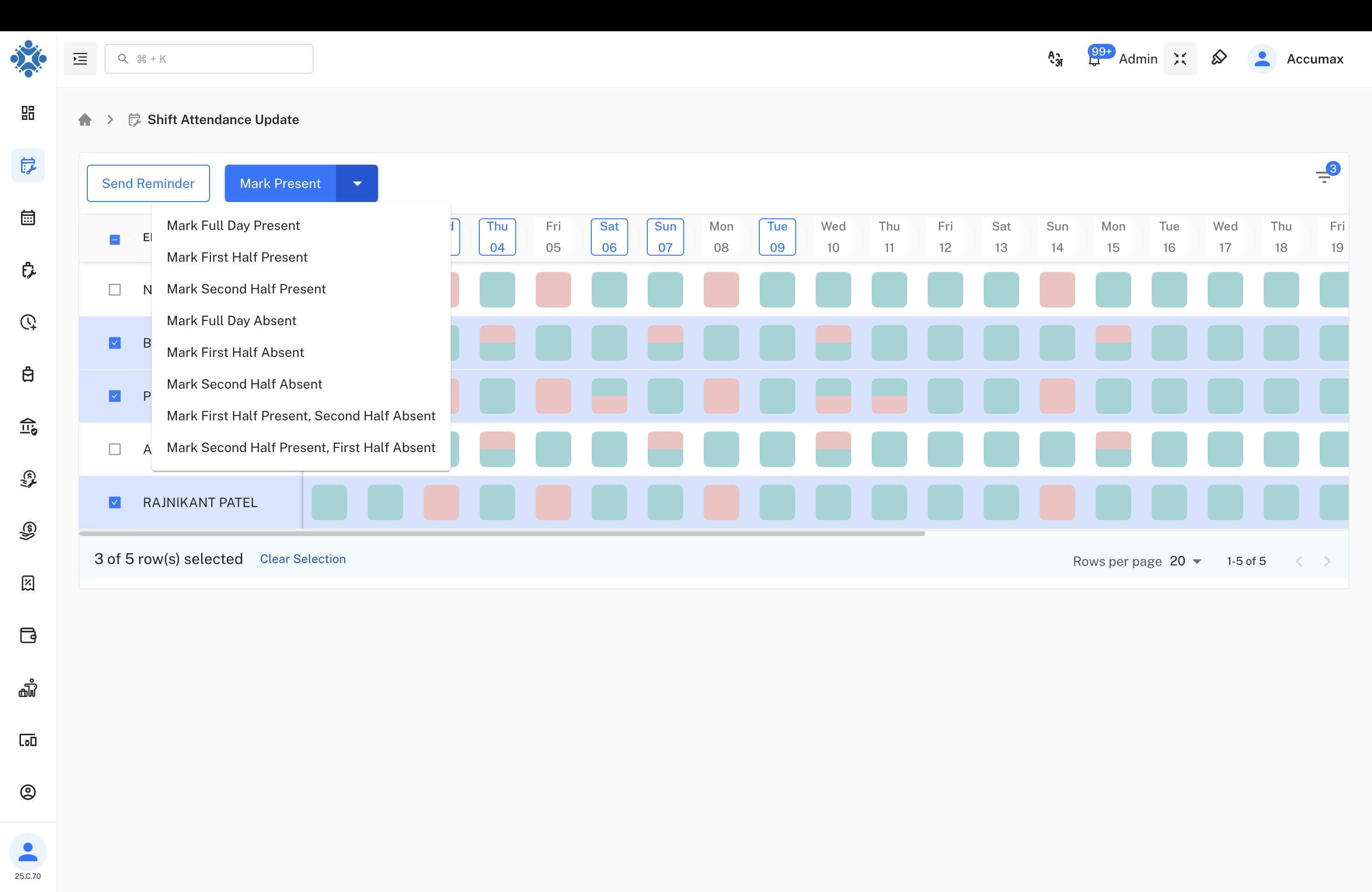
Mark Present Options:
- Mark Full Day Present - Complete day attendance
- Mark First Half Present - Morning session only
- Mark Second Half Present - Afternoon session only
- Mark Full Day Absent - Complete day absence
- Mark First Half Absent - Morning session absence
- Mark Second Half Absent - Afternoon session absence
- Mark First Half Present, Second Half Absent - Mixed attendance
- Mark Second Half Present, First Half Absent - Mixed attendance
Process:
- Select employees using checkboxes
- Choose "Mark Present" from dropdown
- Select appropriate attendance option
- System updates attendance records instantly
Attendance Detail Summary
Click on any attendance cell to view detailed information for that employee and date.
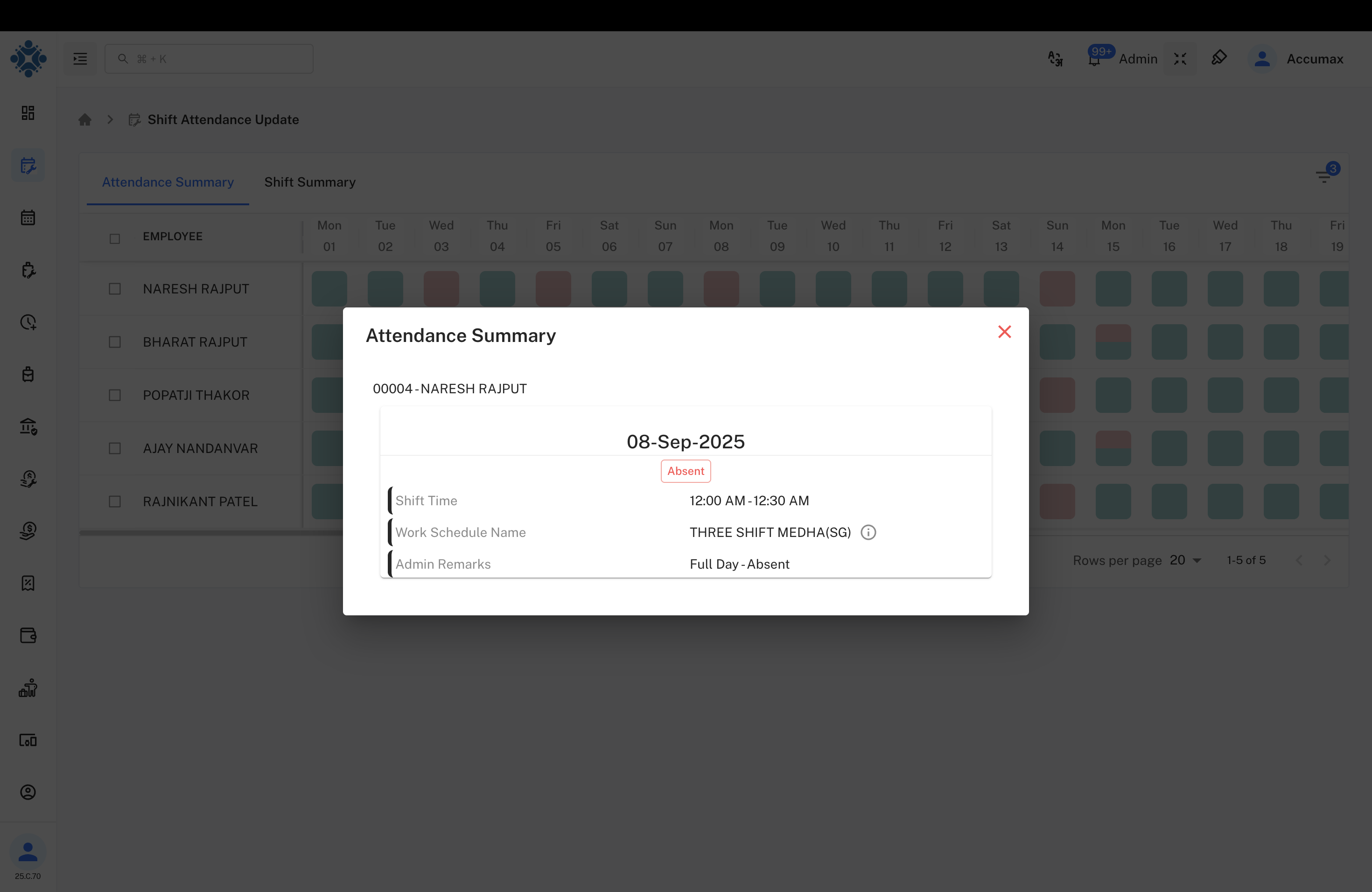
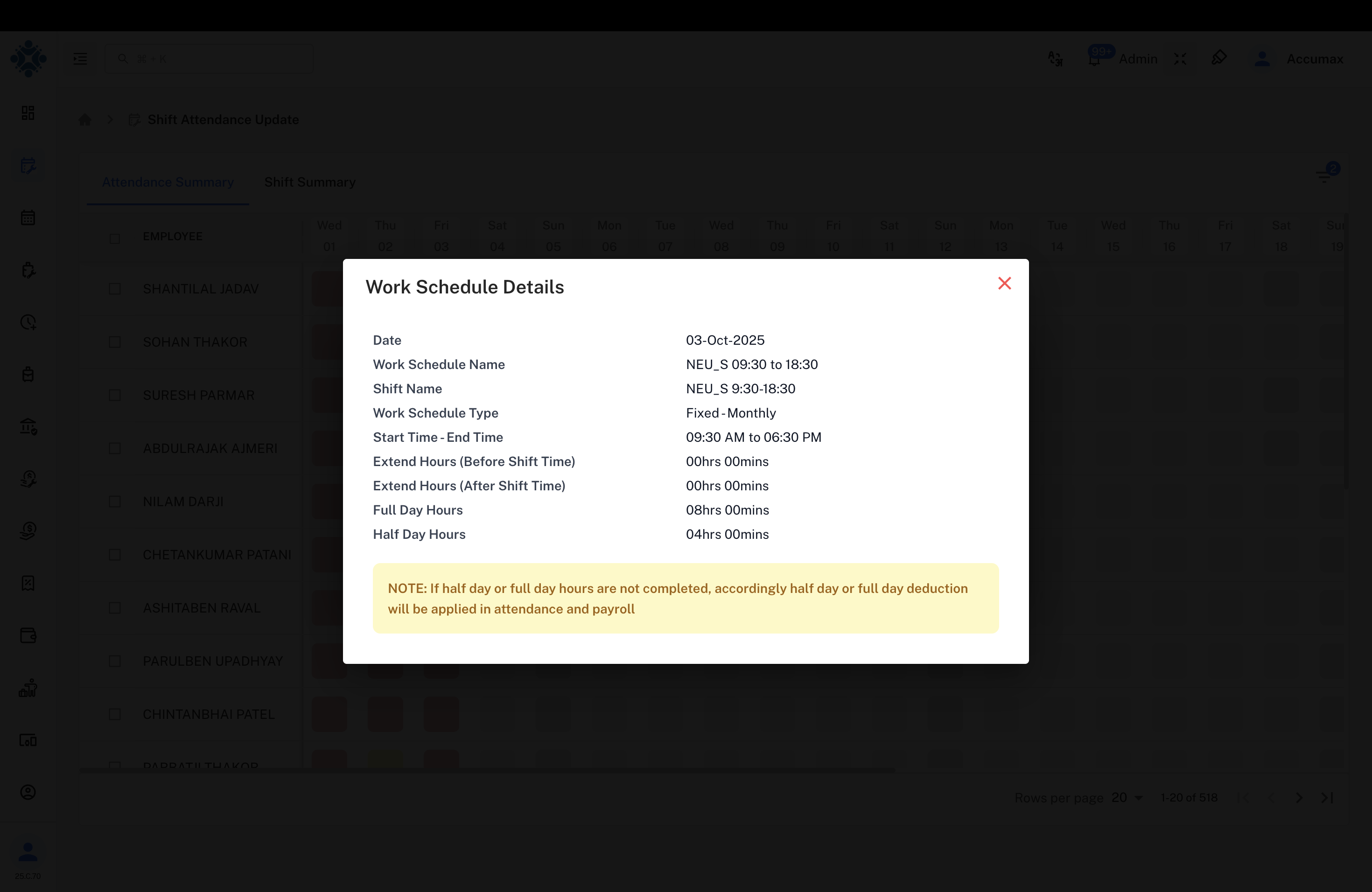
Work Schedule Details
Additional details popup shows comprehensive shift information when hovering over work schedule names.
Filter System
Use advanced filters to target specific employees or groups for attendance updates.

Filter Categories:
| Filter Type | Options |
|---|---|
| Employee Status | InActive, Active |
| Employee | Specific employee selection |
| SBU | Strategic Business Unit |
| State | Geographic location |
| Branch | Office branch |
| Designation | Job role |
| Department | Team/department |
| Grade | Employee grade level |
| Employee Type | Full-time, Part-time, etc. |
| Employment Type | Permanent, Contract, etc. |
| Month & Year | Time period selection |
| Freeze Status | Payroll freeze status |
| Attendance Status | Present, Absent, etc. |
Shift Summary Section
Shift Schedule Overview
The Shift Summary tab displays detailed shift information for each employee across different dates.
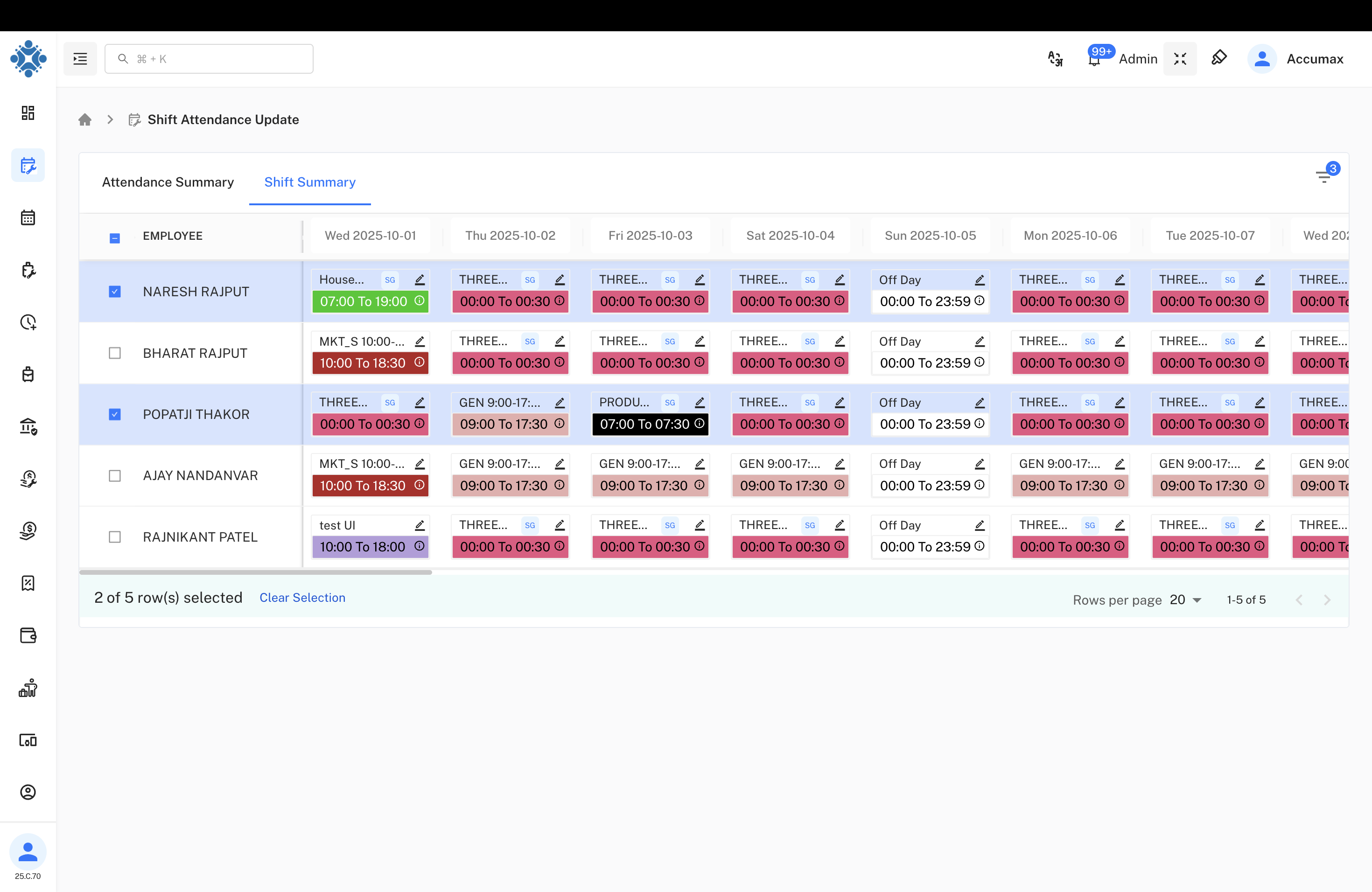
Shift Summary Features:
- Employee Selection - Checkboxes for bulk operations
- Daily Shift Details - Specific shift information per day
- Shift Timing - Start and end times for each shift
- Color Coding - Visual indicators for different shift types
- Edit Icons - Quick access to modify shifts
Bulk Shift Assignment
Select multiple employees to assign shifts in bulk operations.
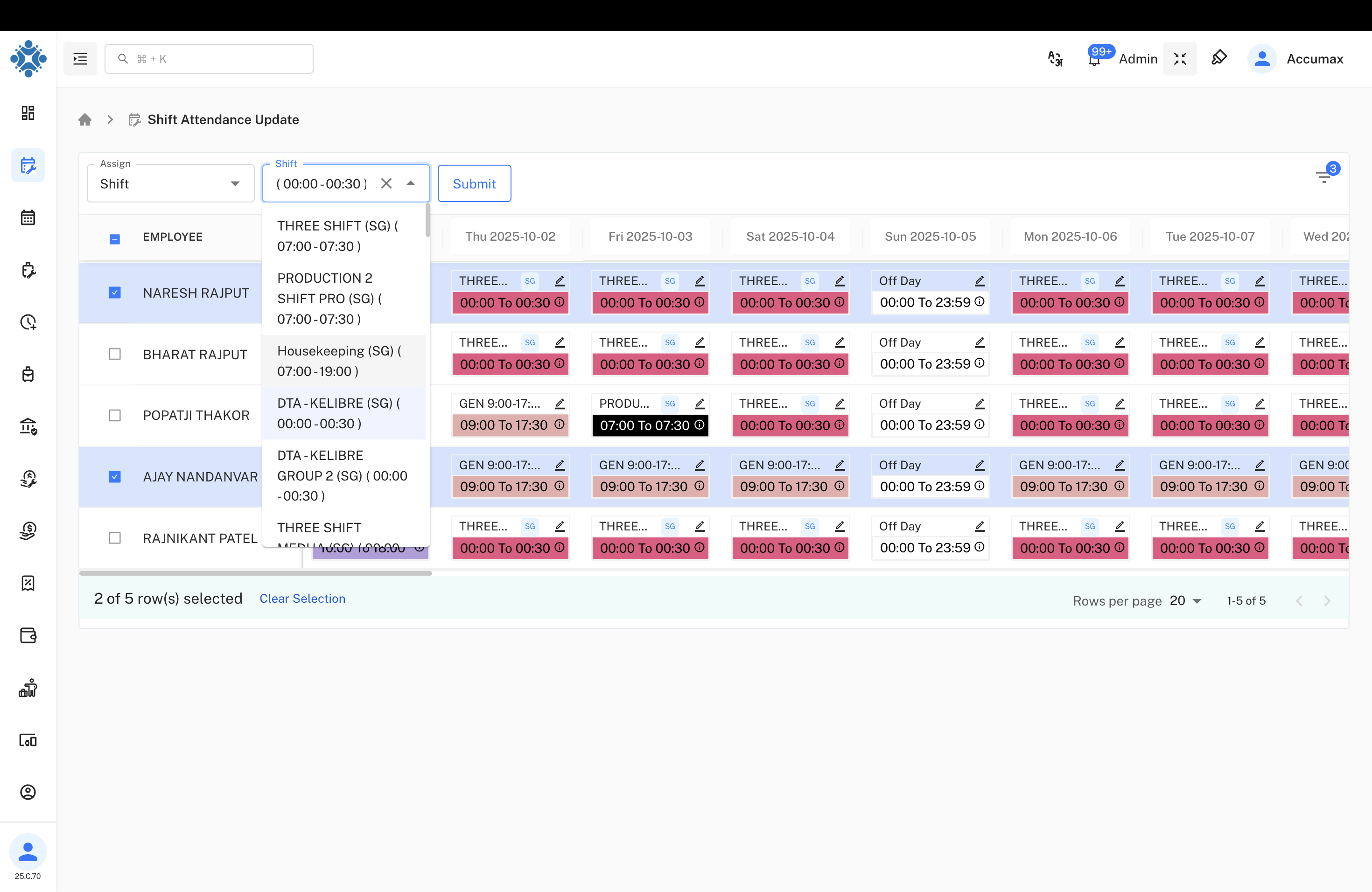
Bulk Assignment Process:
- Select Employees - Use checkboxes to select multiple employees
- Choose Assign Option - Select "Assign" from dropdown
- Set Shift Details - Choose shift type and schedule
- Apply Changes - Submit bulk assignment
Individual Shift Assignment
Assign or modify shifts for individual employees using the assignment modal.
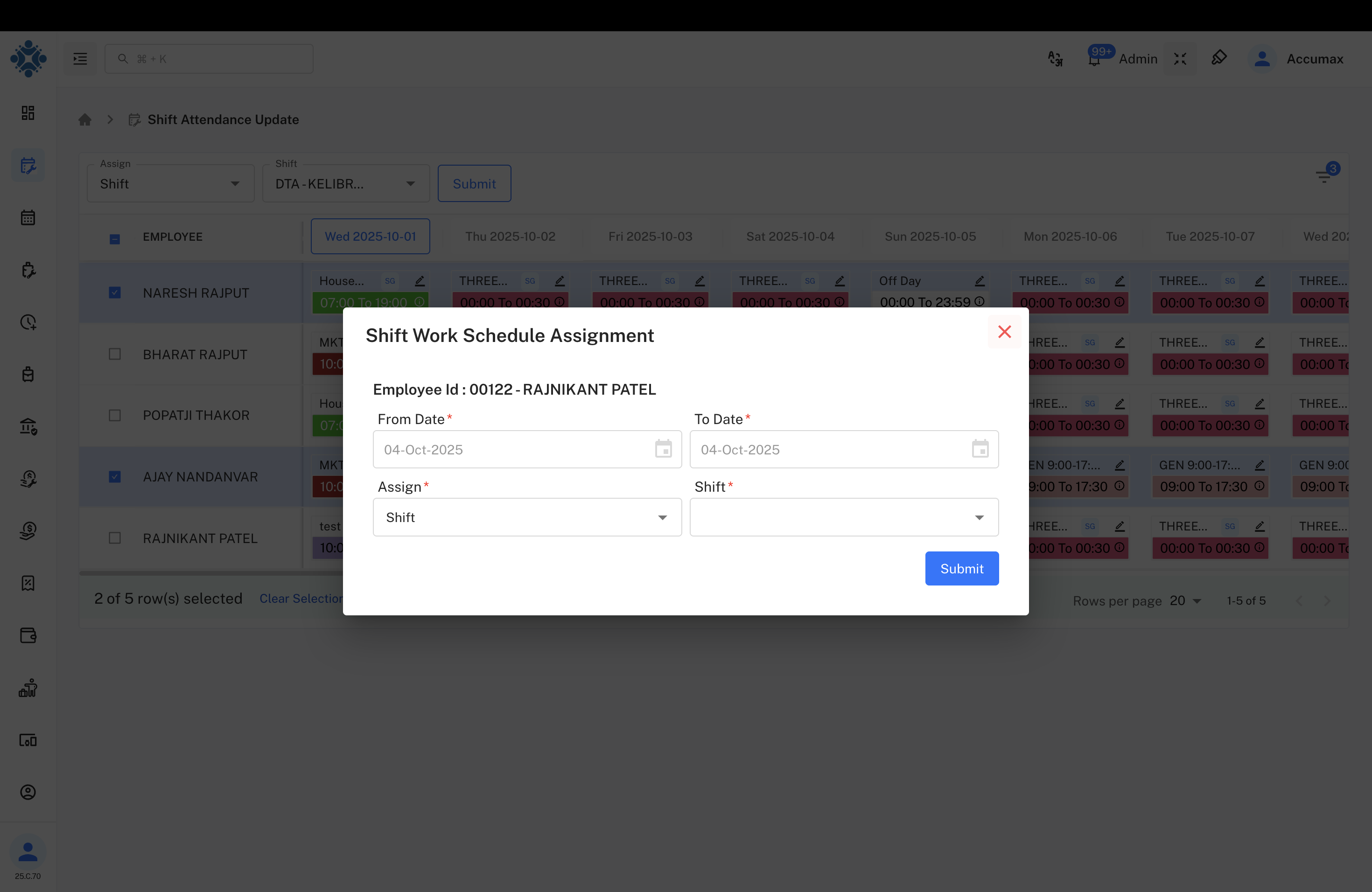
Assignment Process:
- Select employee from calendar
- Set date range for assignment
- Choose shift type from dropdown
- Select specific shift schedule
- Submit assignment
Implementation Guidelines
For HR Administrators:
- Use bulk operations for efficient attendance updates
- Verify shift assignments match business requirements
- Apply filters to target specific employee groups
- Review attendance summaries before making changes
- Document significant attendance modifications
For Managers:
- Monitor team attendance through calendar view
- Coordinate with HR for shift assignment changes
- Use summary details to understand attendance patterns
- Report discrepancies promptly
Best Practices:
- Update attendance records promptly
- Use appropriate attendance status options
- Verify shift assignments match employee schedules
- Maintain accurate records for payroll processing
- Use filters effectively for large workforce management
Common Operations
Update Attendance:
- Navigate to Attendance Summary tab
- Select employees using checkboxes
- Choose "Mark Present" with appropriate option
- Confirm attendance updates
Assign Shifts:
- Switch to Shift Summary tab
- Select employees for shift assignment
- Use "Assign" dropdown for bulk operations
- Set shift details and date ranges
- Submit assignment changes
Filter Employees:
- Open filter panel
- Set criteria for employee selection
- Apply filters to narrow results
- Perform operations on filtered employees