shift work schedule assignment
Last Updated: October 7, 2025 Document Version: 1.0 Prepared for: Emgage HRMS Implementation Team
The Shift Work Schedule Assignment module allows administrators to assign Shifts or Work Schedules to employees efficiently. Assignments can be made individually or in bulk and are applied based on filters such as department, role, location, and employee status. This ensures precise control over scheduling while preserving organizational policies, including weekly offs.
System Overview
The system provides:
- Targeted Employee Selection: Quickly locate employees using multiple filters.
- Bulk Assignment Capability: Assign shifts or schedules to multiple employees simultaneously.
- Flexible Assignment Options: Choose between Shift or Work Schedule based on operational requirements.
- Preserve Week-Offs: Maintain weekly offs for employees during assignment.
- Streamlined Workflow: Complete assignments without leaving the employee table interface.
- Compliance and Accuracy: Mandatory fields reduce errors for dates and assignments.
Step 1: Apply Employee Filters
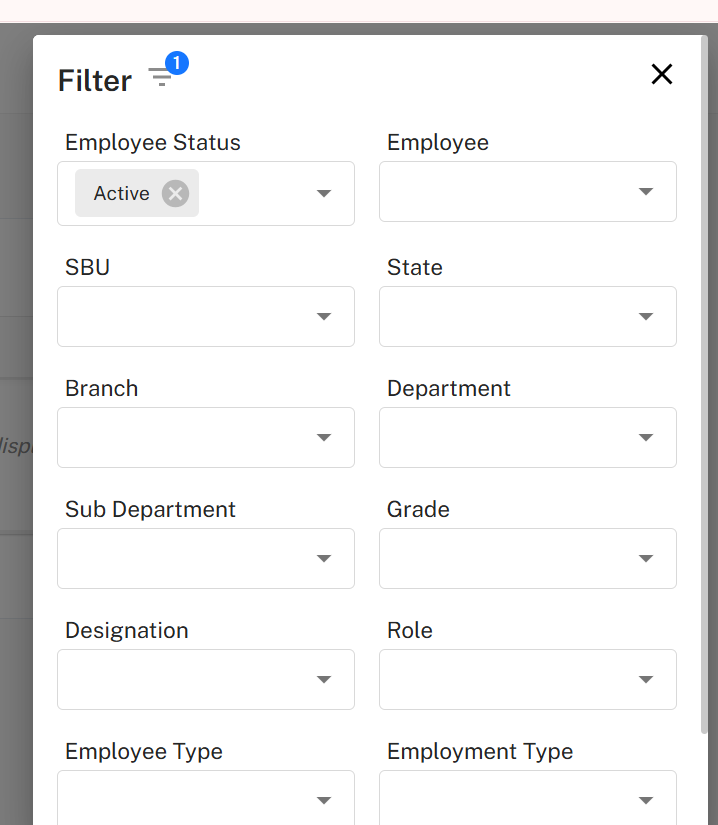
Upon navigating to Attendance Setup → Shift Work Schedule Assignment, a Filter Popup opens automatically to narrow down employee selection.
Available Filter Fields
| Field | Type | Notes |
|---|---|---|
| Employee Status* | Multi-select dropdown | Active, Inactive, FnF — at least one required |
| Employee | Searchable dropdown | Select individual employee(s) |
| SBU | Dropdown | Strategic Business Unit |
| State | Dropdown | Example: Gujarat, Maharashtra |
| Branch | Dropdown | Office/Branch filter |
| Department | Dropdown | Main department |
| Sub Department | Dropdown | Sub-unit under department |
| Grade | Dropdown | Employee grade level |
| Designation | Dropdown | Job title |
| Role | Dropdown | Employee role in system (e.g., Manager, Staff) |
| Employee Type | Dropdown | Permanent, Contractual, Probationary |
| Employment Type | Dropdown | Full-time, Part-time |
Filter Actions
- Search → Applies filters and displays matching employees in the table.
- Reset → Clears all selections.
- At least one Employee Status must be selected.
- Filters can be combined across multiple attributes for precise selection.
Step 2: Employee Table Overview
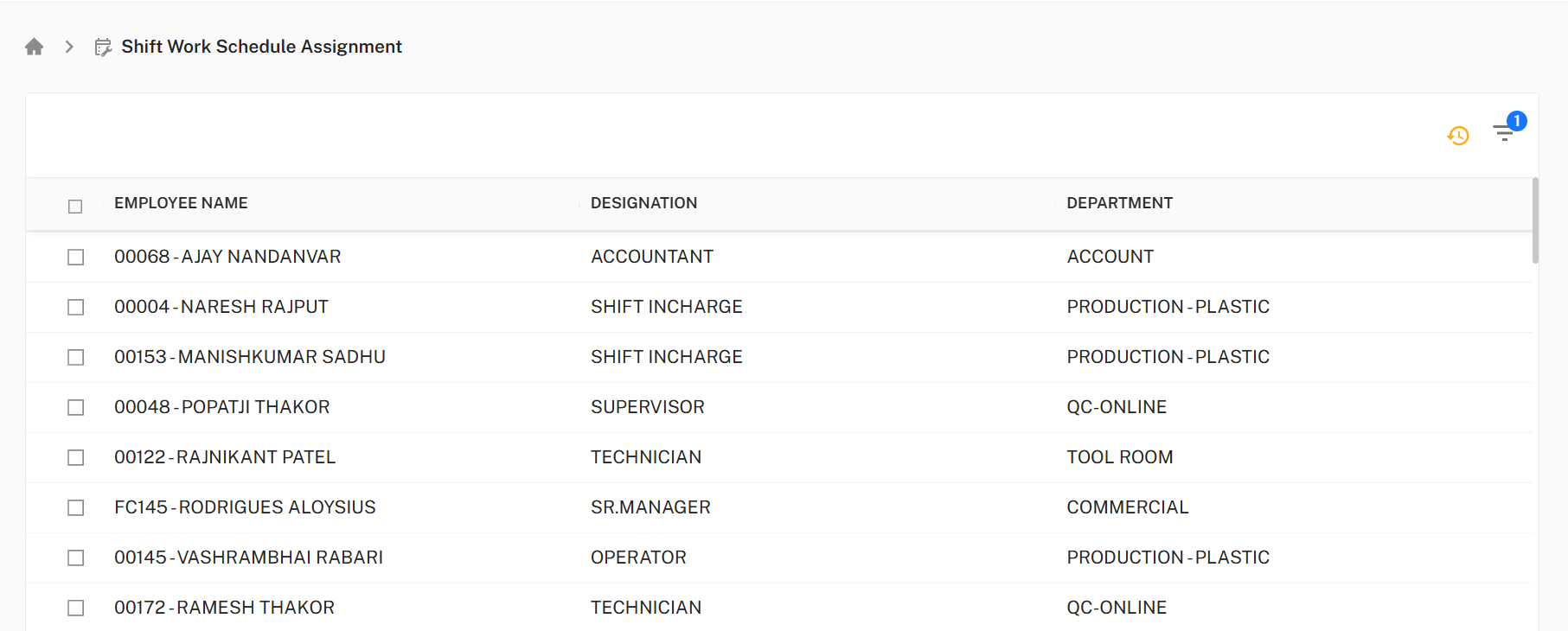
After applying filters, the Employee Table displays all matching employees with details and selection options.
Table Fields
| Field | Description |
|---|---|
| Employee Name | Name of employee; includes checkbox for selection |
| Designation | Job title |
| Department | Employee department |
Selection Options
- Master Checkbox – Selects/deselects all employees in the current view.
- Individual Checkboxes – Select specific employees.
- At least one employee must be selected to display the Assignment Panel.
- Master checkbox can be combined with individual selections for precise control.
Step 3: Assignment Panel
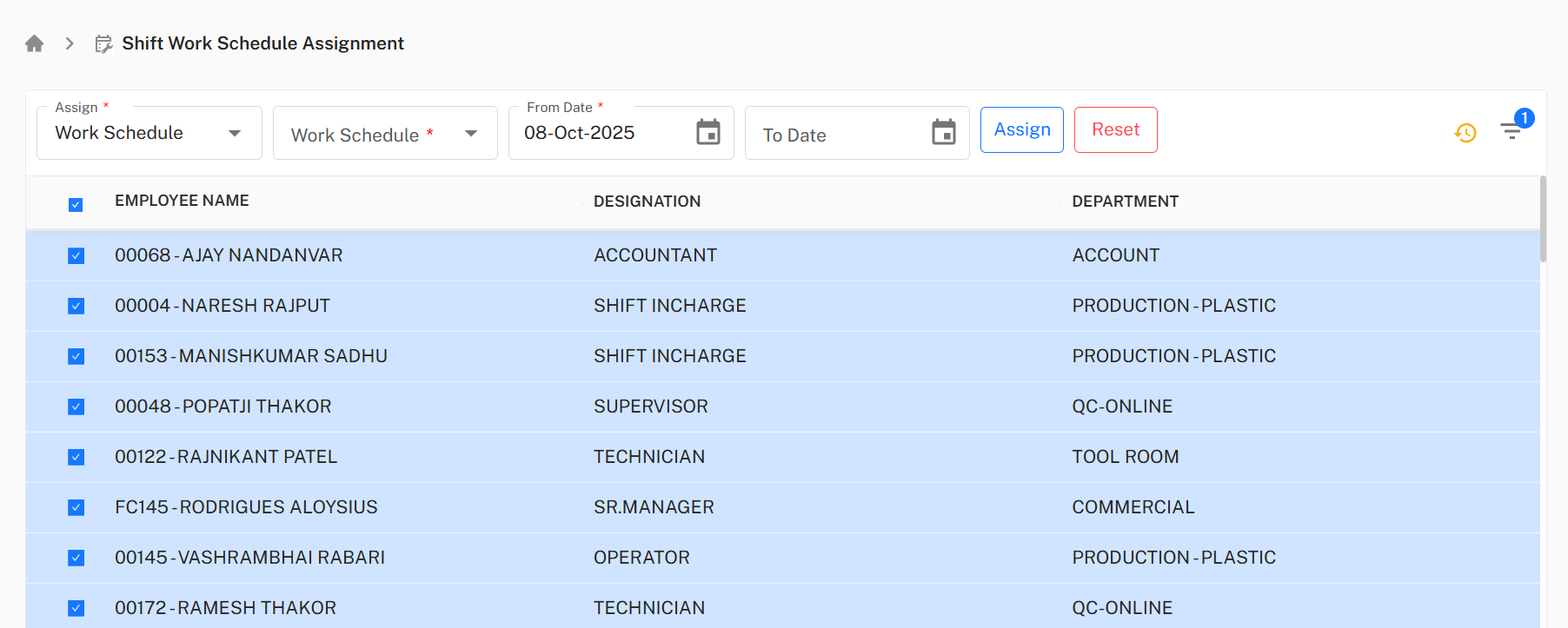
Once employees are selected, the Assignment Panel appears above the table to configure assignments.
Assignment Options
| Field | Description |
|---|---|
| Assign* | Dropdown to select Shift or Work Schedule |
| Shift / Work Schedule Selection* | Dropdown displaying available shifts or schedules based on assignment type |
| From Date* | Start date for assignment |
| To Date* | End date for assignment |
| Preserve Week Off | Toggle On/Off; preserves weekly off days if enabled |
Buttons
- Assign → Applies assignment to all selected employees.
- Reset → Clears fields for reconfiguration.
- From Date and To Date are mandatory.
- Assignments apply to all selected employees.
- Preserving week-offs ensures compliance with labor laws and organizational policies.
Step 4: Detailed Workflow
Step-by-Step Process
- Navigate to Attendance Setup → Shift Work Schedule Assignment.
- Filter Popup opens automatically.
- Apply filters to narrow employee selection (status, department, designation, etc.).
- Click Search to display filtered employee table.
- Select employees using individual or master checkboxes.
- Assignment Panel appears above the table.
- Choose Assign Type: Shift or Work Schedule.
- Select the specific Shift or Work Schedule from dropdown.
- Set From Date and To Date.
- Toggle Preserve Week Off if needed.
- Click Assign to apply the assignment.
- Use Reset to modify selections if necessary.
Implementation Guidelines
For HR Administrators:
- Always select at least one employee status to start the assignment.
- Use filters to target employees accurately and avoid errors.
- Preserve week-offs for compliance.
- Confirm date ranges before submitting assignments.
- Apply bulk assignments only after verifying employee selection.
For Managers:
- Review assigned schedules to ensure alignment with team operations.
- Use individual employee selection for exceptions.
- Confirm assignments do not conflict with existing schedules or leave policies.
Best Practices
- Apply filters before bulk assignments to avoid accidental misassignment.
- Use the Preserve Week Off toggle to comply with labor regulations.
- Regularly update shifts and work schedules to maintain accurate assignments.
- Export employee assignment data periodically for auditing.
- Combine master and individual selection for flexible yet precise assignment.