Update Attendance Management
Last Updated: October 3, 2025 Document Version: 1.0 Prepared for: Emgage HRMS Implementation Team
Update Attendance Management
This portal provides a comprehensive and structured interface for managing employee attendance, including requests, updates, and history tracking. It is optimized for bulk operations, filtering, and direct record manipulation, supporting HR and administrative workflows.
Features Overview
success Attendance Portal Benefits Key features of the attendance management portal:
Bulk Operations: Handle large datasets efficiently (over 20,000 records per session).
Detailed History: Track all attendance modifications with clear audit trails.
Structured Filtering: Narrow down records with advanced filters for dates, status, employees, branch, and more.
Multiple Presence Options: Mark full/half day presence or absence, supporting complex attendance policies.
Direct Data Export: Download attendance logs readily for external reporting.
Navigating the Attendance Portal
History Tab
The "History" tab provides a searchable and filterable list of all attendance updates.
Employee Name, Date, Presence: Columns clearly display which records were updated, their dates, and attendance status.
Modified By and Date: Trace each update to the responsible administrator or support staff and the timestamp.
Effect Column: Indicates whether the action (e.g., absence marking) resulted in removal or not ("Not Removed").
Pagination and Rows per Page: Easily browse through large record sets using navigation in the footer.

Exporting Data
You can export the current view or filtered records by clicking the "Export Data" button (downward arrow icon above the table). This provides reports for analysis, compliance, or archiving.
Filtering Attendance Records
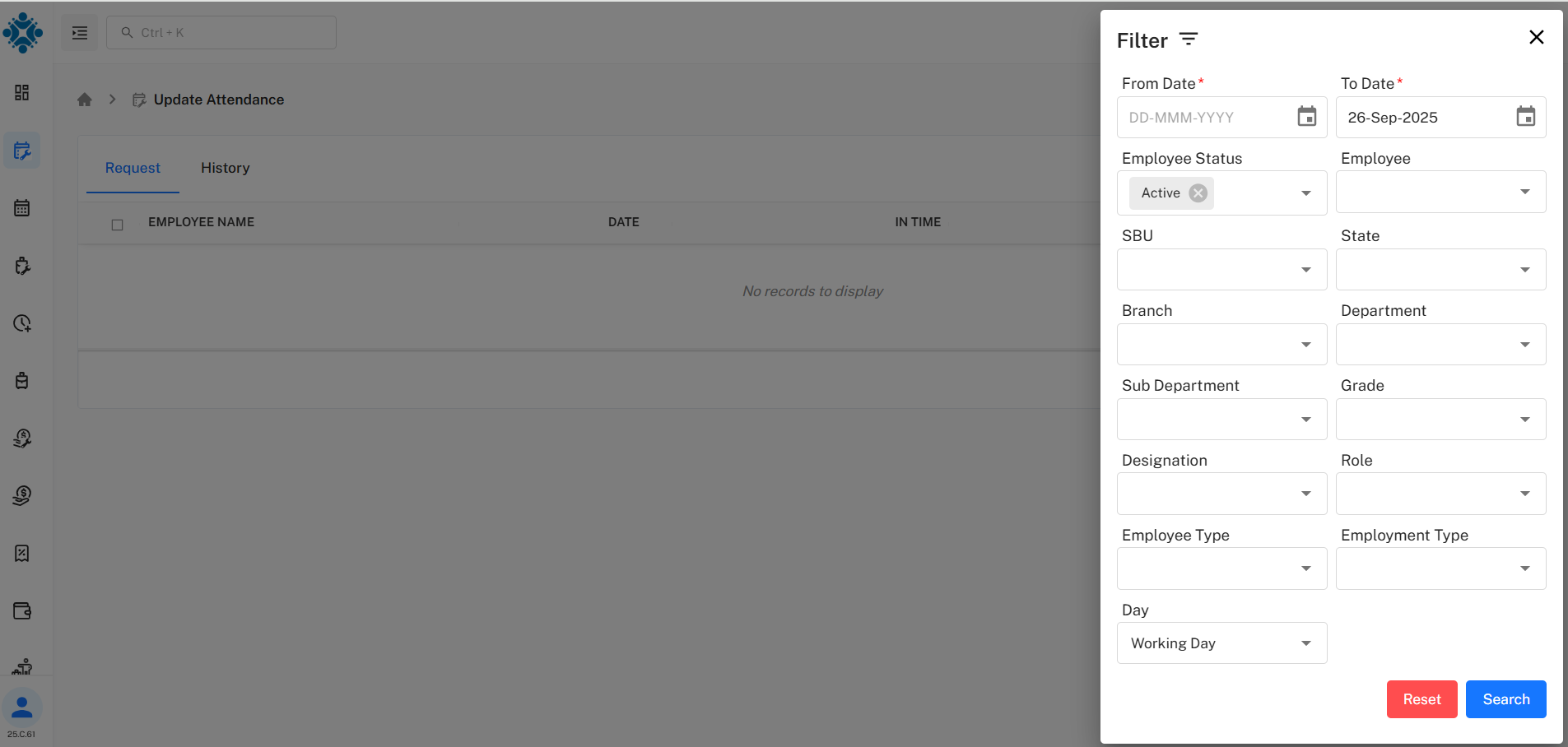
Advanced filter options are accessible via the "Filter" pane at the top right.
Date Filters: Narrow down attendance by selecting "From Date" and "To Date".
Employee Status: Choose "Active" or other statuses.
Additional Fields: Filter by employee, branch, department, sub-department, grade, designation, role, employment type, and more.
Day: Choose specific day types like "Working Day".
Tip: Use the "Reset" button to clear filters or "Search" to apply.
Updating Attendance
Marking Attendance Select employees or rows using the checkboxes and use the "Mark Present" dropdown for bulk or individual records.
Presence Options
Mark Full Day Present
Mark First Half Present
Mark Second Half Present
Mark Full Day Absent
Mark First Half Absent
Mark Second Half Absent
Mark First Half Present, Second Half Absent
Mark Second Half Present, First Half Absent
Each action is executed in bulk or as needed for selected employees and dates.

success Step-by-Step Attendance Update
Access Portal: Log in and open "Update Attendance" from the sidebar.
Review or Filter Records: Use "History" or apply filters for targeted updates.
Select Records: Check relevant rows on the "Request" or "History" tabs.
Mark Attendance Status: Use the "Mark Present" menu for the correct presence type.
Export or Report: Download logs when reports or backup are needed.