Work Schedule Management
Last Updated: October 7, 2025 Document Version: 1.0 Prepared for: Emgage HRMS Implementation Team
The Work Schedule Management module enables administrators to define and manage attendance policies for employees using Auto Present, Flexible Timings, or Fixed Timings. This feature supports both weekly and monthly scheduling formats, providing the flexibility to match organizational work patterns and policy requirements.
System Overview
The Work Schedule Management system is composed of five main components:
- Work Schedule Table – Displays all existing schedules with management options
- Toolbar Controls – Quick access to add or filter schedules
- Filter Function – Enables targeted viewing based on schedule attributes
- Add Work Schedule – Form to create new schedule configurations
- Work Schedule Types – Defines setup rules for Auto, Flexible, and Fixed timing policies
This system provides centralized control over employee attendance rules and scheduling configurations.
Work Schedule Table
When navigating to Attendance Setup → Work Schedule, the system displays a Work Schedule Table containing all defined configurations. This table allows quick viewing, editing, and duplication of schedules.
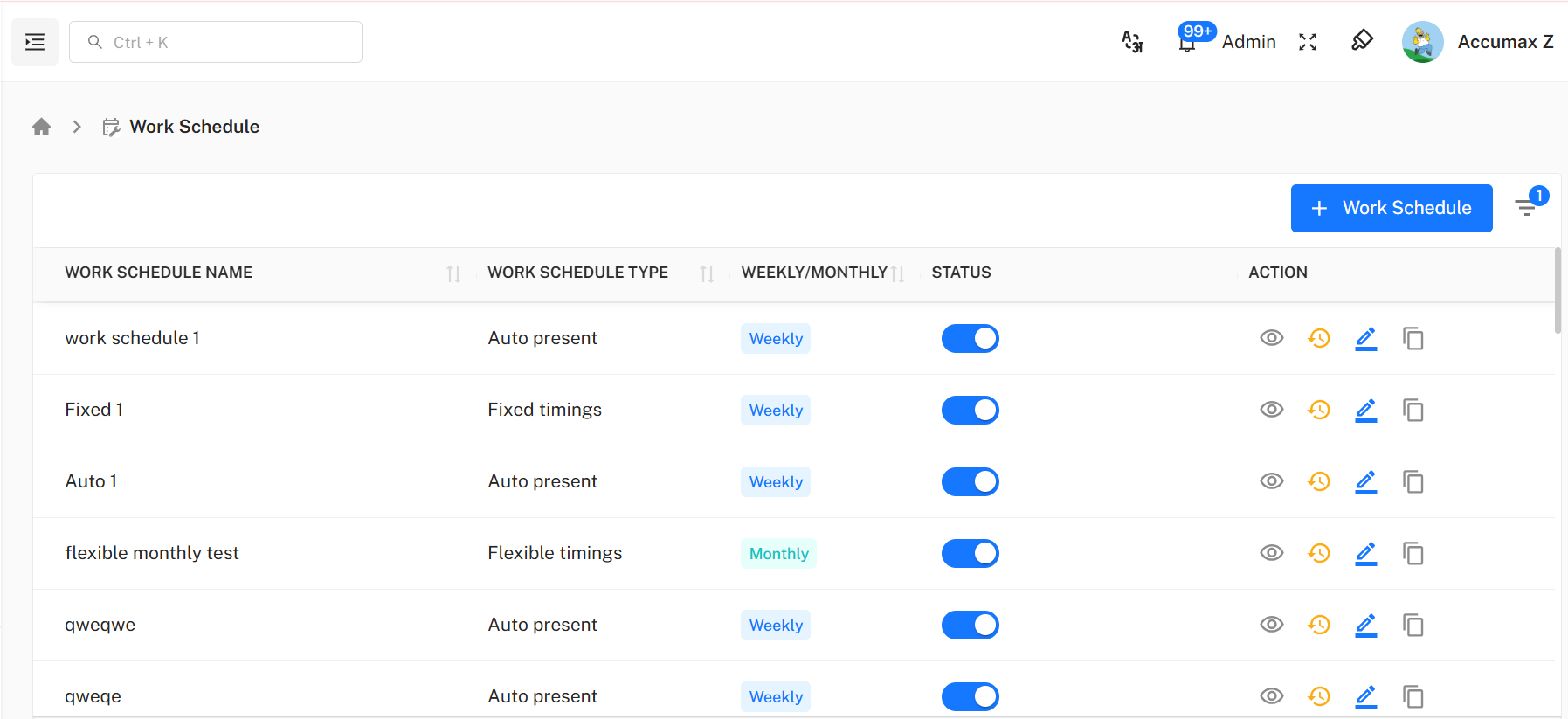
Table Columns
| Field | Description |
|---|---|
| Work Schedule Name | Unique identifier for each schedule. |
| Work Schedule Type | One of three types: Auto Present, Flexible Timings, Fixed Timings. |
| Weekly / Monthly | Displays the scheduling frequency type. |
| Status | On/Off toggle to activate or deactivate a schedule. |
| Actions | Management options – View, History, Edit, and Copy. |
Action Buttons
Each schedule row provides the following actions:
| Action | Description |
|---|---|
| View | Opens a popup displaying all schedule details in a read-only format. |
| History | Shows version history and modification logs for audit tracking. |
| Edit | Opens the configuration form in edit mode for modification. |
| Copy | Duplicates the schedule with all pre-filled fields (requires a new name). |
Toolbar Controls
Located at the top-right of the Work Schedule Table, the toolbar provides essential management options.

Available Options:
- Filter – Opens a popup to refine visible schedules.
- + Work Schedule – Opens a new configuration form to create a work schedule.
Filter Work Schedules
The Filter feature allows administrators to narrow down visible schedules using key criteria.
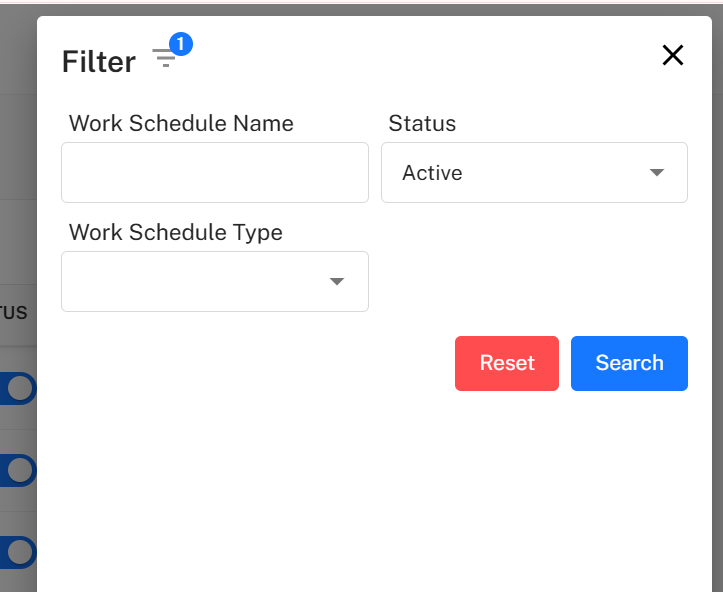
Available Filters
| Field | Description |
|---|---|
| Work Schedule Name | Search by schedule name or keyword. |
| Work Schedule Type | Choose from Auto Present, Flexible Timings, or Fixed Timings. |
| Status | Filter between Active and Inactive schedules. |
Filter Actions
- Search – Applies selected criteria to the schedule table.
- Reset – Clears all applied filters and returns to the full list.
Add Work Schedule
Clicking + Work Schedule opens the configuration form for creating a new schedule. Administrators can choose from three Work Schedule Types, and form fields will adjust dynamically based on the selected type.
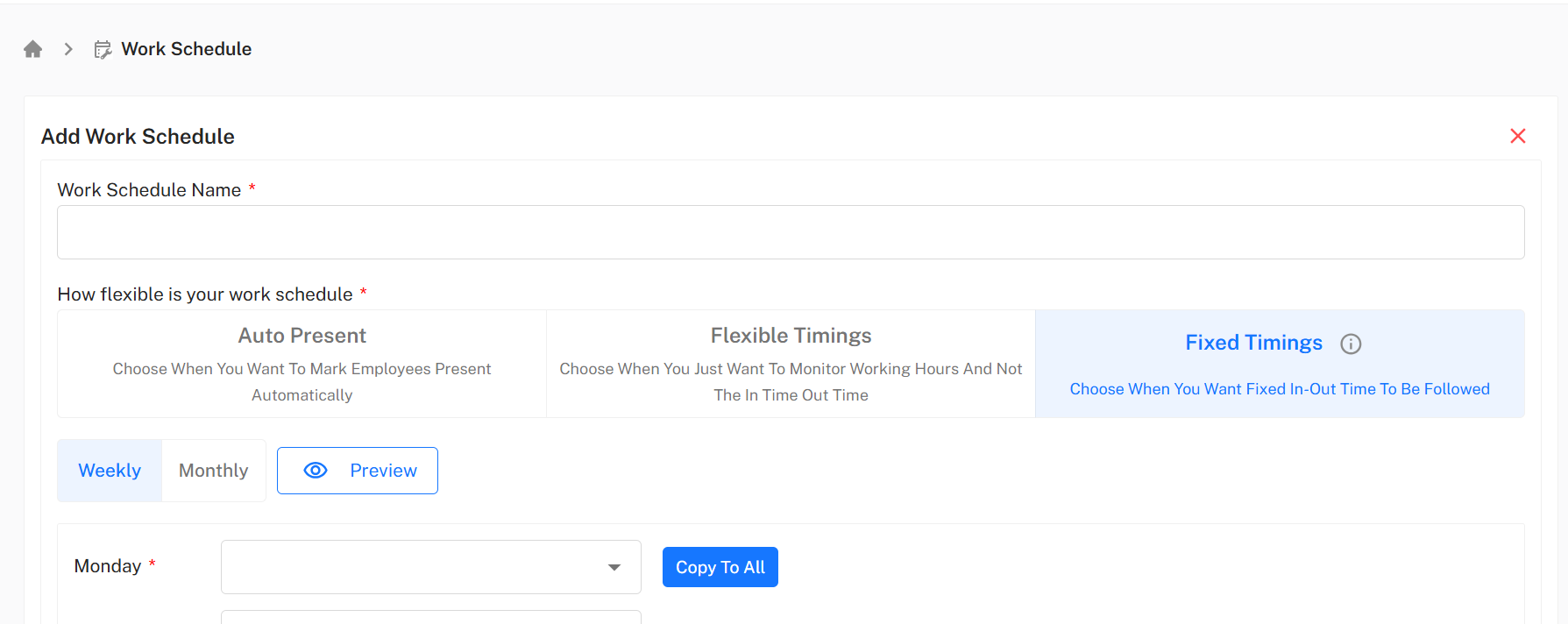
Mandatory Fields
| Field | Description |
|---|---|
| Work Schedule Name | Unique name for the schedule. |
| Work Schedule Type | Defines schedule behavior (Auto Present, Flexible Timings, Fixed Timings). |
Form content dynamically adapts based on the selected Work Schedule Type.
Work Schedule Types
The module supports three main schedule configurations, each offering different control levels over employee attendance.
1. Auto Present
Automatically marks employees present on predefined days without requiring attendance input.
Weekly Setup
- Select Working Days (multi-select: Mon–Sun)
- Enter Reason (mandatory field)
- Actions: Reset / Submit
Monthly Setup
- Configure days week-by-week (1st to 5th week).
- Option Copy to All replicates 1st week’s setup across the rest.
- Enter Reason (mandatory)
- Actions: Reset / Submit
Use Case Examples:
- For employees under full auto-attendance policy.
- For HR-defined attendance periods like holidays or remote work coverage.
2. Flexible Timings
Allows employees to clock in and out at any time while ensuring minimum hour compliance.
Weekly Setup
Modes Available:
- Actual Hours
- Net Working Hours
Fields:
- Working Days *
- Weekly Minimum Net Working Hours *
- Daily Minimum Net Working Hours
- Minimum Net Working Hours for Half Day
- Hours for Full Day Leaves *
- Hours for Half Day Leaves *
Actions: Reset / Submit
Monthly Setup
Fields:
- Working Days * (configured week-by-week)
- Monthly Minimum Net Working Hours *
- Weekly Minimum Net Working Hours
- Daily Minimum Net Working Hours
- Minimum Net Working Hours for Half Day
- Hours for Full Day Leaves *
Actions: Reset / Submit
Use Case Examples:
- For hybrid or remote teams with time flexibility.
- For organizations emphasizing productivity over strict attendance times.
3. Fixed Timings
Requires employees to adhere to specific start and end times for each day.
Weekly Setup
- Configure Start and End Timings for each weekday (Mon–Sun).
- Option: Copy to All to replicate one day’s schedule across the week.
- Allows setting unique timings for each day.
- Actions: Reset / Submit
Monthly Setup
- Similar configuration, done week-by-week (1st to 5th week).
- Option: Copy to All supported for uniform timing setup.
- Actions: Reset / Submit
Use Case Examples:
- For manufacturing or on-site roles requiring fixed shifts.
- For organizations enforcing strict attendance timings.
Implementation Guidelines
For HR Administrators:
- Define company-wide attendance rules before creating work schedules.
- Maintain consistent naming conventions for easy identification.
- Assign work schedule types based on employee job roles.
- Regularly review and update flexible and fixed hour thresholds.
- Test configurations using a pilot group before applying system-wide.
For Managers:
- Review work schedules periodically for team alignment.
- Use the “Copy” function to replicate existing configurations efficiently.
- Monitor flexible schedules for minimum-hour compliance.
- Deactivate outdated schedules to maintain system hygiene.
Common Issues and Solutions
| Issue | Possible Cause | Recommended Solution |
|---|---|---|
| Schedule not applying to employees | Schedule inactive or not assigned | Verify schedule status and employee mapping. |
| Duplicate schedule names | Attempt to reuse an existing name | Use unique naming conventions per schedule. |
| Incorrect timing calculation | Misconfigured start/end time | Recalculate timing fields and resubmit. |
| Filters showing no results | Overlapping filter conditions | Reset filters and search again. |
Best Practices
- Start with Auto Present schedules for simple policy enforcement.
- Use Flexible Timings for departments with output-based work.
- Maintain uniform Fixed Timings for attendance-critical roles.
- Regularly export schedules for HR audits and compliance checks.
- Periodically review weekly vs monthly setups to ensure efficiency.