Correction
Last Updated: Oct 06,2025. Document Version: 1.0 Prepared for: Emgage HRMS Implementation Team
Correction
** Attendance Correction System** The Correction feature allows employees and administrators to request and manage attendance corrections for missed or incorrect punch records. This system provides a comprehensive workflow for submitting, reviewing, and approving attendance correction requests with detailed tracking and status management.
Overview Features
Correction Management Benefits
The Attendance Correction system enables efficient handling of attendance discrepancies, offering:
- Request Submission: Employees can submit correction requests for missed punches or timing errors.
- Approval Workflow: Structured approval process with status tracking.
- Dual View System: Separate views for pending requests (List) and approved/rejected items (Approvals).
- Status Monitoring: Real-time tracking of correction request statuses with visual indicators.
- Filter Options: Advanced filtering to locate specific correction requests quickly.
- Bulk Management: Process multiple correction requests efficiently.
- Detailed Records: Comprehensive information for each correction request including reasons and timestamps.
Interface Overview
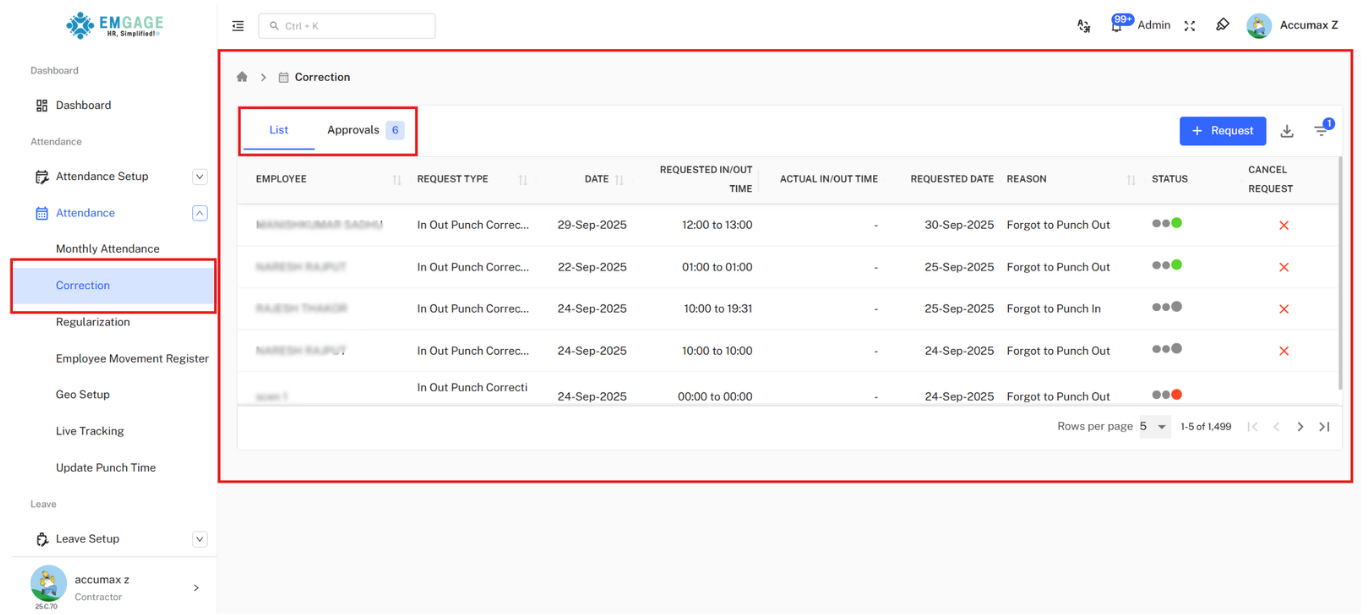
Tab Structure
The Correction interface provides two main tabs:
- List Tab: Displays all pending correction requests awaiting action.
- Approvals Tab: Shows approved and processed correction requests with count badge.
Creating a Correction Request
Request Submission Process
Step-by-Step Request Creation:
- Access Request Form: Click the "+ Request" button in the top-right corner.
- Complete Required Fields: Fill in all mandatory fields marked with asterisk (*).
- Submit Request: Click "Submit" to send the request for approval.
Correction Request Form
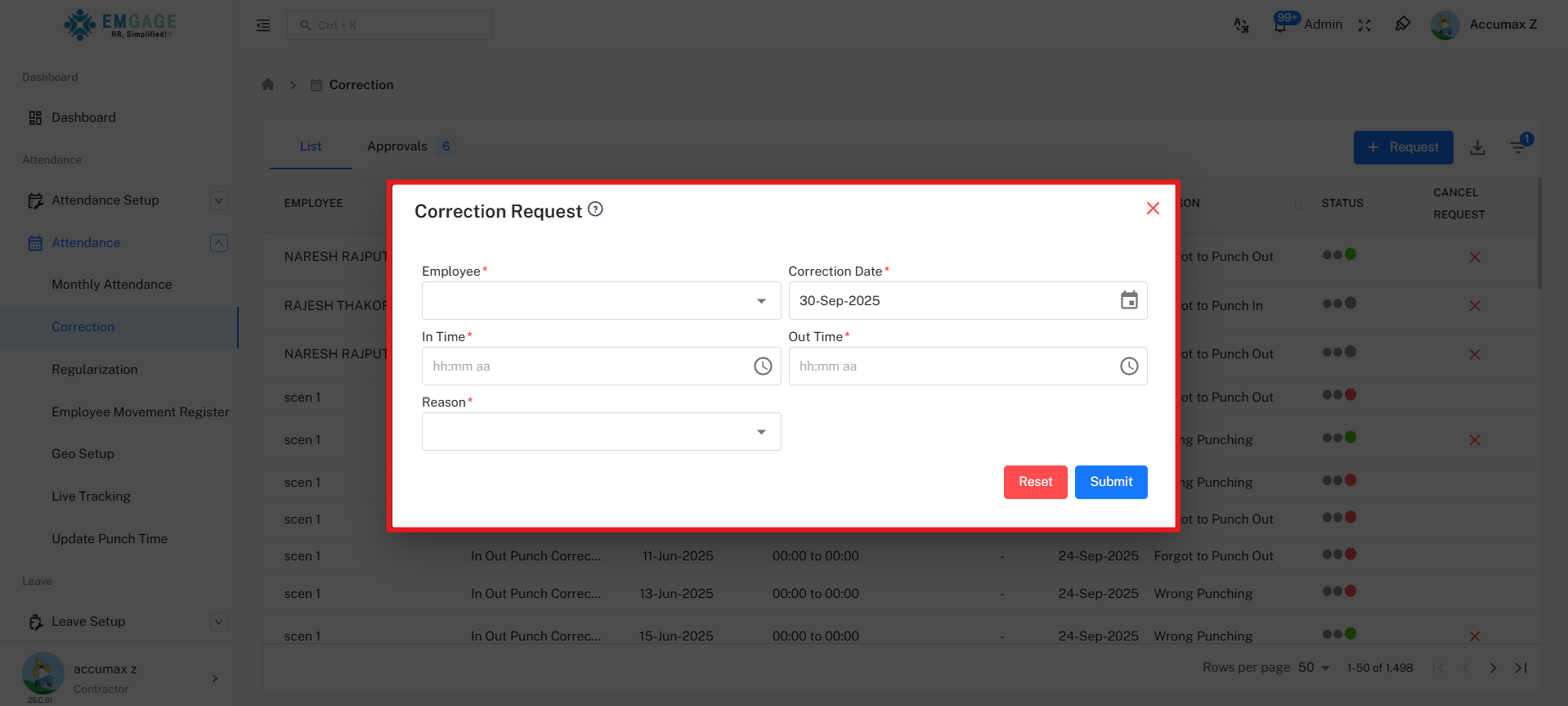
Form Fields:
-
Employee* (Required): Select the employee from dropdown menu
-
Correction Date* (Required): Select the date for which correction is needed
-
Date picker format: DD-MMM-YYYY (e.g., 30-Sep-2025)
-
Cannot select future dates
-
In Time* (Required): Enter the correct check-in time
-
Out Time* (Required): Enter the correct check-out time
-
Reason* (Required): Select reason from dropdown menu
-
Forgot to Punch In
-
Forgot to Punch Out
-
Wrong Punching
-
Other (with explanation)
Form Actions:
- Reset: Clear all entered data and start over (red button)
- Submit: Submit the correction request for approval (blue button)
Status Indicators
Visual Status System
The system uses colored dot indicators to show approval progress:
Status Color Codes:
- 🟢🟢🟢 (Three Green Dots): Fully approved at all levels
- 🟢🟢 (Two Green, One Gray): Approved at two levels, pending third level
- 🟢 (One Green, Two Gray): Approved at first level, pending further approval
- ** (Two Gray, One Red)**: Rejected at final approval level
- ** (Three Gray Dots)**: Pending initial review, no action taken
- 🟢🟢 (Two Green, One Red): Approved initially but rejected at final level
Approvals Tab
In this section, authorized admins and managers can view all pending correction that require approval. They can review, manage, and take the necessary actions directly from this tab.
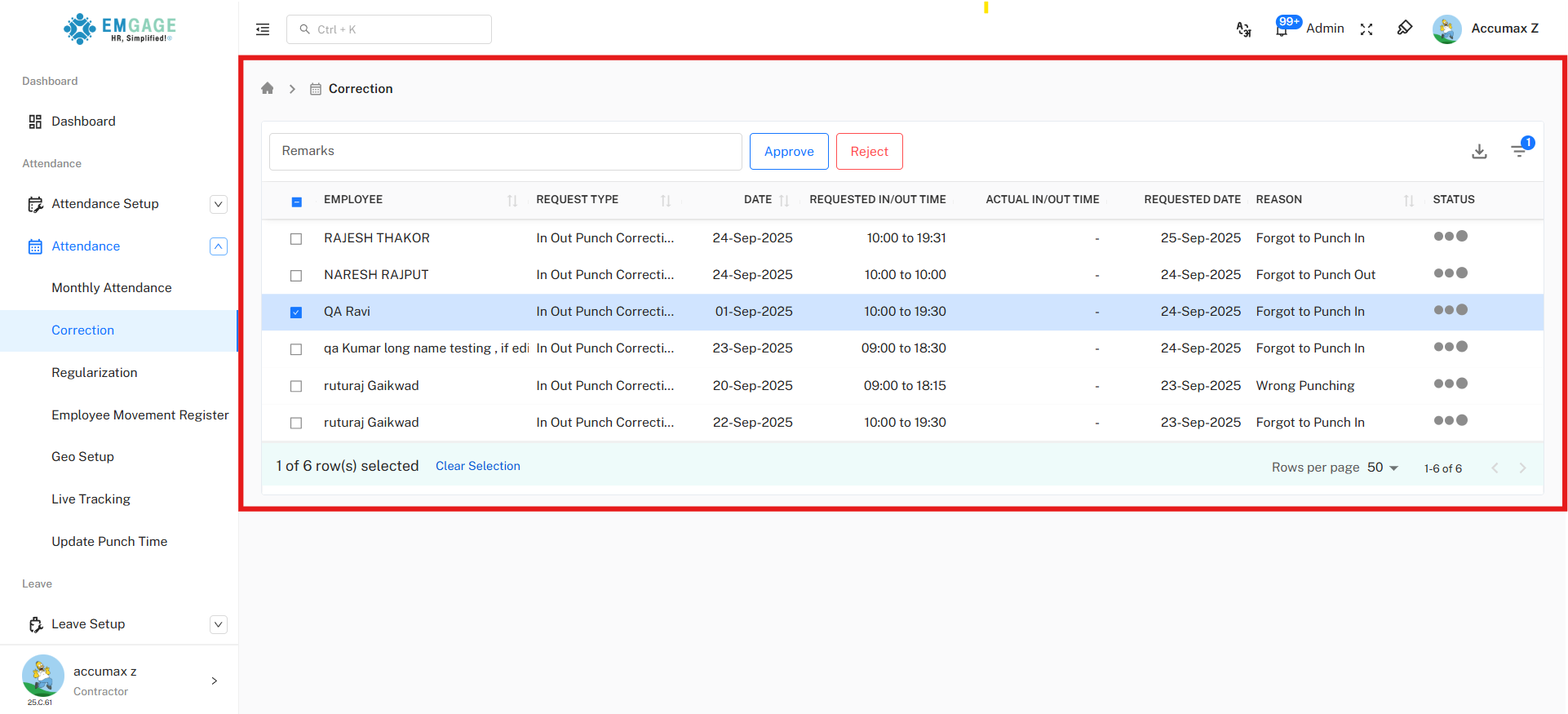
Approvals Tab Features:
- Processed Requests: Displays all approval correction requests
- Same Table Structure: Maintains identical column layout as List tab
- Status Verification: Confirms approval levels and final decisions
- Action workflow: Shows complete approval workflow
Approved Request Details:
- Employee Names: Clear identification of employees
- Request Types: All shown as "In Out Punch Correction"
- Processing Dates: Dates when requests were approved
- Time Records: Both requested and actual times displayed
- Reasons: Original reasons for correction maintained
- Final Status: Visual confirmation of approval completion
Advanced Filtering
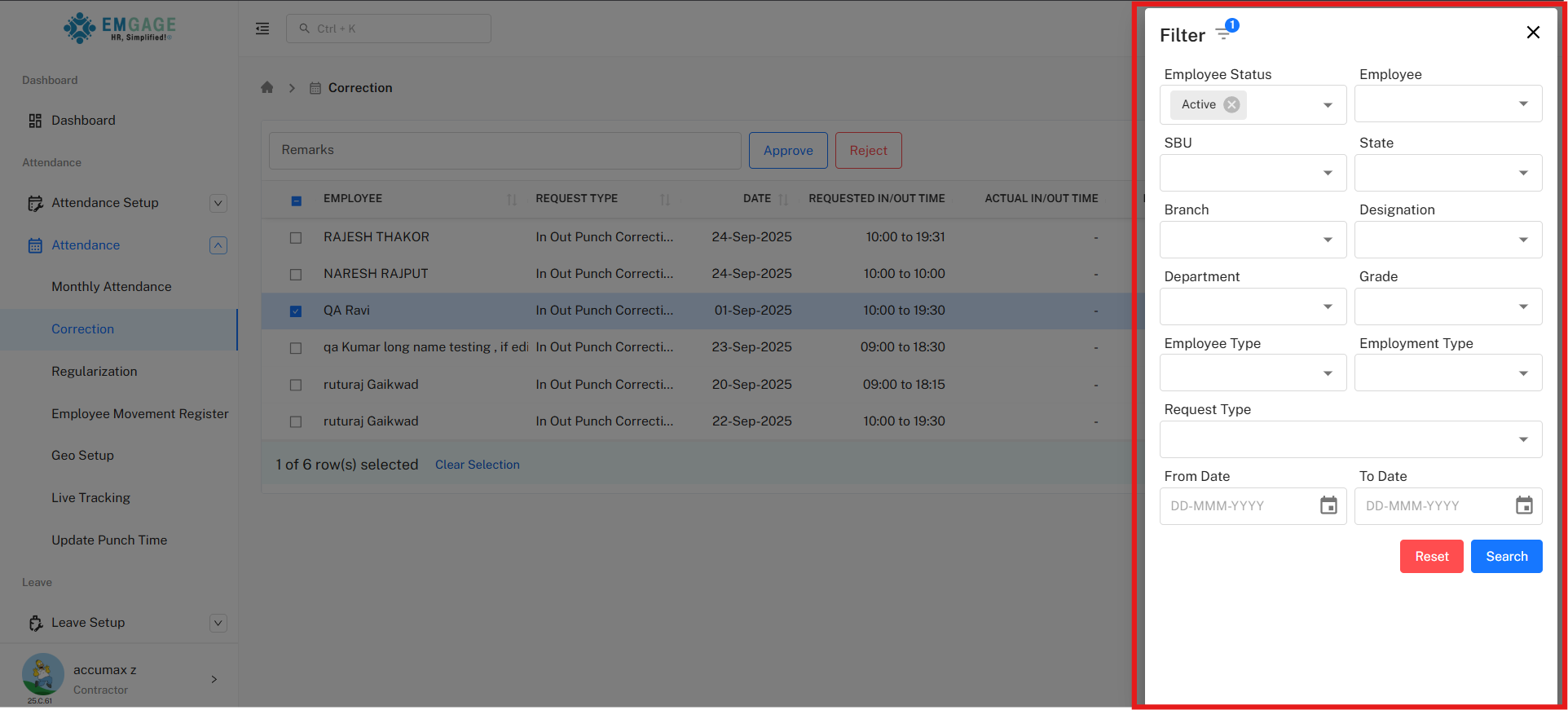
Filter Panel
Accessing Filters:
Click the filter icon (funnel symbol) in the top-right area to open the comprehensive filter panel.
Available Filter Options
Employee Information Filters:
-
Employee Status: Filter by employment status
-
Default: Active employees
-
Options: Active, Inactive, All
-
Employee: Search and select specific employee names
-
Searchable dropdown menu
-
Multiple employee selection capability
-
SBU (Strategic Business Unit): Filter by business unit
-
Dropdown selection
-
Organizational hierarchy based
-
State: Filter by employee location/state
-
Geographic filtering option
-
Multi-state selection available
-
Branch: Filter by office branch
-
Branch-wise data segregation
-
Multiple branch selection
-
Designation: Filter by job designation
-
Role-based filtering
-
Hierarchical position selection
-
Department: Filter by department
-
Departmental data view
-
Cross-department selection
-
Grade: Filter by employee grade level
-
Grade-based classification
-
Multiple grade selection
Filter Actions
Filter Panel Buttons:
- Reset: Clear all selected filters and return to default view (red button)
- Search: Apply selected filters to the data table (blue button)
Request Management Actions
Reject Requests
Cancellation Process:
For pending requests in the List tab:
- Locate Request: Find the correction request to be cancelled
- Click Cancel Icon: Click the (X) icon in the "Cancel Request" column
- Confirm Cancellation: System may prompt for confirmation
- Request Removed: The request is withdrawn and removed from pending list
** Important Cancellation Rules** Cancellation Limitations:
- Only pending requests can be cancelled
- Approved requests cannot be cancelled through this interface
- Once cancelled, the request must be resubmitted as new if still needed
- Cancellation is immediate and cannot be undone
Common Correction Scenarios
Typical Correction Reasons
Forgot to Punch Out:
- Employee punched in but forgot to punch out at day end
- Request corrects missing out-punch with appropriate time
Forgot to Punch In:
- Employee started work but forgot to punch in
- Request adds missing in-punch for the day
Wrong Punching:
- Employee punched at incorrect time or location
- Request corrects erroneous punch data
System/Device Error:
- Technical issues prevented proper punch recording
- Request rectifies system-related attendance errors
Best Practices
** Correction Management Tips** Effective Request Handling:
- Timely Submission: Submit correction requests within policy limits (typically 7 days)
- Accurate Information: Provide exact times and clear reasons
- Supporting Evidence: Keep relevant documentation for verification
- Policy Compliance: Follow monthly correction limit guidelines
- Regular Monitoring: Check request status regularly
- Communication: Coordinate with supervisors for quick approvals
- Bulk Processing: Use filters to process similar requests together
Troubleshooting
Common Issues and Solutions
Request Not Appearing:
- Check filter settings - may be filtering out the request
- Verify correct tab (List vs Approvals)
- Refresh the page to load latest data
Cannot Submit Request:
- Ensure all required fields (*) are completed
- Verify In Time is before Out Time
- Check if monthly correction limit has been reached
- Confirm correction date is within allowed timeframe
Status Not Updating:
- Approval workflow may have multiple levels pending
- Contact immediate supervisor to check approval queue
- System may require time to refresh status