Employee Movement Registry
Last Updated: September 28, 2025 Document Version: 1.0 Prepared for: Emgage HRMS Implementation Team
Employee Movement Registry
Overview
The Employee Movement Registry is a powerful tool designed for administrators and HR personnel to monitor and report on the movements of employees during work hours. This feature allows you to generate detailed reports based on various filters and provides flexible options for exporting the data for offline analysis or record-keeping.
- Advanced Filtering - Filter movement data by specific employees, movement type (Official/Personal), and a custom date range.
- On-Screen Reporting - View the generated report directly within the application after applying filters.
- Flexible Export Options - Export the generated report as an Excel file.
- Email Delivery - Choose to receive a download link for the report directly in your email inbox.
How to Generate a Movement Report
Follow these steps to generate a customized employee movement report.
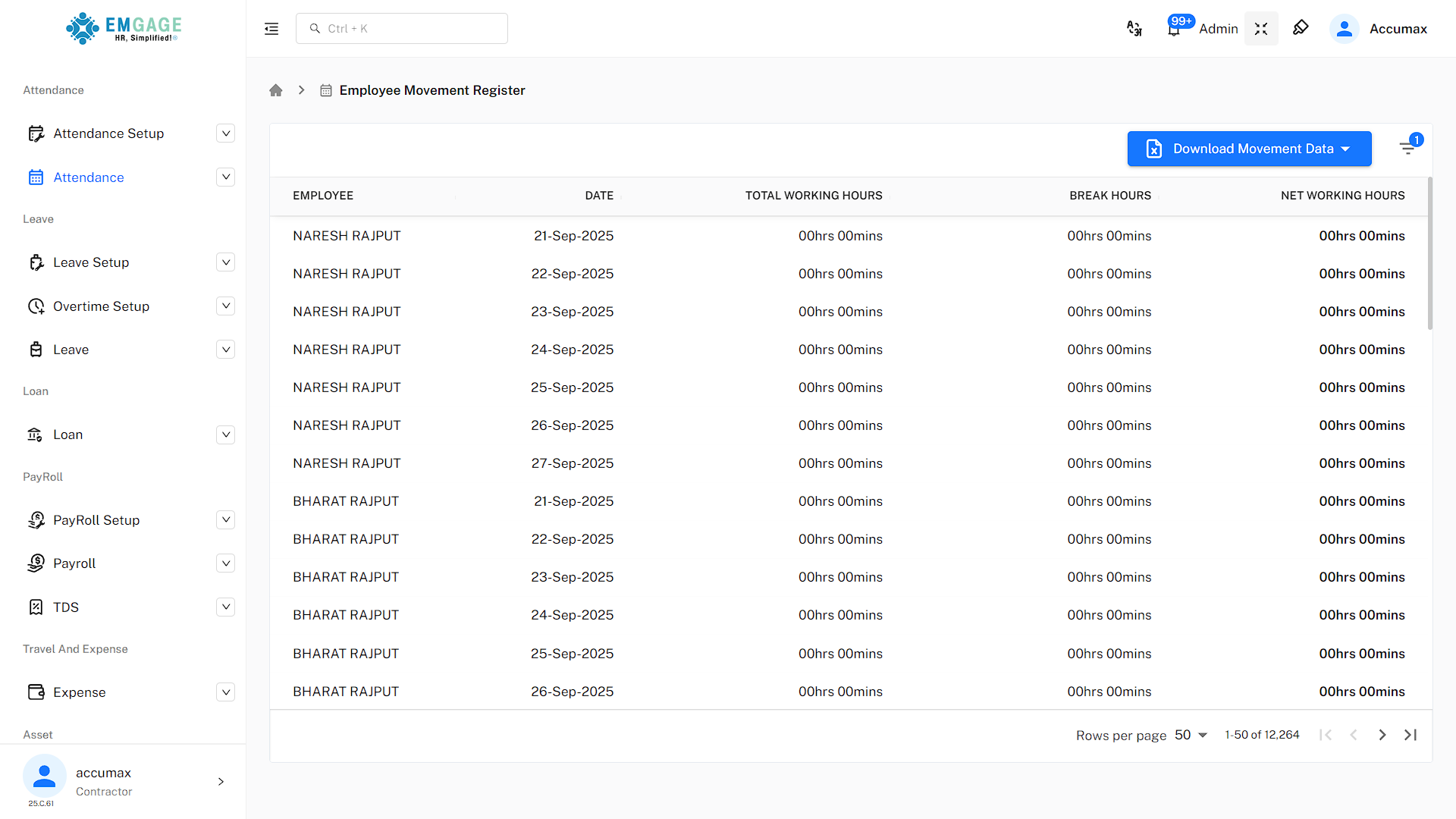
- Navigate to the Registry: Access the Employee Movement Registry from the main HRMS dashboard or navigation menu.
- Select Employee(s): In the
Employeedropdown, you can select one, multiple, or all employees for whom you want to generate the report. - Choose Movement Type: Use the
Movement Typedropdown to filter the report:
- Official: Shows only movements logged for official company business.
- Personal: Shows only movements logged for personal reasons.
- Both: Includes both official and personal movements in the report.
- Define Date Range: Select a
From Dateand aTo Dateusing the calendar pickers to specify the time period for the report. - Generate Report: Click the Show button to view the filtered data on the screen.
Exporting the Report
Once the report is generated, you can easily export it for your records.
- Click the Export To Excel button. A confirmation popup will appear.
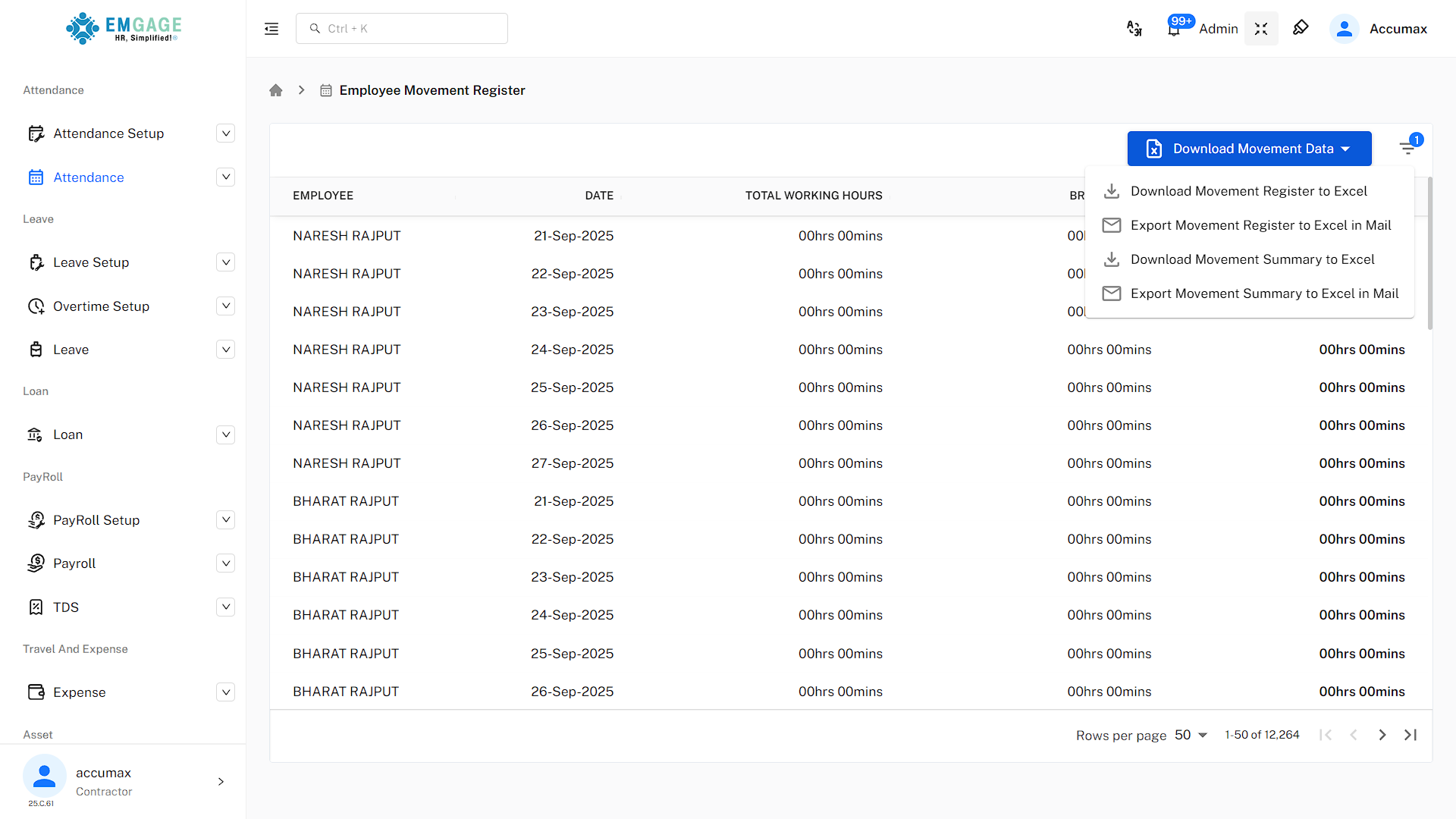
- Choose your preferred export method:
- Download: Click this button to immediately download the report as an
.xlsxfile to your computer. - Send Link on mail: Click this button to have a secure download link for the report sent to your registered email address. This is highly recommended for large reports to avoid browser timeouts.
Important Considerations
Access and Permissions
This feature is typically restricted to users with administrative or HR management roles. If you cannot see this option, please contact your system administrator to request access.
Data Accuracy
The accuracy of the movement registry report is directly dependent on the diligence of employees in logging their movements correctly through the system (mobile or web app). Encourage consistent and accurate data entry for the most reliable reporting.