regularization
Last Updated: October 7, 2025 Document Version: 1.0 Prepared for: Emgage HRMS Implementation Team
The Regularization Management module allows administrators and managers to centrally manage employee attendance regularization requests. It ensures accurate tracking of exceptions such as late check-ins, early check-outs, work-from-home entries, and on-duty movements while maintaining transparency and auditability.
System Overview
The Regularization Management system provides:
- Accurate Attendance Records: Process legitimate time adjustments.
- Workflow Transparency: Clear status indicators for each approval stage.
- Manager Empowerment: Review requests with supporting data before approval.
- Employee Flexibility: Allow regularization of valid attendance exceptions.
- Audit Compliance: Maintain full logs of all approval actions.
Accessing the Regularization Module
Navigate to Attendance → Regularization from the sidebar menu. By default, the List View opens, displaying all existing regularization requests.
Quick Access: Use the global search shortcut (Ctrl + K), type "Regularization", and select it from the results.
Regularization List View
The List View displays all employee requests in a structured table for easy monitoring and management.
Table Fields
| Field | Description |
|---|---|
| Employee | Name of the employee who submitted the request. |
| Request Type | Nature of the request (e.g., Work From Home, On Tour, Training). |
| Date | Attendance date to be corrected. |
| Requested In/Out Time | Corrected time entered by the employee. |
| Actual In/Out Time | Original system-recorded time. |
| Requested Date | Date the request was submitted. |
| Reason | Explanation provided for regularization. |
| Status | Shows approval progress (Primary Manager → Secondary Manager → Admin./HR). |
| Cancel Request | Icon to cancel a pending request. |
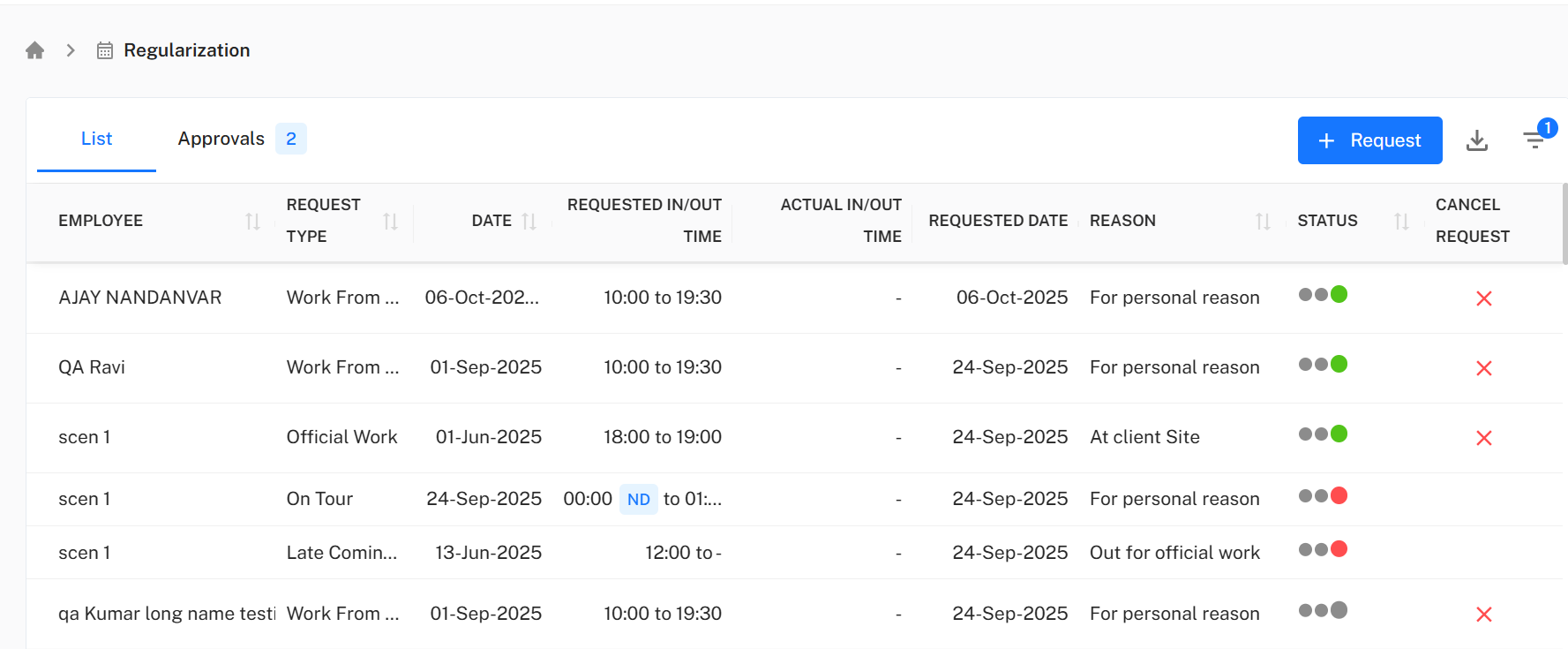
The Status column visually indicates the progress of each request, making it easy for employees and managers to track approvals.
Admin Actions and Controls
Administrators have three primary action buttons in the List View:
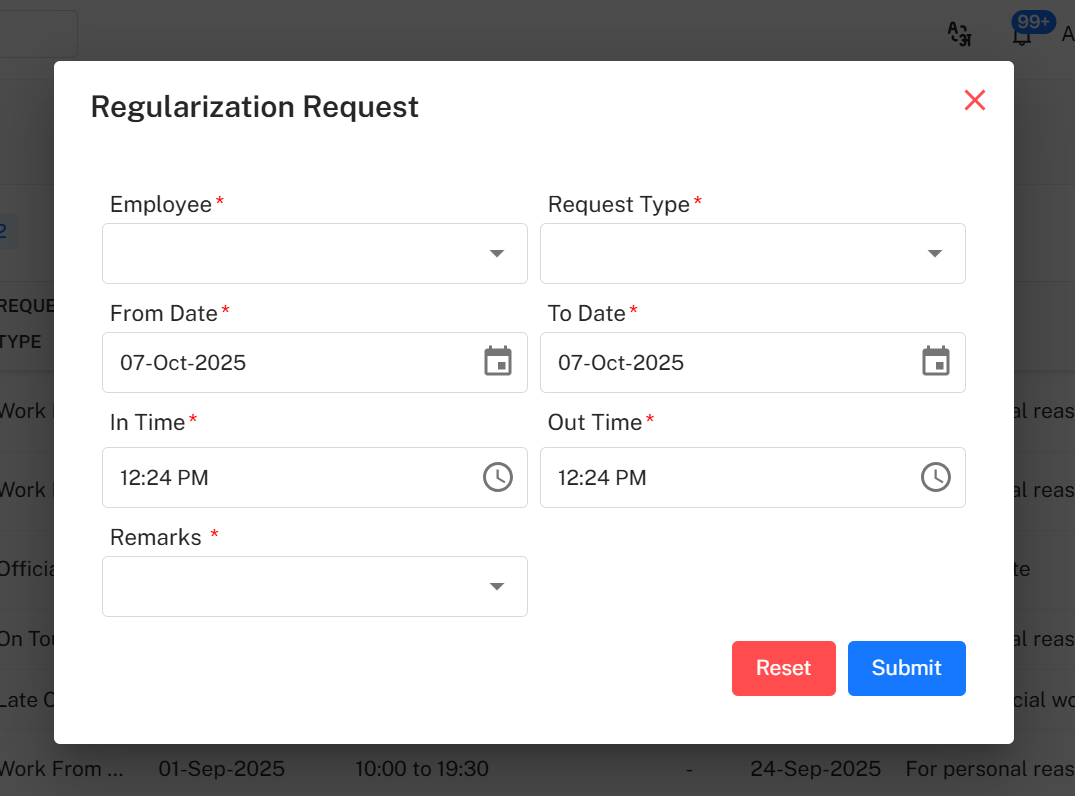
1. +Request Button
Used to manually add a new regularization request on behalf of an employee.
Add Request Popup Fields
| Field | Type | Notes |
|---|---|---|
| Employee* | Dropdown | Select the concerned employee. |
| Request Type* | Dropdown | Select type (WFH, On Tour, Training, etc.). |
| From Date* | Date Picker | Start date of the regularization period. |
| To Date* | Date Picker | End date of the regularization period. |
| In Time* | Time Picker | Corrected in-time entry. |
| Out Time* | Time Picker | Corrected out-time entry. |
| Remarks* | Dropdown | Choose reason (Early Going, Late Coming, Other). |
Popup Controls:
- Submit → Saves and submits the request.
- Reset → Clears all fields.
- ** Close** → Closes the popup without saving.
2. Export Data
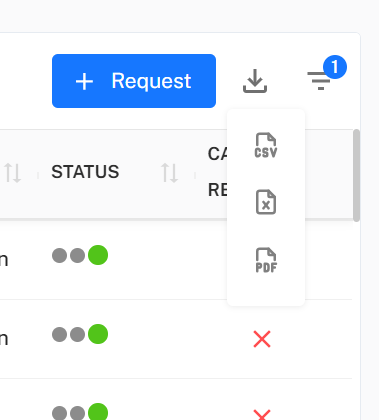
Export the displayed table into Excel, CSV, or PDF for reporting and recordkeeping.
3. Filter Button
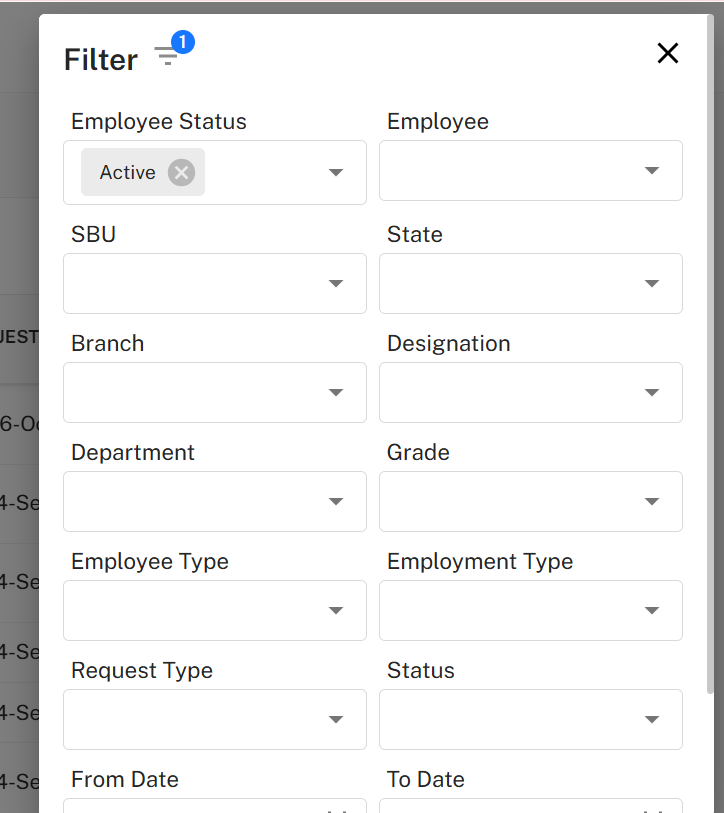
Refine the visible data using multiple filtering criteria.
Filter Fields
| Field | Type | Notes |
|---|---|---|
| Employee Status* | Multi-select dropdown (Active, Inactive, FnF) — At least one required. | |
| Employee | Dropdown | Select specific employee. |
| SBU | Dropdown | Strategic Business Unit filter. |
| State | Dropdown | Example: Gujarat, Maharashtra. |
| Branch | Dropdown | Filter by branch location. |
| Designation | Dropdown | Employee designation. |
| Department | Dropdown | Main department. |
| Grade | Dropdown | Employee grade or level. |
| Employee Type | Dropdown | Example: Permanent, Contractual. |
| Employment Type | Dropdown | Example: Full-time, Part-time. |
| Request Type | Dropdown | Filter by type of regularization. |
| Status | Dropdown | Filter by approval stage. |
| From Date | Date Picker | Start date filter. |
| To Date | Date Picker | End date filter. |
Popup Controls:
- Search → Apply selected filter criteria.
- Reset → Clear all filter selections.
- ** Close** → Exit popup without applying filters.
Approval View
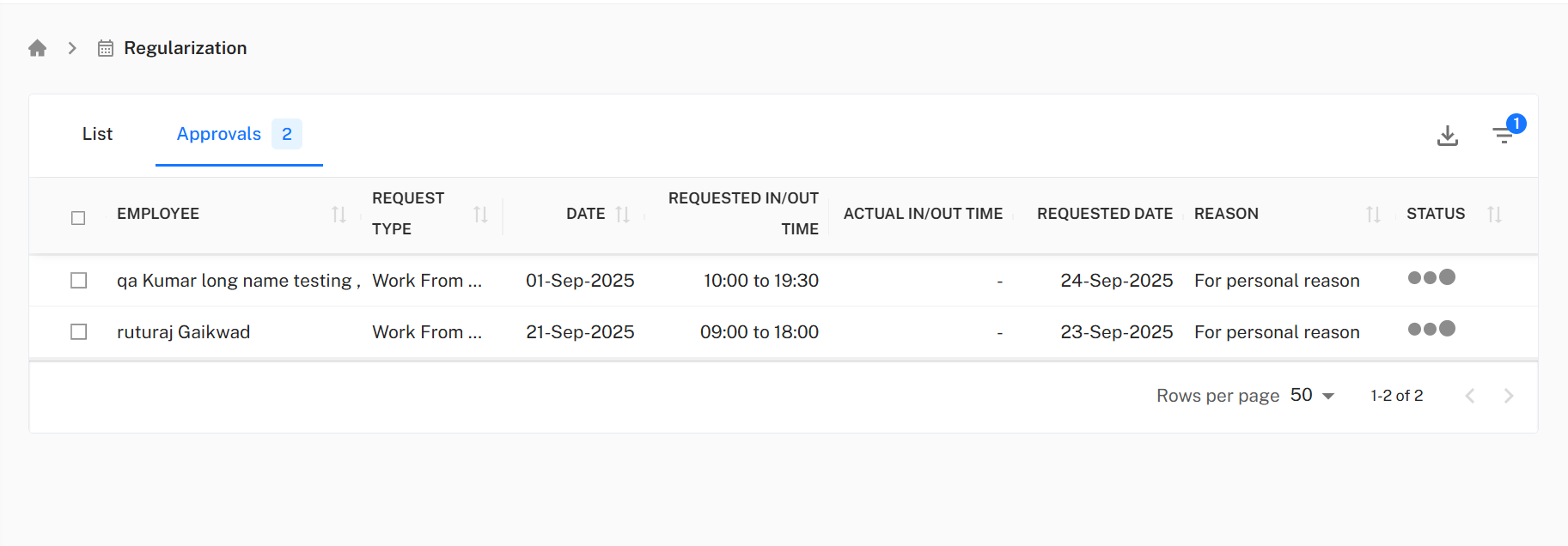
Select the Approvals tab to review pending requests and take action.
Approval Table Fields
| Field | Description |
|---|---|
| Employee | Name of the requesting employee. |
| Request Type | Type of regularization (WFH, Training, etc.). |
| Date | Attendance date under request. |
| Requested In/Out Time | Corrected times entered by employee. |
| Actual In/Out Time | Original system-recorded times. |
| Requested Date | Submission date of the request. |
| Reason | Explanation for the request. |
| Status | Approval status (Primary, Secondary, HR/Admin). |
Row Selection:
- Individual checkboxes per employee
- Master checkbox in header to select all
Approving or Rejecting Requests
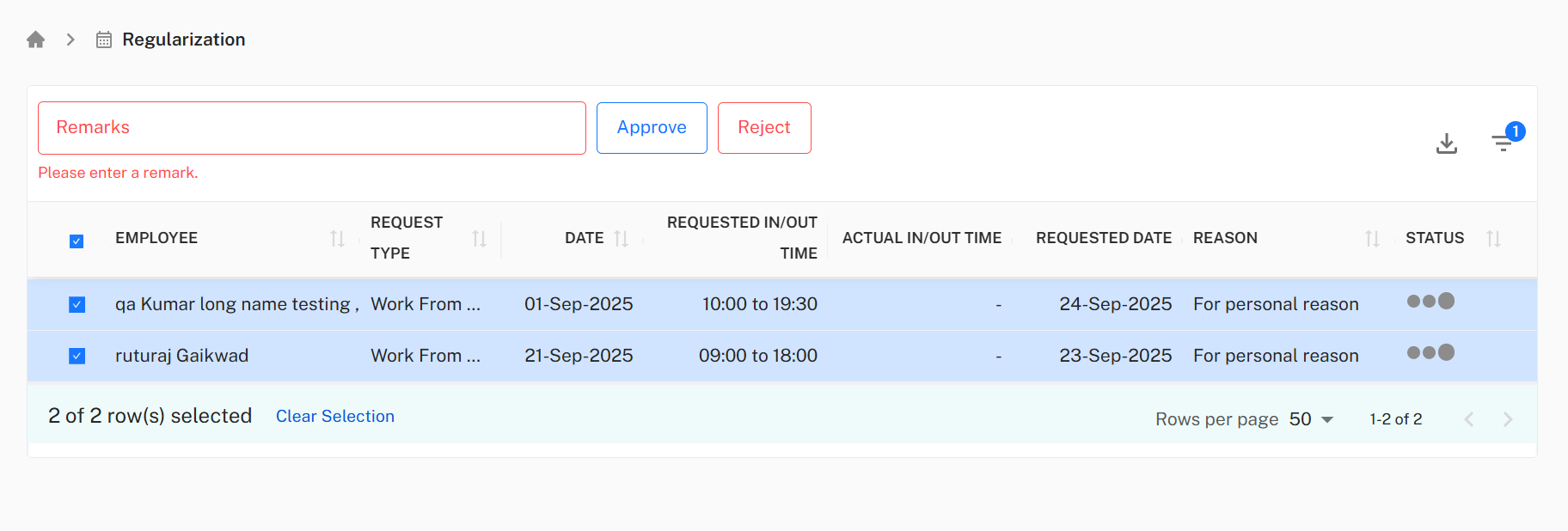
Once requests are selected, the following fields/actions appear:
- Remark – Mandatory when rejecting a request.
- Approve Button – Approves selected requests.
- Reject Button – Rejects selected requests.
- Remarks are optional for approvals but mandatory for rejections.
- Bulk approval/rejection supported via master checkbox.
- All actions are logged for audit purposes.
Complete Workflow Summary
Step-by-Step Process
- Navigate to Attendance → Regularization.
- Review requests in List View.
- Use Filter to refine the displayed requests.
- Add a new request using +Request, if required.
- Switch to Approvals to review pending requests.
- Select employee(s) using checkboxes.
- Add remarks if rejecting any request.
- Click Approve or Reject to process selected requests.
- Export data for records if needed.
Best Practices
- Ensure all requests are reviewed promptly to maintain accurate attendance records.
- Use filtering to focus on specific employees, departments, or request types.
- Maintain audit trails by exporting approval logs regularly.
- Encourage managers to provide remarks for rejections to improve transparency.
- Periodically review pending requests to avoid backlogs.
Key Takeaways
The Regularization Management module streamlines attendance exception handling by providing:
- Centralized request management
- Transparent multi-level approval workflow
- Accurate and compliant attendance tracking
- Ease of reporting and exporting data
- Efficient workflow for both employees and administrators