Update Punch Time
Last Updated: October 4, 2025 Document Version: 1.0 Prepared for: Emgage HRMS Implementation Team
The Update Punch Time module allows administrators to update individual employee's daily total hours and punch in/out times. This system provides date-wise editing capabilities for previous dates only, ensuring accurate attendance record maintenance.
System Overview
The system provides two main view modes for time management:
- Total Hours View - Display and edit daily total working hours
- Punch In/Out Time View - Manage individual punch in and punch out times
- Date-wise Editing - Update records for previous dates only
- Individual Employee Focus - Target specific employees for time updates
Total Hours View
View and update daily total working hours for employees across a weekly date range.
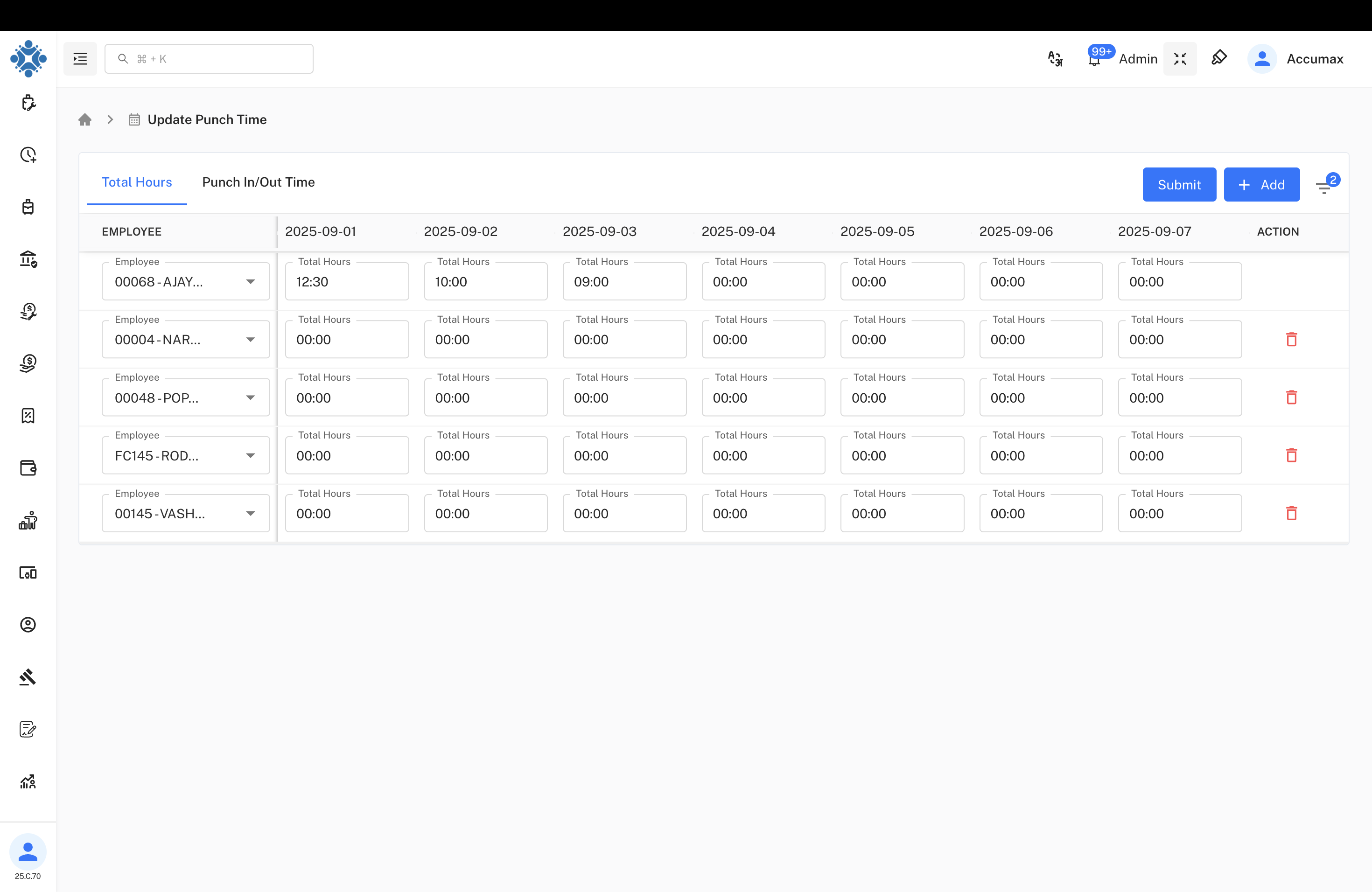
Interface Features:
| Component | Description |
|---|---|
| Employee Dropdown | Select individual employees (00068-AJAY, 00004-NAR, etc.) |
| Date Columns | Weekly view showing dates (2025-09-01 to 2025-09-07) |
| Total Hours | Daily total working hours for each employee |
| Action Column | Delete options for removing records |
| Submit Button | Save all changes made to time records |
| Add Button | Create new time entries |
Punch In/Out Time View
Manage detailed punch in and punch out times for precise attendance tracking.
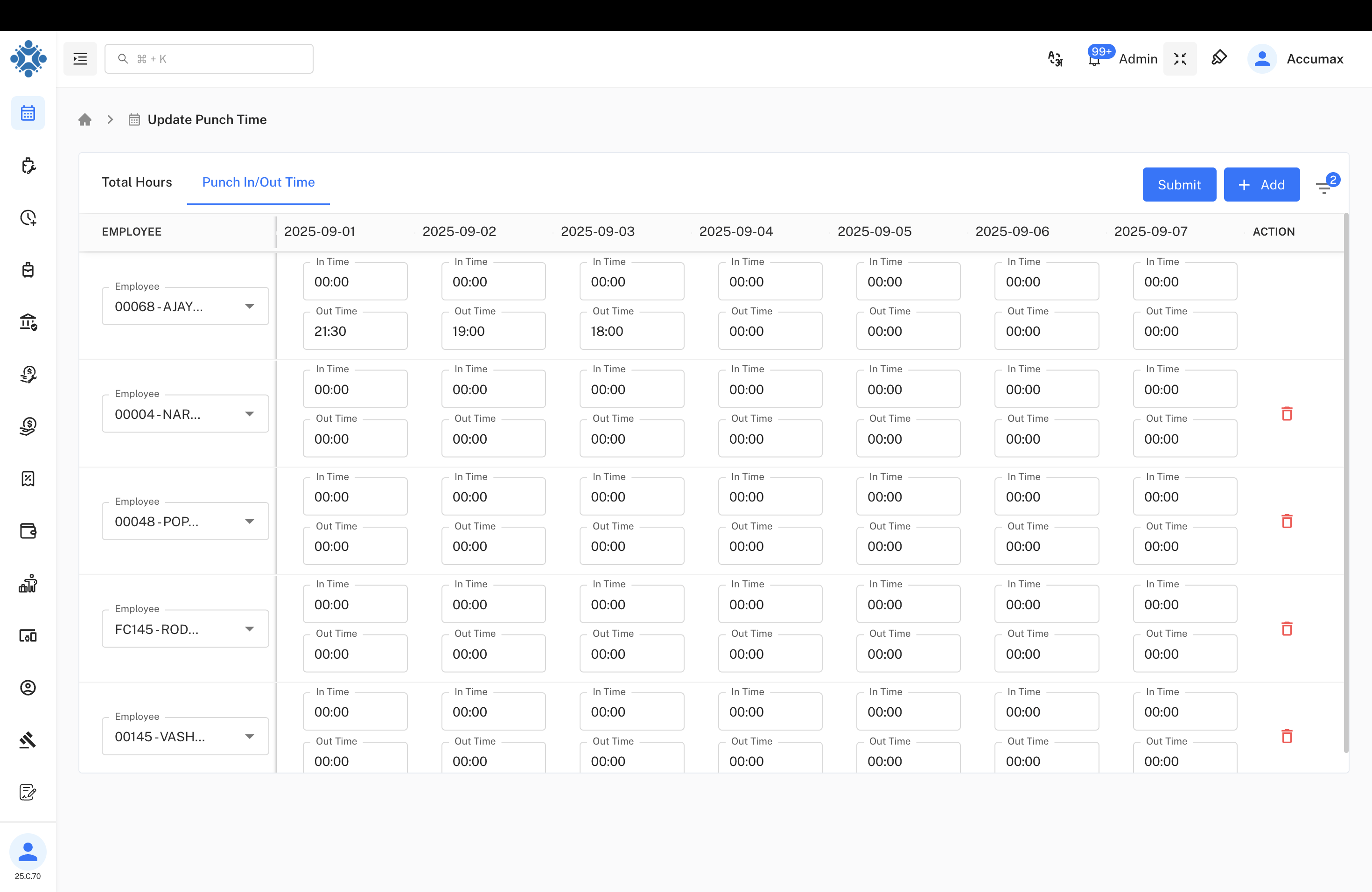
Time Entry Structure:
- In Time - Employee punch in timestamp
- Out Time - Employee punch out timestamp
- Daily Pairs - Each date has separate In/Out time fields
Interface Controls:
- Individual employee selection via dropdown
- Separate In Time and Out Time fields for each date
- Delete options for removing incorrect entries
- Submit functionality for saving changes
Date Restrictions
Previous Dates Only
Important Rule: The system only allows editing of previous dates, not future dates or tomorrow's date.
Allowed Editing:
- Yesterday and earlier dates
- Previous week dates
- Historical attendance records
- Past month time entries
Restricted Editing:
- Tomorrow's date
- Future dates
- Next week dates
- Upcoming scheduled dates
Business Logic:
This restriction ensures data integrity and prevents premature time entry for dates that haven't occurred yet.
Update Process
Step-by-Step Workflow
Update Process:
- Select View Mode - Choose Total Hours or Punch In/Out Time view
- Select Employee - Use dropdown to choose specific employee
- Choose Date - Select previous date for editing (future dates disabled)
- Update Times - Modify total hours or punch in/out times
- Verify Changes - Review updated information for accuracy
- Submit Changes - Save all modifications to the system
Data Validation
Validation Rules:
- Out time must be after in time
- Total hours must be reasonable (typically 0-24 hours)
- Date must be previous date, not future
- Time format must be valid (HH:MM)
- Employee must exist in system
Employee Management
Individual Employee Updates
Employee Selection:
- Use dropdown to select specific employees
- Focus on one employee at a time for accuracy
- View complete weekly time records
- Make targeted corrections as needed
Time Correction Scenarios
Common Update Reasons:
- Missing Punch Records - Employee forgot to punch in/out
- Incorrect Times - System malfunction or user error
- Manual Time Entry - Work done without punch machine access
- Time Adjustments - Approved overtime or schedule changes
Interface Operations
Total Hours Management
Total Hours Features:
- Direct hour entry for daily totals
- Quick overview of weekly working patterns
- Easy identification of missing or incorrect hours
- Bulk view of multiple employees
Punch Time Management
Punch Time Features:
- Detailed in/out time tracking
- Precise minute-level accuracy
- Clear separation of entry and exit times
- Individual time pair management
Implementation Guidelines
For HR Administrators:
- Focus on previous dates only for time corrections
- Verify employee identity before making changes
- Ensure time entries are logical and reasonable
- Document reasons for significant time adjustments
- Submit changes promptly after verification
For Time Management:
- Use Total Hours view for quick daily hour adjustments
- Use Punch Time view for detailed time corrections
- Validate that out times are after in times
- Check for reasonable working hour ranges
- Maintain accurate records for payroll processing
Best Practices:
- Update time records as soon as discrepancies are identified
- Use consistent time formats (HH:MM)
- Focus on one employee at a time for accuracy
- Verify changes before submitting
- Keep documentation for significant corrections
Common Operations
Update Total Hours:
- Select Total Hours tab
- Choose employee from dropdown
- Enter correct total hours for specific date
- Submit changes
Update Punch Times:
- Switch to Punch In/Out Time tab
- Select employee
- Enter correct in time and out time
- Verify time logic
- Submit updates
Date Selection:
- Only previous dates are editable
- Current date may be editable depending on time
- Future dates are automatically disabled
- Use calendar for easy date navigation