Filters
Last Updated: February 03, 2026
Document Version: 1.0
- These filters allow users to control how much attendance data they want to view or download by narrowing results based on date range, employee details, and organizational structure.
From Date & To Date: User can select the required date range for which the attendance report needs to be generated (single date or multiple dates).
Employee Status: User can filter employees based on status such as Active, Inactive or FNF (Full & Final).
Employee: User can select one or multiple specific employees to generate the attendance report.
SBU: User can select one or multiple Strategic Business Units to filter attendance data accordingly.
State: User can select one or multiple states to view attendance records for employees working in selected locations.
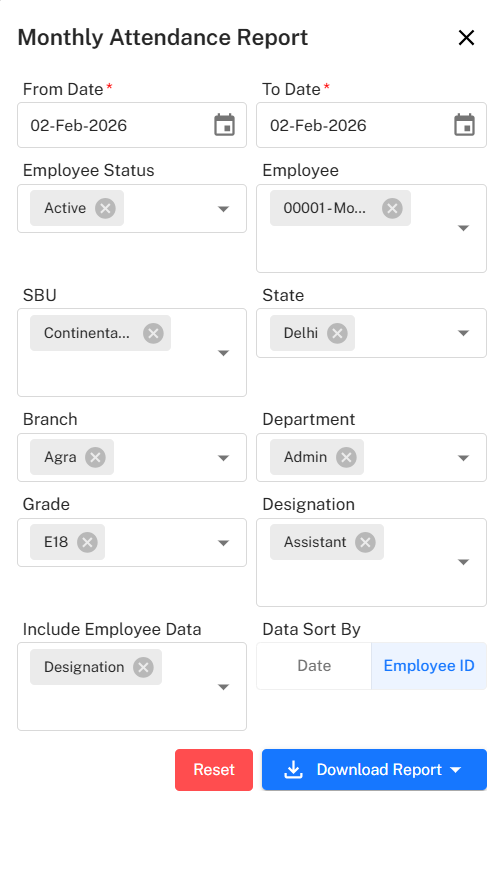
Branch: User can select one or multiple branches to generate the attendance report branch‑wise.
Department: User can select one or multiple departments to filter attendance details department‑wise.
Grade: User can select one or multiple grades to view attendance data based on employee grade levels.
Designation: User can select one or multiple designations to generate the attendance report designation‑wise.
Include Employee Data: User can choose additional employee details (such as designation, department, etc.) to be included in the report.
Data Sort By: User can sort the report either by Date or by Employee ID (only one option can be selected).
Selection Rules
- From Date & To Date: Single selection (date range)
- Data Sort By: Single selection (Date or Employee ID)
- All other filters: Multiple selections allowed