Expense Tracking Configuration
Last Updated: October 3, 2025 Document Version: 1.0 Prepared for: Emgage HRMS Implementation Team
Expense Tracking Configuration
This module enables organizations to define and manage rules for automatic travel expense calculation, customize applicability by user, and maintain histories for compliance and audit purposes.
Module Overview
Highlights of expense tracking configuration:
Custom Policies: Define multiple expense tracking policies with auto-calculation based on vehicle type and distance.
Precise Applicability: Assign rules to targeted employees, departments, or other organizational units.
Default & Override: Set default rules or create exceptions for specific individuals.
Tracking Modes: Support for both "with auto-expense" and "without auto-expense".
Comprehensive History: Track rule changes and maintain full auditability.
Expense Rule Applicability
Displays which employees or groups are impacted by a tracking rule.
When to Use Applicability List
Checking which users are governed by specific auto-expense rules.
Validating inclusion or exclusion logic for special groups.
Auditing for compliance and exception handling.
Adding and Editing Tracking Rules
Allows configuration of reimbursement rates, applicability, and rule types.
When to Use Add/Edit Rule
Defining distance rates for different vehicle types.
Limiting claimable distance ranges for accuracy.
Filtering which employees get particular rules (including exclusion logic).
Setting default vehicles for automation.
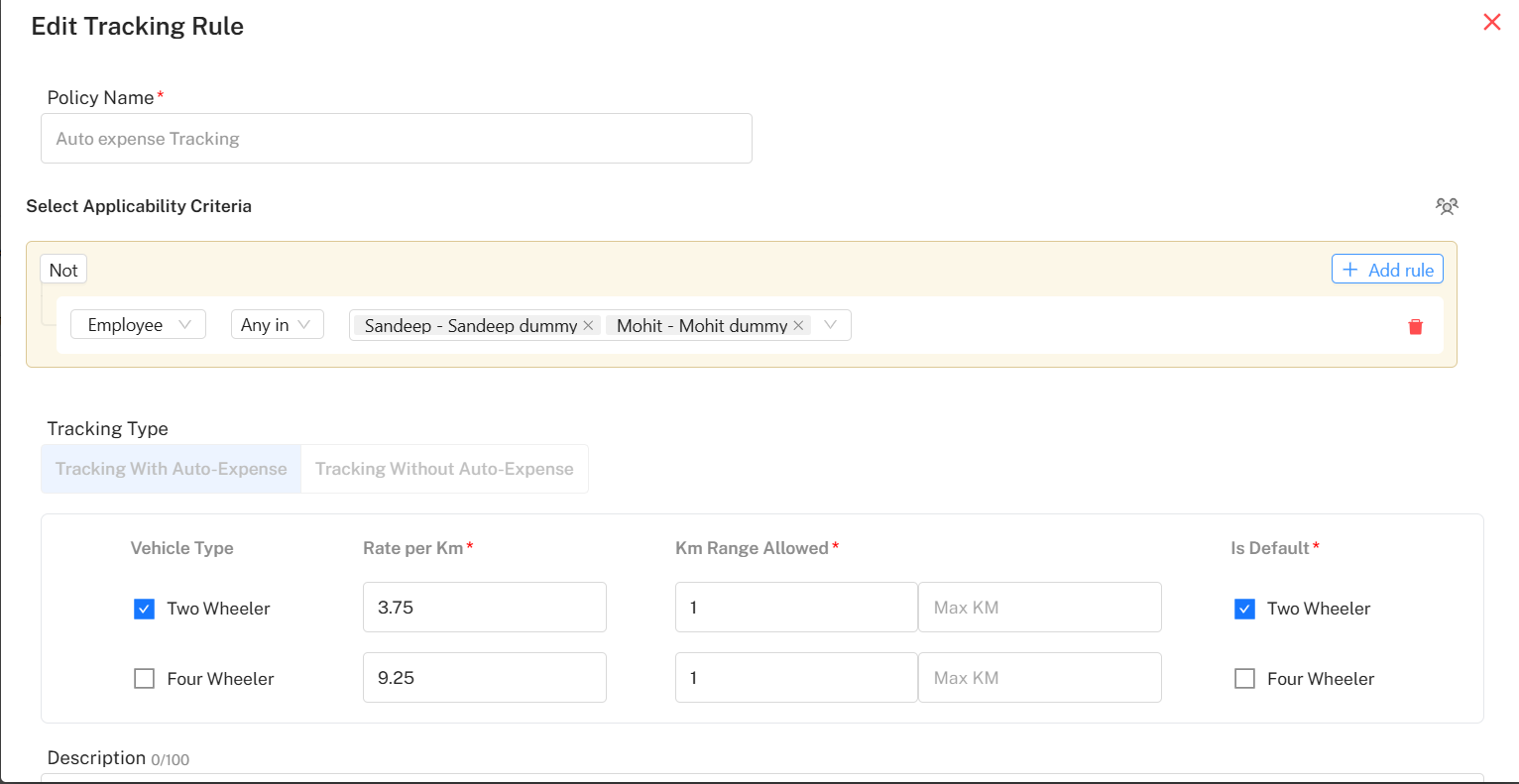
Add/Edit Rule Process
Step-by-Step Process:
Enter Rule Name: Set a policy or rule name.
Set Applicability: Define inclusions/exclusions using flexible fields (employee, department, designation, etc.).
Configure Vehicles: Choose vehicle types and set per-kilometer rates and allowed ranges.
Set Default: Mark which vehicle applies by default.
Save/Update Rule: Click "Submit" to activate or save changes.
Viewing Policy Details and Rule History
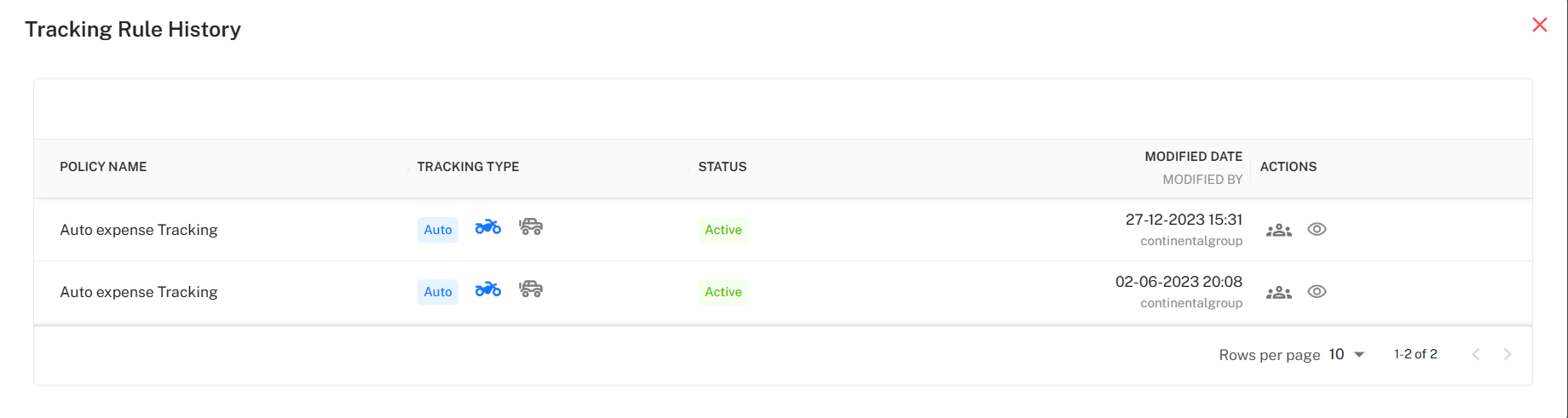
Access summary and versioning for each policy, showing changes over time and current coverage status.
Rule History & Activation
View activation status and past modifications.
Maintain compliance with audit trails.
Toggle active/inactive status as needed.
Adding a New Rule
Flexible rule creation to cover all required combinations and logic.
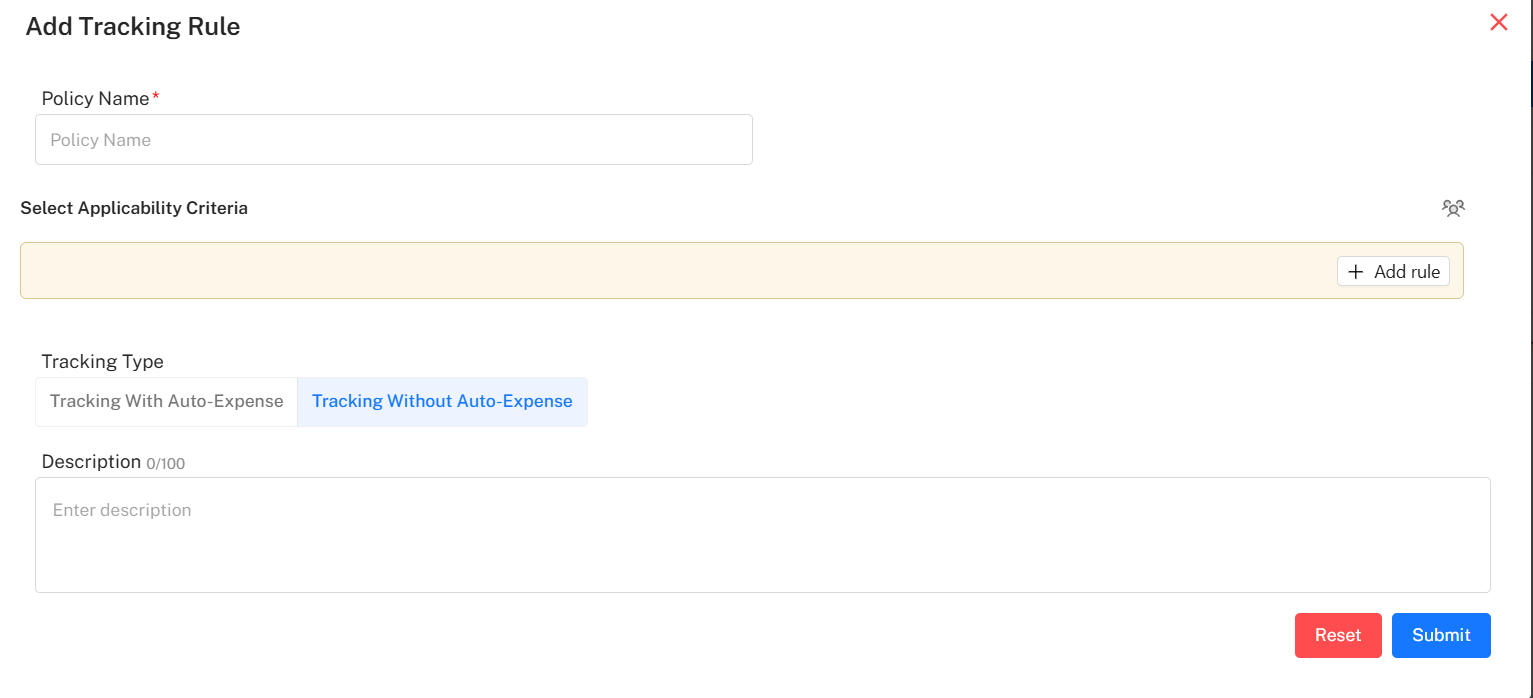
Add Rule Flow
Step-by-Step Process:
Policy Name: Assign a clear and unique name.
Define Applicability: Apply to employees, departments, designations, or filter with custom rules.
Set Tracking Type: Select with or without auto-expense and configure corresponding details.
Save Rule: Click "Submit" to save rule and make it effective system-wide.
Reset if Needed: Use "Reset" to clear and restart the process.