Candidate-offer-list
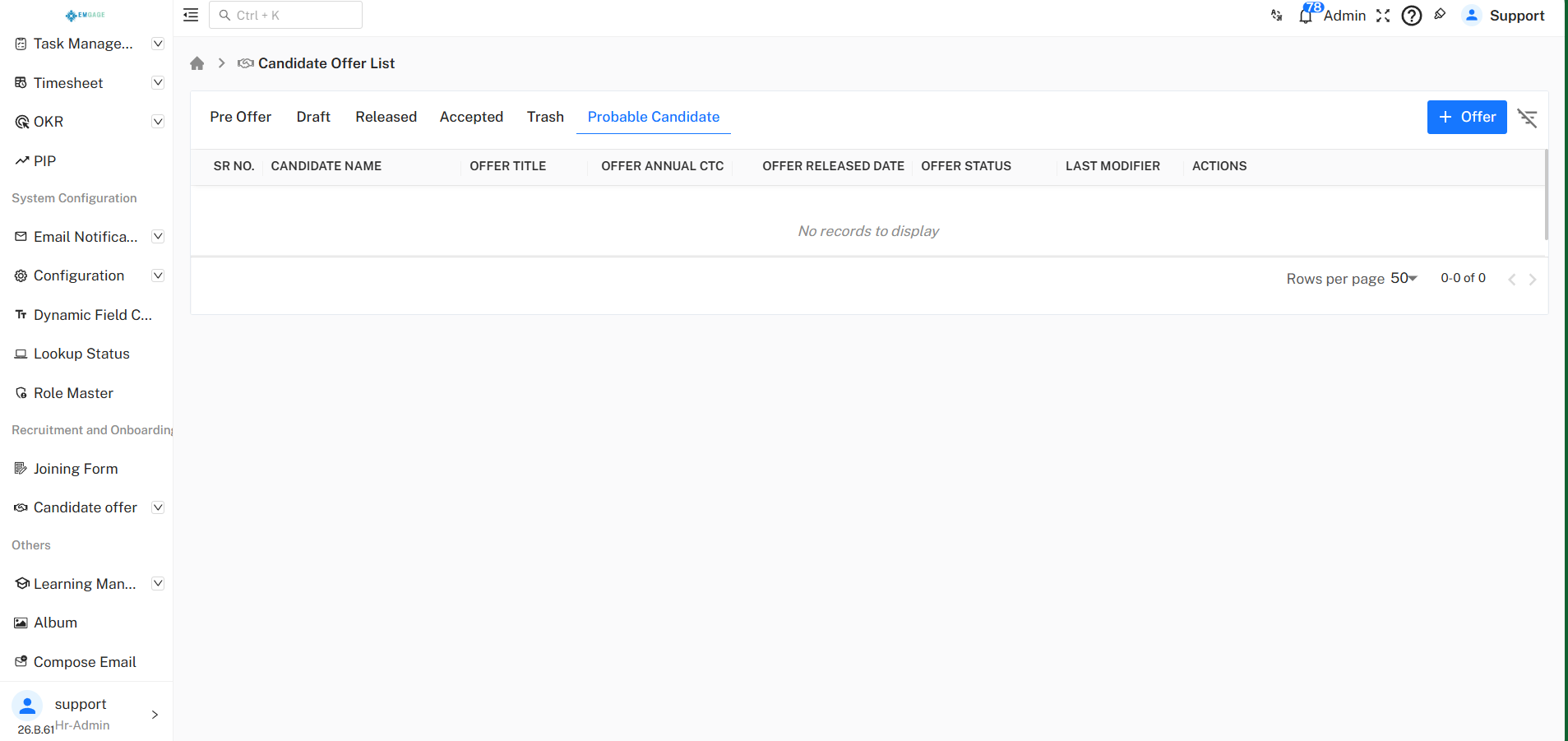
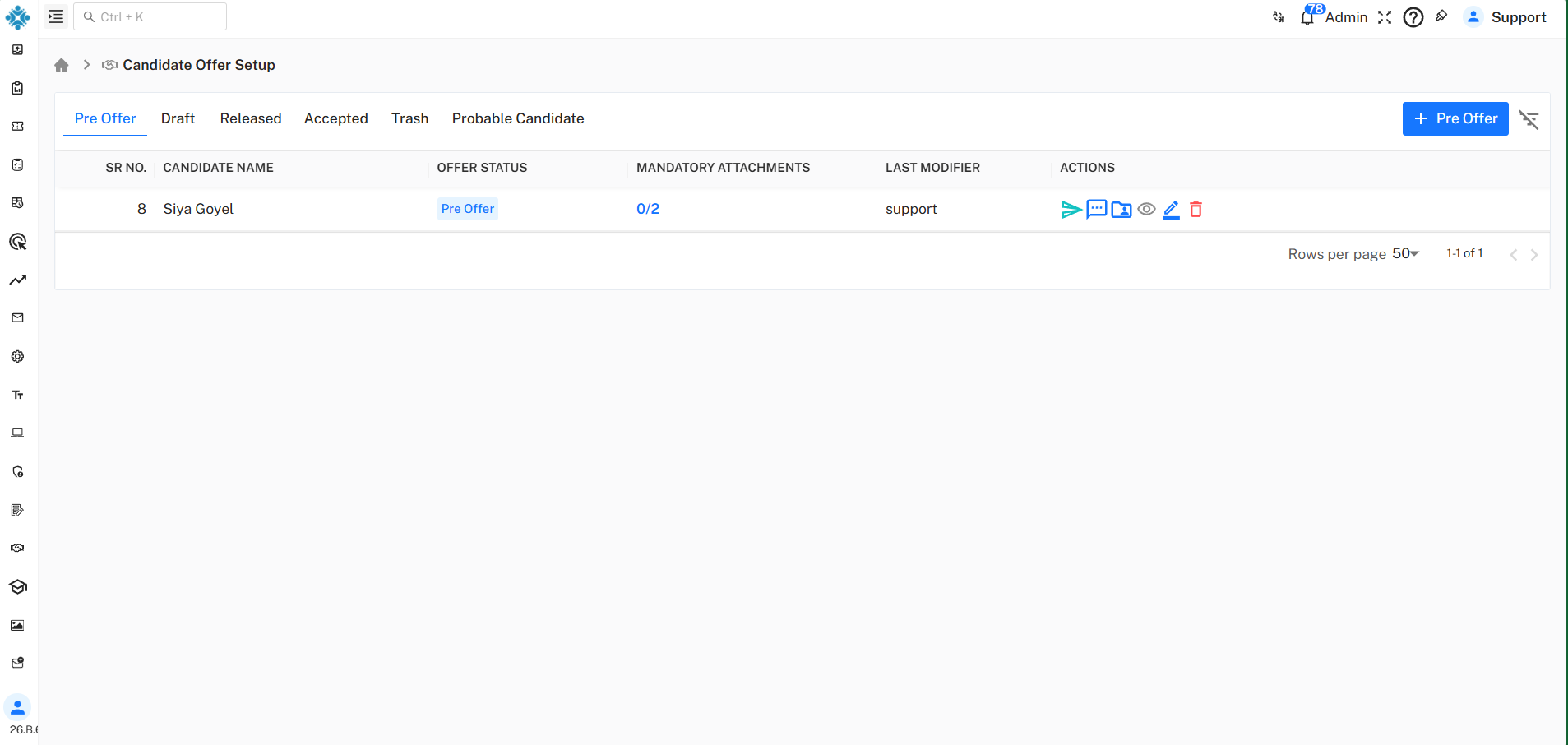
The Candidate Offer List page is used to manage the complete candidate offer process. From this page, you can view candidates under the following tabs:
- Pre Offer
- Draft
- Released
- Accepted
- Trash
- Probable Candidate
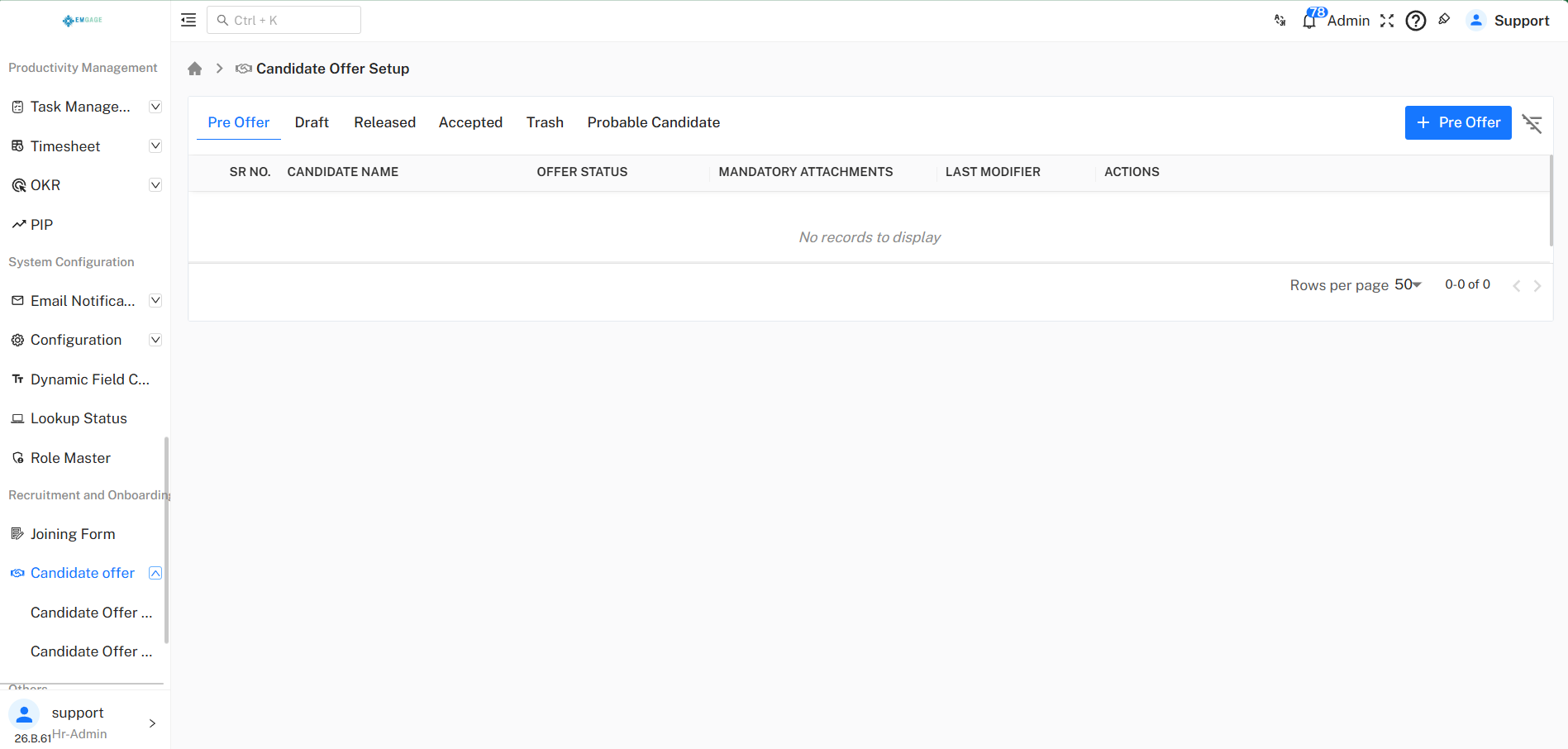
Create a Pre Offer
- Click + Pre Offer.
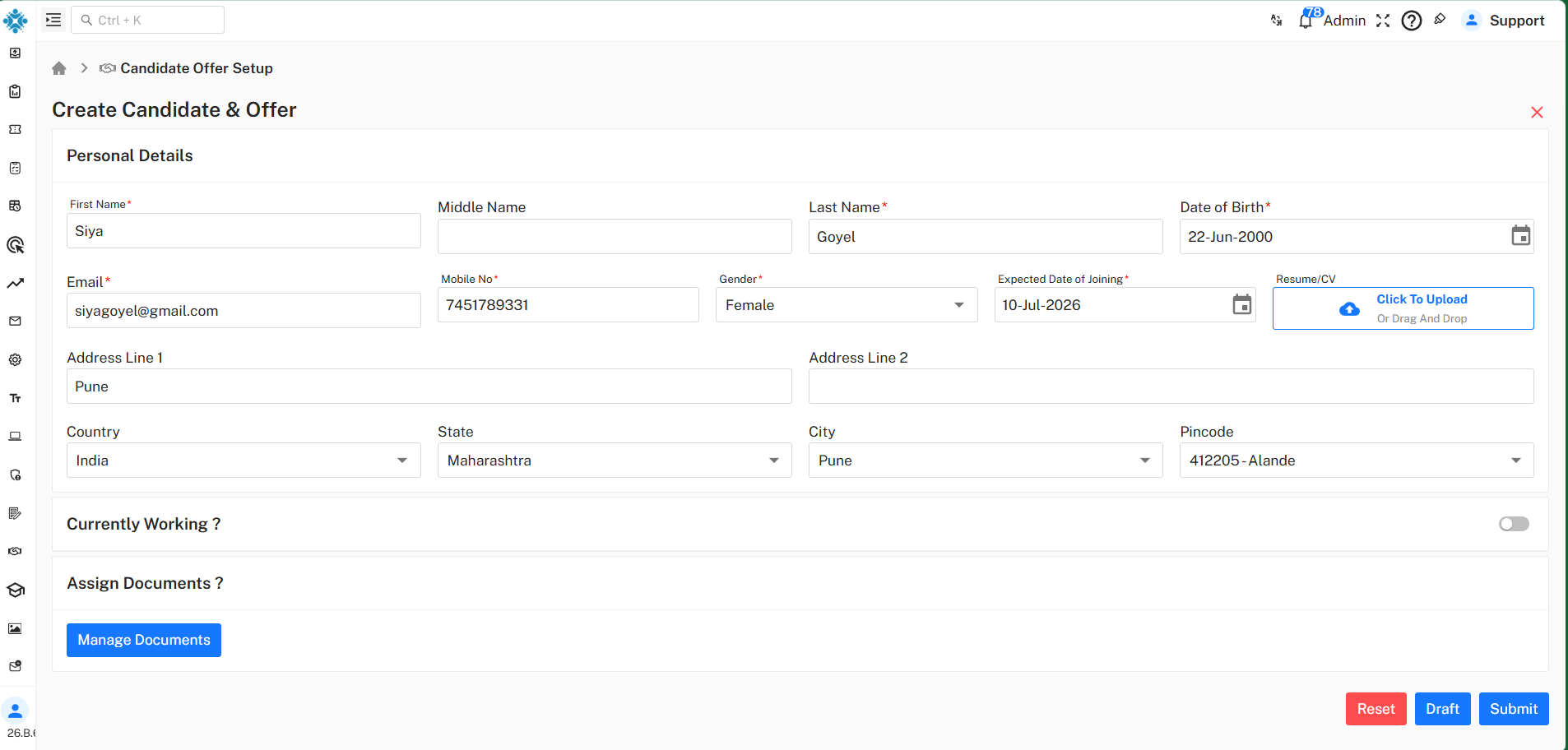
- Enter the candidate's personal details.
- Upload the candidate's Resume/CV (Optional).
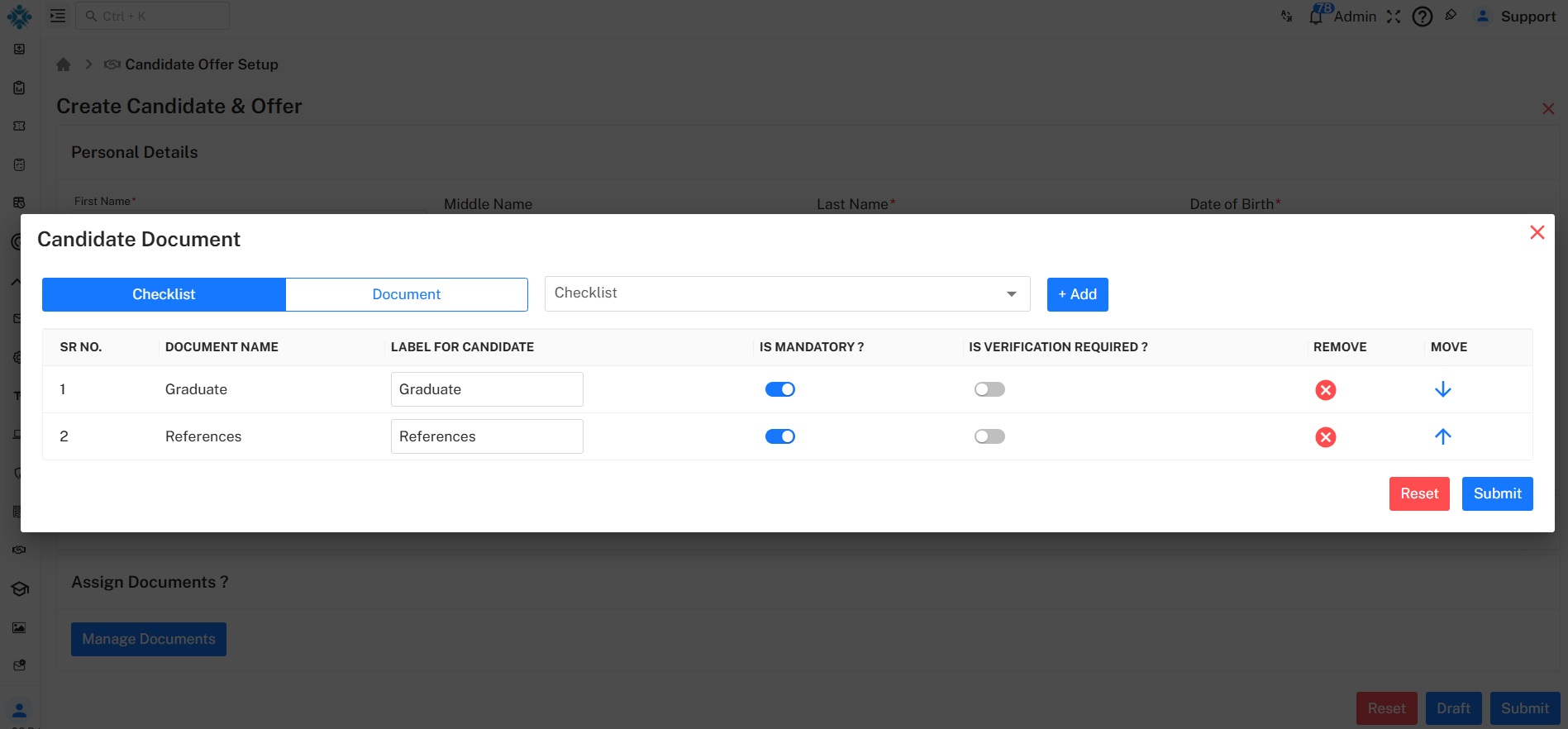
- Click Manage Documents to assign required documents.
- Click Submit to create the Pre Offer or Draft to save it for later.
Once submitted, the candidate will appear in the Pre Offer list.
Draft Offer List
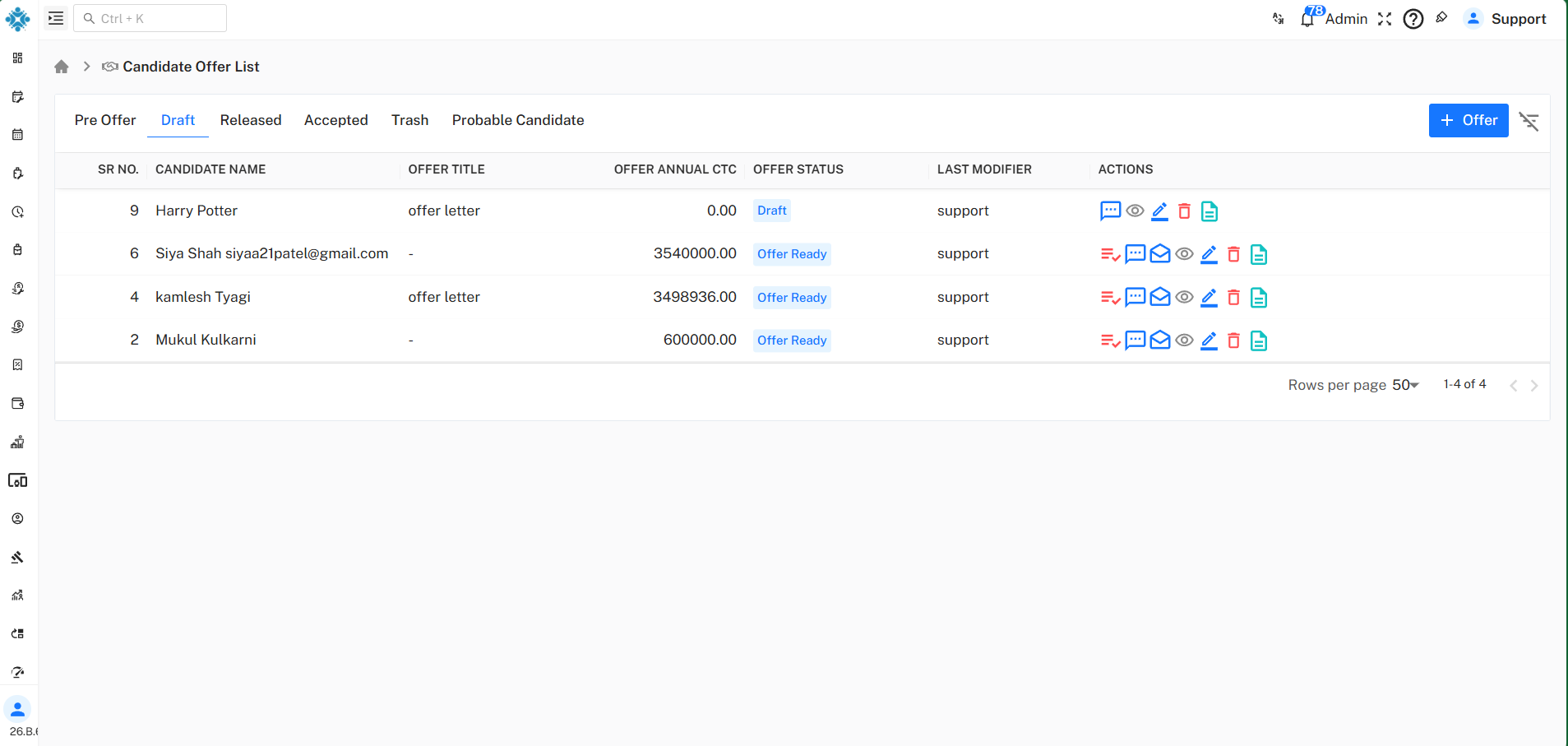
The Draft Offer List page displays all candidate offers that have been saved as drafts. These offers are not yet released and can be modified before they are shared with candidates.
From this page, you can:
- View all draft offers along with their offer details and current status.
- Edit or update draft offers.
- Review comments and checklists.
- Send the offer when it is ready.
- Delete drafts that are no longer required.
- View or download the generated offer letter.
To create a new draft offer, click + Offer.
Available Actions
- Checklist – Manage the offer checklist.
- Comments – View or add comments.
- Send Offer – Send the offer to the candidate.
- View – View offer details.
- Edit – Modify the draft offer.
- Delete – Remove the draft offer.
- Offer Letter – View or download the generated offer letter.
Released Offer List
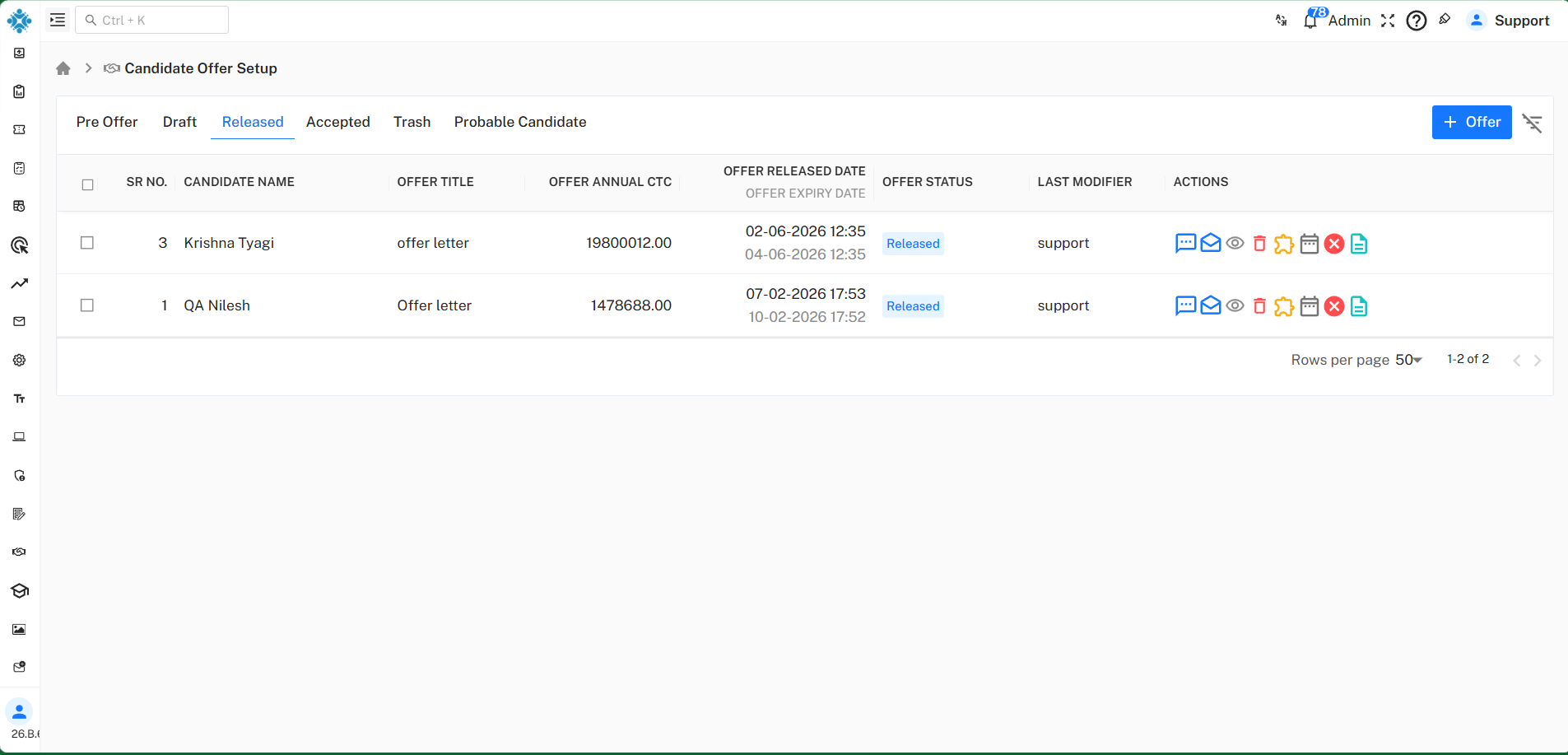
The Released tab displays all candidate offers that have been released to candidates. From this page, you can monitor the offer status, release and expiry dates, and perform follow-up actions on released offers.
To create a new offer, click + Offer.
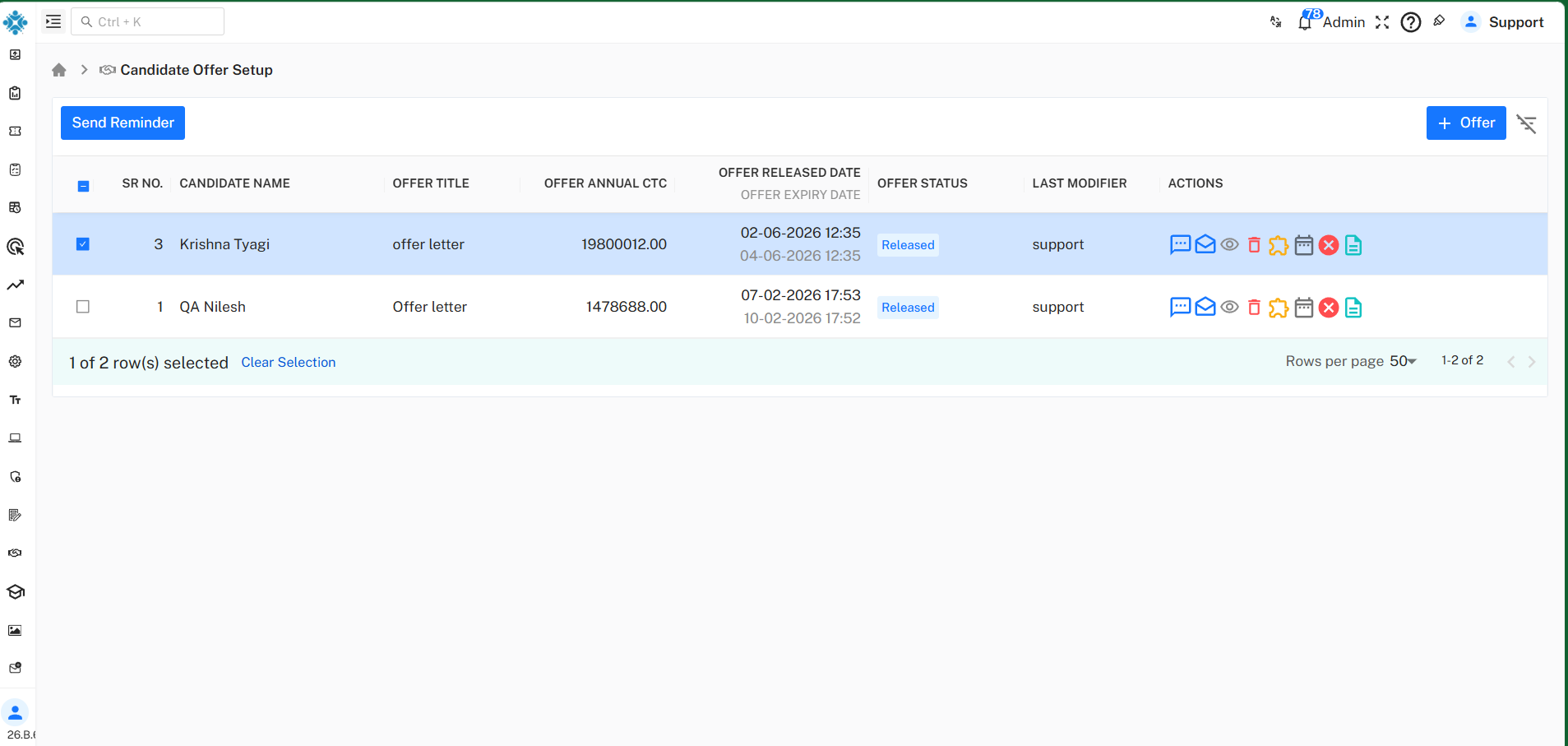
Send Reminder
Select one or more released offers using the checkbox and click Send Reminder to send a reminder email to the selected candidate(s) before the offer expires.
Available Actions
- Comments – View or add comments.
- Email – Send or resend the offer email.
- View – View offer details.
- Delete – Delete the offer.
- Checklist – View the assigned checklist.
- Schedule – Manage offer validity or related schedule.
- Reject/Cancel – Cancel the released offer.
- Offer Letter – View or download the generated offer letter.
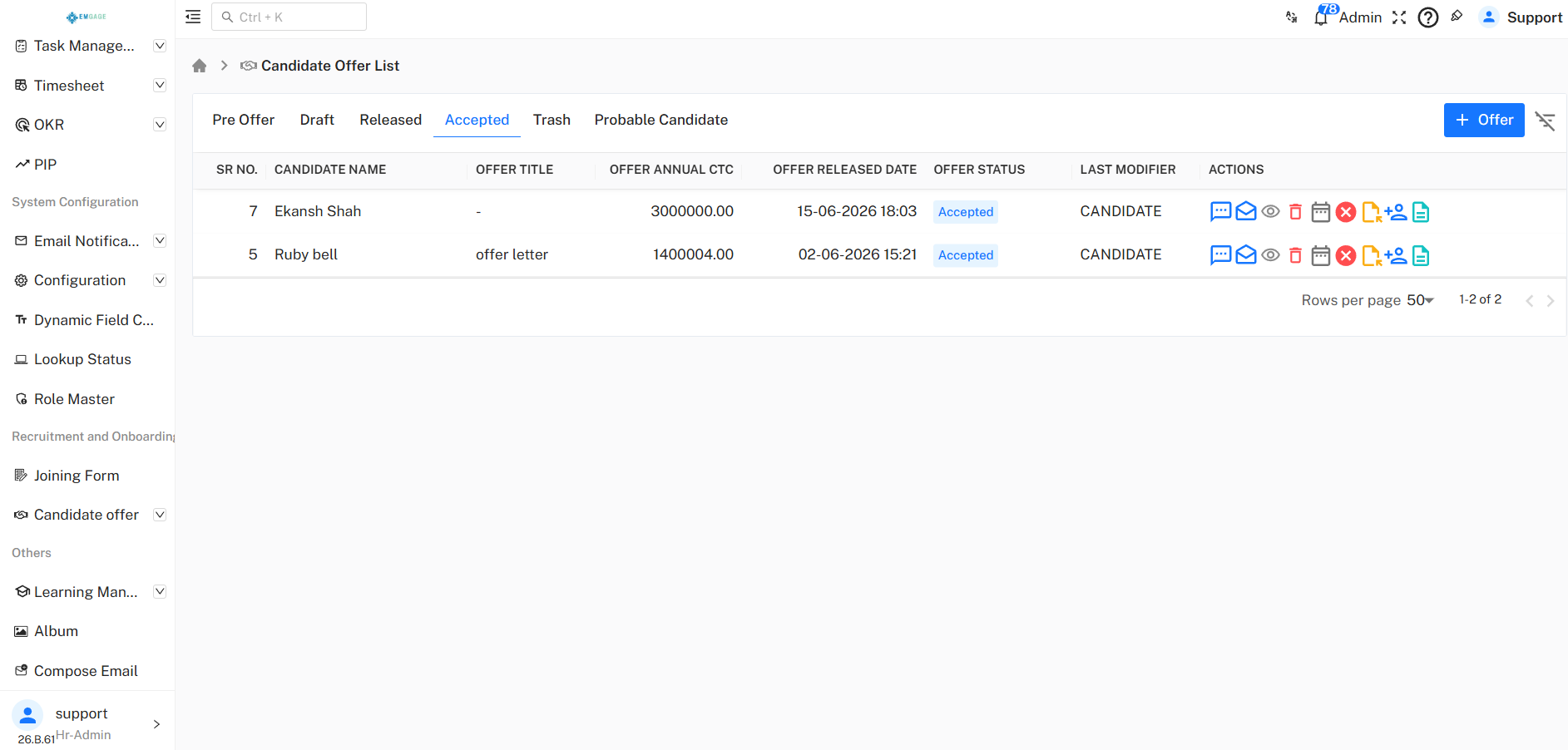
Accepted Offer List
The Accepted tab displays all candidate offers that have been accepted by candidates. From this page, you can review accepted offers, track their status, and perform post-acceptance activities.
To create a new offer, click + Offer.
Available Actions
- Comments – View or add comments.
- Email – Send or resend email communication.
- View – View offer details.
- Delete – Delete the offer record.
- Schedule – View or manage important dates.
- Cancel – Cancel the accepted offer.
- Assign User – Assign the candidate to a user or onboarding owner.
- Offer Letter – View or download the generated offer letter.
Trash Offer List
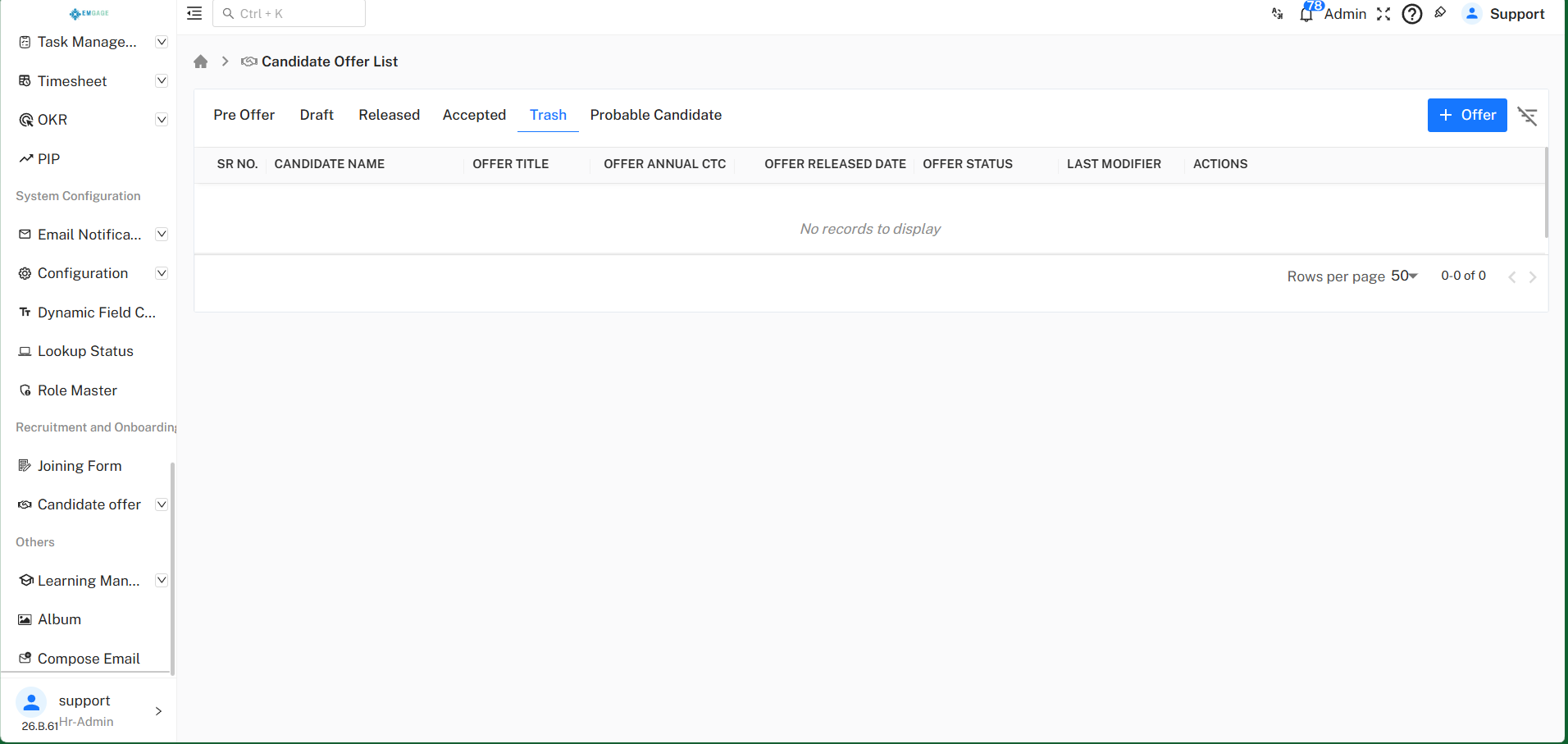
The Trash tab displays all candidate offers that have been moved to the trash. These offers are no longer active but are retained for reference until they are permanently deleted or restored (if applicable). From this page, you can review deleted offer records before taking any further action.
To create a new offer, click + Offer.
Probable Candidate List
The Probable Candidate tab displays candidates who have been identified as potential hires but have not yet been moved into the active offer process. From this page, you can review prospective candidates and initiate the offer process whenever required.
To create a new offer, click + Offer.