index
Compensatory Off (Comp-Off) – Leave Module Documentation
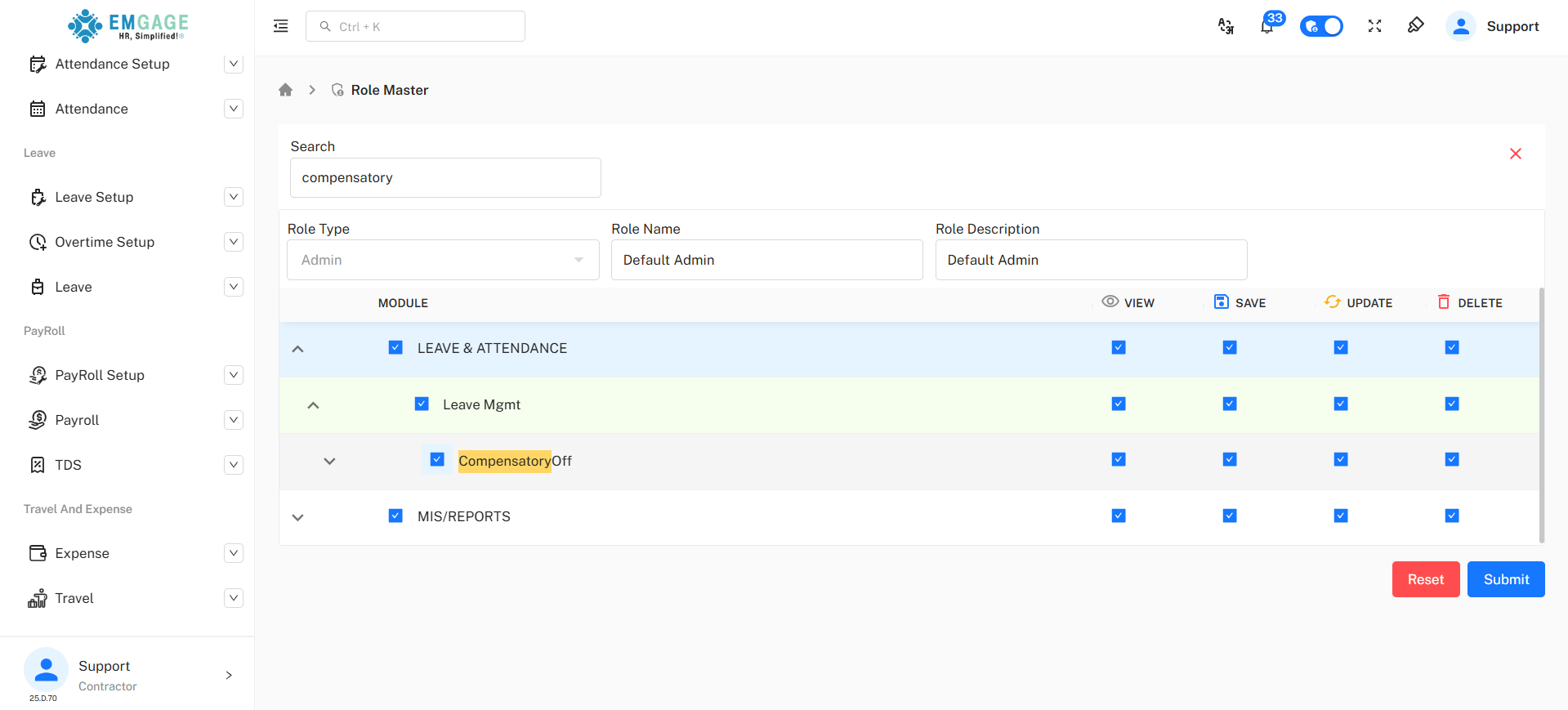
Turn on the permission :
Prerequisites
- Logged in to the EMGAGE Dashboard
- Access to Admin
- Permission to manage Role Master
Accessing Role Master
Use the Search option in the EMGAGE dashboard and search for Role Master.
Edit Admin Role :
- From the Role Master list, Find & Edit Admin.
- Search for compensatory off(available under the leave module)
Navigation Path:
Admin Master → Role Master → compensatory off
This section displays all available compensatory off in checkbox format.
Overview
Compensatory Off (Comp-Off) allows employees to avail leave against extra working hours or days worked on holidays, week-offs, or approved off days.
This document explains the end-to-end process of applying, approving, and cancelling Comp-Off in the Leave module.
Step 1: Raise Extra Working Request
Employees must first submit an Extra Working Request to earn Comp-Off.
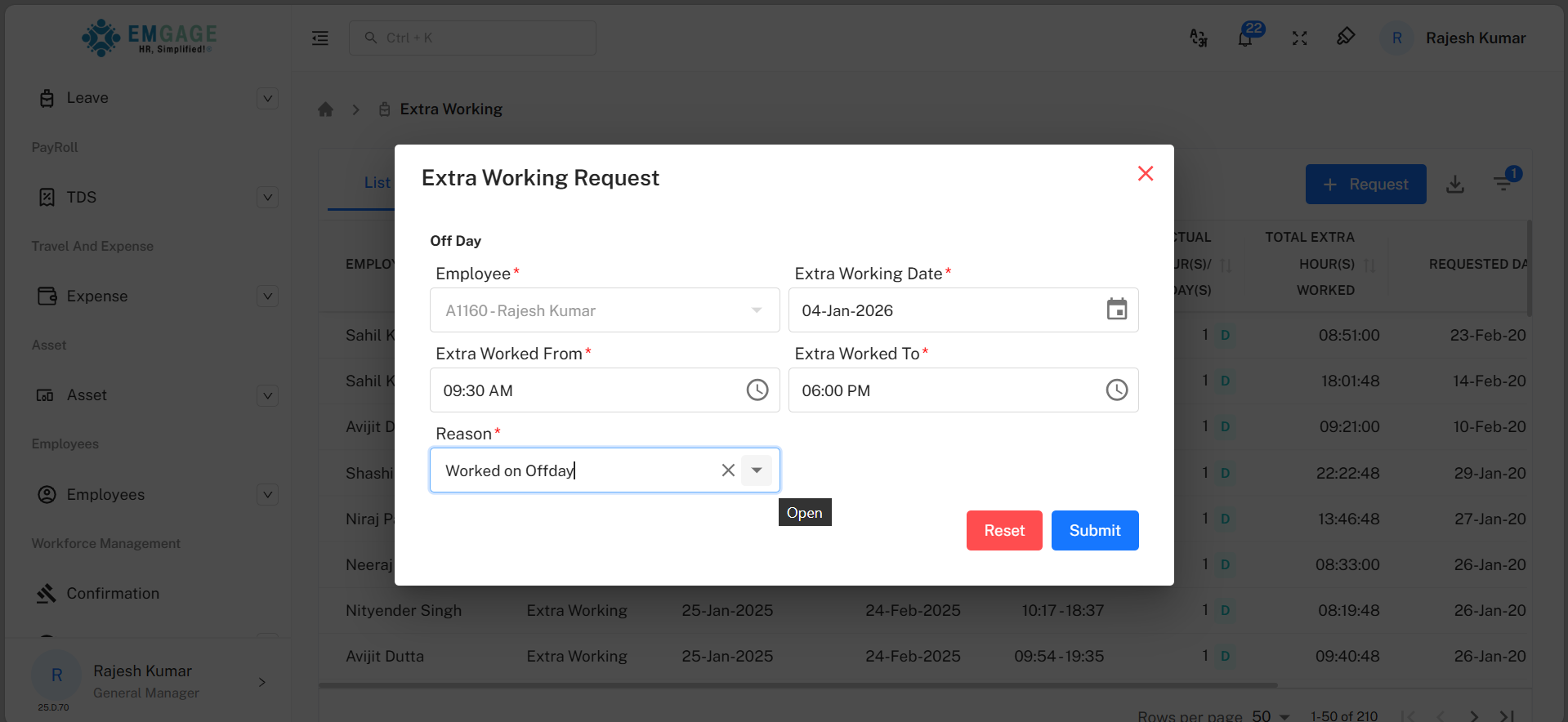
Fields:
- Employee – Name of the employee requesting extra working.
- Extra Working Date – Date on which extra work was performed.
- Extra Worked From – Start time of extra working.
- Extra Worked To – End time of extra working.
- Reason – Reason for extra working (mandatory).
Click Submit to raise the request.
Step 2: Approve / Reject Extra Working
Managers review extra working requests for approval.
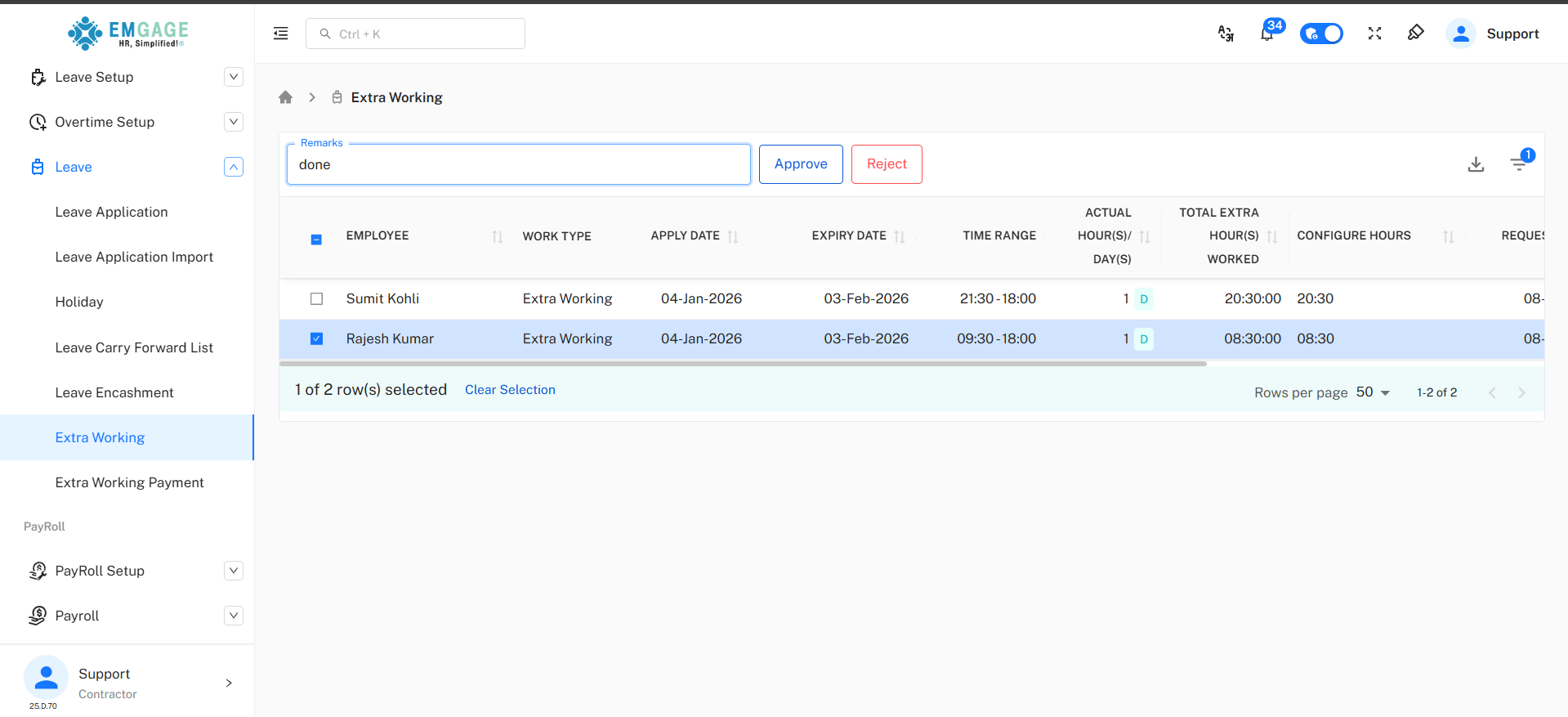
Actions:
- Approve – Approves the extra working request.
- Reject – Rejects the request with remarks.
- Remarks – Mandatory comments while approving or rejecting.
Once approved, the employee becomes eligible for Comp-Off.
Step 3: Apply Comp-Off Leave
After approval, employees can apply for Comp-Off leave.
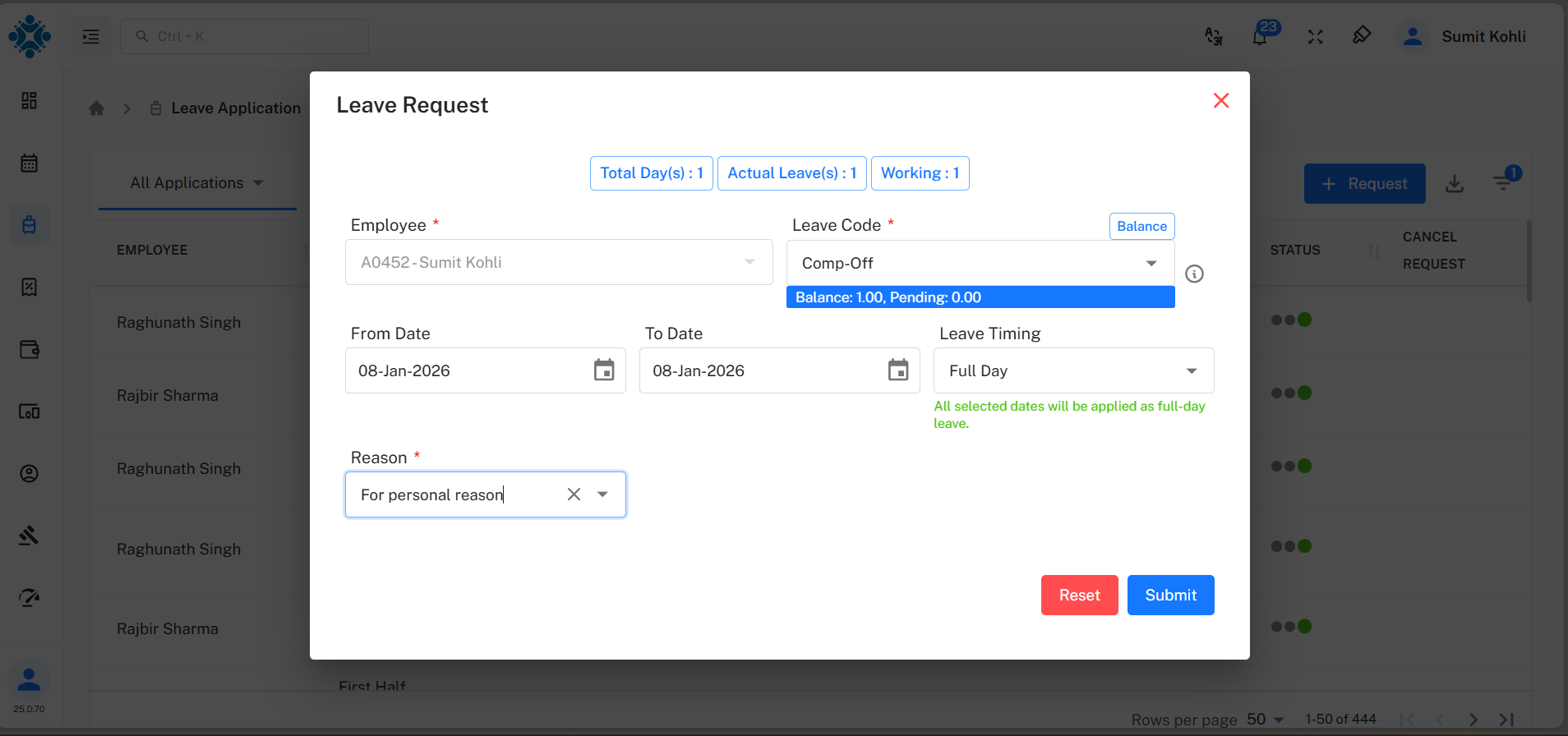
Fields:
- Employee – Auto-selected employee name.
- Leave Code – Select Comp-Off.
- From Date / To Date – Select leave date(s).
- Leave Timing – Full Day / Half Day.
- Balance – Displays available Comp-Off balance.
- Reason – Mandatory reason for leave.
Click Submit to apply.
Step 4: Comp-Off Leave Status
Submitted Comp-Off requests appear under Leave Application List.
Key Columns:
- Employee – Name of employee.
- Type / Code – Leave type (Comp-Off).
- Start Date / End Date – Leave duration.
- Total Leaves – Number of days applied.
- Requested Date – Date of request.
- Reason – Leave reason.
- Status – Approval status.
- Cancel Request – Option to cancel pending requests.
Step 5: Approval of Comp-Off Leave
Managers can approve or reject Comp-Off leave requests.
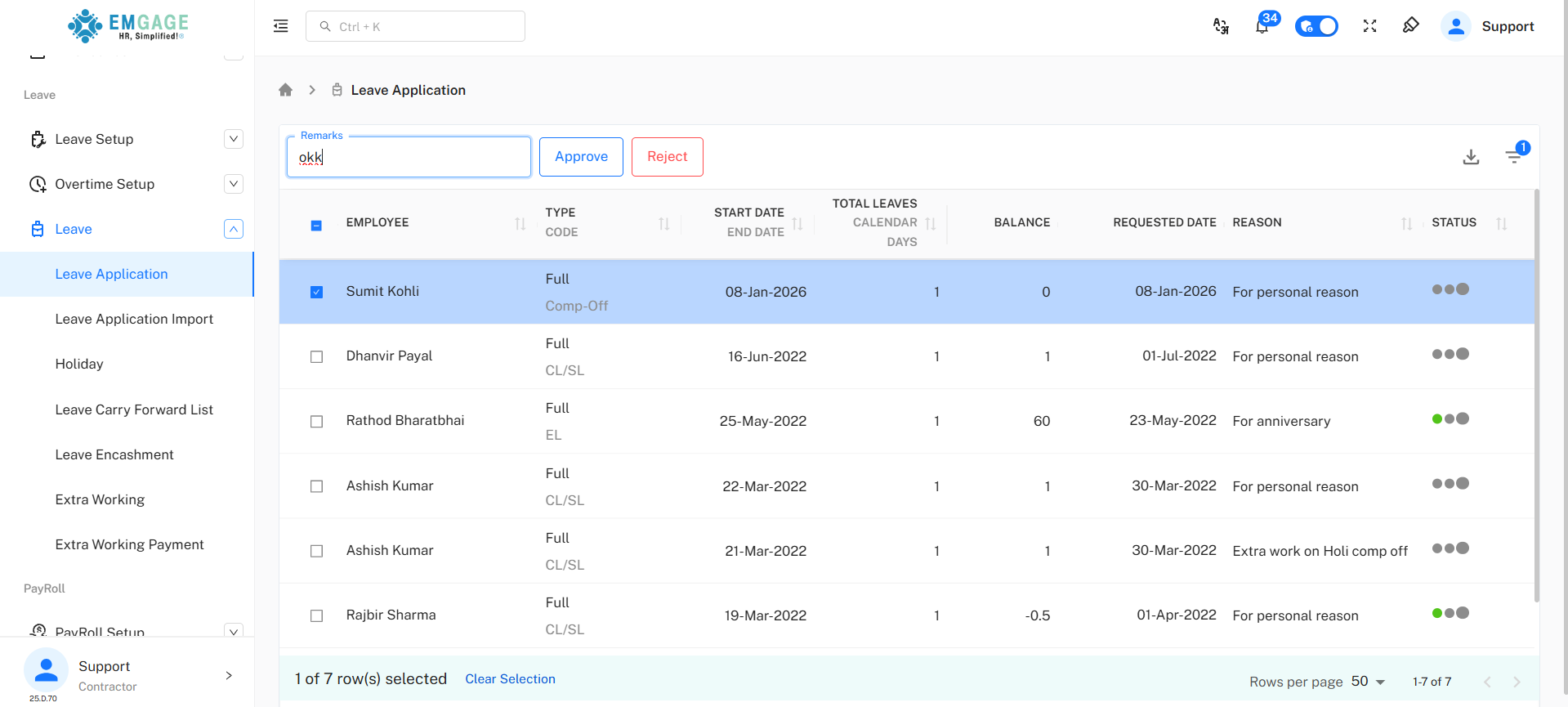
Actions:
- Select one or more requests.
- Enter remarks.
- Click Approve or Reject.
Step 6: Cancel Comp-Off Leave
Employees can cancel Comp-Off leave before or even after approval by clicking on the x.
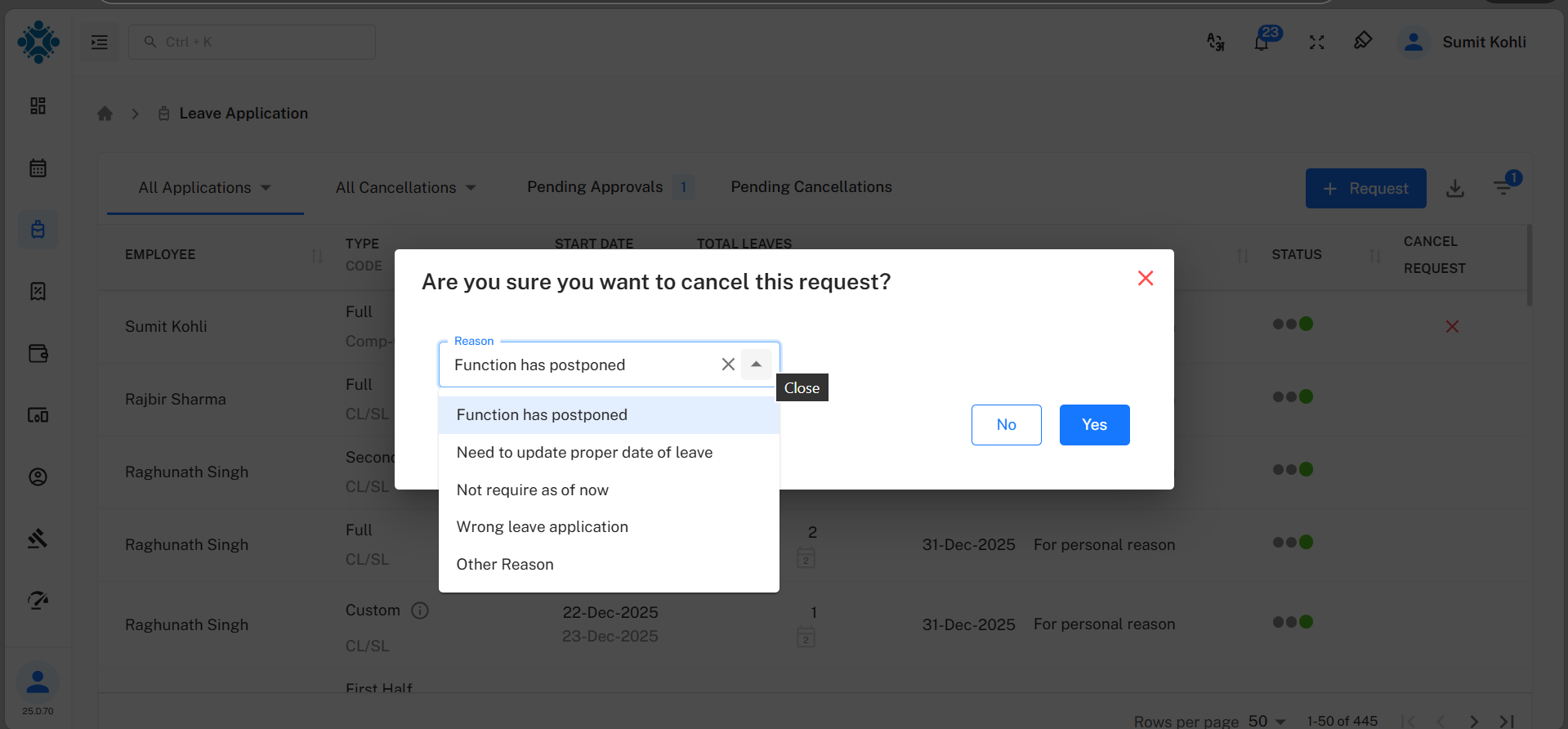
Cancellation Reasons:
- Function postponed
- Need to update proper date of leave
- Not required as of now
- Wrong leave application
- Other reason
Click Yes to confirm cancellation.
Important Notes
- Extra Working approval is mandatory to earn Comp-Off.
- Comp-Off balance is shown at the time of leave application.
- Comp-Off validity depends on company leave policy.
- Approved Comp-Off reduces available balance.
- Cancelled requests restore the balance if applicable.
Conclusion
The Compensatory Off feature ensures fair compensation for employees working beyond regular schedules, while maintaining transparent approval and tracking mechanisms.