Confirmation
Last Updated: September 29, 2025 Document Version: 1.0 Prepared for: Emgage HRMS Implementation Team
** Probation to Permanent Transition** The Confirmation module manages the employee probation completion process and transition to permanent employment status. This system streamlines confirmation workflows, tracks pending approvals, maintains historical records, and manages probation policies across the organization.
Overview Features
Confirmation Management Benefits :
- Bulk Processing: Handle multiple confirmation requests simultaneously.
- Reminder System: Send automated reminders for pending confirmations.
- Document Management: Download and manage confirmation-related documents.

Tab Structure Overview
The Confirmation interface provides four distinct tabs for managing different stages:
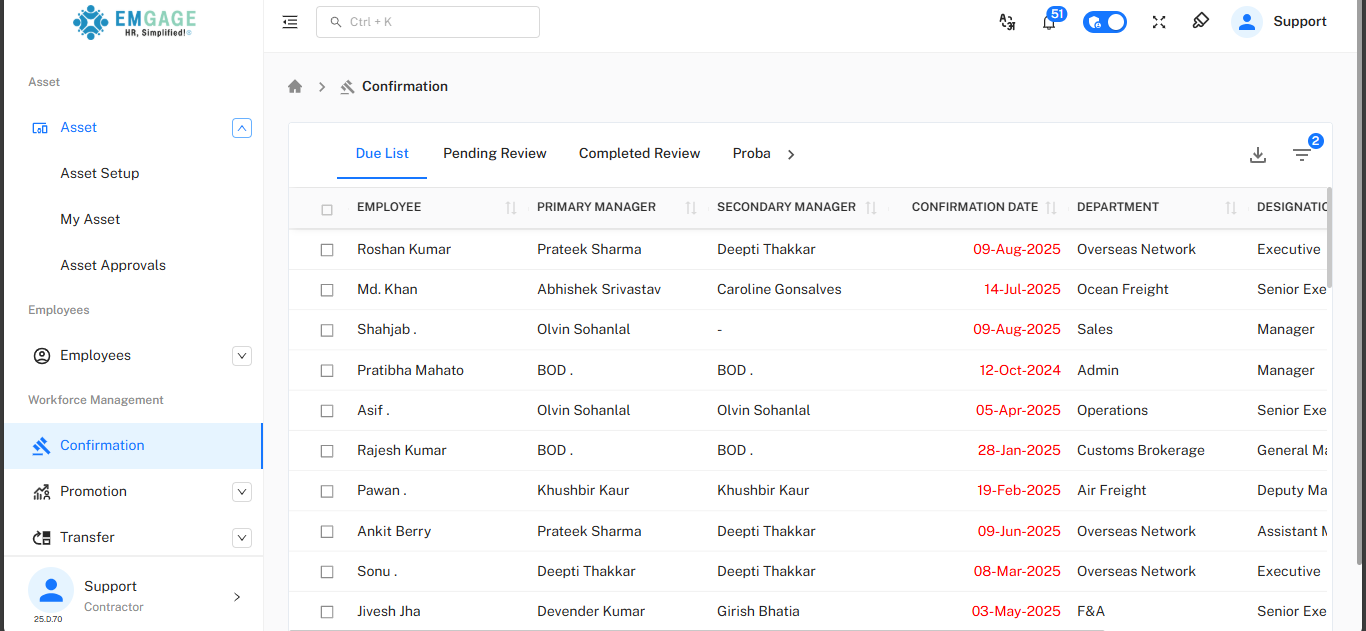
- Due List: Employees whose probation period is nearing completion or overdue.
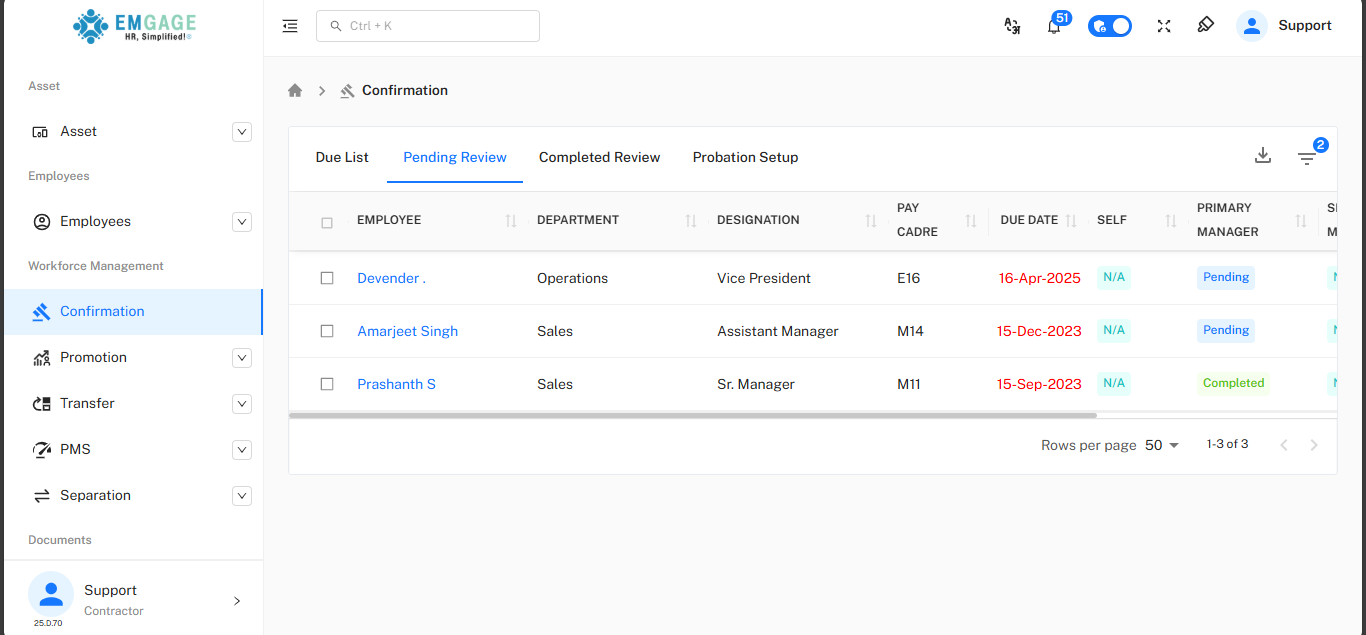
- Pending Review: Confirmation requests submitted and awaiting approval.
- Completed Review: Fully approved and processed confirmation records.
- Probation Setup: Configuration of probation policies and periods.
1. Due List
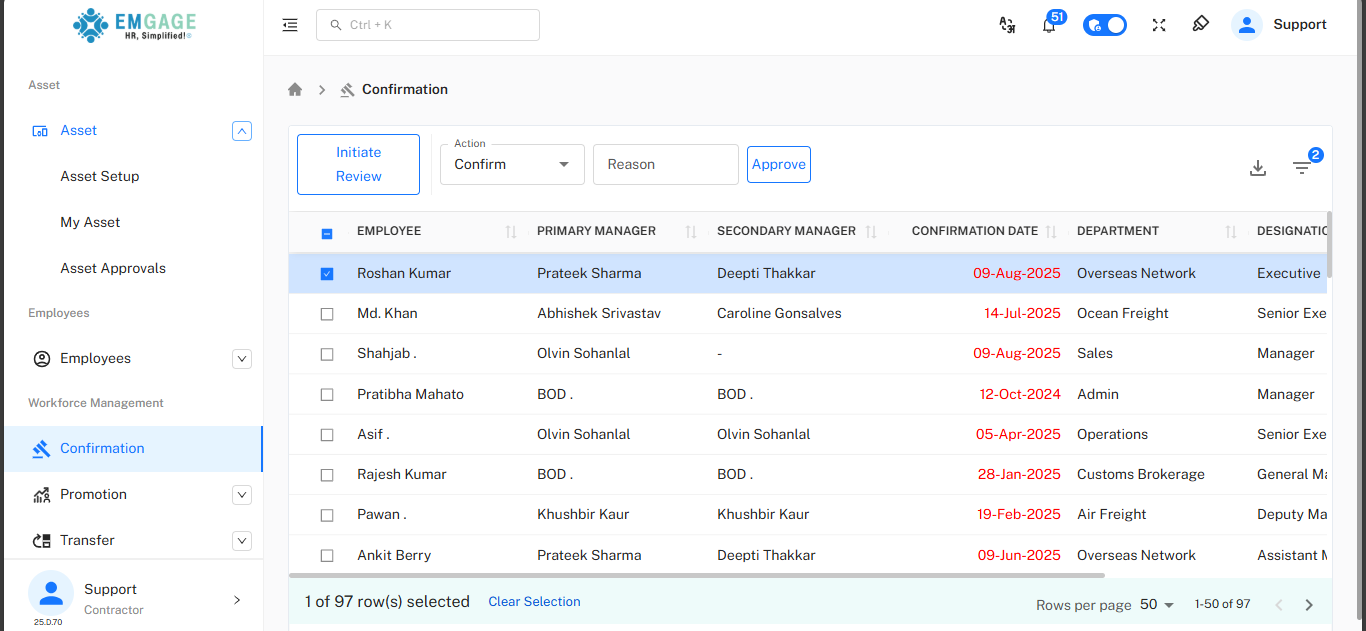
The Due List displays employees whose confirmation is either due or approaching and requires action from HR or management. Authorized personnel can select an employee from the Due List and take the appropriate action—such as approving confirmation, extending the probation period, or terminating employment—in accordance with organizational policies and rules.

-
Action Menu: Authorized users can choose from the following actions:
-
Confirm – Approve confirmation of the employee.
-
Extend – Extend the probation period with a specified reason.
-
Terminate – End employment as per company rules.
-
Reason: A field is provided to enter the justification for the selected action.
-
Approve Button: Finalizes and records the selected actions.
- ** Red Text**: Overdue confirmation (past due date)
- Examples: "18-Aug-2024", "28-Oct-2024", "30-Jul-2024"
Overview
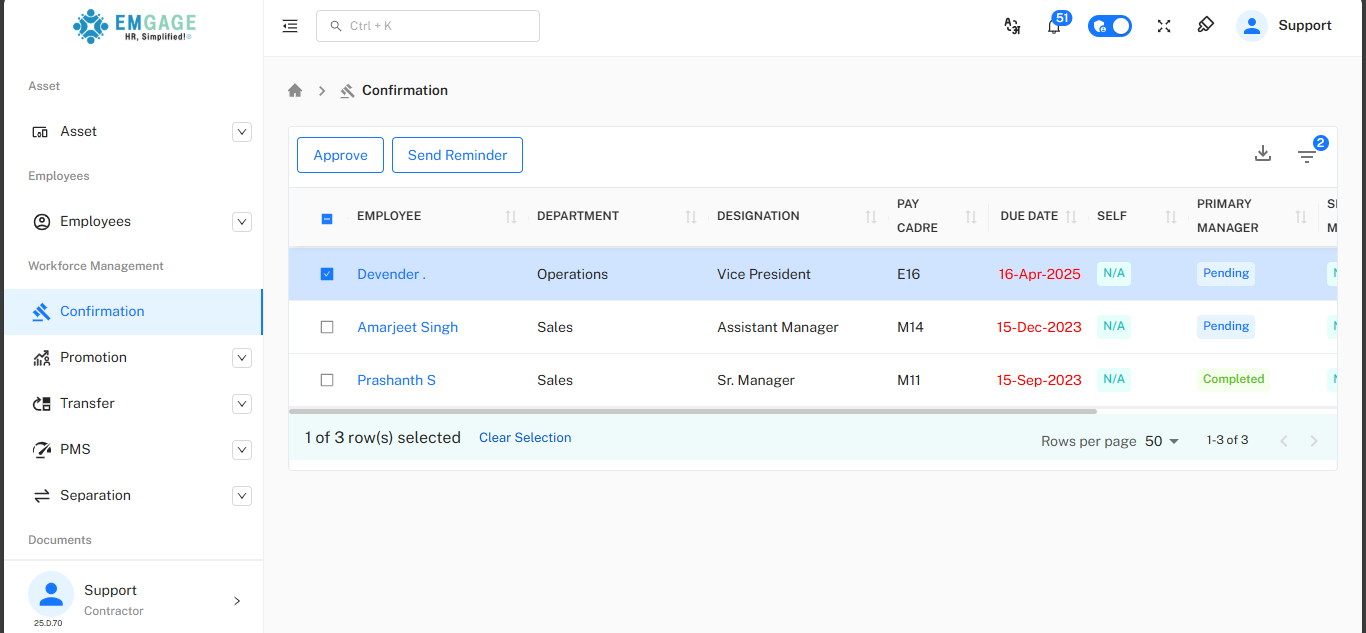
The Pending Review tab displays confirmation requests that have been initiated but are still awaiting approval from the designated authorities. When a reminder is sent, a notification will be delivered to the employee’s or manager’s registered email address. Action Buttons:
- Approve: Approve selected confirmation requests (blue button)
- Send Reminder: Send reminder notifications to approvers (blue button)
Pending Review Status Data Fields:
- Self: Employee's self-assessment status
- Badge: "Pending" (blue badge)
- Primary Manager: First-level approval status
- Badge: "Pending" (blue badge) or "N/A" if not applicable
- In the Pending Review tab, using the
Send Reminderoption will trigger an email reminder to all employees or managers whose requests are still pending, sent to their registered email addresses. :::
Overview
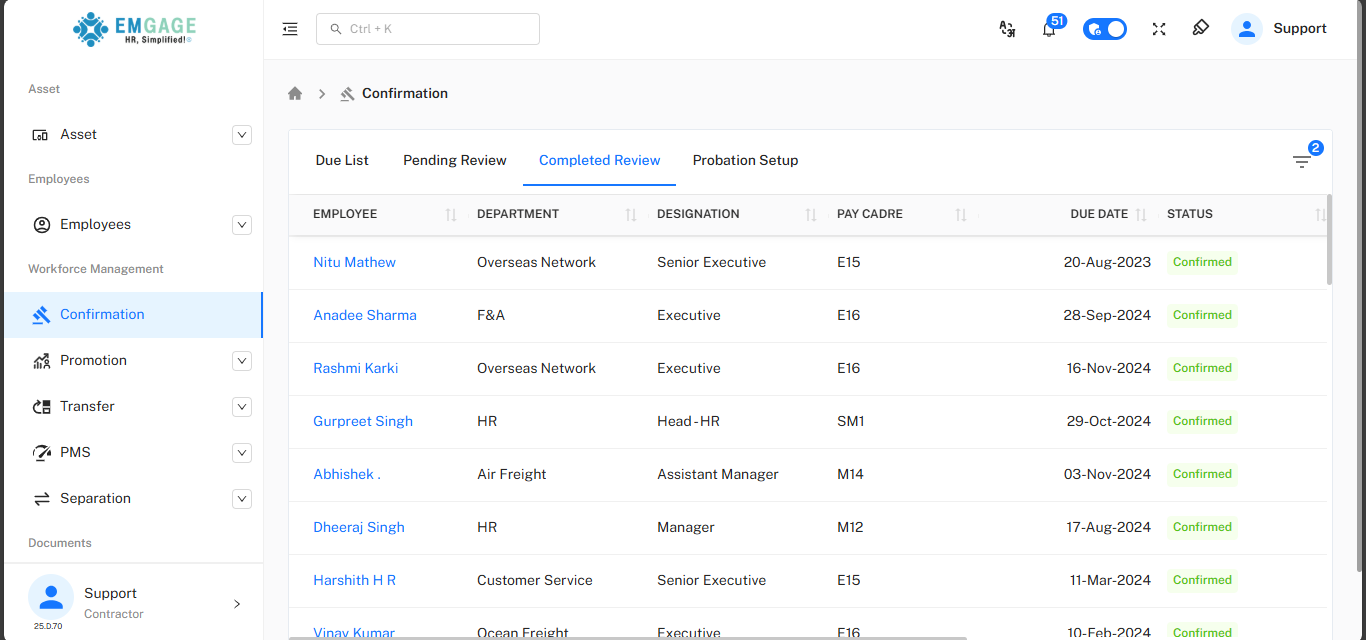
The Completed Review tab maintains historical records of all processed and finalized confirmation requests.

Table Columns:
- Employee: Employee name (clickable link)
- Department: Department name
- Designation: Job title
- Due Date: Original confirmation due date
- Status: Confirmation processing status
- 🟢 Confirmed: Successfully confirmed and transitioned to permanent
- ** Terminated**: Employment terminated during or after probation
- 🟠 Extended: Employment duration Extended
- Download icon: Download confirmation certificate/documents
4. Probation Setup
Overview
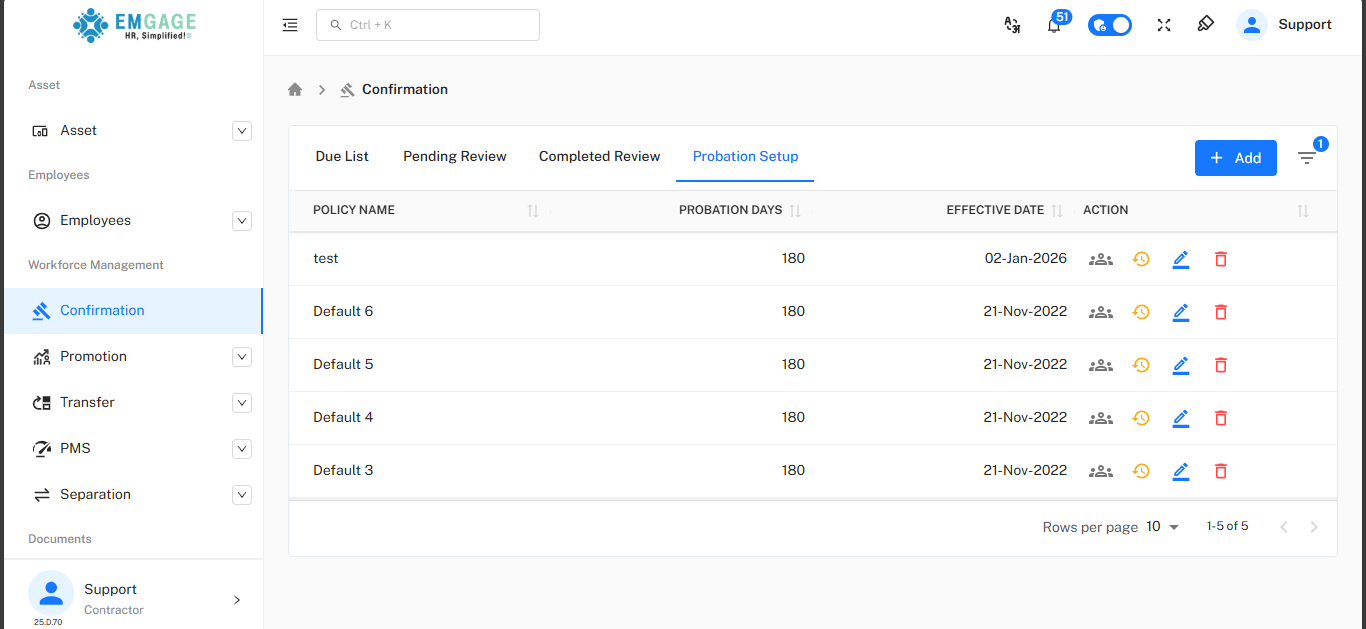
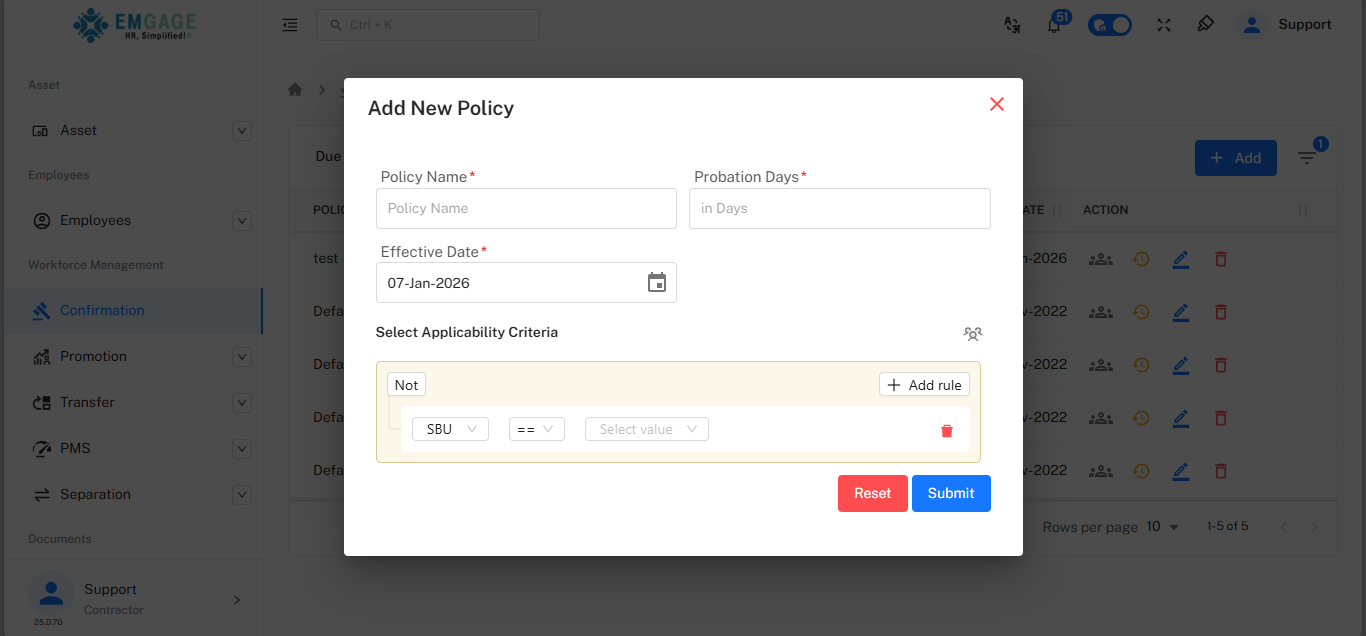
The Probation Setup tab allows administrators to configure probation policies with specific durations for different employee or employee categories.

Action Button:
Table Columns
Policy Configuration Fields:
- Policy Name: Name identifier for the probation policy
- Probation Days: Duration of probation period in days
- Effective Date: Date when policy becomes applicable
- Format: DD-MMM-YYYY
- Action: Available management options
- view Employee icon: Assign policy to employees/groups
- view History icon: Configure policy parameters
- Edit icon: Modify policy details
- Delete icon: Remove policy
Policy Management
Creating a Probation Policy:
- Assign Employees: Select applicable employee categories
- Configure Settings: Set additional policy parameters
Best Practices
Effective Probation Processing:
- Early Initiation: Start confirmation process 15-30 days before due date
- Clear Communication: Inform employees and managers about timeline expectations
- Documentation: Maintain proper evaluation records during probation period
- Consistent Policies: Apply probation policies uniformly across similar roles
- Regular Reminders: Send timely reminders to prevent approval delays
- Status Tracking: Monitor pending approvals and follow up on delays
- Performance Reviews: Conduct formal reviews before confirmation decisions
Troubleshooting
Common Issues and Solutions
Missing Employee in Due List:
- Verify employee's joining date and probation policy assignment
- Check if probation period calculation is correct
- Ensure employee status is set correctly in system
- Review probation setup configuration for employee's category
Incorrect Probation Duration:
- Review Probation Setup tab for applicable policy
- Verify employee is assigned to correct probation policy
- Check effective date of probation policy
- Update policy or reassign employee as needed
- The Due List, Pending Reviews, and Completed Reviews display records only up to
15 daysin the future. To view a specific period, update theFrom DateandTo Dateusing filter button. - In the Pending Review tab, using the
Send Reminderoption will trigger an email reminder to all employees or managers whose requests are still pending, sent to their registered email addresses.
Video Tutorial: Confirmation
Comprehensive video tutorial covering all aspects of the confirmation Portal functionality and best practices.