Dynamic Field Configuration
Last Updated: October 26, 2025
Document Version: 1.0
Prepared for: Emgage HRMS Implementation Team
Dynamic Field Configuration allows you to create custom fields to collect specific information from particular persons, companies, or departments. This flexible system enables tailored data collection based on organizational needs.
Field Management
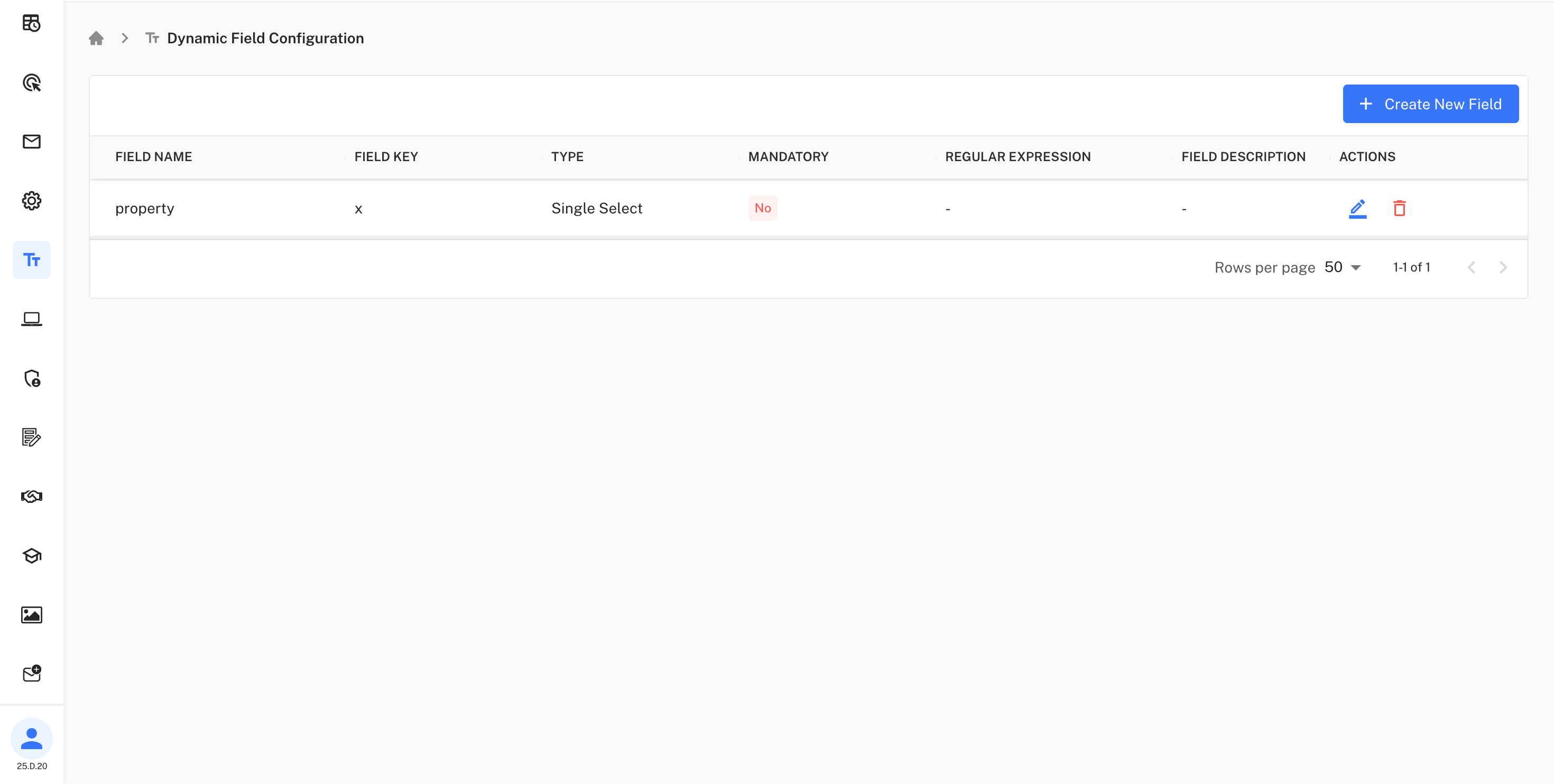
The main interface provides comprehensive field management capabilities with an intuitive table view.
Core Functions:
• Create New Field: Use the "Create New Field" button to add custom fields to the system
• Field Overview: View all configured fields with their properties in a structured table format
• Field Actions: Edit, delete, and manage existing fields through action buttons
Dynamic fields enable custom data collection based on
specific organizational requirements.
Field Properties
Field Structure:
- Field Name: Display name for the field (e.g., "property", "Mobile No")
- Field Key: Unique identifier for the field (e.g., "x", "number")
- Type: Field type selection (e.g., "Single Select", "Numeric Field")
- Mandatory: Whether the field is required (Yes/No)
- Regular Expression: Validation pattern for field input
- Field Description: Additional information about the field
- Actions: Edit and delete options for field management
Add Dynamic Field
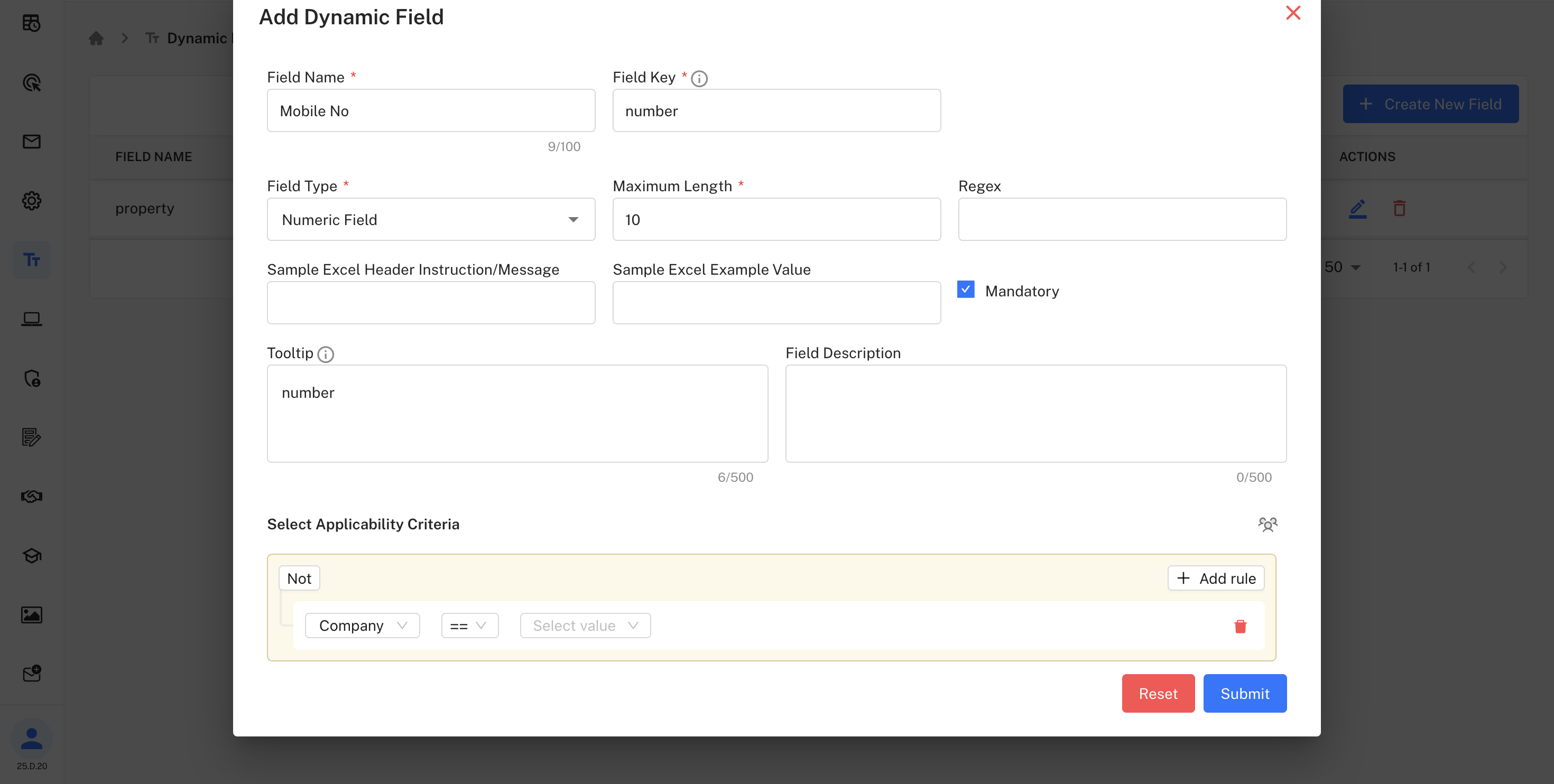
Field Configuration Options:
Basic Information:
- Field Name: Enter the display name for the field
- Field Key: Unique identifier for system reference
Field Type: Select from available field types:
• Numeric Field
• Single Select
• Text Field
• Date Field
• Multi Select
Validation Settings:
- Maximum Length: Set character limits for input
- Regex: Define validation patterns for data format
- Mandatory: Mark field as required or optional
Additional Configuration:
- Sample Excel Header Instruction/Message: Guidelines for data import
- Sample Excel Example Value: Example data for reference
- Tooltip: Help text for users
- Field Description: Detailed explanation of field purpose
Applicability Criteria
Select Applicability Criteria: Define when and where the field appears based on conditions:
Rule Configuration:
- Condition Logic: Use "Not" or other logical operators
- Target Selection: Choose specific criteria (e.g., "Company")
- Comparison Operators: Set conditions (equals, not equals, etc.)
- Value Selection: Define specific values for the condition
- Add Rule: Create multiple conditions for complex scenarios
Use Cases
• Company-Specific Fields: Create fields that appear only for specific companies
• Department-Based Fields: Configure fields based on employee departments
• Person-Specific Fields: Set up fields for particular individuals or roles
• Conditional Display: Show fields based on multiple criteria combinations
Use applicability criteria to control when and where
custom fields appear in the system.