List of Timely Reminders
Last Updated: Oct 13, 2025. Document Version: 1.0 Prepared for: Emgage HRMS Implementation Team
List of Timely Reminders
info
View Upcoming Employee Events
Track employee birthdays, work anniversaries, and appraisals with automatic reminders. Filter by date and event type.
Overview
The List of Timely Reminders displays upcoming employee events in one place.
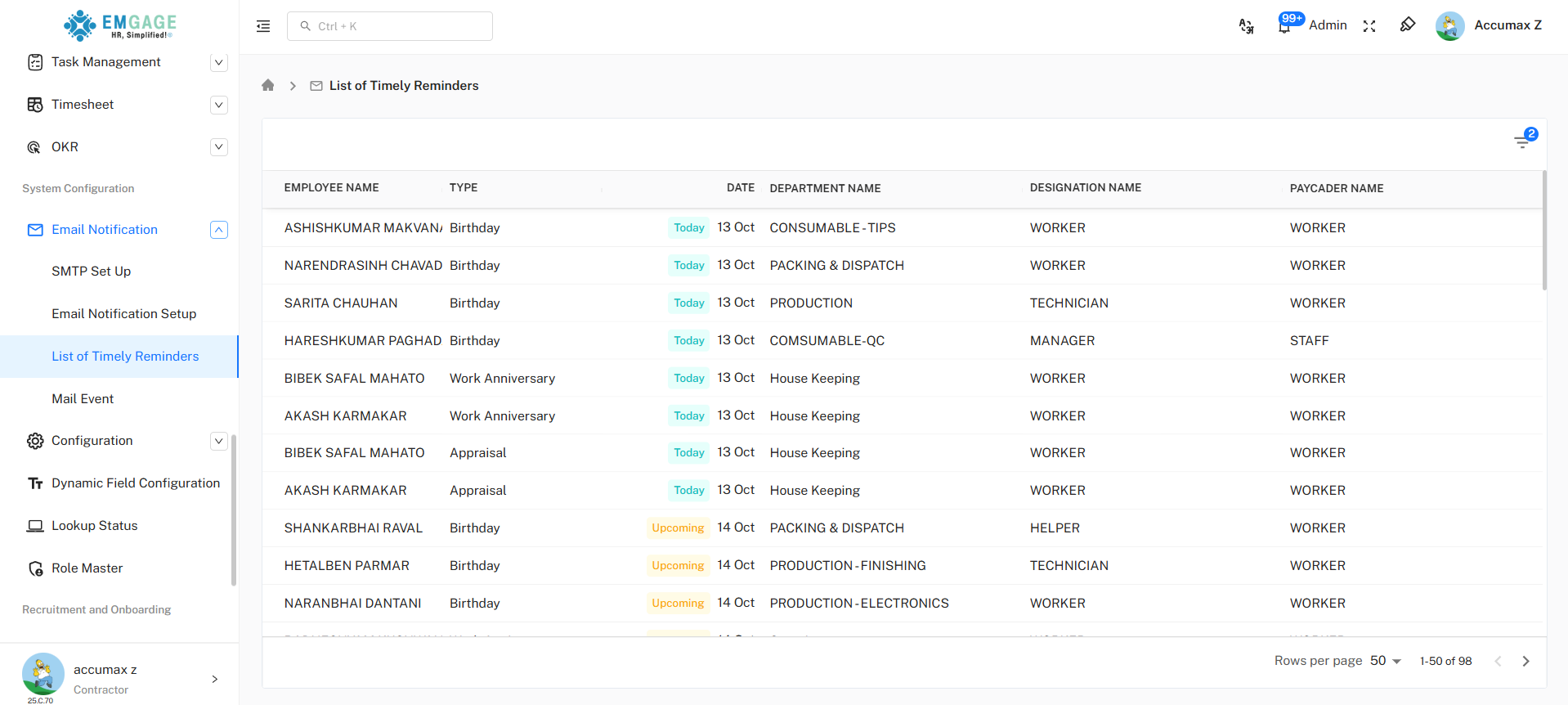
MOst Use Event Types:
- Birthday - Employee birthdays
- Work Anniversary - Employee work anniversaries
- Appraisal - Upcoming performance appraisals
Reminder List Columns
| Column | Description |
|---|---|
| EMPLOYEE NAME | Name of the employee |
| TYPE | Event type (Birthday, Work Anniversary, Appraisal) |
| DATE | Event date with status badge |
| DEPARTMENT NAME | Employee's department |
| DESIGNATION NAME | Employee's position |
| PAYCADER NAME | Employee's pay grade |
Date Status Badges
| Badge | Color | Meaning |
|---|---|---|
| Today | 🔵Cyan Blue | Event is today |
| Upcoming | 🌕Yellowish Orange | Event is in next 1-7 days |
info
- By default, the filter displays tasks scheduled for the upcoming 15 days, ensuring only the most relevant and upcoming tasks are shown.
Using Filters
Click the filter icon (top right with number badge) to filter reminders.
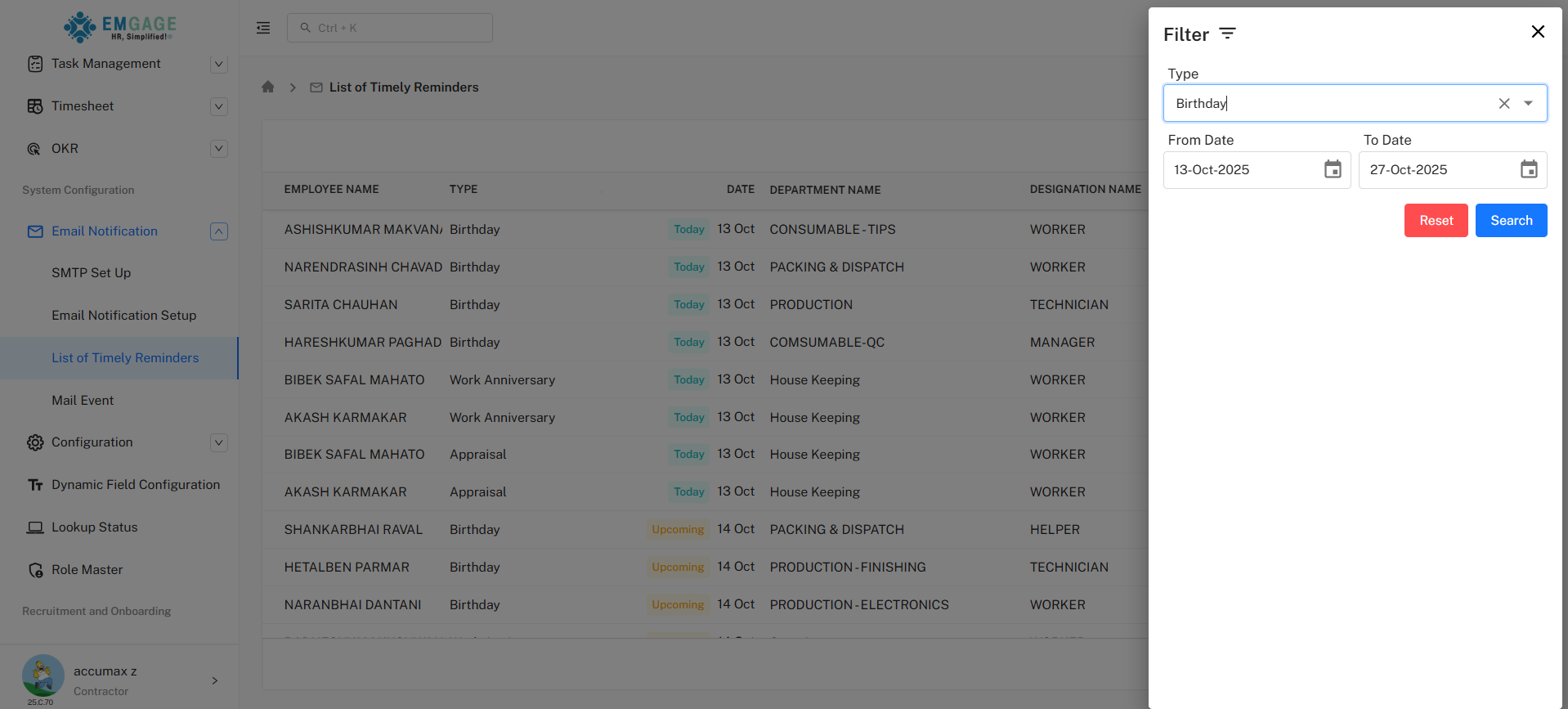
Filter Options
Type
- Select event type: Birthday, Work Anniversary, or Appraisal, etc.
- Dropdown with search option
- Clear selection with X button
From Date
- Start date for reminder range
- Click calendar icon to select date
- Format: DD-MMM-YYYY
To Date
- End date for reminder range
- Click calendar icon to select date
- Format: DD-MMM-YYYY
Filter Actions
| Button | Purpose |
|---|---|
| Reset (Red) | Clear all filters |
| Search (Blue) | Apply selected filters |
Quick Steps
View All Reminders
- Navigate to Email Notification → List of Timely Reminders
- View complete list with all upcoming events
Filter by Event Type
- Click Filter icon (top right)
- Select Type (e.g., Birthday)
- Click Search
Filter by Date Range
- Click Filter icon
- Set From Date (e.g., 13-Oct-2025)
- Set To Date (e.g., 27-Oct-2025)
- Click Search
Clear Filters
- Open filter panel
- Click Reset button
- All filters cleared, showing full list
Best Practices
✓ Check reminders daily for "Today" events
✓ Use date filters to plan weekly/monthly
✓ Filter by type to focus on specific events
✓ Export list for team sharing (if available)
✓ Plan birthday celebrations in advance
✓ Schedule appraisal meetings ahead of time