SMTP Setup
Last Updated: Oct 13, 2025. Document Version: 1.0 Prepared for: Emgage HRMS Implementation Team
SMTP Setup
Email Configuration for HRMS Notifications
Configure email settings for automated HR and recruitment communications. Supports Gmail, Outlook, and other providers.
Quick Setup Steps
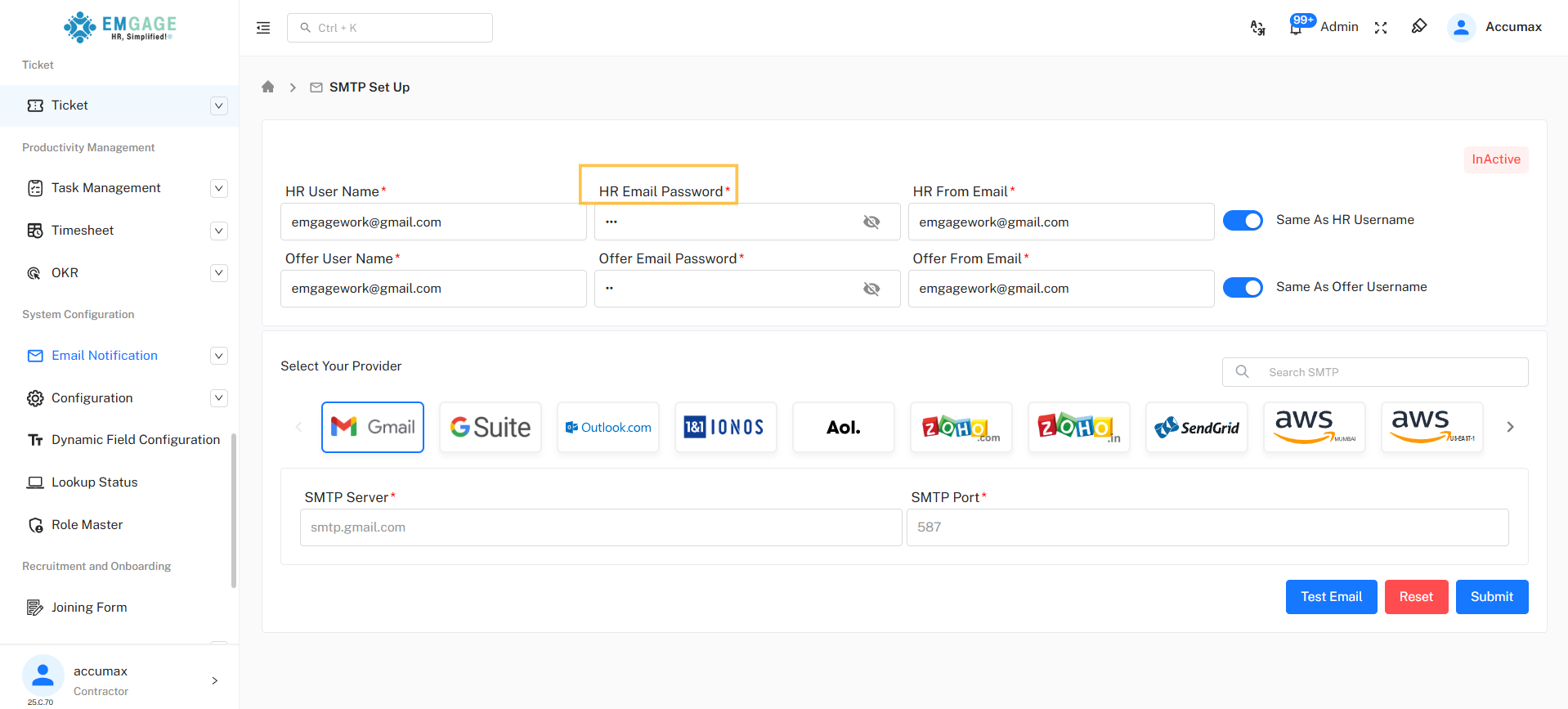
Step 1: Get App Password from Google
Before configuring SMTP, you need an App Password (not your regular Gmail password):
- Go to Google Account → Security
- Enable 2-Step Verification (if not already enabled)
- Go to Security → App passwords
- Select Mail and Other (Custom name)
- Name it "HRMS" and click Generate
- Copy the 16-character password (shown only once)
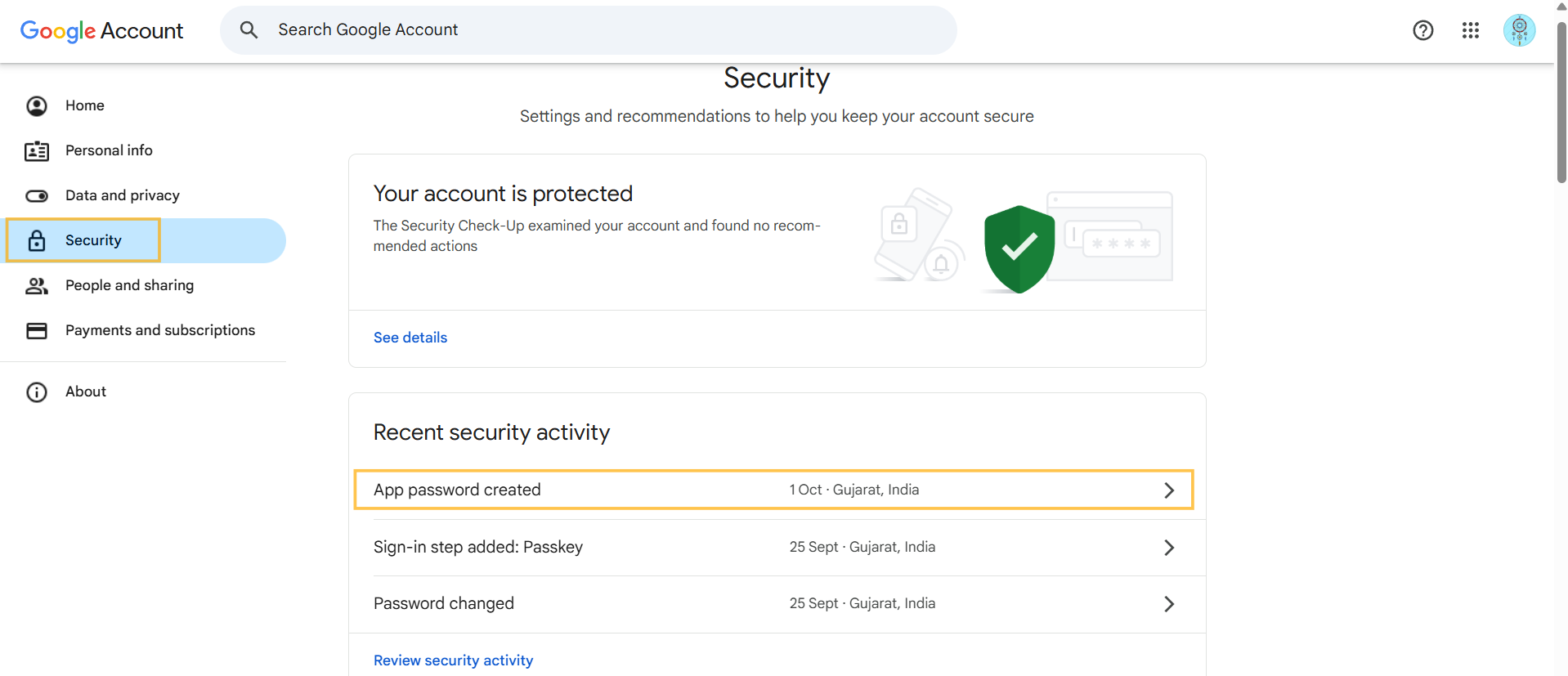
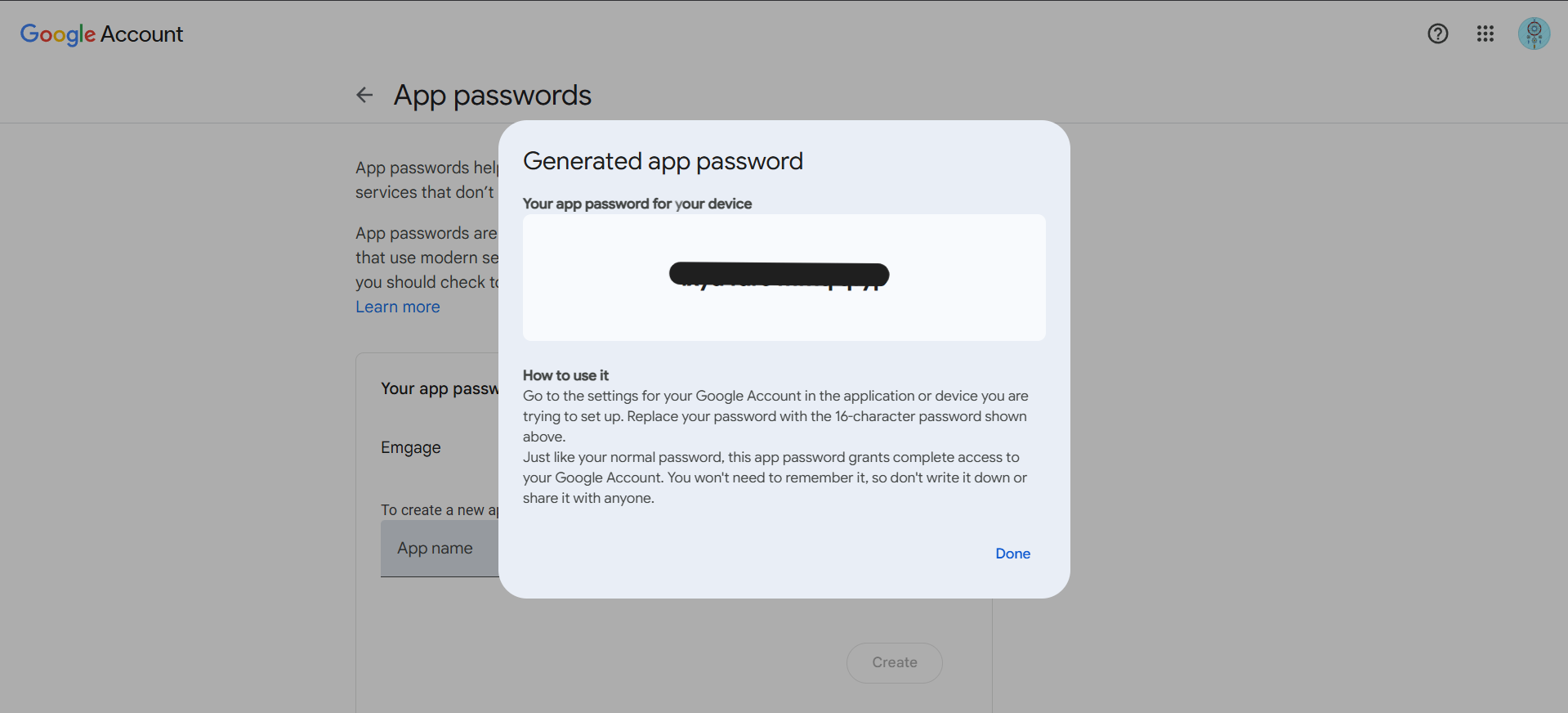
Important: Use App Password, NOT your regular Gmail password!
Step 2: Fill HR Email Details
| Field | What to Enter |
|---|---|
| HR User Name* | Your HR email (e.g., hr@company.com) |
| HR Email Password* | Paste the App Password from Step 1 |
| HR From Email* | Toggle ON "Same As HR Username" (or enter custom) |
Step 3: Fill Offer Email Details
| Field | What to Enter |
|---|---|
| Offer User Name* | Your recruitment email |
| Offer Email Password* | App Password for this account |
| Offer From Email* | Toggle ON "Same As Offer Username" (or enter custom) |
You can use the same email for both HR and Offer if you don't have separate accounts.
Step 4: Select Email Provider
 Click on your email provider logo:
- Gmail - For personal Gmail accounts
- G Suite - For Google Workspace accounts
- Outlook.com - For Microsoft Outlook
Common settings auto-fill:
- SMTP Server:
smtp.gmail.com(for Gmail) - SMTP Port:
587(default)
Step 5: Test Email
- Click "Test Email" button (blue)
- Check your inbox for test email (may take 1-2 minutes)
- Check spam folder if not in inbox
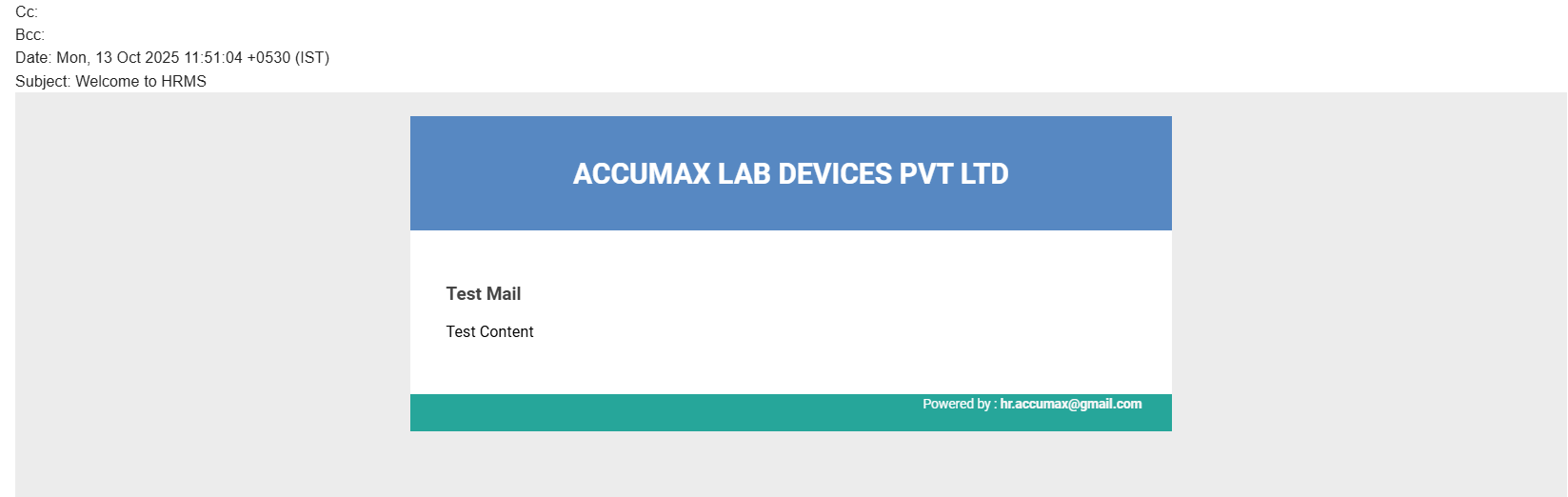
Test email contains:
- Subject: "Welcome to HRMS"
- Content: "Test Mail" with "Test Content"
If test fails:
- Verify App Password is correct
- Check email address for typos
- Ensure 2-Step Verification is ON
- Try generating new App Password
Step 6: Submit Configuration
- After successful test, click "Submit" button (blue)
- Status will change from "InActive" to "Active"
- Done! Emails will now send automatically
Quick Reference
Required Fields
All fields marked with * are mandatory:
- HR User Name*
- HR Email Password*
- HR From Email*
- Offer User Name*
- Offer Email Password*
- Offer From Email*
- SMTP Server*
- SMTP Port*
Common SMTP Settings
| Provider | SMTP Server | Port |
|---|---|---|
| Gmail | smtp.gmail.com | 587 |
| G Suite | smtp.gmail.com | 587 |
| Outlook | smtp-mail.outlook.com | 587 |
Action Buttons
| Button | Purpose |
|---|---|
| Test Email | Send test email to verify settings |
| Reset | Clear all fields |
| Submit | Save configuration |
Troubleshooting
| Problem | Quick Fix |
|---|---|
| Test email not received | Check spam folder, verify App Password |
| Authentication failed | Regenerate App Password, enable 2-Step Verification |
| Cannot submit | Fill all required fields (*) |
| "Same As" toggle not working | Clear the field first, then toggle ON |
Best Practices
✓ Use dedicated email accounts (hr@company.com, recruitment@company.com)
✓ Always test before submitting
✓ Keep App Passwords secure
✓ Change App Passwords every 6 months
✓ Use port 587 for best compatibility