Employee Search Module – Documentation
1. Overview
The Employee Search module allows users to quickly find employee details using either:
- Employee ID
- Employee Name
This feature is commonly used by HR, managers, and administrators to access employee contact and role information efficiently.
2. Purpose
The purpose of the Employee Search module is to:
- Enable fast lookup of employees
- Reduce time spent navigating employee directories
- Provide quick access to employee role and contact details
- Support both exact and partial search queries
3. Navigation Path
Home → Employee → Employee Search
Employee Search – Visual Flow
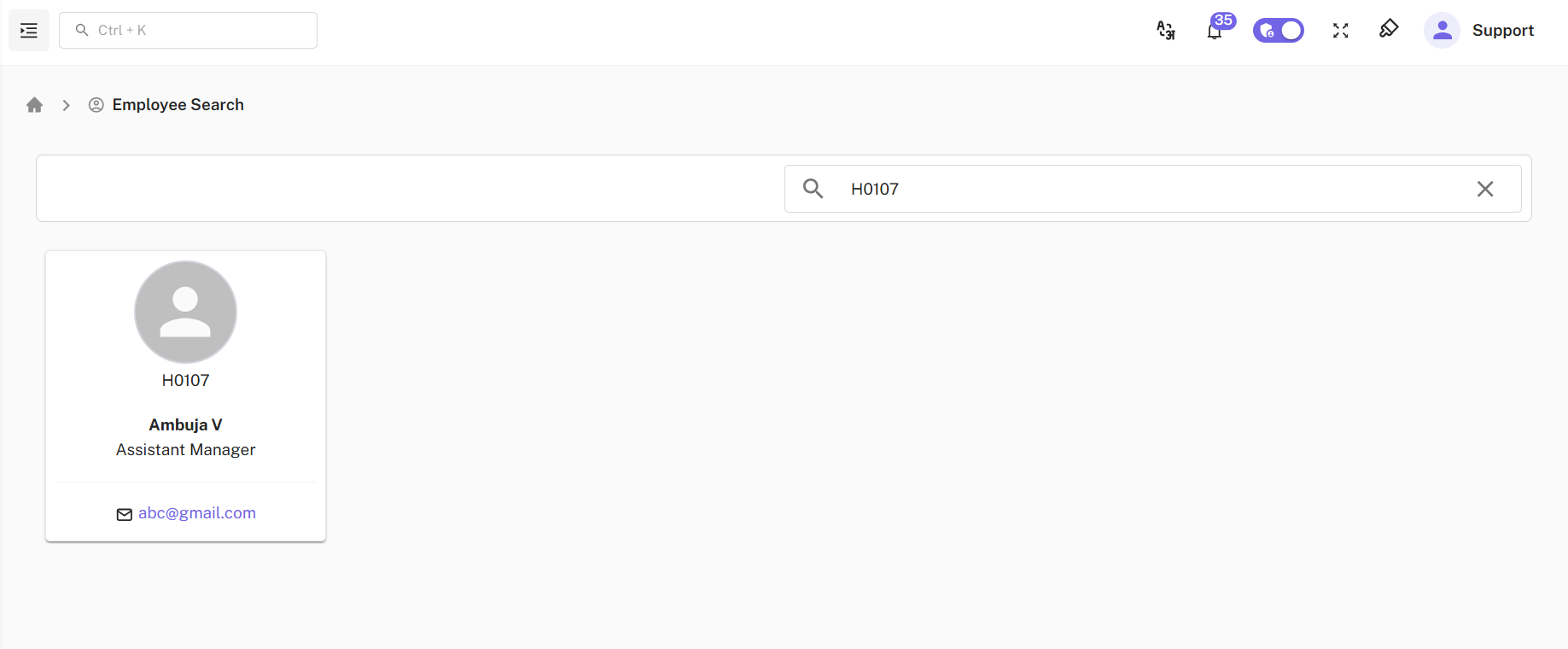
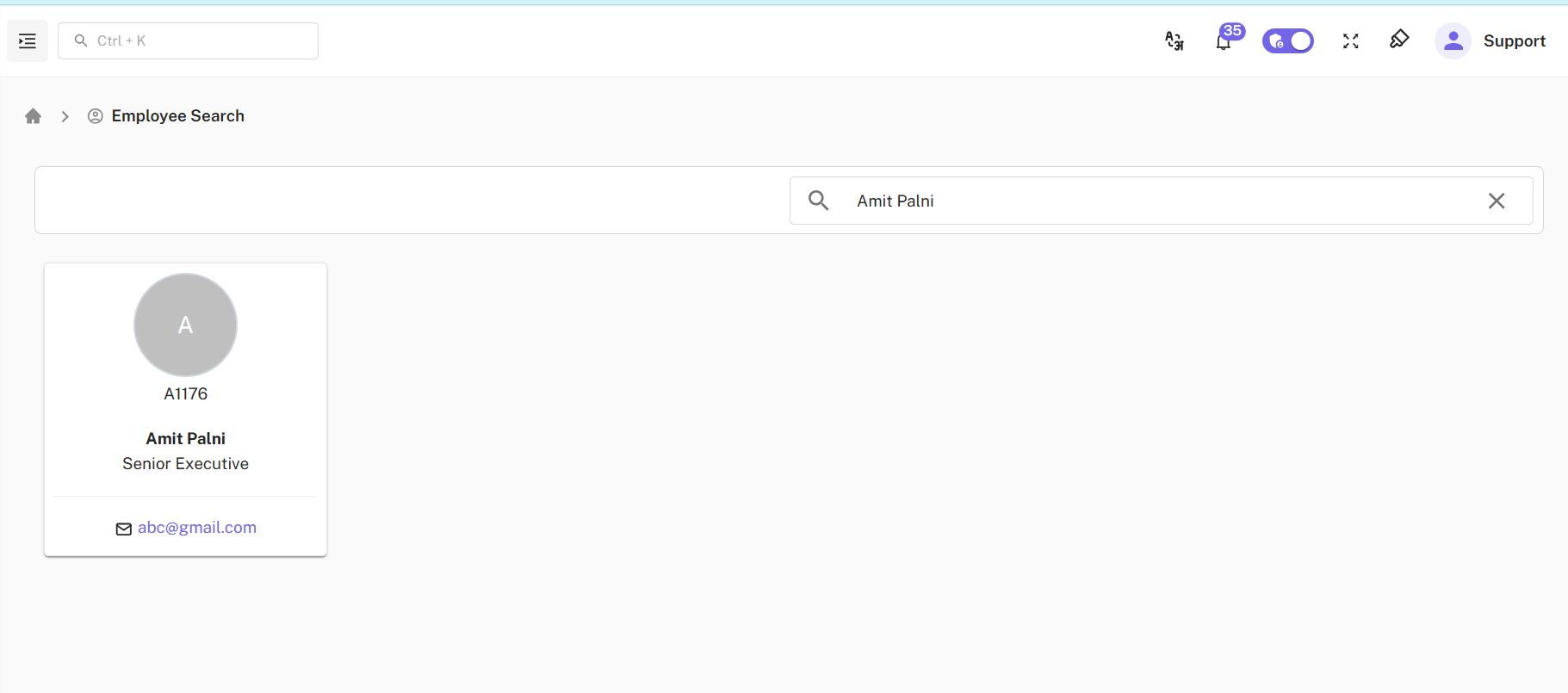
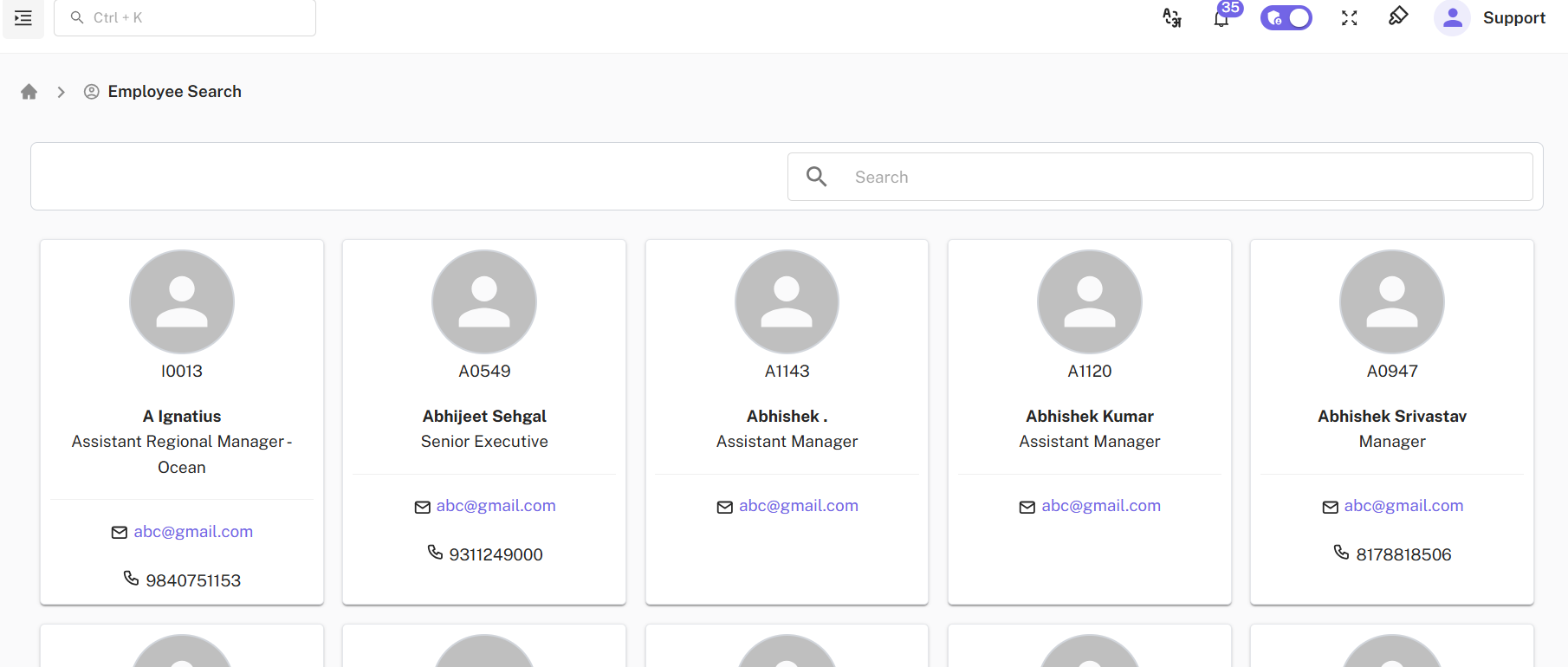
Below screenshots show the Employee Search flow in a single continuous view, similar to an Instagram-style post.
4. User Interface Components
4.1 Search Bar
- Located at the top of the Employee Search page
- Accepts:
- Employee ID (e.g.,
H0107,A1176) - Employee Name (e.g.,
Amit Palni)
- Employee ID (e.g.,
- Includes:
- Search icon 🔍
- Clear (✕) icon to reset the search
4.2 Employee Card
Each employee result is displayed as a card containing the following details:
| Field | Description |
|---|---|
| Profile Icon | Default avatar or employee profile image |
| Employee ID | Unique identifier of the employee |
| Employee Name | Full name of the employee |
| Designation | Current job role |
| Official email address | |
| Contact Number | Phone number (if available) |
5. Security & Access Control
- Only authorized users can access the Employee Search module
- Contact details are shown based on user permissions
6. Conclusion
The Employee Search module provides an efficient and user-friendly way to search and view employee details using either Employee ID or Employee Name, improving productivity and accessibility across the organization.
Employee Job Description & Specification – Documentation
1. Overview
The Employee Job Description & Specification module allows administrators and HR users to:
- View job descriptions assigned to employees
- Filter job descriptions using employee, title, or status
- Download job description attachments
- Add new job descriptions
This page helps maintain clarity on employee roles and responsibilities within the organization.
2. Navigation Path
Dashboard → Employee → Employee Job Description
3. Page Layout
The page consists of the following main sections:
- Page Header
- Filter Panel
- Job Description List Table
- Pagination Controls
4. Job Description List
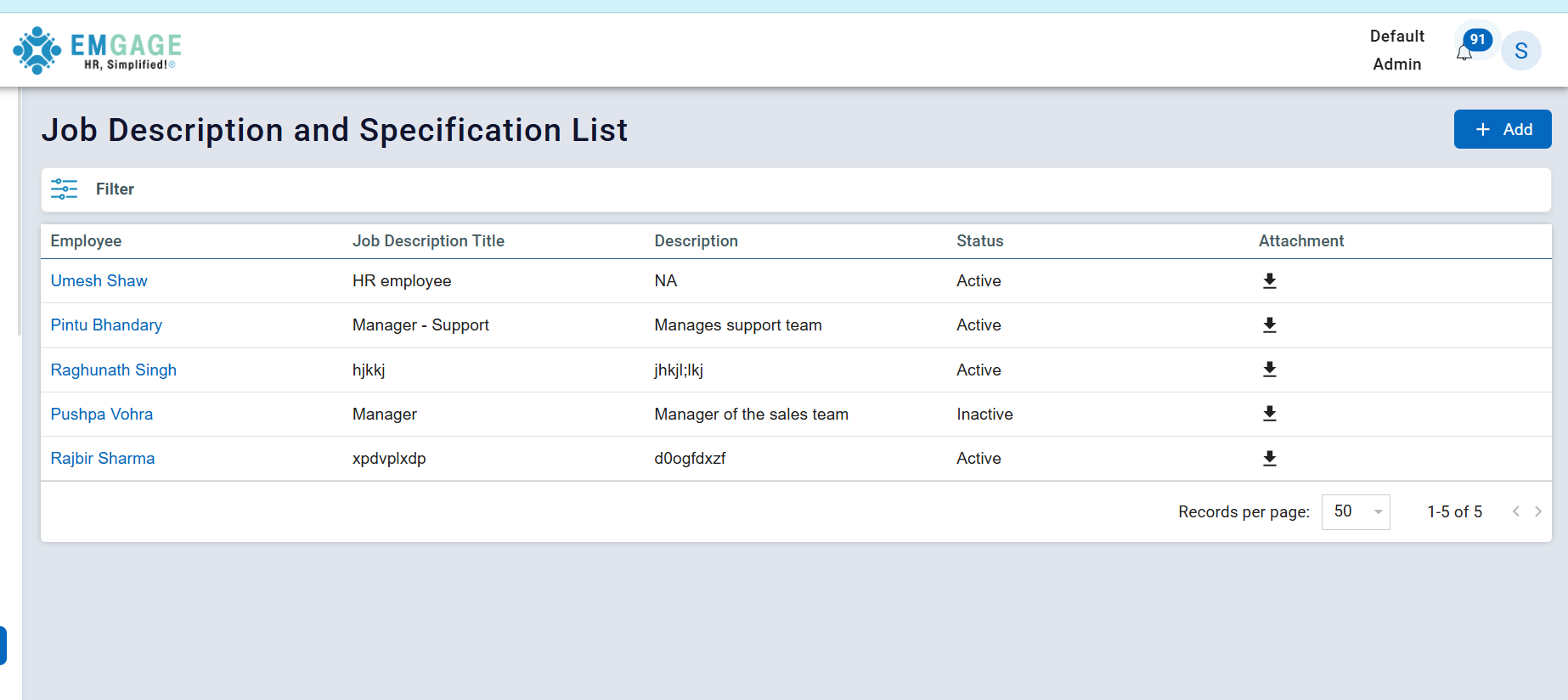
The table displays job descriptions mapped to employees.
Table Columns
| Column Name | Description |
|---|---|
| Employee | Employee name (clickable) |
| Job Description Title | Title of the assigned role |
| Description | Brief role summary |
| Status | Indicates whether the job description is Active or Inactive |
| Attachment | Download icon to access job description file |
5. Filter Functionality
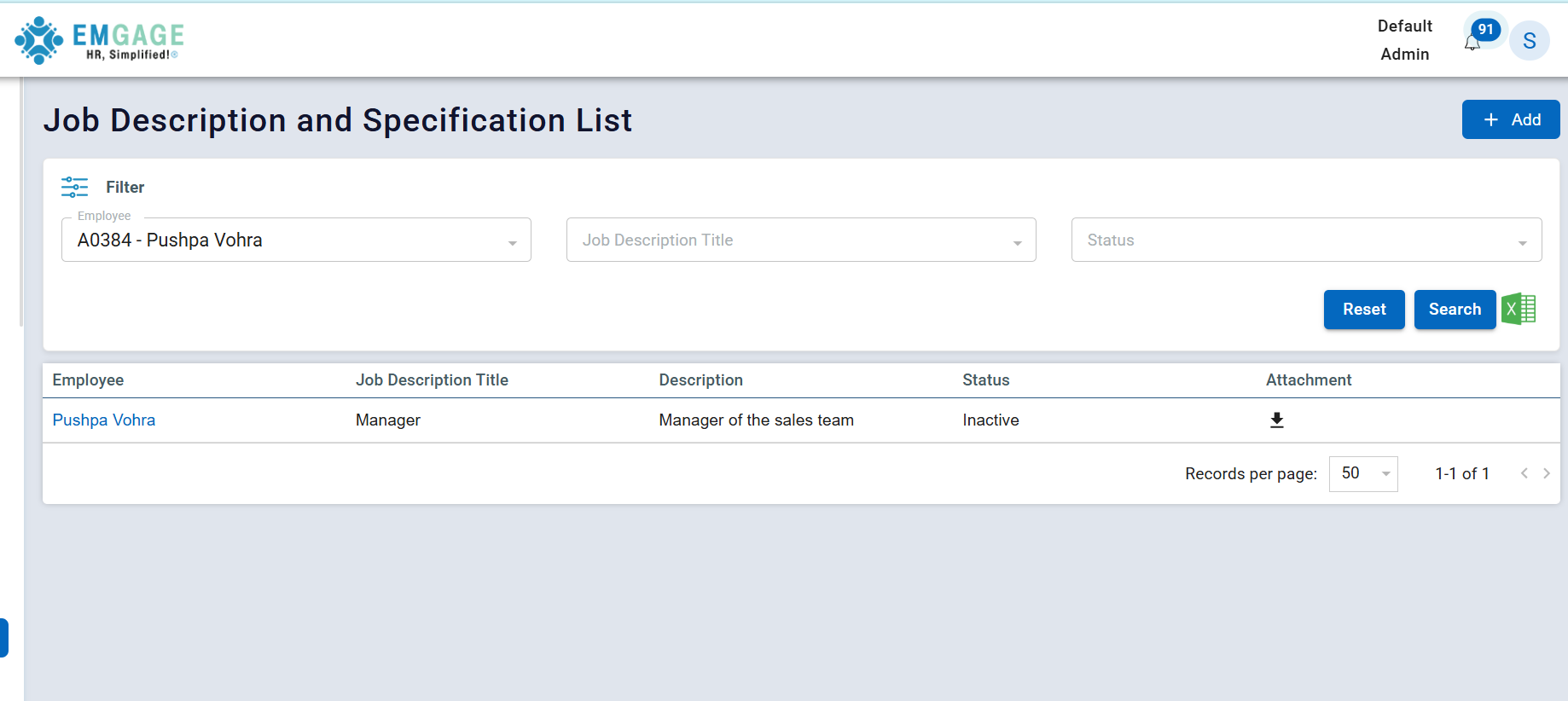
The Filter panel allows users to quickly locate specific job descriptions.
Available Filters
| Filter Field | Description |
|---|---|
| Employee | Select employee by ID and name |
| Job Description Title | Filter by role title |
| Status | Filter by Active / Inactive |
How to Use Filters
- Click on Filter
- Select one or more filter fields
- Example:
A0145 – Raghunath Singh
- Example:
- Click Search
- Matching job description records are displayed
Reset / Export Options
- Reset filters using clear icon
- Export filtered data (if enabled)
6. Key Use Cases
- View job roles assigned to employees
- Verify role descriptions for audits or reviews
- Download official job description documents
- Filter employees by role or status
7. Access Control
- Accessible to Admin / HR roles
- Add and edit permissions depend on assigned role
8. Conclusion
The Employee Job Description & Specification module provides a structured and efficient way to manage employee roles, ensuring transparency, consistency, and easy access to job-related documentation.
Organization Chart
Overview
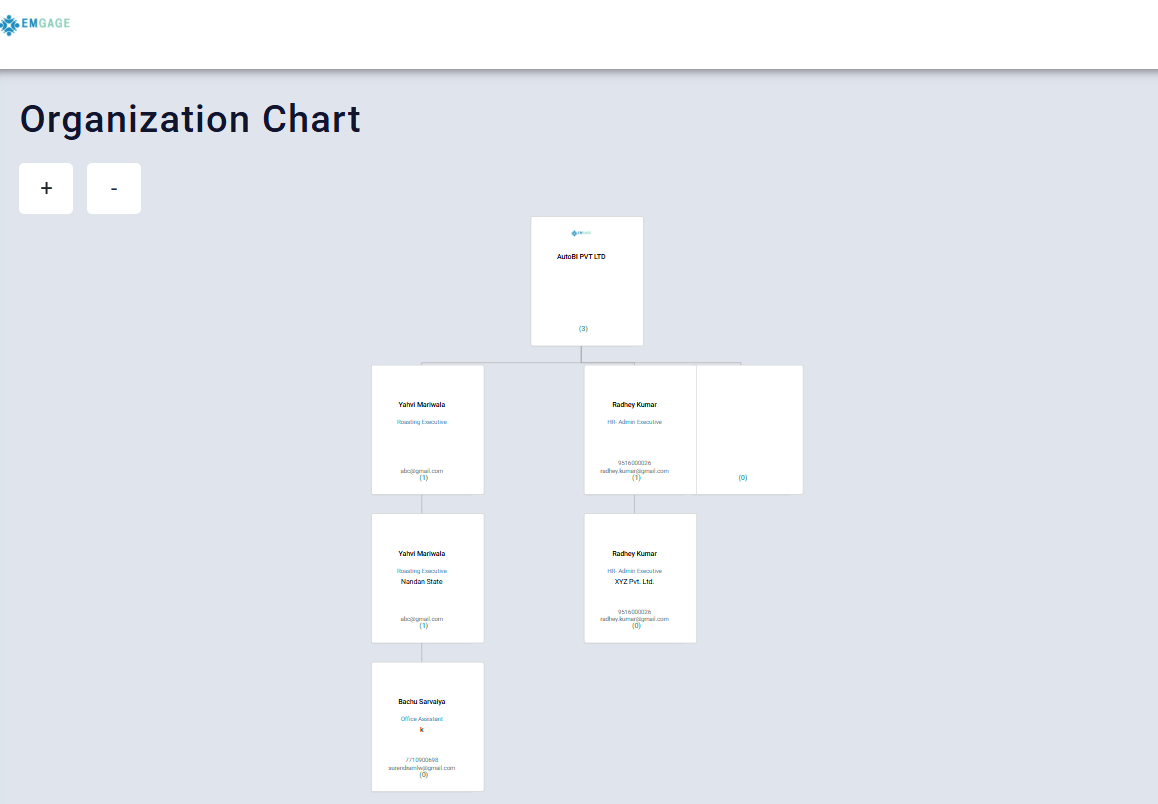
The Organization Chart module provides a visual representation of the company’s hierarchical structure. It displays reporting relationships between employees in a tree-style layout.
This chart is automatically generated during company onboarding and is used only for viewing purposes.
Screenshot
Purpose
The Organization Chart helps users to:
- Understand the company hierarchy
- Identify reporting managers and team structure
- Visualize employee roles across departments
- Maintain transparency in organizational structure
Key Characteristics
- 🔒 Read-only view
- 🔄 Reflects organizational hierarchy
- 📊 Visual tree-based layout
Page Components
1. Organization Chart Canvas
- Displays the company at the top level
- Shows employees as cards connected by hierarchy lines
- Each card may include:
- Employee name
- Designation
- Company / department
- Contact information (if configured)
2. Zoom Controls
| Control | Function |
|---|---|
+ | Zoom in to view details |
- | Zoom out to view larger structure |
Hierarchy Structure
- Top Node: Company / Organization name
- Second Level: Senior executives or administrators
- Lower Levels: Managers, executives, and staff
- Relationships are visually connected using vertical and horizontal lines
Data Source
- The organization chart is auto-configured during onboarding
- Based on:
- Reporting manager assignments
- Employee role configuration
- No manual editing is available on this page
User Permissions
| Role | Access |
|---|---|
| Admin | View |
| HR | View |
| Employee | View (as per access policy) |
⚠️ Editing or restructuring the chart is not allowed from this screen.
Limitations
- No add, edit, or delete actions available
- Structure updates require backend or onboarding configuration changes
- Used only for visualization, not management
Business Value
- Improves organizational clarity
- Helps new employees understand reporting lines
- Useful for audits and internal communication
- Enhances transparency across the company
Conclusion
The Organization Chart module serves as a centralized, read-only visualization of the company’s hierarchy, automatically created during onboarding and accessible to authorized users for reference purposes.