Organization Chart
Overview
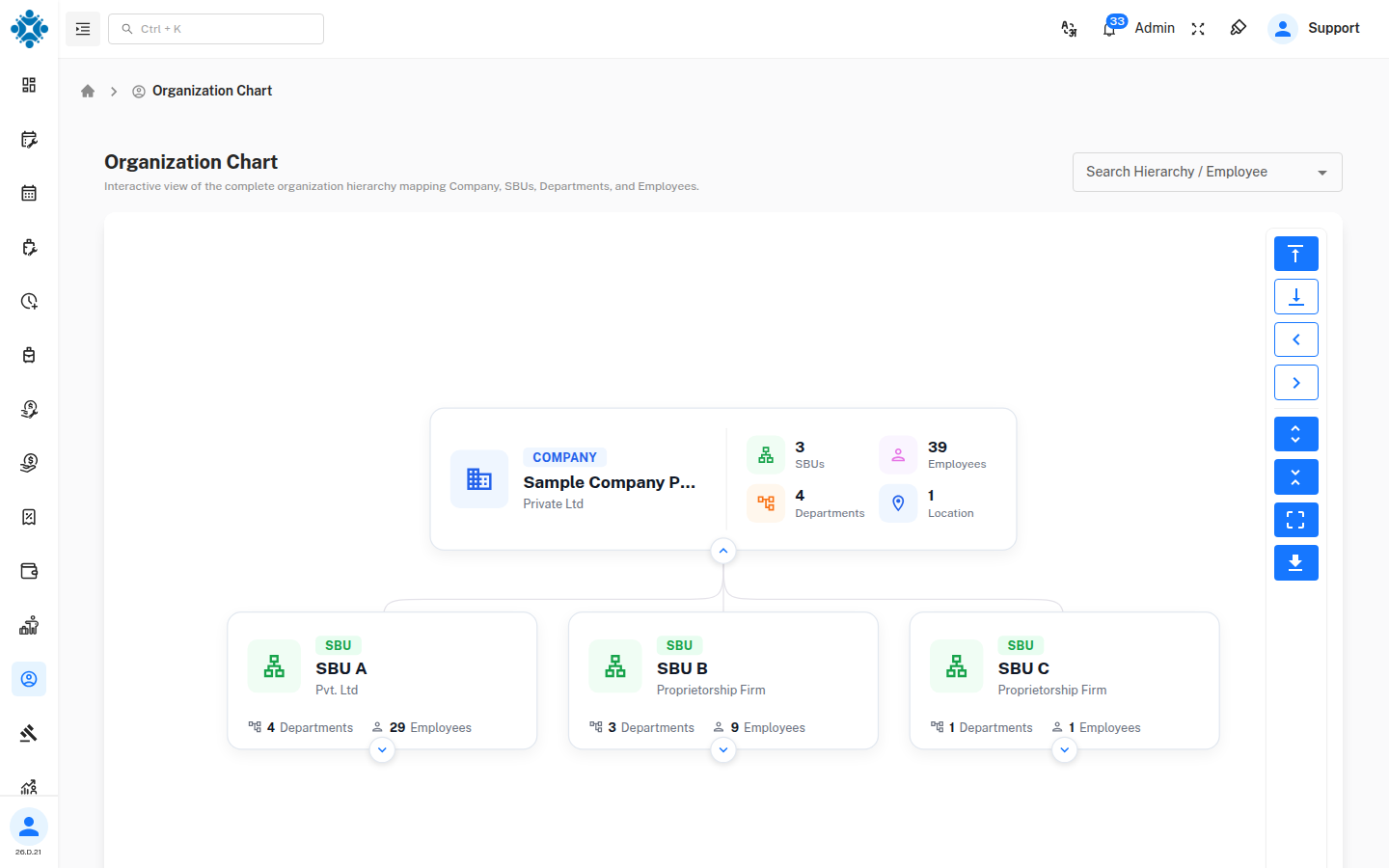
The Organization Chart is an interactive, read-only view of your company structure. It shows how the Company, its SBUs, their Departments and the Employees in each department fit together.
Use it to:
- See how many SBUs, departments and employees the company has at a glance
- Drill down from the company to a single employee
- Find any SBU, department or employee quickly with search
- Change the direction of the chart and export it as an image
The Organization Chart shows the organizational units (company, SBUs, departments). The Employee Hierarchy Chart shows who reports to whom. Use the one that matches your question.
1. Where to Find It
Open Employees → Organization Chart from the menu.
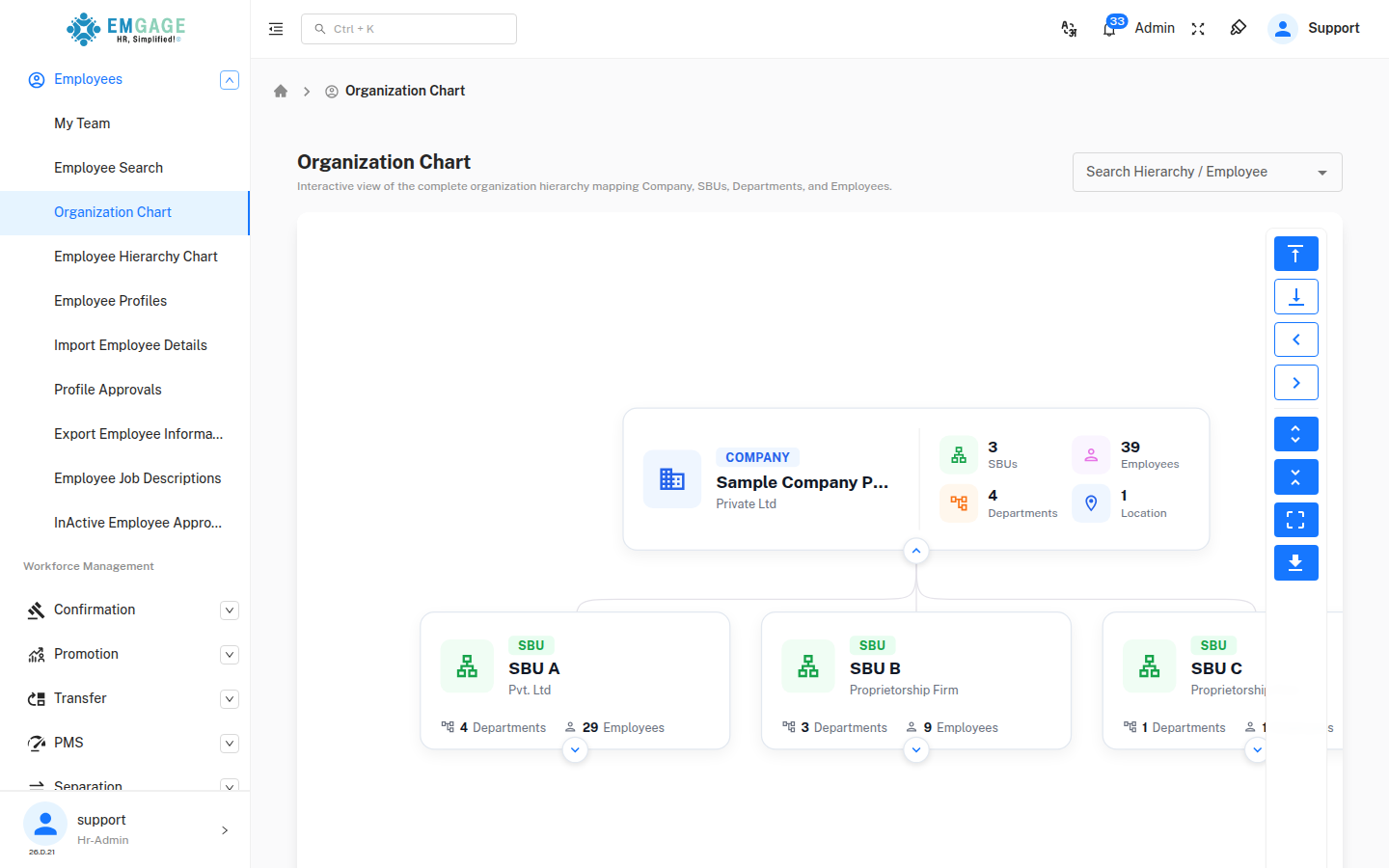
The page appears only if your role has the Organization Chart permission. If you cannot see it, ask your administrator to enable it for your role in Role Master.
2. The Page at a Glance
| Area | What it does |
|---|---|
| Search Hierarchy / Employee (top right) | Finds an SBU, department or employee and jumps to it in the chart |
| Chart area | Shows the company structure as connected cards |
| Control panel (right edge) | Changes the layout, expands or collapses cards, fits the chart to the screen and exports it |
3. Reading the Chart
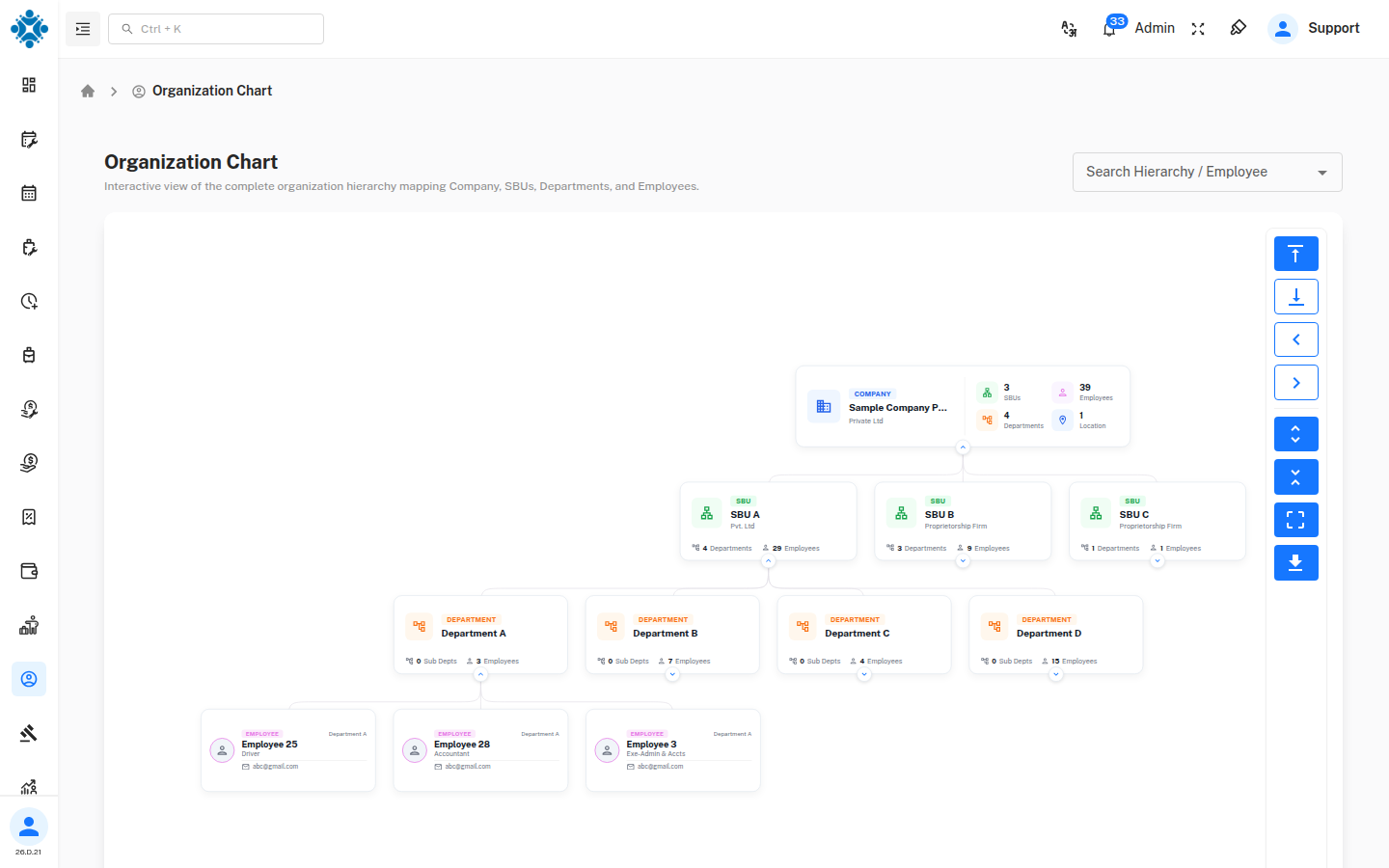
The chart opens with the Company card at the top and its SBUs below it. Each card has a colored badge that tells you its level.
| Level | Badge | What the card shows |
|---|---|---|
| Company | COMPANY | Company name and type (for example Private Ltd), plus the total number of SBUs, Employees, Departments and Locations |
| SBU | SBU | SBU name, firm type (for example Pvt. Ltd or Proprietorship Firm), and its number of Departments and Employees |
| Department | DEPARTMENT | Department name, and its number of Sub Depts and Employees |
| Employee | EMPLOYEE | Employee name, designation, official email, profile picture and the department |
Expand and collapse
Every card that has something below it shows a small arrow button at the bottom edge.
- Click the arrow to open the next level (for example, an SBU's departments).
- Click it again to close that level.
- To open or close everything at once, use Expand All or Collapse All in the control panel.
Clicking the card itself does not open or close it. Use the arrow.
Move around a large chart
- Scroll over the chart to zoom in and out.
- Drag the chart to move it around.
- Click Fit To Screen to bring the whole chart back into view.
4. Control Panel
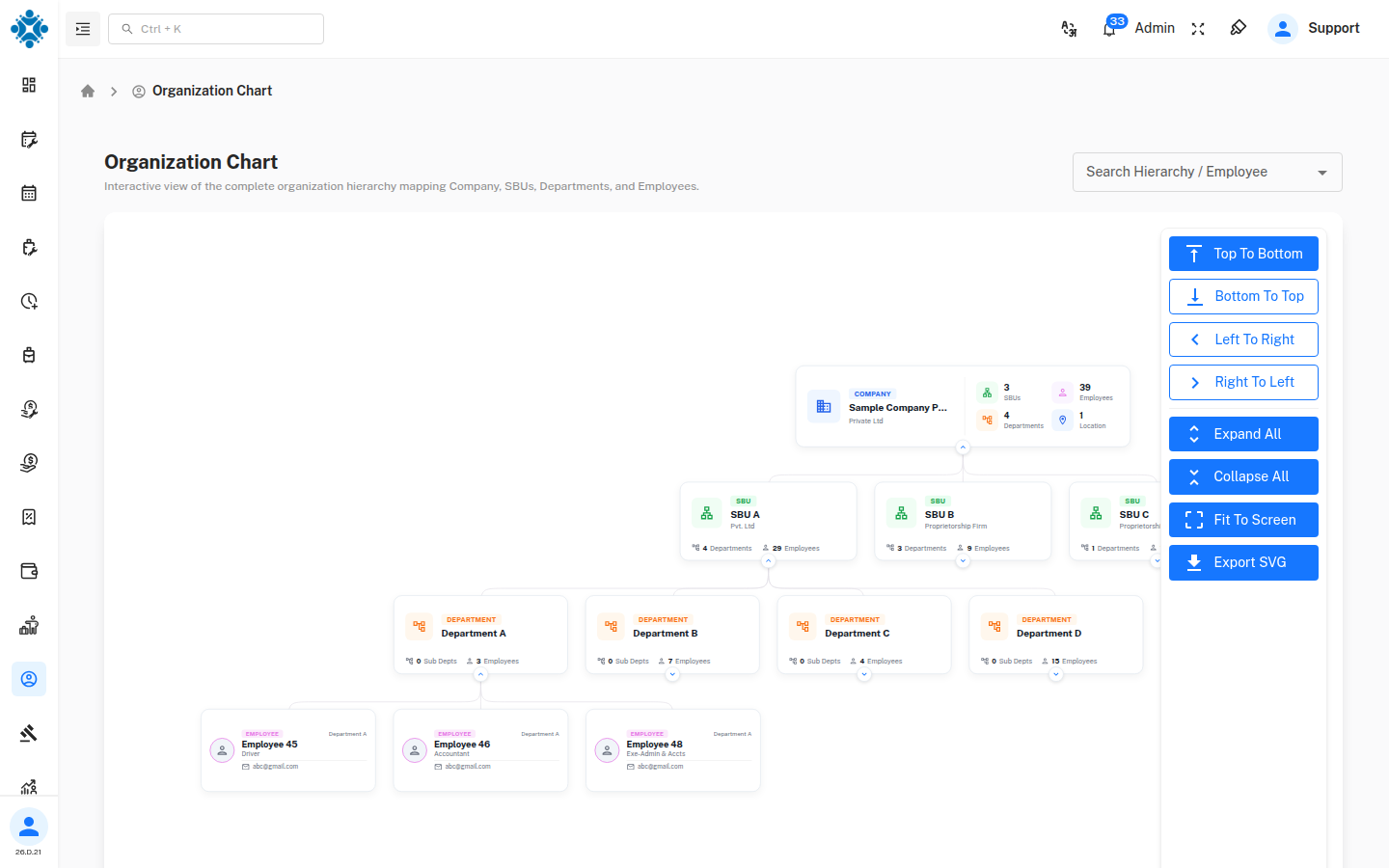
The panel at the right edge of the chart shows icons only. Move the pointer over it to see what each button is called.
| Button | What it does |
|---|---|
| Top To Bottom | Lays the chart out from top to bottom (the default) |
| Bottom To Top | Flips the chart so the company is at the bottom |
| Left To Right | Lays the chart out from left to right |
| Right To Left | Lays the chart out from right to left |
| Expand All | Opens every card so the whole structure is visible |
| Collapse All | Closes every card back to the top level |
| Fit To Screen | Zooms and centers the chart so everything fits on the screen |
| Export SVG | Downloads the chart as an image file named Chart.svg |
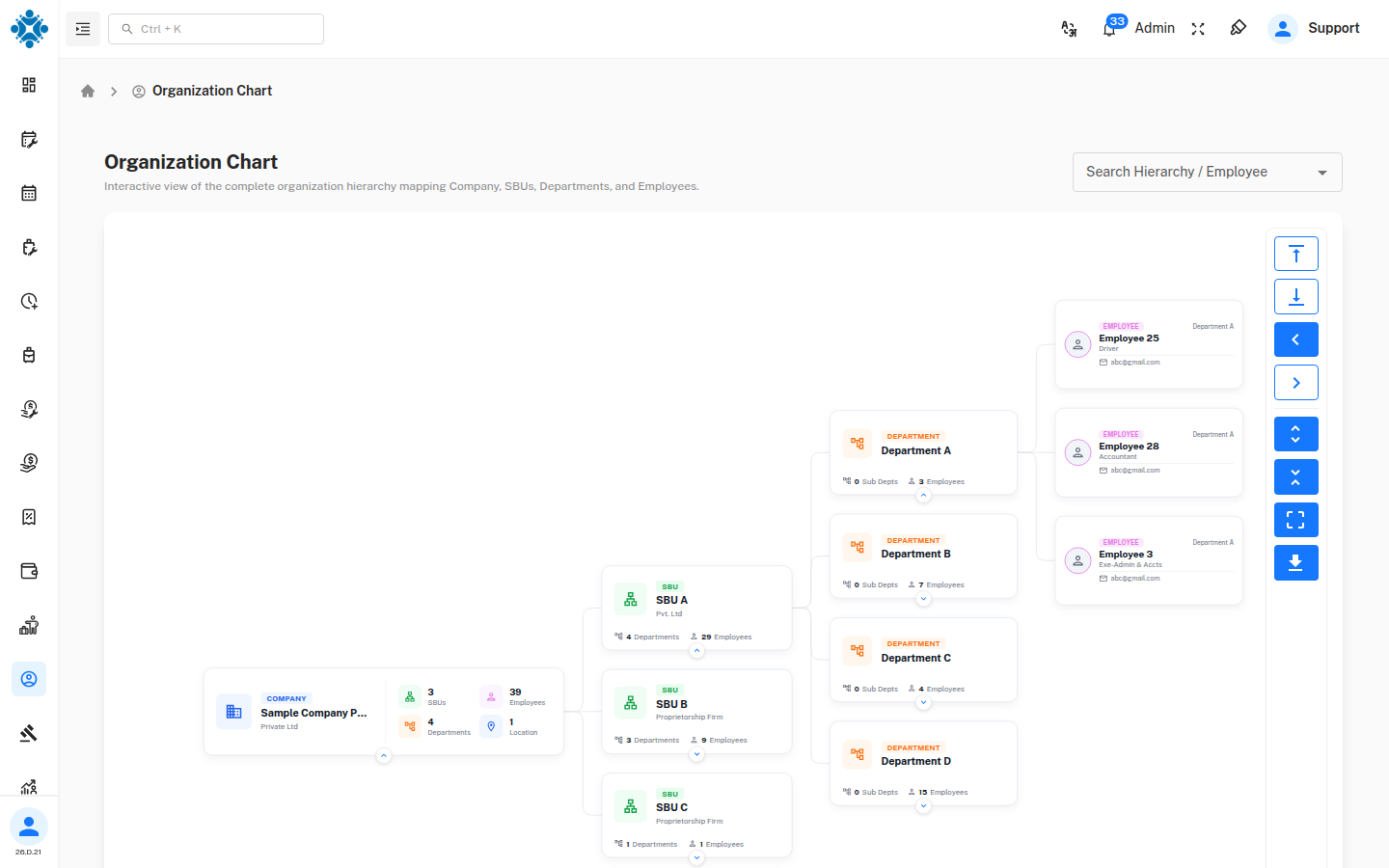
Left To Right is useful when a company has many SBUs or departments, because the cards spread out vertically instead of running off the side of the screen.
5. Search
Use Search Hierarchy / Employee to go straight to a part of the chart.
- Click the search box. A list shows SBUs, departments and employees. Each entry has a colored tag (SBU, DEPARTMENT or EMPLOYEE) so you can tell them apart.
- Type to narrow the list. Employees show their designation under their name.
- Select an entry.
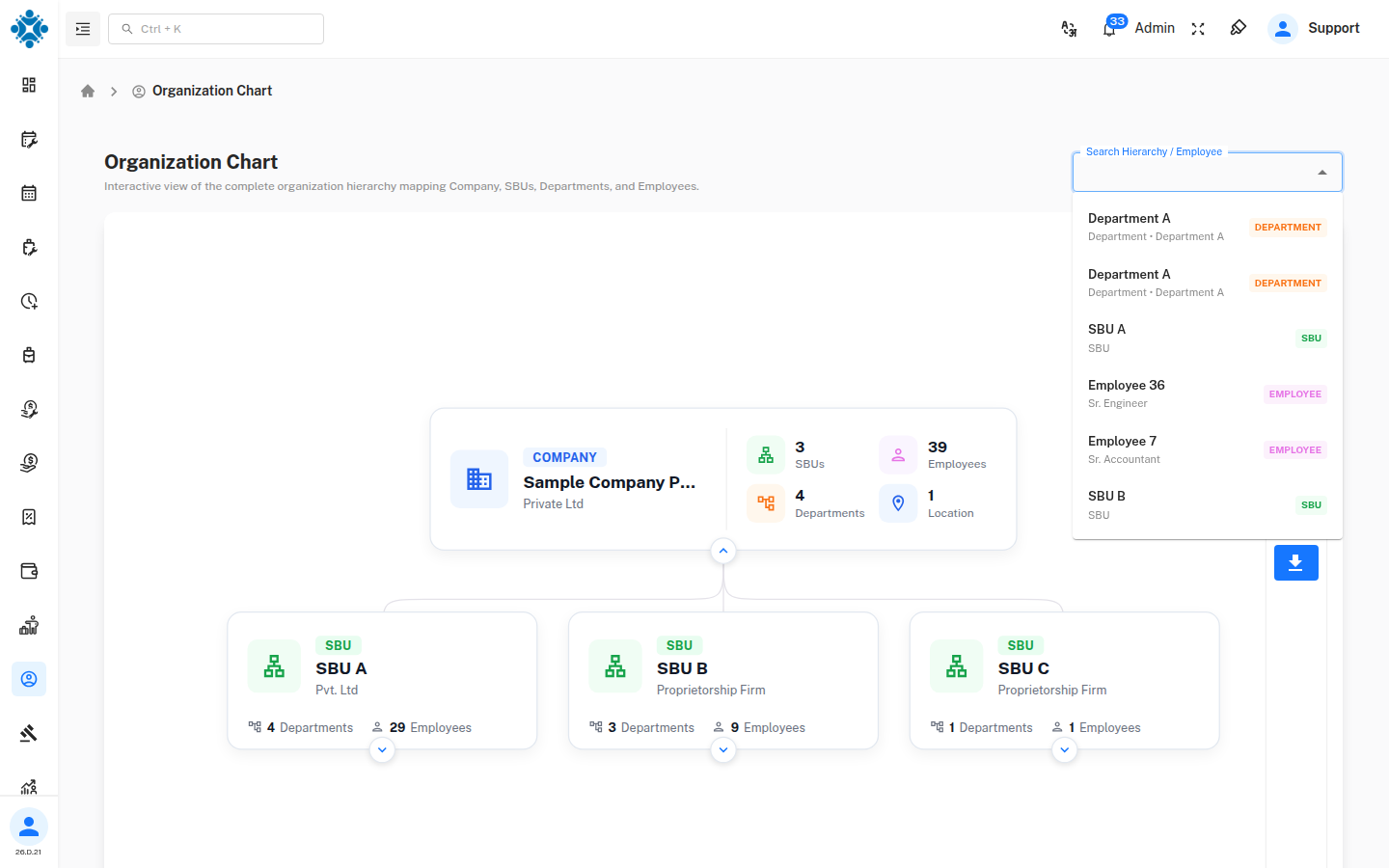
The chart opens the path to the item you chose, moves it to the center and outlines it in blue.
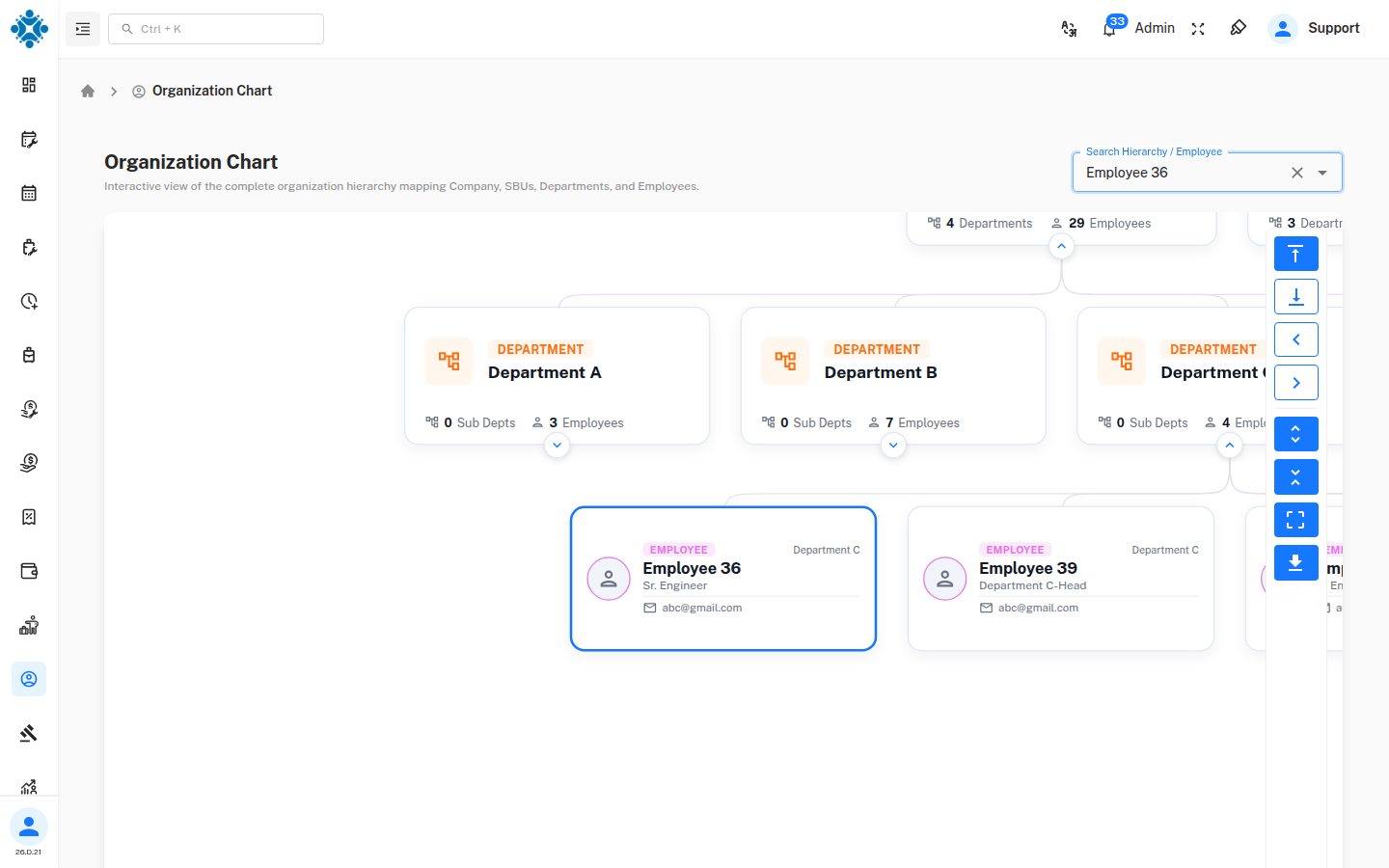
To remove the highlight, clear the search box with the × button.
A department name can appear more than once in the list when the same department exists under more than one SBU. Each entry points to its own place in the chart.
6. Export the Chart
Click Export SVG to download the chart as Chart.svg. An SVG is a sharp, scalable picture. You can open it in a web browser or a design tool, or insert it into a presentation.
7. Where the Data Comes From
The chart is built from your master data: the company, its SBUs and departments, and each employee's SBU and department assignment. It is read-only, so you cannot edit anything on this page. To change what the chart shows, update the underlying data (for example, an employee's department in their profile) and reload the page.
If the page cannot load, you will see the message Failed to load organization chart data. Reload the page, and contact your administrator if it continues.
Quick Reference
| I want to… | Do this |
|---|---|
| See the whole company structure | Click Expand All, then Fit To Screen |
| Find one employee | Type the name in Search Hierarchy / Employee and select it |
| See one SBU's departments | Click the arrow under that SBU's card |
| Show the chart sideways | Click Left To Right or Right To Left |
| Share the chart | Click Export SVG |
| See who reports to whom | Open the Employee Hierarchy Chart |