Custom Fields
Last Updated: Oct 19, 2025
Document Version: 1.0
Prepared for: Emgage HRMS Implementation Team
Custom Fields
🔧 Custom Field Configuration System
The Custom Fields feature allows administrators to create, configure, and manage custom input fields for expense claims. This system provides flexibility to capture specific information required for different expense types with various input types including dropdowns, text boxes, dates, numbers, and amounts.
Overview Features
Custom Fields Management Benefits
The Custom Fields system enables flexible expense data collection, offering:
- Multiple Input Types: Support for Dropdown, Textbox, Date, Number, and Amount fields.
- Custom Options: Define dropdown options with status controls and default values.
- Field Validation: Set error messages and validation rules for each field.
- Status Management: Activate or deactivate fields as needed.
- Flexible Configuration: Create fields specific to business requirements.
- Quick Access: Available from both Custom Fields menu and Expense Policy management.
Interface Overview
Access Points
The Custom Fields can be accessed through two methods:
1. Direct Access
- Navigate to Expense > Custom Fields from the left sidebar menu
- View all custom fields across all expense types
- Manage fields from centralized location
2. Quick Access from Expense Policy
- Navigate to Expense Policy > Expense Type tab
- Click "Custom Fields" button in the Manage column for specific expense type
- Configure fields specific to that expense type
Custom Fields List View
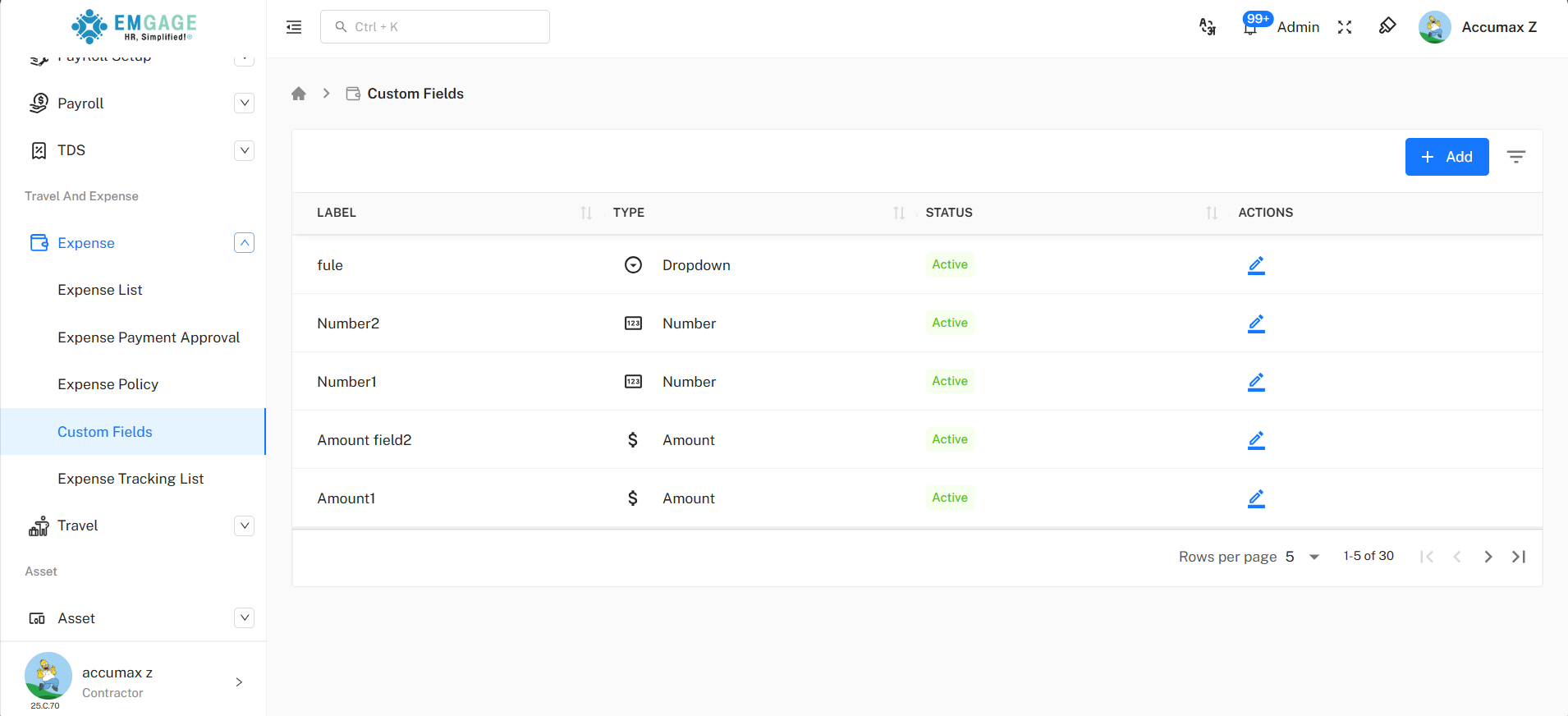
Purpose: View and manage all configured custom fields
Available Columns:
| Column | Description |
|---|---|
| Label | Display name of the custom field shown to users |
| Type | Input type - Dropdown, Number, Amount, Date, Textbox |
| Status | Active (green) or Inactive - indicates if field is currently in use |
| Actions | Edit icon (pencil) to modify field configuration |
Custom Fields:
| Field Label | Type | Status | Action |
|---|---|---|---|
| [Field Name] | [Type ] | [Active / Inactive] | [Edit button] |
- View all custom fields in one centralized list
- Access "+ Add" button to create new custom fields
- Filter: Filter icon to search and locate specific fields
- Edit existing fields using the pencil icon
- Status indicator shows Active (green) fields
- Export functionality for field documentation
Creating a Custom Field
Access Custom Field Creation
- Navigate to Expense > Custom Fields from left sidebar
- Click "+ Add" button in top-right corner
- Add Custom Field dialog opens
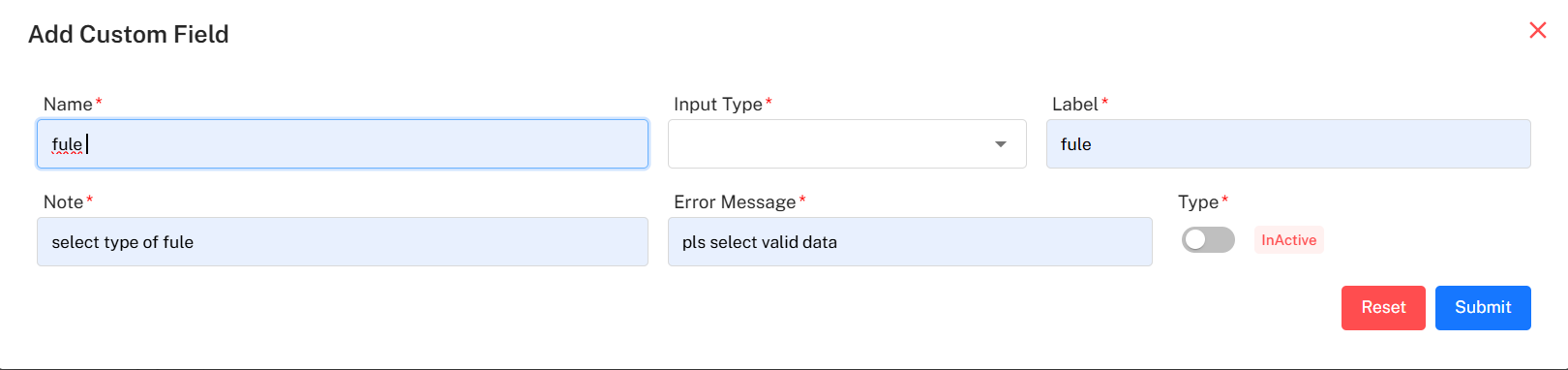
Custom Field Form - Quick Reference
Basic Field Configuration
| Field Name | Required | Description | Format/Example |
|---|---|---|---|
| Name | Yes (*) | Internal field name (unique identifier) | Text (e.g., "fule", "distance") |
| Label | Yes (*) | Display name shown to users | Text (e.g., "Fuel Type", "Distance Traveled") |
| Note | Yes (*) | Helper text or instructions for users | Text (e.g., "select type of fule") |
| Input Type | Yes (*) | Type of input field | Dropdown: Dropdown, Textbox, Date, Number, Amount |
| Error Message | Yes (*) | Message shown when validation fails | Text (e.g., "pls select valid data") |
| Type | Yes (*) | Status toggle | Toggle switch - Active/InActive |
Input Type Options
When you select an Input Type, additional configuration options appear:
| Input Type | Description | Best Used For |
|---|---|---|
| Dropdown | Select from predefined options | Categories, selections, types |
| Textbox | Free text entry | Descriptions, comments, notes |
| Date | Date picker | Dates, deadlines, periods |
| Number | Numeric value without currency | Quantities, distances, counts |
| Amount | Monetary value with currency symbol | Costs, prices, expenses |
The input data for the +Add Custom Field will vary depending on the input type you select.
example of Dropdown field:
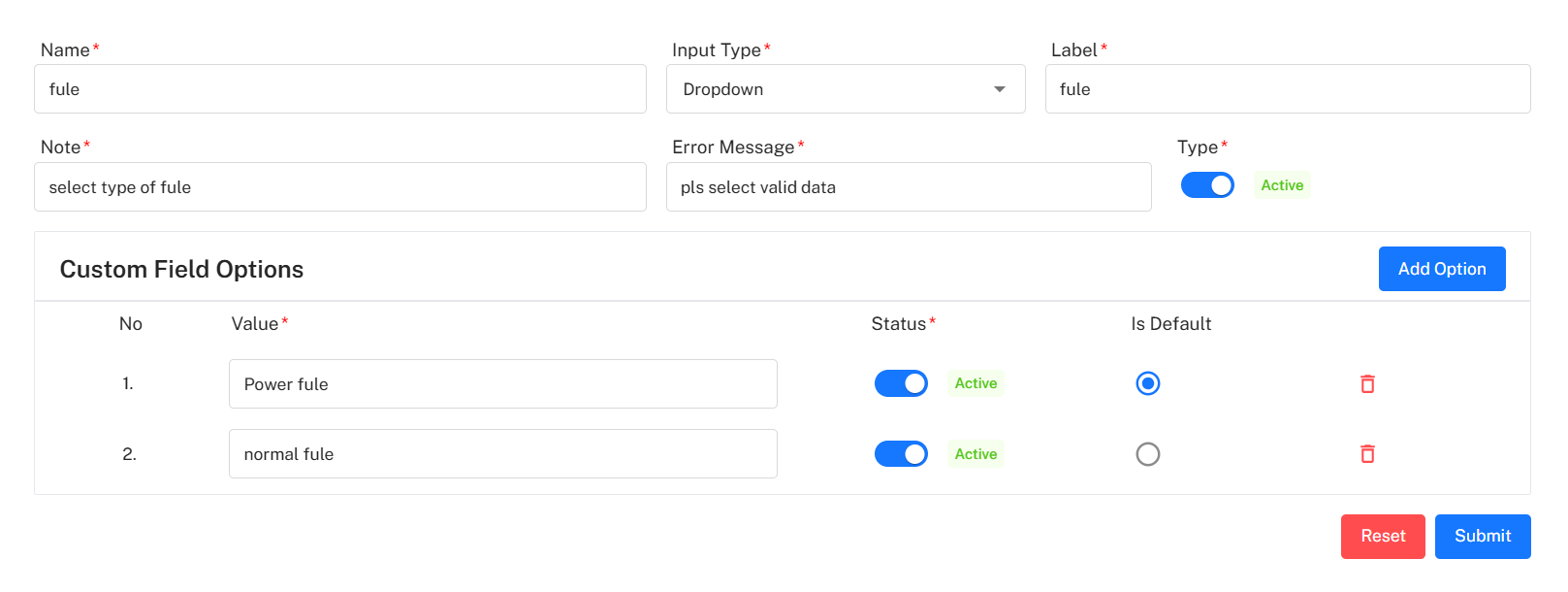
Custom Field Form Buttons:
| Button | Color | Function |
|---|---|---|
| Reset | Red | Clear all entered data and start over |
| Submit | Blue | Save and create the custom field |
⚠️ Important Edit Considerations
Field Editing Rules:
- Changing field Name may affect existing data
- Editing Label updates display name for users
- Deactivating field (InActive) hides it from forms
- Removing dropdown options may affect existing claims with that option
- Always test changes before applying to active expense types
Field Status Management
Active vs Inactive Status:
-
Active Status (Toggle ON - Blue):
- Field appears in expense claim forms
- Users can see and fill this field
- Validation rules apply
- Required for data collection
-
Inactive Status (Toggle OFF - Gray):
- Field hidden from expense claim forms
- Existing data preserved but not editable
- Users cannot interact with field
- Useful for temporarily disabling fields
Status Toggle Usage:
| Scenario | Action | Result |
|---|---|---|
| New field setup | Set to Active | Field available immediately |
| Testing configuration | Set to InActive | Field hidden while testing |
| Seasonal field | Toggle as needed | Show only when relevant |
| Deprecated field | Set to InActive | Preserve data, prevent new entries |
| Field updates | Set to InActive temporarily | Make changes without user impact |
Best Practices
💡 Custom Field Configuration Tips
For Field Creation:
- Use clear, descriptive labels that users understand
- Keep Note text concise and helpful
- Write specific error messages that guide users
- Choose appropriate Input Type for data being collected
- Test fields before making them Active
- Use consistent naming conventions
For Field Management:
- Review and audit fields quarterly
- Deactivate unused fields instead of deleting
- Document purpose of custom fields
- Train users on new custom fields
- Monitor data quality from custom fields
- Coordinate changes with finance team