Expense Approval
Overview
The Expense Approval System enables authorized users (Managers, Finance, and Admin) to review, approve, or reject employee expense claims. The system provides complete visibility into expense details, attached proofs, approval status, and payment status, ensuring a transparent and controlled expense management process.
1. Expense Request (Employee)
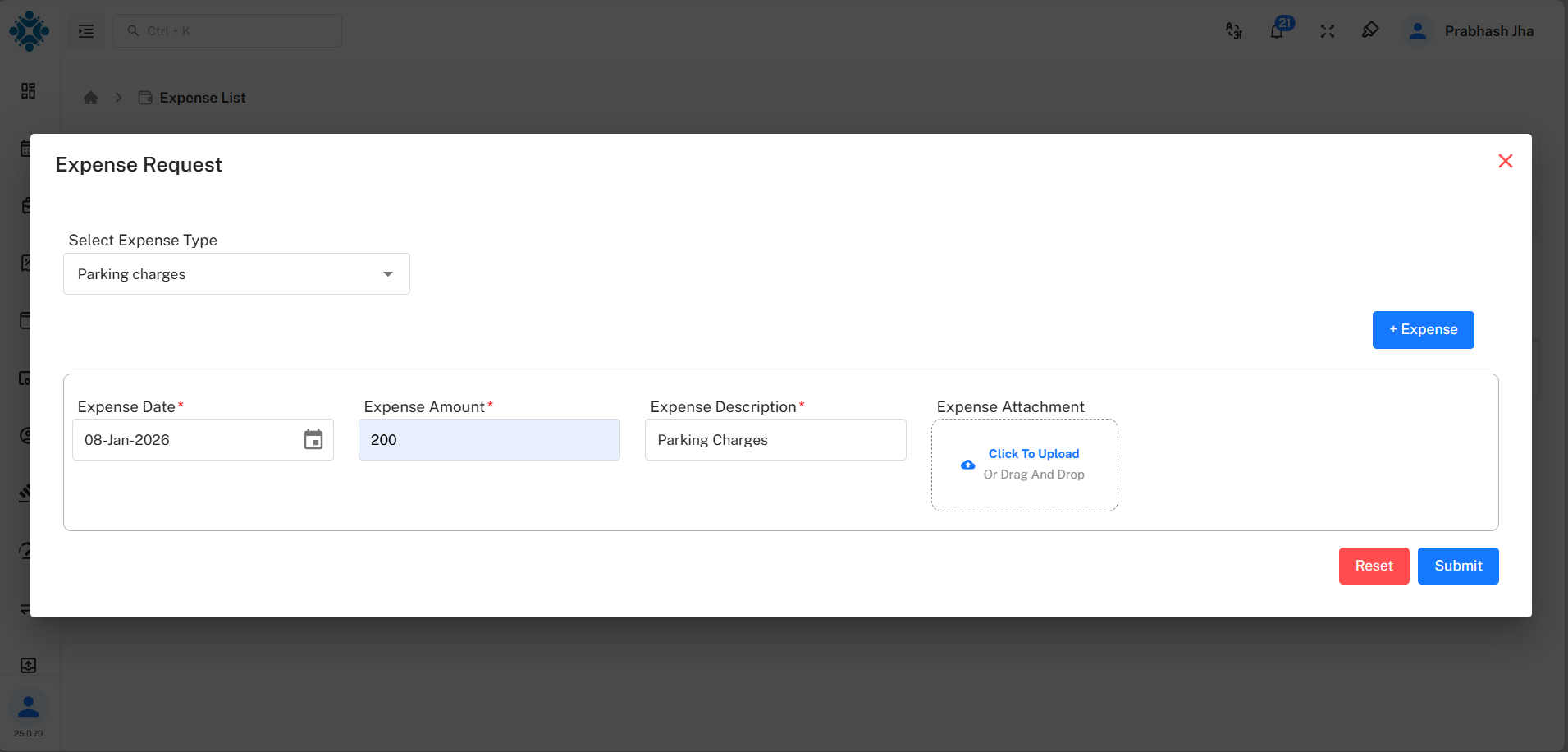
Employees initiate the expense process by submitting an expense request from the employee portal.
Employee Actions
- Select the Expense Type
- Enter expense details (date, amount, description, etc.)
- Upload supporting documents or attachments
- Submit the expense request
Once submitted, the expense request is sent to the admin for review.
2. Expense Listed in Admin – Expense List
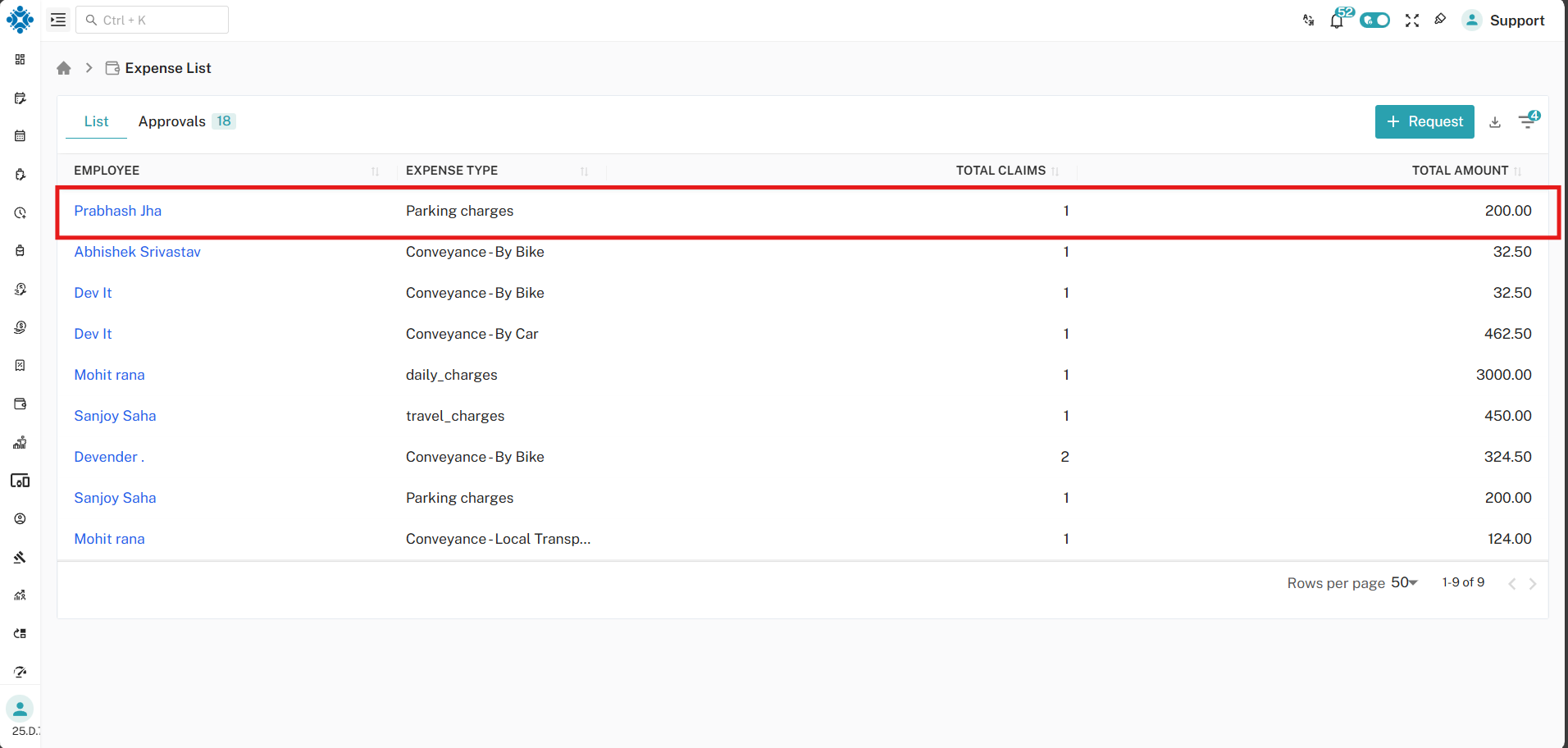
After submission, the employee’s expense request appears on the Expense List page in the admin panel.
Key Information Displayed
- Employee Name
- Expense Type
- Total Claims
- Total Amount
- Approval Status
- Payment Status
This page provides a centralized view of all submitted and processed expenses.
3. Expense Approval (Admin)
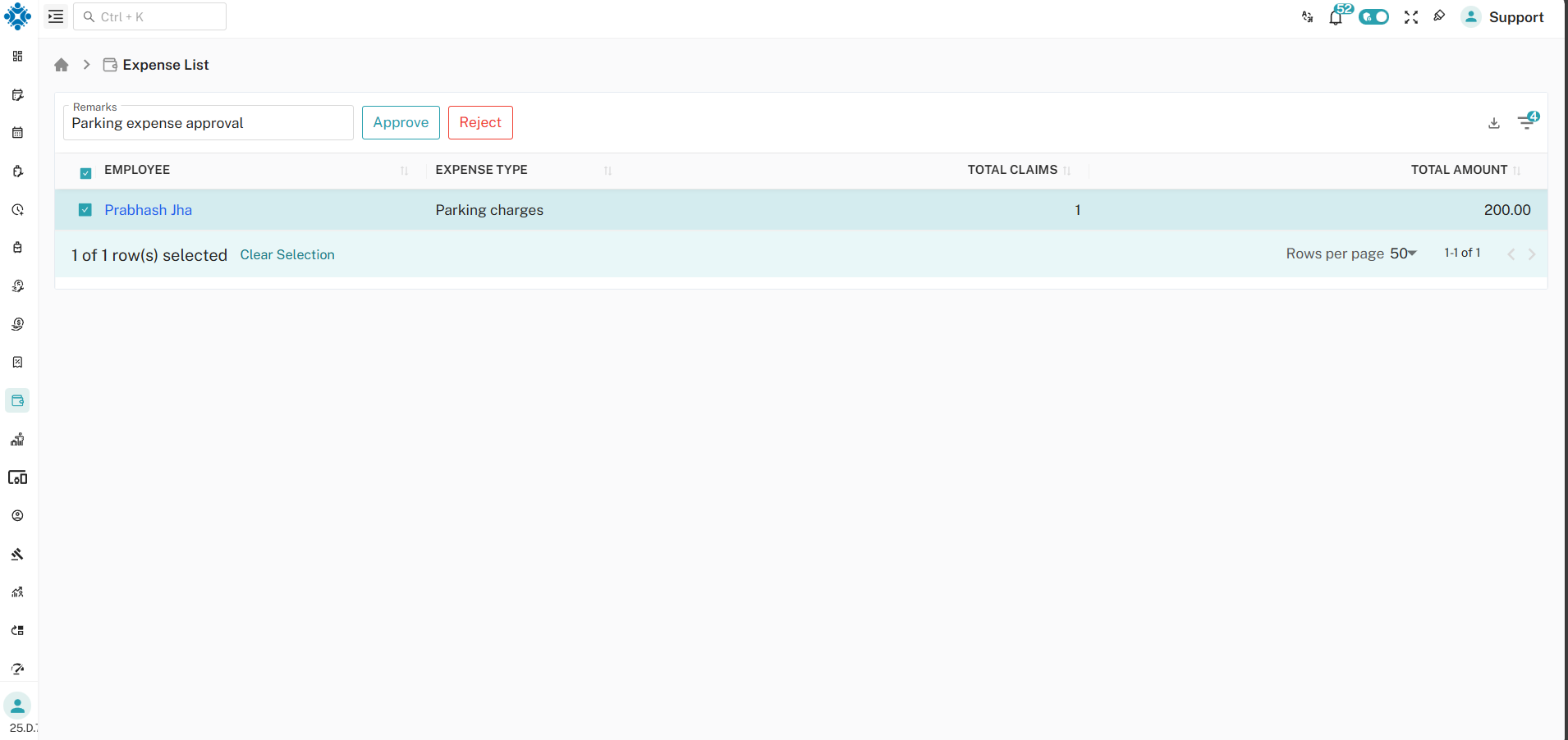
From the Approval List, the admin reviews and processes the expense request.
Admin Actions
- View complete expense details
- Verify expense description and attachments
- Add remarks (optional)
- Click Approve or Reject
Once approved, the expense becomes eligible for payment processing.
4. Payment Status Generation
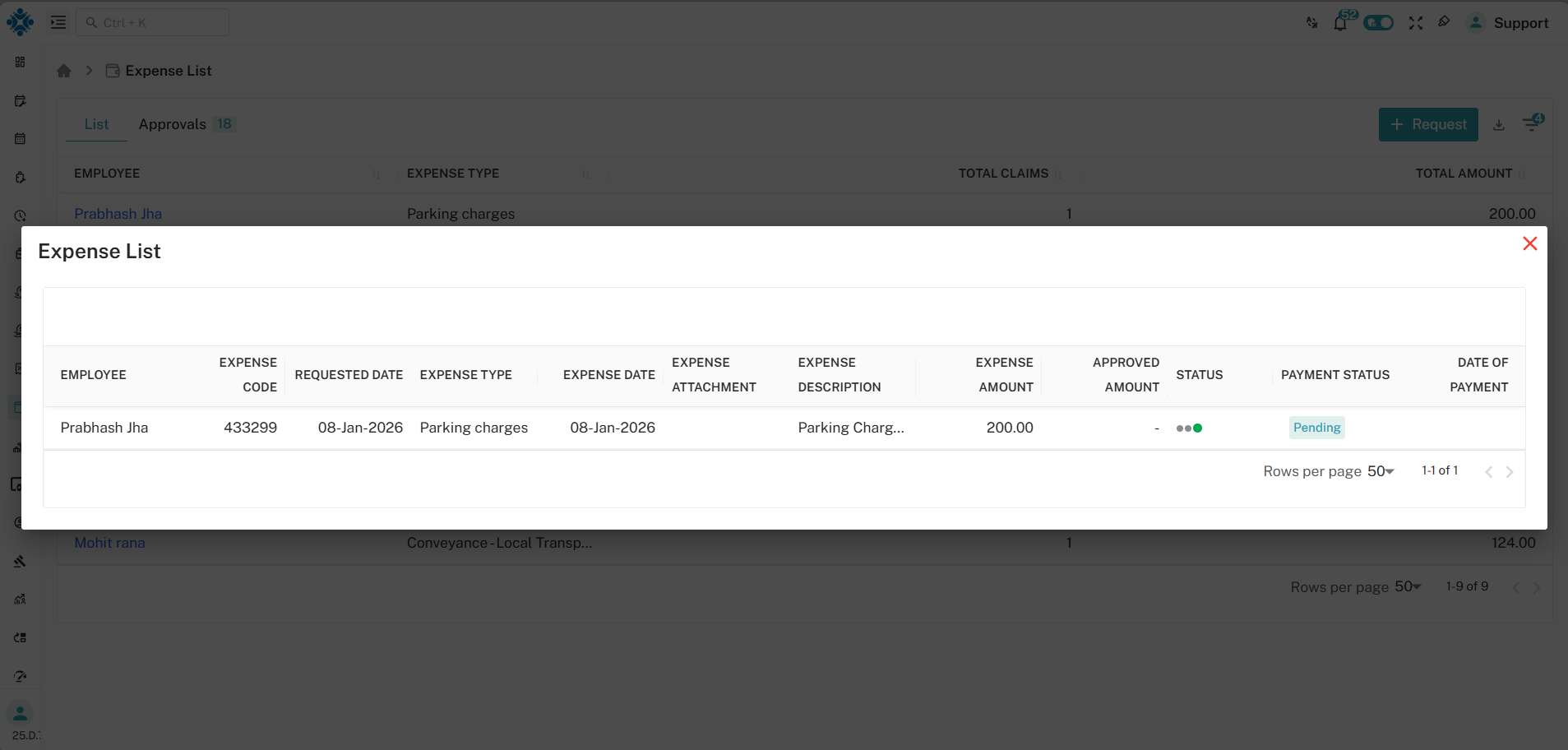
After expense approval:
- The Payment Status is automatically generated
- The expense status changes to Pending Payment
- The record appears in the Expense Payment Approval list
This stage separates expense approval from payment authorization.
5. Expense Payment Approval (Admin)
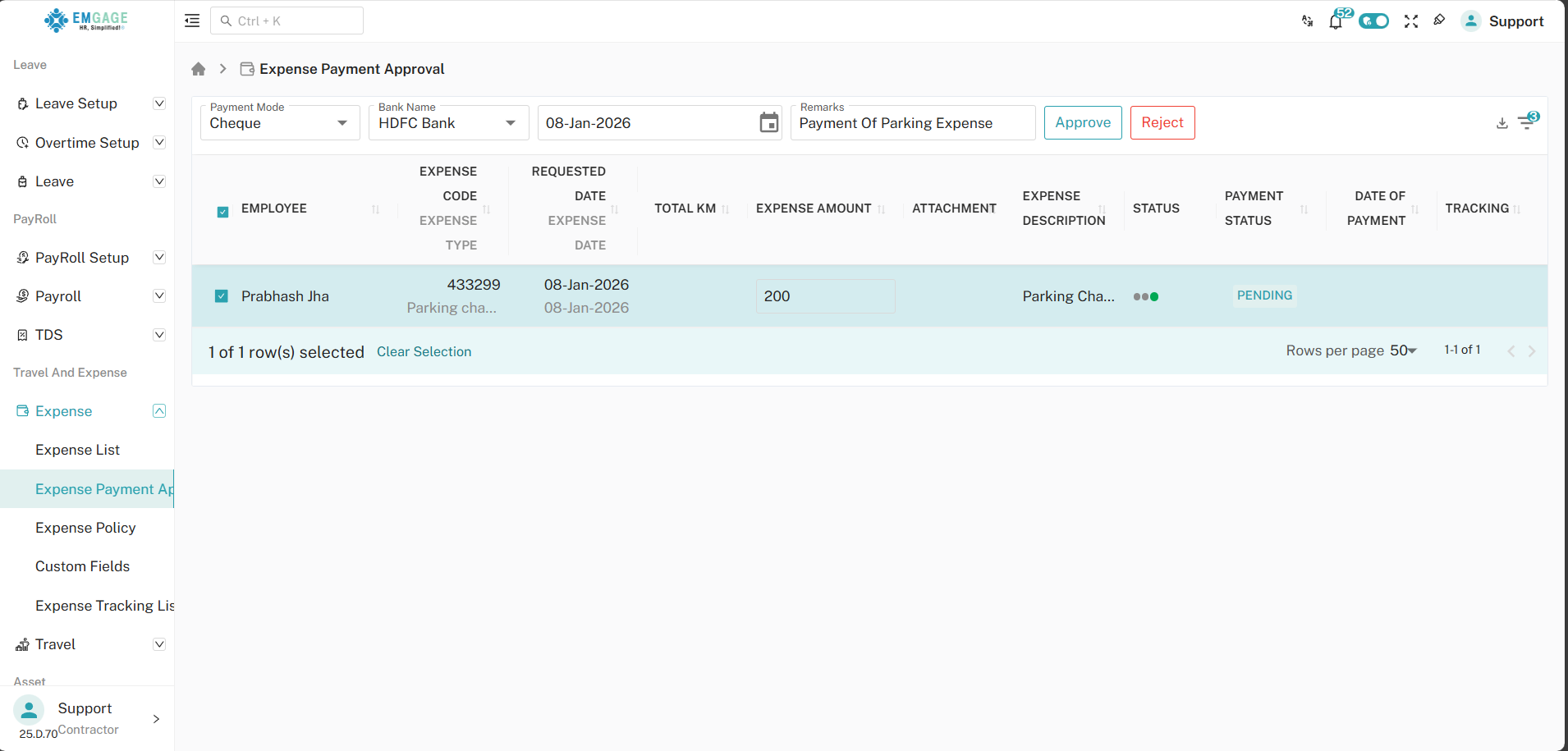
The admin finalizes the payment from the Expense Payment Approval page.
Payment Configuration Options
- Payment Mode (Cash / Cheque / Bank Transfer / Other)
- Bank Name
- Payment Date
- Remarks
Actions Available
- Approve – Confirms the payment and updates status
- Reject – Rejects the payment request with remarks
After approval, the expense is marked as paid.
6. Payment Confirmation in Expense List
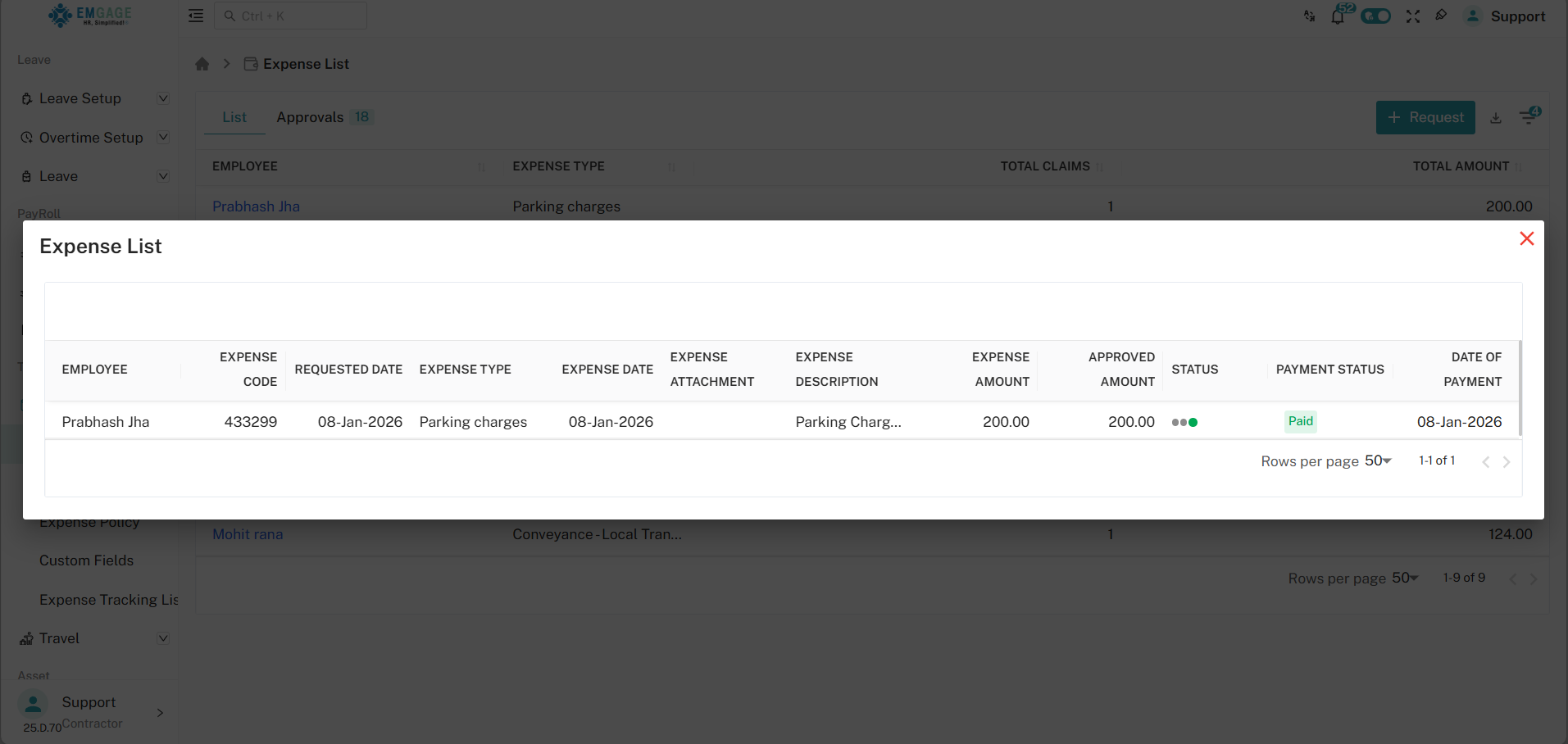
Once payment approval is completed:
- The Payment Status updates to Paid
- Admin can click on the employee record in the Expense List
- Full payment details and history are visible
This confirms the successful completion of the expense lifecycle.
Expense Status Flow
- Submitted – Employee submits the expense
- Pending Approval – Awaiting admin review
- Approved / Rejected – Decision recorded
- Pending Payment – Approved expense awaiting payment
- Paid – Payment completed and recorded
Key Benefits
- Centralized expense approval and payment processing
- Clear visibility of approval and payment status
- Support for attachments and detailed expense tracking
- Bulk approval and rejection for efficiency
- Secure and auditable expense workflow