Expense List
Last Updated: Oct 19, 2025
Document Version: 1.0
Prepared for: Emgage HRMS Implementation Team
Expense List
💼 Expense Management System
The Expense List feature allows employees to submit expense claims and enables administrators to review and manage these requests efficiently. This system provides a comprehensive workflow for submitting, tracking, and approving expense claims with detailed management capabilities.
Overview Features
Expense Management Benefits
The Expense Management system enables efficient handling of employee expense claims, offering:
- Expense Submission: Employees can submit expense claims with supporting documentation.
- Approval Workflow: Structured approval process for expense review and authorization.
- Dual View System: Separate views for pending requests (List) and processed items (Approvals).
- Bulk Processing: Approve or reject multiple expense claims simultaneously.
- Detailed Tracking: Comprehensive information for each expense including amount, type, and attachments.
- Filter Options: Advanced filtering to locate specific expense claims quickly.
- Status Monitoring: Real-time tracking of expense approval status.
The Expense List interface provides two main tabs:
-
List Tab
- Displays expense requests submitted by employees
- Shows all expense claims in the system
- Employees can view their submitted requests here
- Includes "+ Request" button for creating new expense claims
-
Approvals Tab
- Where administrators and managers review and approve expense requests
- Shows pending requests awaiting approval action
- Provides bulk approval/rejection capabilities
1. List Tab
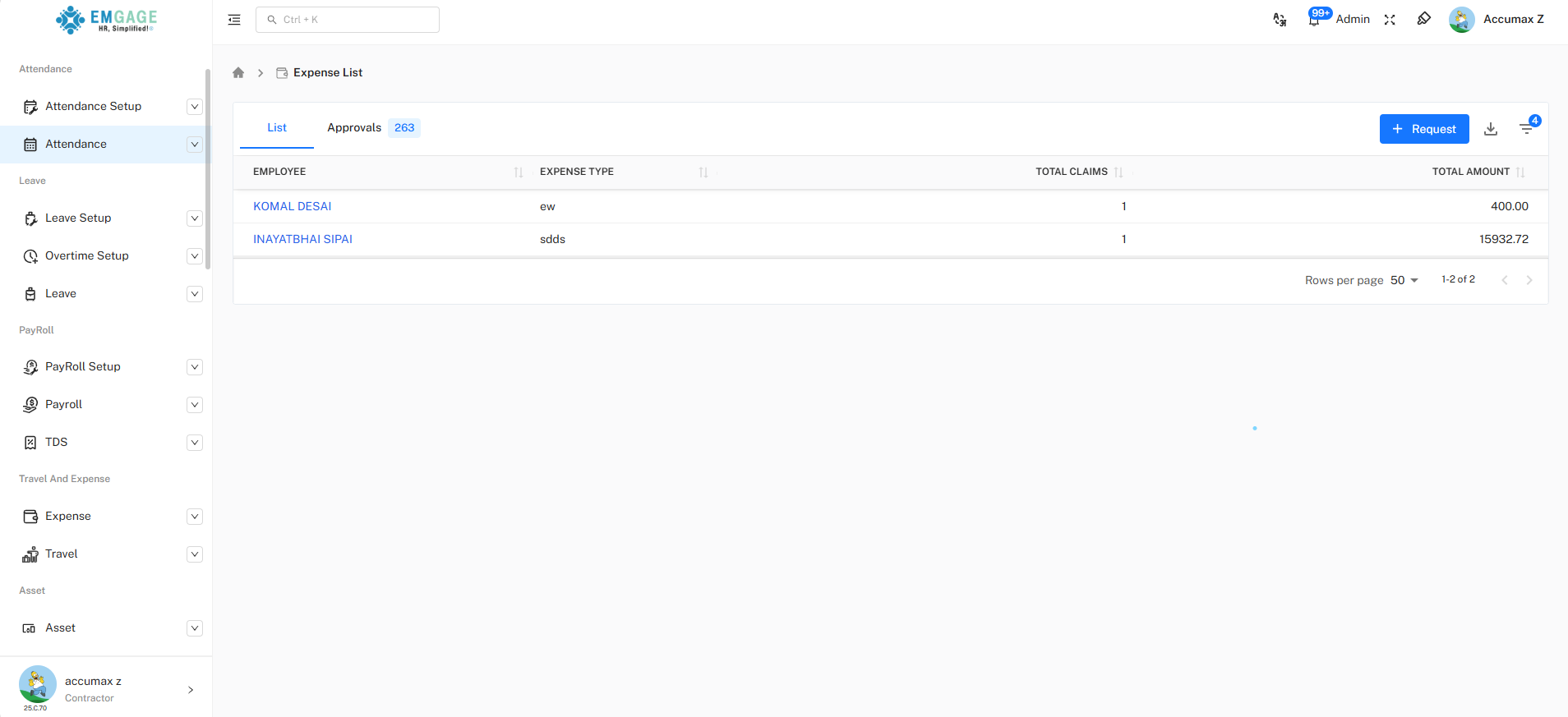
Purpose: View all expense requests submitted by employees
Available Columns:
| Column | Description |
|---|---|
| Employee | Name of employee who submitted the expense |
| Expense Type | Category/type of the expense claim |
| Total Claims | Number of individual expense items in request |
| Total Amount | Total monetary value of the expense claim |
Creating an Expense +Request
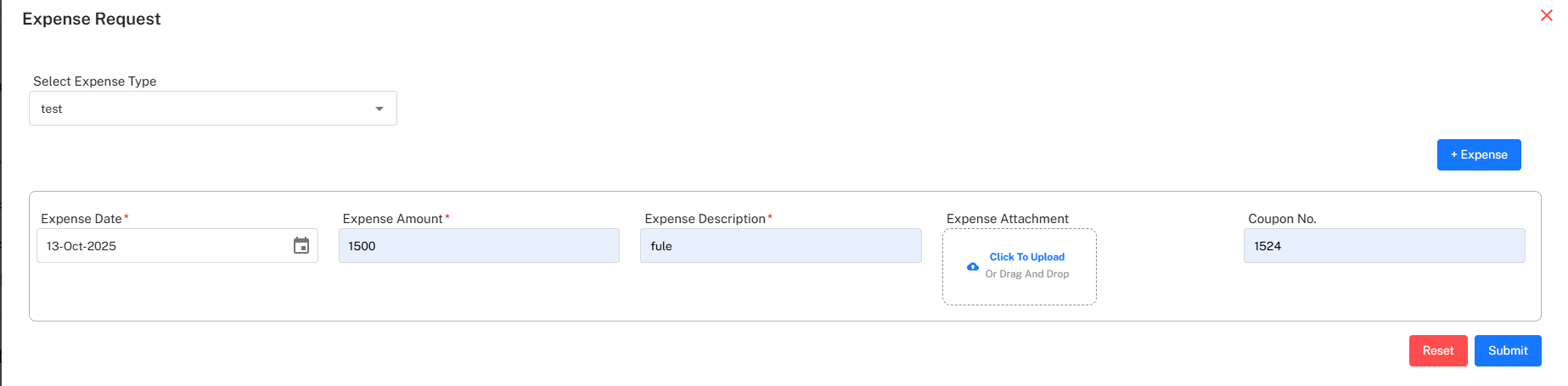
Request Submission Process
Step-by-Step Request Creation:
- Click the "+ Request" button in the top-right corner of the List tab
- Select expense type from dropdown menu
- Click "+ Expense" button to add expense line items
- Fill in all required fields marked with asterisk (*)
- Upload supporting documents (receipts, invoices)
- Click "Submit" to send request for approval
| Field Name | Required | Description | Format/Example |
|---|---|---|---|
| Select Expense Type | Yes (*) | Choose expense category from dropdown | "test", or other predefined types |
| Expense Date | Yes (*) | Date when expense was incurred | DD-MMM-YYYY (e.g., 17-Oct-2025) |
| Expense Amount | Yes (*) | Monetary value of expense | Numeric value (e.g., 1500) |
| Expense Description | Yes (*) | Detailed explanation of expense | Text description (e.g., "fule") |
| Expense Attachment | No | Supporting documentation | Click to upload or drag & drop files |
| Coupon No. | No | Reference or coupon number | Alphanumeric (e.g., 1524) |
Form Action Buttons:
| Button | Color | Function |
|---|---|---|
| Reset | Red | Clear all entered data and start over |
| Submit | Blue | Submit the expense request for approval |
::: info Key Features:
- View all submitted expense requests
- Access "+ Request" button to create new claims
- Export Data: Download icon next to "+ Request" button for exporting data
- Export formats: CSV, Excel, PDF
- Filter: Filter icon to access advanced filtering options
- Search and filter capabilities :::
2. Approvals Tab
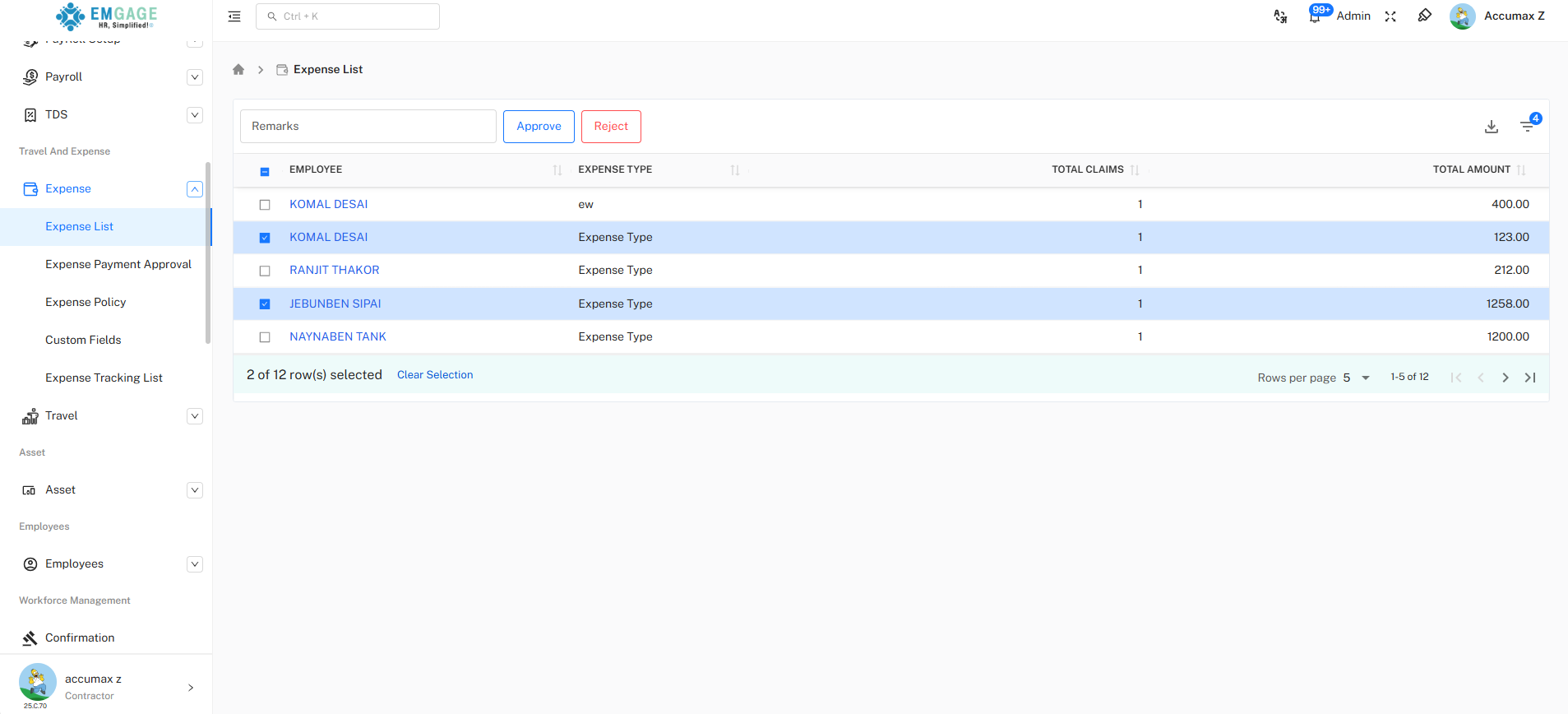
Purpose: Administrators and managers review and approve pending expense requests
Available Columns:
| Column | Description |
|---|---|
| Checkbox | Select one or multiple requests for bulk actions |
| Employee | Name of employee who submitted the expense |
| Expense Type | Category/type of the expense claim |
| Total Claims | Number of individual expense items |
| Total Amount | Total monetary value to be approved/rejected |
Approval Actions:
| Field/Button | Type | Description | Usage |
|---|---|---|---|
| Remarks | Text Field | Optional comments for approval/rejection | Add feedback or clarification notes |
| Approve | Blue Button | Approve selected expense claims | Click after selecting requests to approve |
| Reject | Red Button | Reject selected expense claims | Click after selecting requests to reject |
Key Features:
- Review and process pending expense requests
- Bulk selection with checkboxes for multiple approvals
- Export Data: Download icon for exporting approval data
- Export formats: CSV, Excel, PDF
- Filter: Filter icon to access advanced filtering options
- Action buttons (Remarks, Approve, Reject)
Advanced Filtering
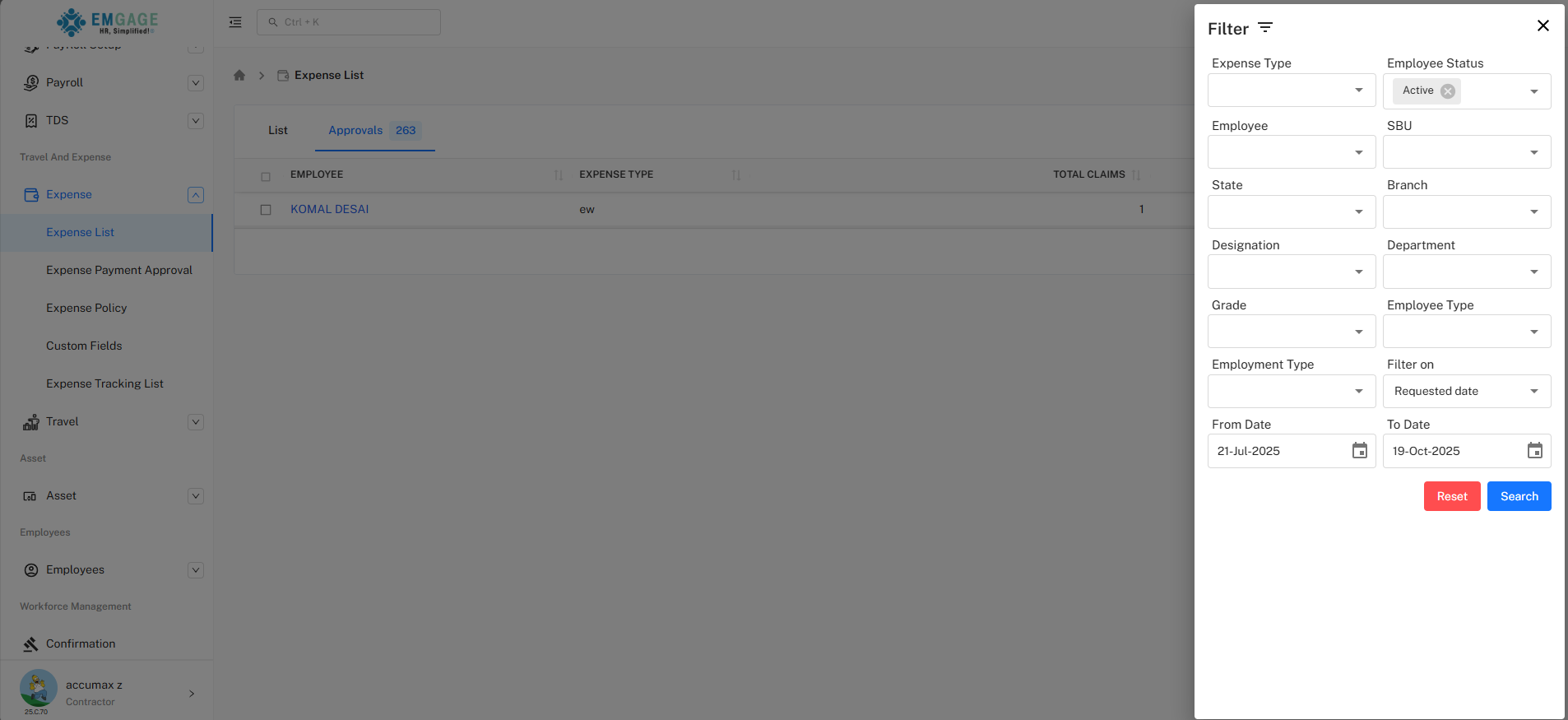
Filter Panel
Accessing Filters:
Click the filter icon (funnel symbol) in the top-right area to open the comprehensive filter panel.
Available Filter Options - Quick Reference
| Filter Field | Type | Description | Options/Format |
|---|---|---|---|
| Expense Type | Dropdown | Filter by expense category | Select from predefined expense types |
| Employee Status | Dropdown | Filter by employment status | Active (default), Inactive, All |
| Employee | Searchable Dropdown | Filter by specific employee names | Search and select employee |
| SBU | Dropdown | Strategic Business Unit | Select business unit |
| State | Dropdown | Filter by employee location/state | Geographic filtering |
| Branch | Dropdown | Filter by office branch | Branch-wise segregation |
| Designation | Dropdown | Filter by job designation | Role-based filtering |
| Department | Dropdown | Filter by department | Departmental view |
| Grade | Dropdown | Filter by employee grade level | Grade classification |
| Employee Type | Dropdown | Filter by employment type | Full-time, Contract, etc. |
| Employment Type | Dropdown | Filter by employment classification | Permanent, Temporary, etc. |
| Filter on | Dropdown | Choose date filter type | "Requested date" or other options |
| From Date | Date Picker | Start date for date range filter | DD-MMM-YYYY (e.g., 21-Jul-2025) |
| To Date | Date Picker | End date for date range filter | DD-MMM-YYYY (e.g., 19-Oct-2025) |
| Status | Dropdown | Filter by request status | Pending, Approved, Rejected |
Filter Actions
Filter Panel Buttons:
| Button | Color | Function |
|---|---|---|
| Reset | Red | Clear all selected filters and return to default view |
| Search | Blue | Apply selected filters to the data table |
Best Practices
💡 Expense Management Tips
For Employees Submitting Requests:
- Submit expense claims within company policy timeframe (typically 30 days)
- Provide exact amounts and clear descriptions in the Expense Description field
- Always attach receipts or supporting documentation
- Select the correct expense type for faster processing
- Fill all required fields (*) to avoid rejection
- Review expense policy before submission
For Approvers (Admins/Managers):
- Check Approvals tab regularly (monitor badge count)
- Verify receipts and attachments match claimed amounts
- Apply approval criteria consistently across all requests
- Use remarks field when rejecting to provide clear feedback
- Process similar requests together using bulk selection
- Approve requests promptly to avoid employee payment delays
Troubleshooting
Common Issues and Solutions
Cannot Submit Expense Request:
- Ensure all required fields (*) are completed
- Verify expense date is not in the future
- Check if expense amount is valid (positive number)
- Ensure expense type is selected
- Confirm file attachment meets size/format requirements
Request Not Appearing in List:
- Check if viewing correct tab (List vs Approvals)
- Verify filter settings are not excluding the request
- Refresh the page to load latest data
- Confirm submission was successful
Unable to Approve/Reject Requests:
- Verify you have appropriate approval permissions
- Ensure requests are selected (checkboxes checked)
- Check if requests are still in pending status
Attachment Upload Failing:
- Check file size limits
- Verify file format is supported
- Ensure stable internet connection
- Try different browser if issue persists
Bulk Actions Not Working:
- Confirm at least one request is selected
- Verify all selected requests are in appropriate status
- Check system permissions for bulk operations
- Ensure action buttons are enabled