Expense Policy
Last Updated: Oct 19, 2025
Document Version: 1.0
Prepared for: Emgage HRMS Implementation Team
Expense Policy
⚙️ Expense Policy Configuration System
The Expense Policy feature allows administrators to create and manage expense types, define approval policies, set spending limits, and configure custom fields. This system provides comprehensive control over expense management rules and workflows.
Overview Features
Expense Policy Management Benefits
The Expense Policy system enables efficient configuration of expense rules and guidelines, offering:
- Expense Type Management: Create and configure different categories of expenses.
- Policy Configuration: Define detailed policies for each expense type with approval workflows.
- Limit Controls: Set maximum limits for daily, monthly, quarterly, half-yearly, and yearly expenses.
- Custom Fields: Configure custom fields specific to each expense type.
- Flexible Settings: Control payment cycles, submission deadlines, and attachment requirements.
- Level-Based Policies: Define expense applicability at both expense and travel levels.
Tab Structure
The Expense Policy interface provides two main tabs:
1. Expense Type Tab
- Displays all configured expense types in the system
- Shows expense type names, levels, and management options
- Includes "+ Add" button for creating new expense types
- Provides quick access to Custom Fields and Policies for each type
2. Expense Policy Tab
- Lists all configured expense policies
- Shows policy details including effective dates, payment cycles, and limits
- Displays policy associations with expense types
- Provides policy management actions (edit, view, delete)
1. Expense Type Tab
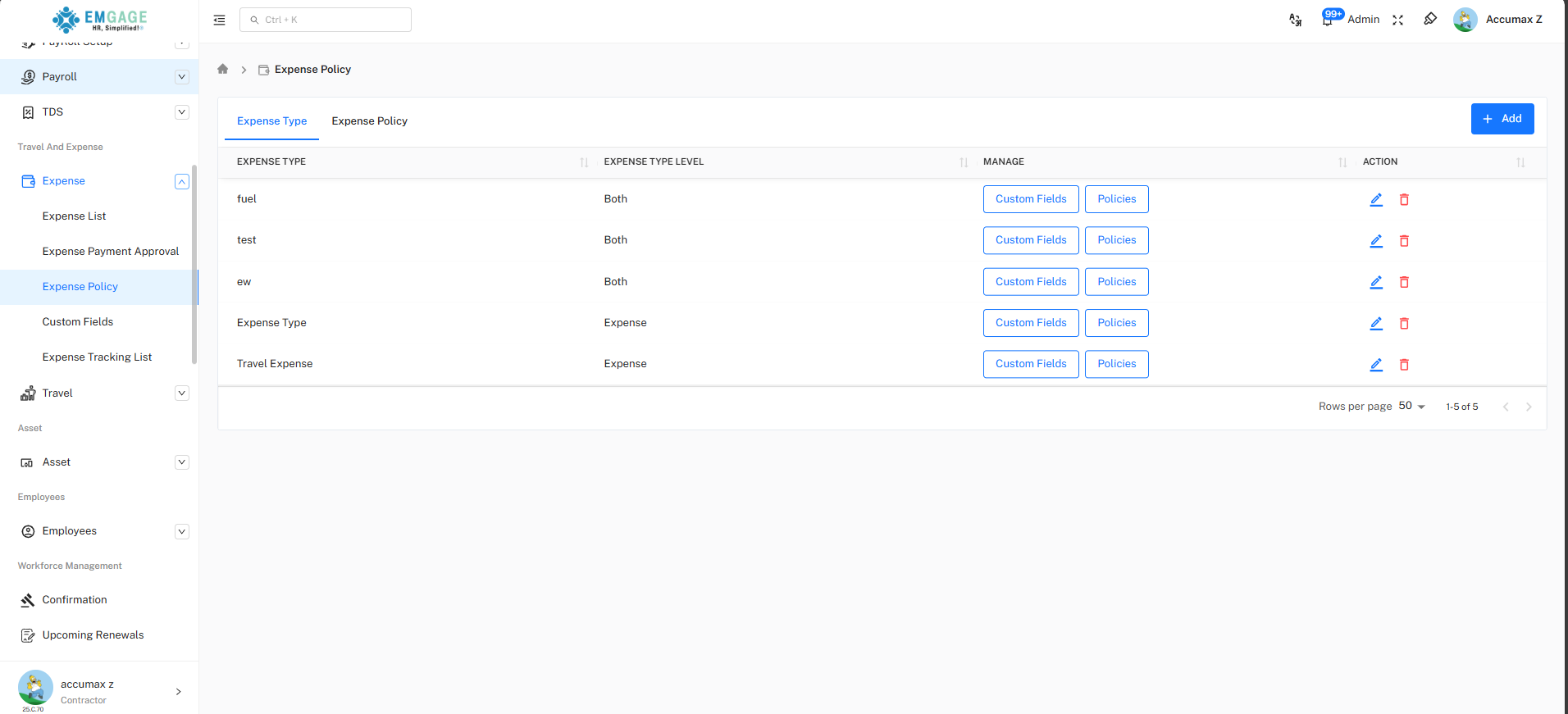
Purpose: Configure and manage expense type categories
Available Columns:
| Column | Description |
|---|---|
| Expense Type | Name of the expense category (e.g., fuel, test, ew) |
| Expense Type Level | Applicability level - "Both" (Expense & Travel), "Expense", or "Travel" |
| Manage | Quick access buttons for Custom Fields and Policies |
| Action | Edit (pencil icon) and Delete (trash icon) options |
Creating an Expense Type +Add
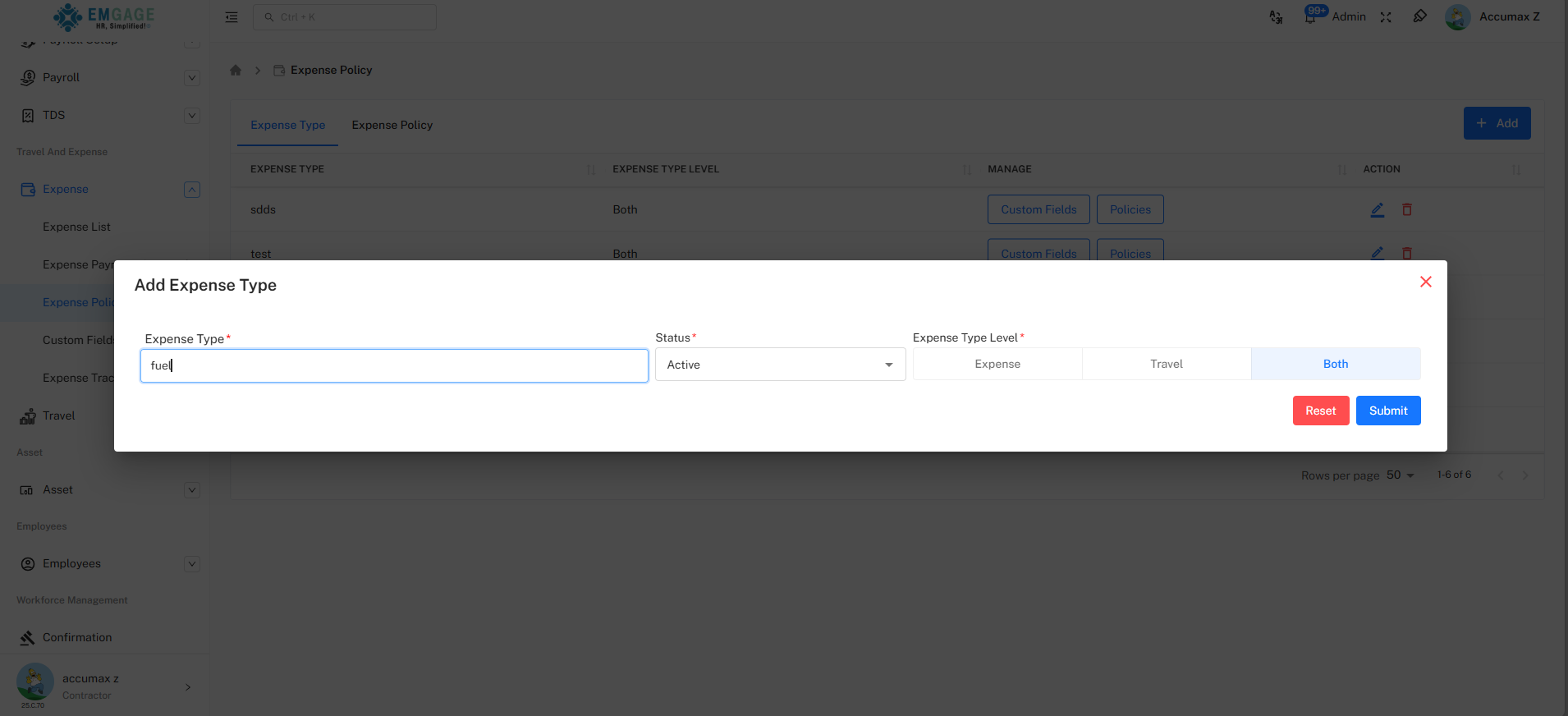
Expense Type Creation Process
Step-by-Step Creation:
- Click the "+ Add" button in the top-right corner of the Expense Type tab
- Fill in all required fields marked with asterisk (*)
- Select appropriate expense type level(s)
- Click "Submit" to create the expense type
Expense Type Form - Quick Reference
| Field Name | Required | Description | Format/Example |
|---|---|---|---|
| Expense Type | Yes (*) | Name of expense category | Text (e.g., "fuel", "test", "Travel Expense") |
| Status | Yes (*) | Active/Inactive status | Dropdown - Active (default) |
| Expense Type Level | Yes (*) | Where expense type applies | Checkboxes: Expense, Travel, or Both |
Expense Type Level Options:
| Option | Description | When to Use |
|---|---|---|
| Expense | Available for general expense claims | For standard business expenses |
| Travel | Available for travel-related expenses | For travel and accommodation costs |
| Both | Available for both expense and travel | For expenses applicable to both categories |
Form Action Buttons:
| Button | Color | Function |
|---|---|---|
| Reset | Red | Clear all entered data and start over |
| Submit | Blue | Create the expense type |
- View all configured expense types
- Access "+ Add" button to create new expense types
- Quick access to Custom Fields and Policies buttons for each type
- Edit and delete options for existing expense types
- Filter icon for searching specific expense types
Quick Managing Expense Type Options
Policy Configuration
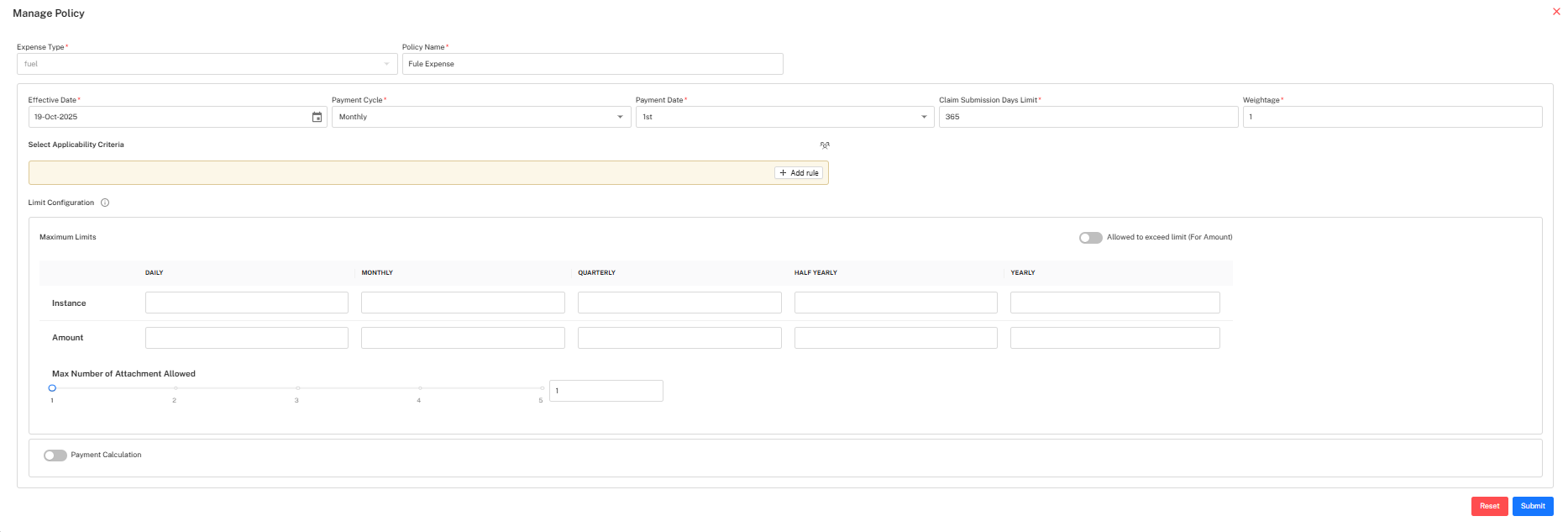
Purpose: Define expense policy rules, limits, and approval workflows
Accessing Policy Configuration:
- Locate the expense type in the Expense Type tab
- Click the "Policies" button in the Manage column
- Manage Policy dialog opens
Policy Configuration Form - Quick Reference
| Field Name | Required | Description | Format/Example |
|---|---|---|---|
| Expense Type | Yes (*) | Auto-populated from selected expense type | Dropdown (e.g., "fual") |
| Policy Name | Yes (*) | Name for the policy | Text (e.g., "Fule Expense") |
| Effective Date | Yes (*) | When policy becomes active | DD-MMM-YYYY (e.g., 19-Oct-2025) |
| Payment Cycle | Yes (*) | Frequency of expense payments | Dropdown - Monthly, Quarterly, etc. |
| Payment Date | Yes (*) | Day of payment in cycle | Dropdown - 1st, 2nd, 3rd, etc. |
| Claim Submission Days Limit | Yes (*) | Maximum days to submit claim | Numeric (e.g., 365) |
| Weightage | Yes (*) | Priority/weight of policy | Numeric (e.g., 1) |
Select Applicability Criteria
Purpose: Define which employees or groups the policy applies to
- Click "+ Add rule" to add applicability criteria
- Configure rules based on department, designation, grade, etc.
- Leave empty for universal policy application
Limit Configuration
Maximum Limits Section:
Configure spending limits across different time periods:
| Time Period | Description | Purpose |
|---|---|---|
| Daily | Maximum per day | Control daily expense spending |
| Monthly | Maximum per month | Set monthly expense budgets |
| Quarterly | Maximum per quarter | Define quarterly spending caps |
| Half Yearly | Maximum per 6 months | Set semi-annual limits |
| Yearly | Maximum per year | Define annual expense budgets |
Limit Configuration Options:
| Row | Field | Description |
|---|---|---|
| Instance | Numeric input fields | Maximum number of expense instances allowed per period |
| Amount | Numeric input fields | Maximum monetary amount allowed per period |
Additional Limit Settings:
| Setting | Type | Description |
|---|---|---|
| Allowed to exceed limit (For Amount) | Toggle | Enable to allow exceeding configured amount limits |
| Max Number of Attachment Allowed | Radio buttons | Select maximum attachments: 1, 2, 3, 4, or 5 |
| Payment Calculation | Toggle | Enable custom payment calculation rules |
Policy Form Action Buttons:
| Button | Color | Function |
|---|---|---|
| Reset | Red | Clear all policy configuration data |
| Submit | Blue | Save and apply the expense policy |
- Set realistic claim submission limits (typically 30-365 days)
- Configure appropriate payment cycles based on company policy
- Define clear maximum limits to control spending
- Use applicability criteria to target specific employee groups
- Enable "exceed limit" toggle only when necessary with approvals
Custom Fields Configuration
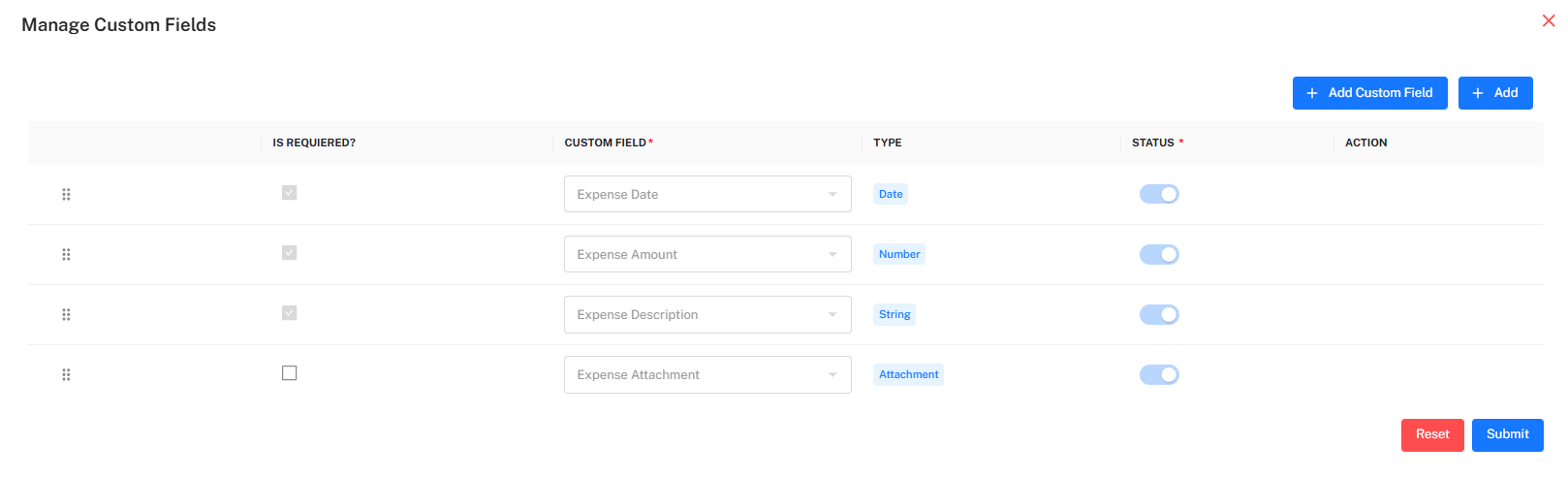
Purpose: Define custom fields specific to an expense type
Accessing Custom Fields:
- Locate the expense type in the Expense Type tab
- Click the "Custom Fields" button in the Manage column
- Manage Custom Fields dialog opens
Custom Fields Table
| Column | Description |
|---|---|
| IS REQUIRED? | Checkbox to mark field as mandatory (checked) or optional (unchecked) |
| Custom Field | Name of the field (e.g., Expense Date, Expense Amount, Expense Description) |
| Type | Data type of field - Date, Number, String, Attachment |
| Status | Toggle switch - Active (blue) or Inactive (gray) |
| Action | Drag handle (::) for reordering fields |
Default Custom Fields:
| Field Name | Type | Typically Required |
|---|---|---|
| Expense Date | Date | Yes (checked) |
| Expense Amount | Number | Yes (checked) |
| Expense Description | String | Yes (checked) |
| Expense Attachment | Attachment | No (unchecked) |
Custom Field Actions:
| Button | Color | Function |
|---|---|---|
| + Add Custom Field | Blue | Add new custom field to the expense type |
| + Add | Blue | Quick add button |
| Reset | Red | Reset changes to custom fields |
| Submit | Blue | Save custom field configuration |
Custom Field Management:
- Drag and drop fields using :: handle to reorder
- Toggle status switches to activate/deactivate fields
- Check "IS REQUIRED?" to make fields mandatory
- Add new fields using "+ Add Custom Field" button
2. Expense Policy Tab
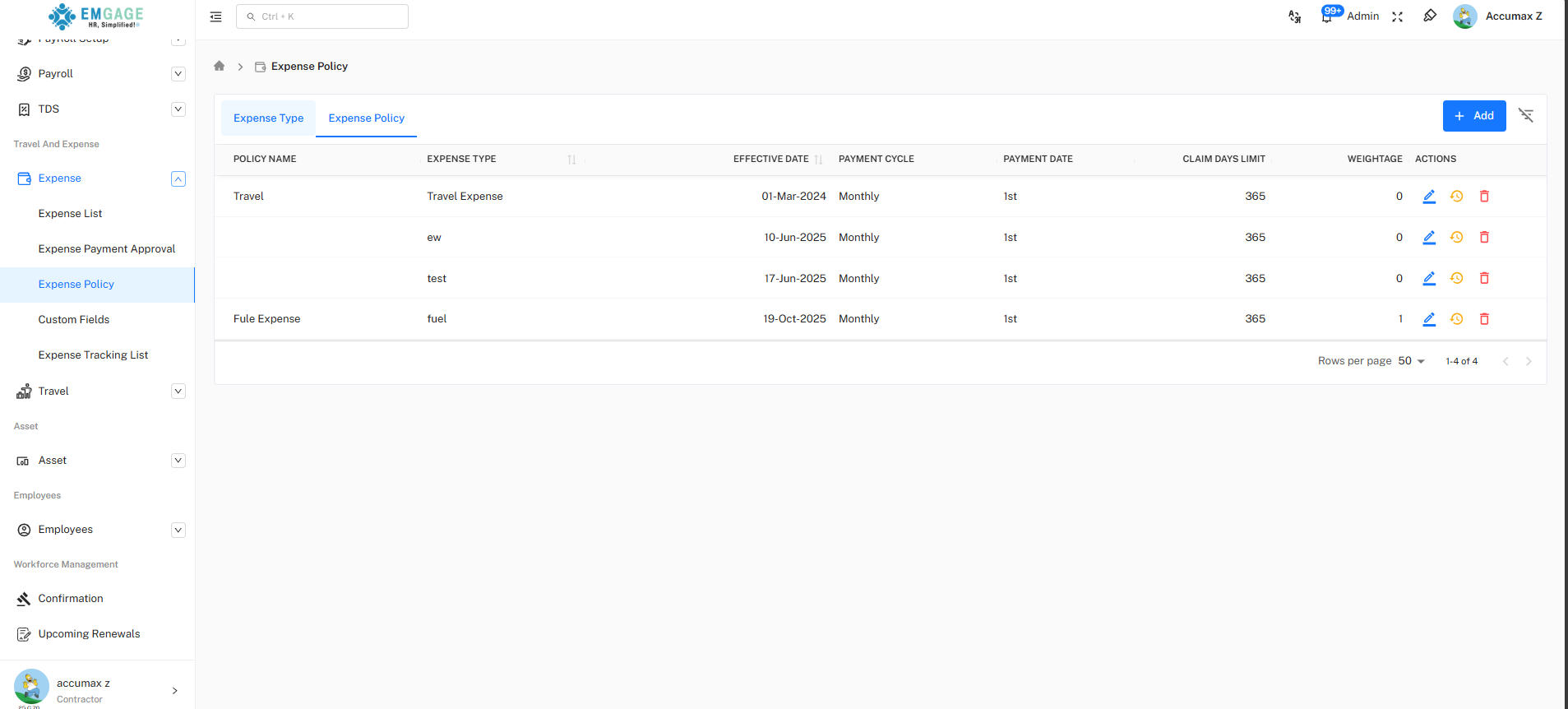
Purpose: View and manage all configured expense policies
Available Columns:
| Column | Description |
|---|---|
| Policy Name | Name of the expense policy |
| Expense Type | Associated expense type category |
| Effective Date | Date when policy becomes active (DD-MMM-YYYY) |
| Payment Cycle | Frequency of payments (Monthly, Quarterly, etc.) |
| Payment Date | Payment day in cycle (1st, 2nd, etc.) |
| Claim Days Limit | Maximum days allowed to submit claims |
| Weightage | Priority/weight value of policy |
| Actions | Edit (pencil), View (eye), and Delete (trash) icons |
- View all expense policies in one place
- Access "+ Add" button to create new policies
- Export Data: Download icon for exporting policy data (CSV, Excel, PDF)
- Filter: Filter icon to search and filter policies
- Edit, view details, or delete existing policies
- Sort by any column for easy policy management
Expense Type and Policy Management Actions
Edit Policy
Editing Process:
- Locate the policy in the Expense Policy tab
- Click the Edit icon (pencil) in the Actions column
- Modify policy details in the form
- Click "Submit" to save changes
View Policy Details
Viewing Process:
- Locate the policy in the Expense Policy tab
- Click the View icon (eye) in the Actions column
- Review complete policy configuration
- Close dialog when finished
Delete Policy
Deletion Process:
- Locate the policy in the Expense Policy tab
- Click the Delete icon (trash) in the Actions column
- Confirm deletion when prompted
- Policy is permanently removed
⚠️ Important Policy Rules
Policy Management Limitations:
- Active policies with pending claims should not be deleted
- Editing policy limits affects future claims only
- Effective date changes don't affect existing approved claims
- Always verify applicability criteria before saving
- Weightage determines policy priority when multiple policies apply
Best Practices
💡 Expense Policy Configuration Tips
For Policy Administrators:
- Create clear, descriptive expense type names
- Set realistic claim submission day limits (30-365 days)
- Configure appropriate maximum limits for each time period
- Use applicability criteria to target specific employee groups
- Review and update policies annually or as needed
- Test new policies with a small group before company-wide rollout
- Document policy changes and communicate to employees
For Custom Fields Configuration:
- Mark essential fields as required (checked in IS REQUIRED?)
- Keep attachment fields optional unless necessary
- Order fields logically for user-friendly data entry
- Use descriptive field names that employees understand
- Activate only fields that are actually needed
For Limit Configuration:
- Set instance limits to prevent excessive claims
- Configure amount limits based on business needs
- Use "exceed limit" toggle cautiously with approval workflows
- Align payment cycles with company payroll schedule
- Set appropriate attachment limits (typically 2-3 sufficient)