Expense Tracking List
Last Updated: Mar 25, 2026
Document Version: 1.0
Prepared for: Emgage HRMS Implementation Team
📍 Live Travel Tracking & Expense Integration
The Expense Tracking List feature automatically captures and displays employee travel data from the Travel module's live tracking feature. This system provides a comprehensive view of employee movements, distances traveled, and expense claim status for efficient travel expense management.
Overview Features
Expense Tracking Benefits
The Expense Tracking List system enables efficient monitoring of employee travel and expense creation, offering:
- Comprehensive Trip Details: Employee name, date, punch in-out times, and total distance
- Route Visualization: Mini map showing travel route for each trip
- Vehicle Type Tracking: Identify vehicle used for each journey
- Expense Status Monitoring: Track whether expense claims have been created
- Bulk Download: Export tracking data for reporting and analysis
- Filter Capabilities: Search and filter tracking records efficiently
Interface Overview
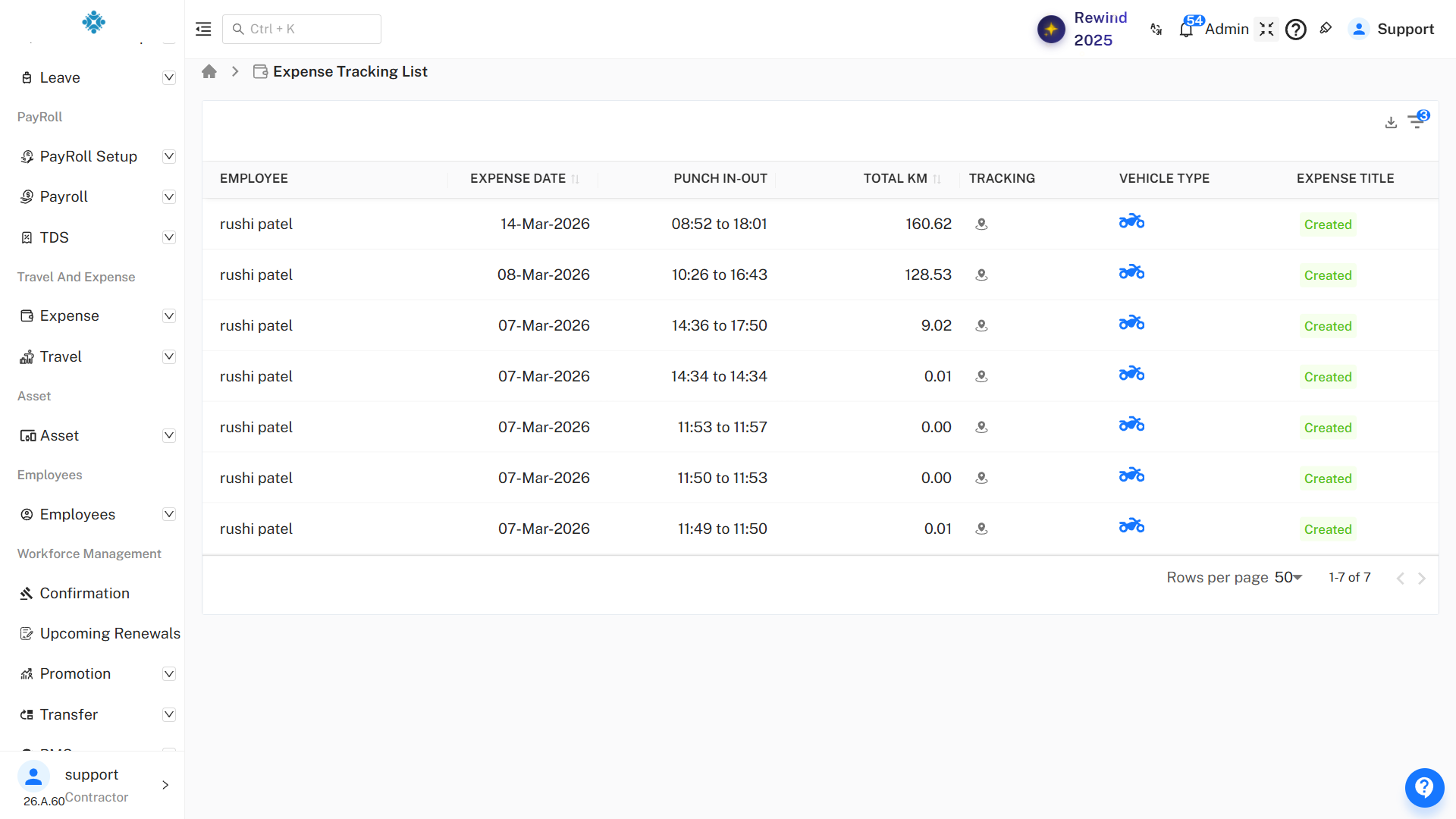
The Expense Tracking List displays all travel tracking records from employees who have used the live tracking feature in the Travel module.
This provides administrators and managers with visibility into:
- Employee travel activities
- Distances traveled for expense calculations
- Travel routes and patterns
- Pending expense claim creation
- Vehicle usage tracking
Expense Tracking List View
Purpose: View and monitor all employee travel tracking records
📌 Explanation
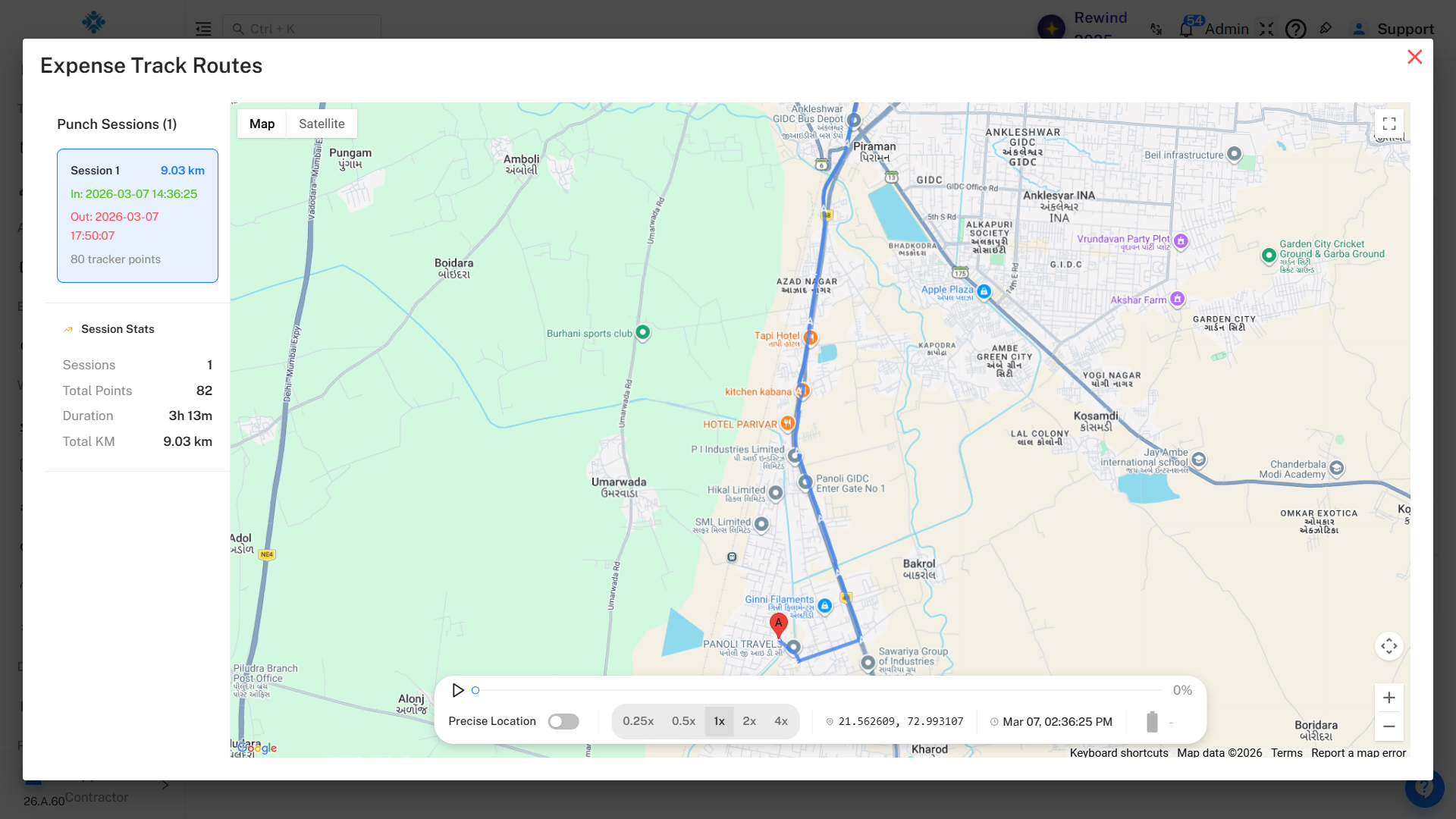
This screen provides a detailed route visualization for a selected travel session.
🧭 Left Panel – Session Details
- Punch Sessions: Shows total sessions recorded
- Session 1 Details:
- Distance: 9.03 km
- Check-in: 2026-03-07 14:36:25
- Check-out: 2026-03-07 17:50:07
- Tracker Points: 80 GPS points
📊 Session Stats
- Sessions: 1
- Total Points: 82
- Duration: 3h 13m
- Total KM: 9.03 km
🗺️ Map View
- Blue line shows actual route traveled
- Red marker indicates end/start location
- Displays real-world landmarks and roads
🎮 Playback Controls
- ▶️ Replay travel movement
- Speed control (0.25x → 4x)
- Timestamp tracking
- GPS coordinate display
- Precise location toggle
Expense Tracking Demo
- View all travel tracking records in one place
Export Data: Download icon in top-right for exporting tracking data
- Export formats: CSV, Excel, PDF
- Filter: Filter icon to search and filter tracking records
- Monitor expense creation status at a glance
Understanding Tracking Data
How Data is Captured
The Expense Tracking List automatically receives data when:
- Employee adds trip details (vehicle type, purpose, etc.)
- Travel occurs (system tracks movement and route)
- Trip completes (employee stops tracking)
- Data syncs automatically to the tracking list
Column Details
Employee
Display: Full employee name
Purpose: Identify traveler,Track travel patterns

Expense Date
Display: DD-MMM-YYYY
Purpose: Identify travel date,Track daily activity,Filter by range

0
Punch In-Out
Display: HH:MM to HH:MM
Purpose: Show duration,Verify working hours

Total KM
Display: Numeric (kilometers)
Purpose: Calculate reimbursement,Verify claims,Track distance
Calculation Notes:
- Based on GPS tracking
- Includes stops and route changes
- May differ from straight-line distance

Tracking
Display: Map icon
Purpose: View route on map

Vehicle Type
Display: Icon
Purpose: Identify transport mode,Apply reimbursement rates,Track usage patterns

Expense Title
Display: Status or title
Purpose: Track expense creation,Link expense records,Identify pending claims

Status Indicators
| Display | Color | Meaning | Action Required |
|---|---|---|---|
| Not Created | Red text | Expense not submitted | Employee should create claim |
| Expense Title | Default | Expense created | Review/approve |
Best Practices
For Employees:
- Enable live tracking before travel
- Ensure GPS is enabled
- Complete tracking after journey
- Submit claims within policy timeframe
- Reference tracking data in description
- Attach route map as proof
For Administrators/Managers:
- Monitor "Not Created" status regularly
- Follow up weekly on pending claims
- Verify routes for high-value claims
- Cross-check KM with reimbursements
- Ensure policy compliance
- Export monthly reports
- Use filters to detect anomalies
For Travel Policy Compliance:
- Compare actual vs expected routes
- Verify vehicle type matches policy
- Check timing aligns with business hours
- Ensure distances are reasonable
- Flag unusual patterns