Holiday Allocation List
Last Updated: October 7, 2025
Document Version: 1.0
Prepared for: Emgage HRMS Implementation Team
The Holiday Allocation List module allows administrators to define and manage the applicability of holidays for specific employees or employee groups.
It enables controlled allocation based on predefined rules such as department, location, designation, or individual employees — ensuring accurate policy application across the organization.
This module also supports rule-based allocation, audit tracking, employee visibility, and reporting via export tools.
System Overview
The Holiday Allocation List consists of the following key components:
- Holiday Allocation Table – Displays all allocated holidays and their applicability
- Toolbar Controls – Request allocation, export records, apply filters
- Holiday Allocation Request Form – Define allocation rules
- Applicable / Allocated Employee List – View impacted employees
- Holiday Allocation History – Track rule versions and allocation changes
- Edit Holiday Allocation – Modify applicability criteria
- Filter Panel – Search and refine allocation records
Holiday Allocation Table
The Holiday Allocation Table displays all configured holiday allocations and their current status.
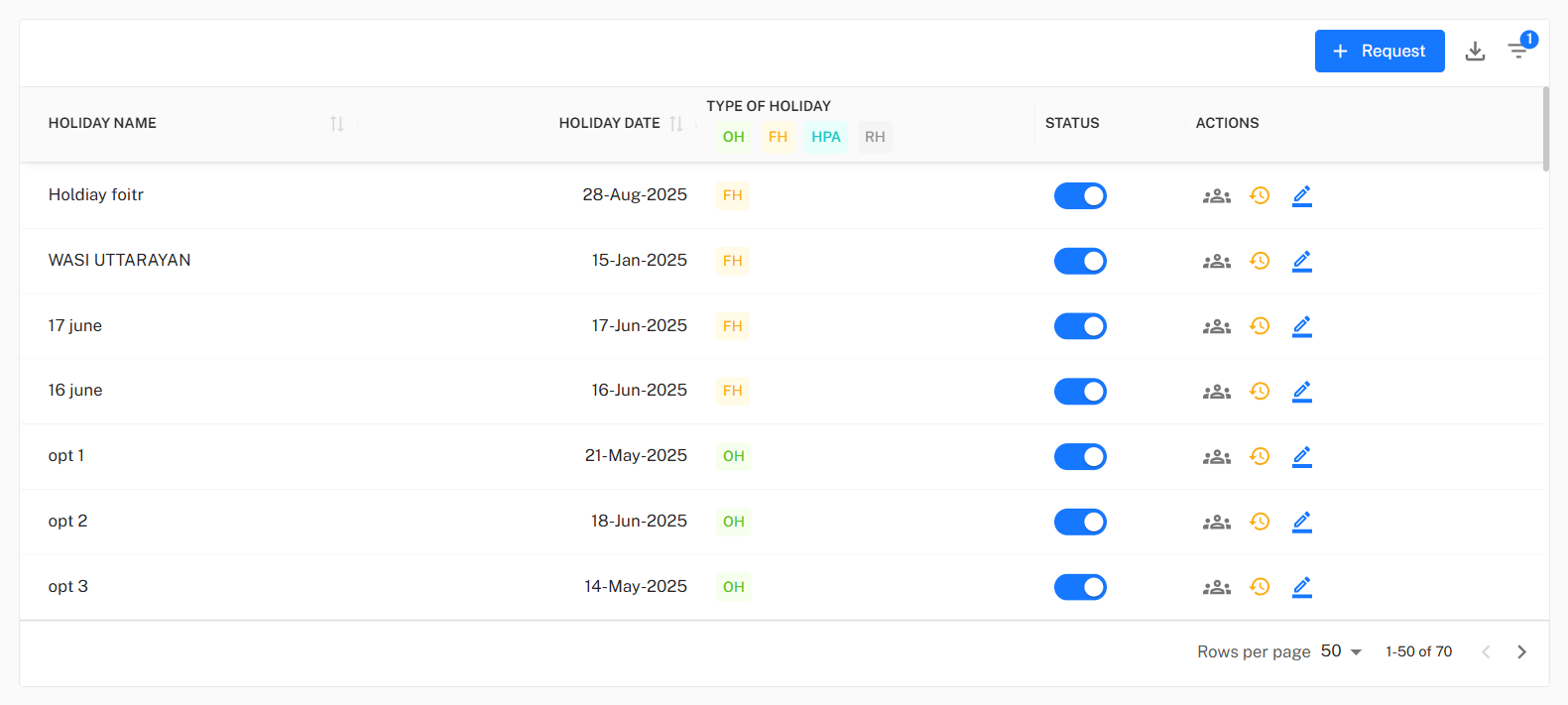
Table Columns
| Column | Description |
|---|---|
| Holiday Name | Name of the holiday defined in Holiday Master. |
| Holiday Date | Date on which the holiday is applicable. |
| Type of Holiday | Identifies category (OH, FH, HPA, RH). |
| Status | Toggle to Activate / Deactivate allocation. |
| Actions | Provides quick operations: View Employees, History, Edit. |
Toolbar Controls
Located above the table, the Toolbar provides allocation and reporting operations.

Toolbar Options
- + Request → Create a new holiday allocation request
- Export → Download list in CSV or PDF format
- Filter → Search allocations using parameters such as employee filters, holiday type, or location
Export Options

The Export option allows administrators to download the current table data for reporting and audit purposes.
Supported Export Formats
| Format | Purpose |
|---|---|
| CSV | Lightweight format for data processing and integrations |
| Excel | Detailed analysis, filtering, and HR reporting |
| Static reports for review, approval, and sharing |
Holiday Allocation Request
Administrators can define who a holiday applies to using rule-based allocation criteria.
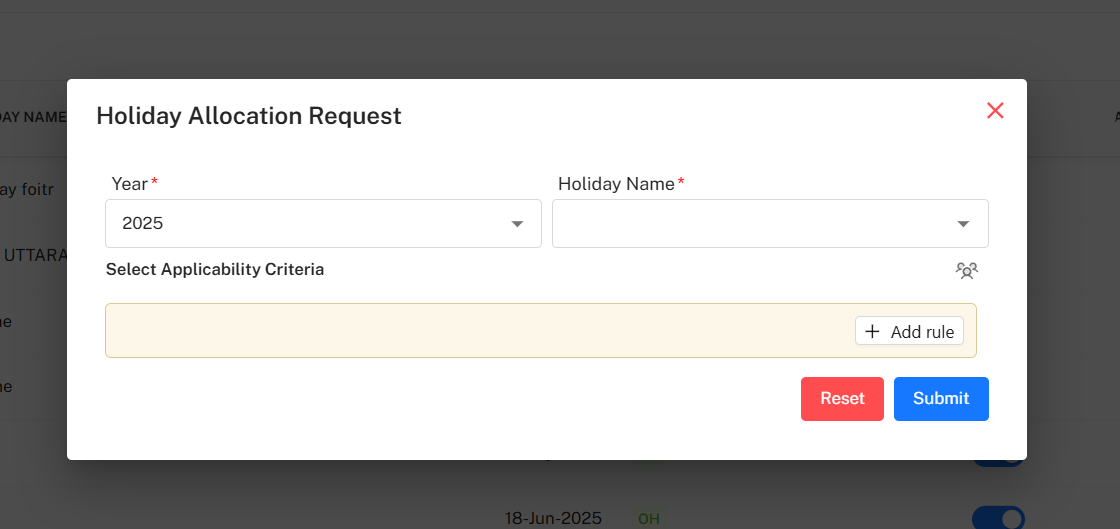
Mandatory Fields
| Field | Description |
|---|---|
| Year | Holiday year being allocated. |
| Holiday Name | Select holiday from the configured holiday list. |
Applicability Rule Builder
Rules define which employees the holiday applies to.
Examples include:
- Employee = A1244
- Department = HR
- Location = Mumbai
- Grade = L2
Multiple conditions can be combined where required.
Actions
- Add Rule → Insert additional selection criteria
- Reset → Clear entries
- Submit → Save allocation
Applicable / Allocated Employee List
Displays all employees who fall under the selected allocation rule.
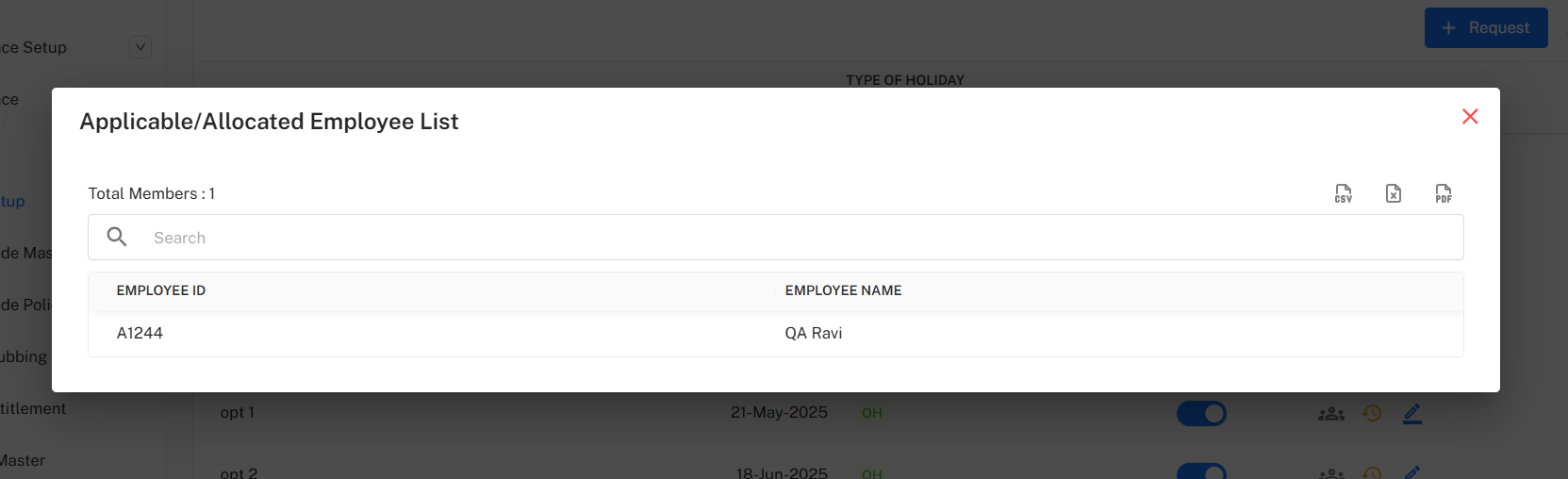
Features
- Search employee inside list
- View Employee ID and Employee Name
- Export list as CSV or PDF
Holiday Allocation History
Tracks every update made to allocation rules for audit and traceability.
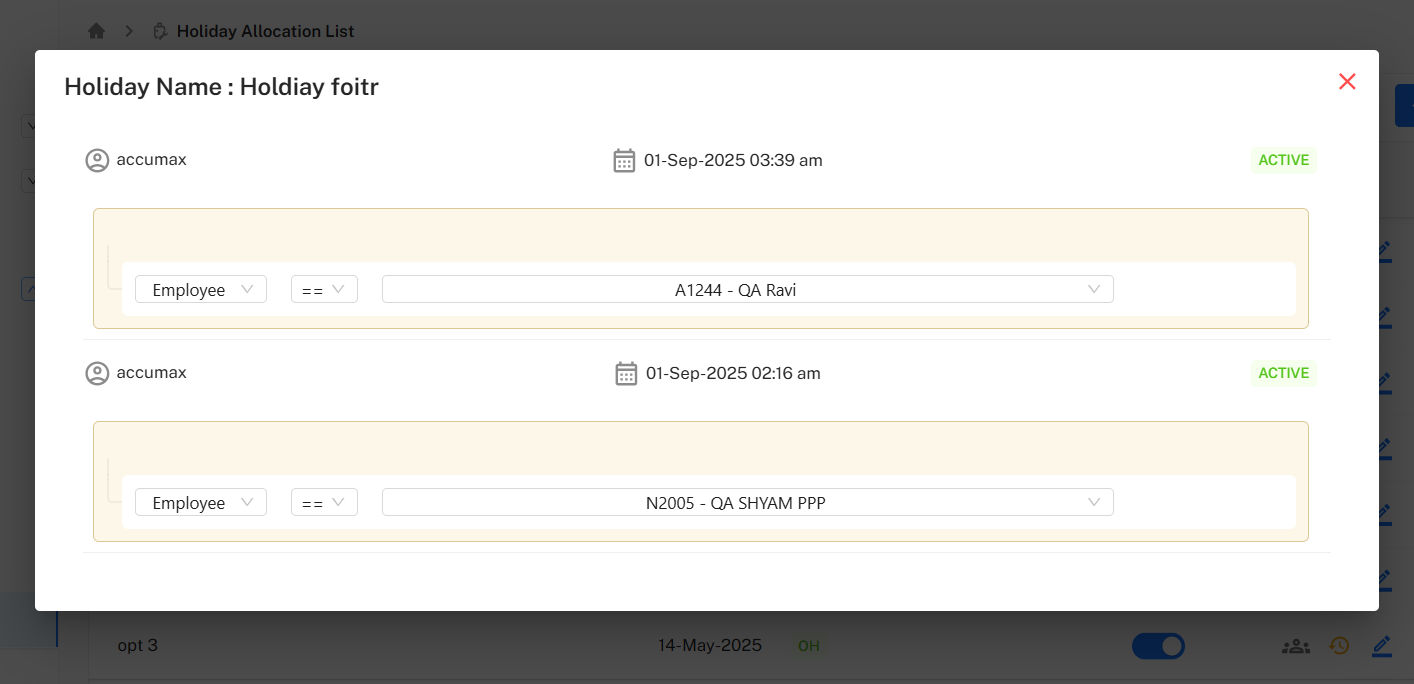
History Information Includes
- Modified By (User Name)
- Modified Date & Time
- Rule details before & after change
- Status of each version
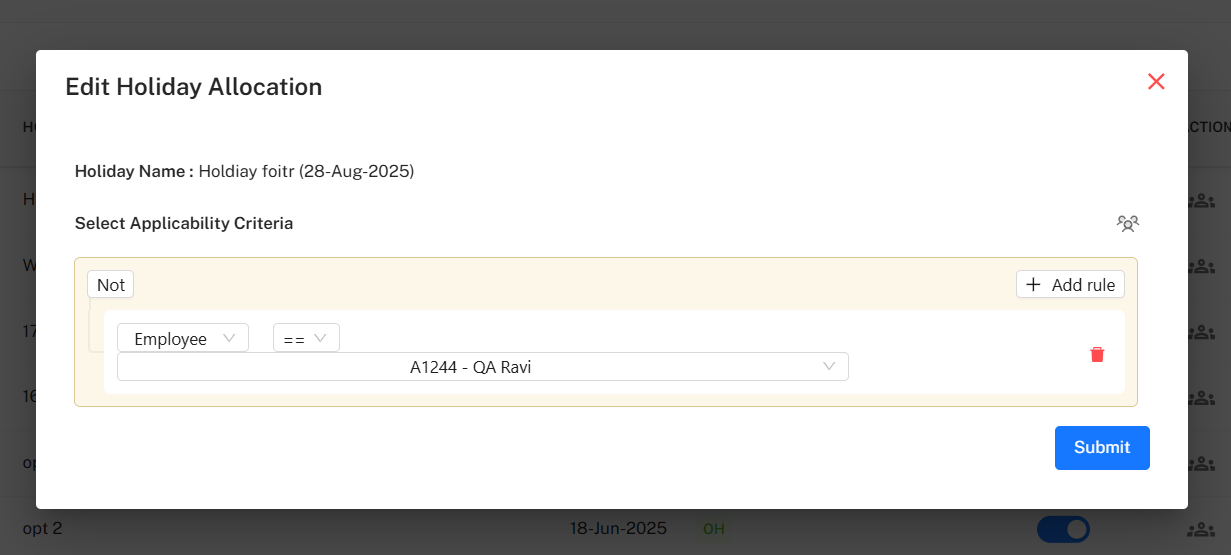
Edit Holiday Allocation
Enables updating allocation criteria or modifying existing rules.
Editable Fields
- Applicability Criteria
- Employee / Group Rules
- Inclusion / Exclusion Rules
Actions
- Add Rule → Append new condition
- Delete Rule → Remove condition
- Submit → Save modifications
Filter Panel
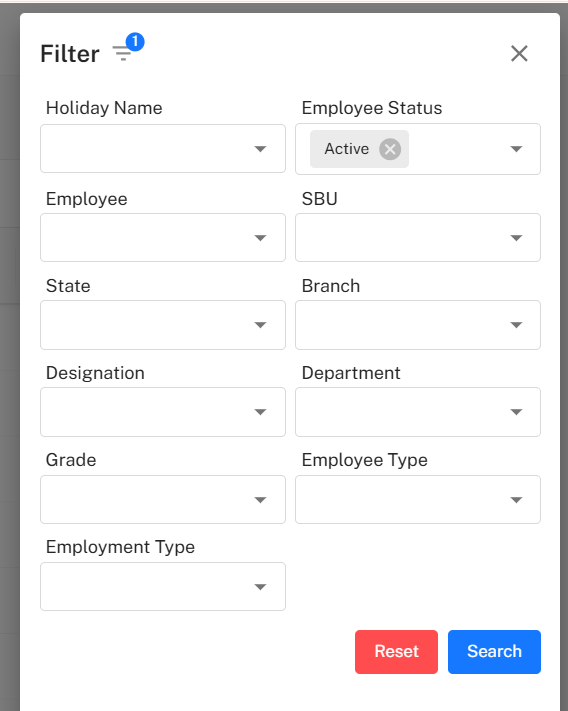
The Filter panel allows searching allocations using multiple attributes.
Available Filters
| Filter | Description |
|---|---|
| Holiday Name | Search by holiday title |
| Employee Status | Active / Inactive |
| Employee | Individual employee |
| SBU / Department / Branch | Organization grouping |
| State / Grade / Employee Type | HR classification |
| Employment Type | Permanent / Contract / Intern |
Filter Actions
- Search → Apply filter
- Reset → Clear selections
Implementation Guidelines
For HR Administrators
- Always define holiday master entries before allocation.
- Use specific rule targeting to avoid unintentional bulk allocation.
- Keep rules consistent across departments to prevent conflicts.
- Review allocation history before modifying criteria.
For Managers
- Use View Employees to confirm correct allocation.
- Report discrepancies to HR before finalizing payroll.
- Use export reports for audit or compliance checks.
Common Issues & Solutions
| Issue | Possible Cause | Solution |
|---|---|---|
| Employees missing from allocated list | Rule criteria too restrictive | Broaden allocation rule. |
| Duplicate entries | Multiple overlapping rules | Merge or review criteria. |
| Allocation not visible | Status toggled OFF | Activate allocation. |
| Incorrect employees allocated | Wrong filter applied | Edit and correct rule. |
Best Practices
- Prefer role-based or department-based allocation over individual rules.
- Validate criteria before submitting.
- Use History logs to track changes.
- Re-audit allocations before holiday periods.
- Export allocation reports regularly for compliance.