Holiday Master
Last Updated: October 7, 2025
Document Version: 1.0
Prepared for: Emgage HRMS Implementation Team
The Holiday Master module allows administrators to define organization-wide holidays, configure holiday types, control yearly holiday cycles, and import bulk holiday records.
It ensures centralized maintenance of the holiday calendar and supports payroll and attendance rules that depend on holiday dates.
This module supports holiday creation, editing, activation, year-type configuration, historical tracking, and bulk data imports.
System Overview
The Holiday Master system is structured around five key components:
- Holiday List Table – Displays all configured holidays
- Toolbar Actions – Provides controls to add, configure, import, and filter holidays
- Add / Edit Holiday Form – Interface to create or modify holiday records
- Holiday Year Configuration – Define whether holidays follow Calendar Year or Financial Year
- Import Holiday Wizard – Step-based holiday upload functionality
This structure ensures accurate, scalable, and policy-aligned holiday management.
Holiday List Table
The Holiday List Table provides a complete overview of all configured organizational holidays.
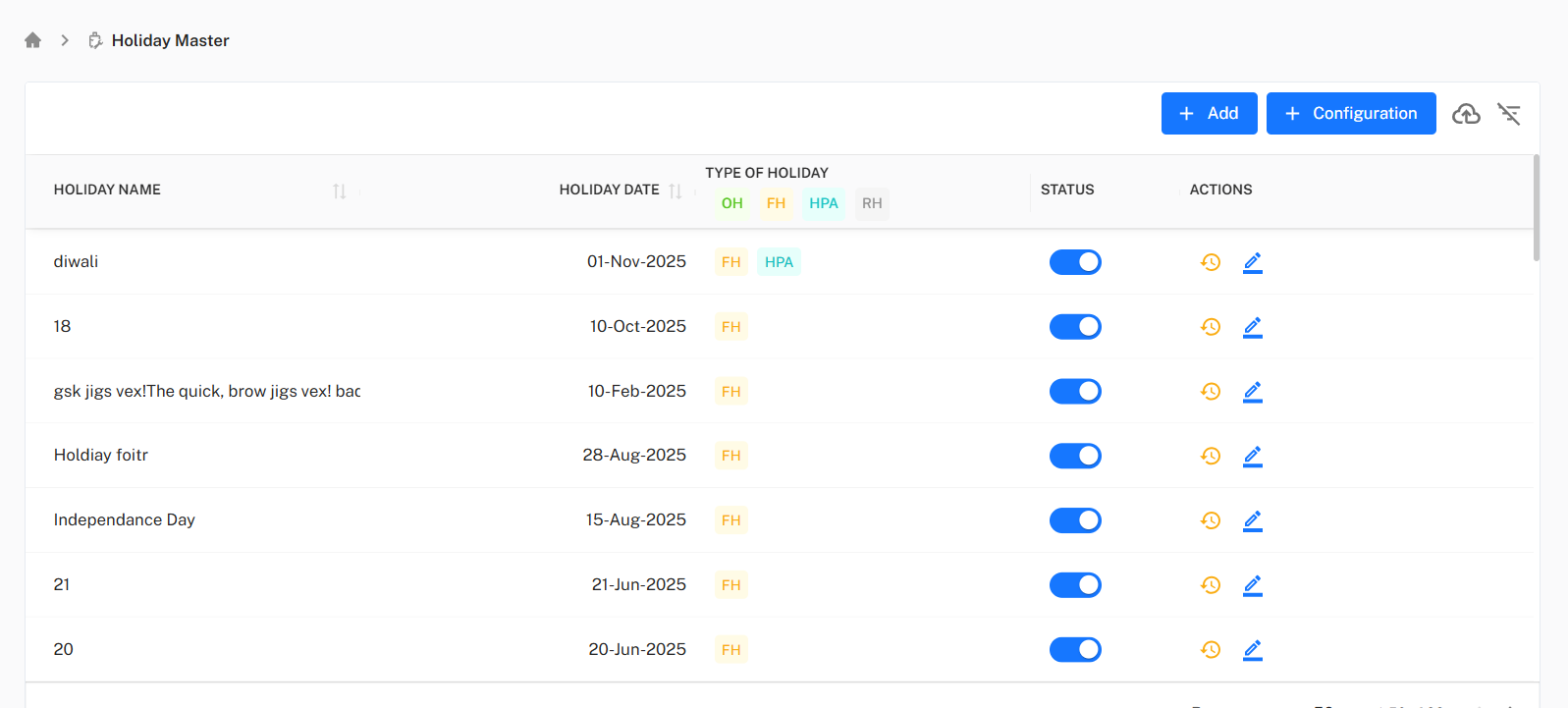
Table Columns
| Column | Description |
|---|---|
| Holiday Name | Name of the defined holiday. |
| Holiday Date | Effective date of the holiday. |
| Type of Holiday | Holiday category such as Optional Holiday (OH), Full Holiday (FH), Holiday Pay Applicable (HPA), or Restricted Holiday (RH). |
| Status | Toggle to activate or deactivate the holiday. |
| Actions | Options to view history or edit the holiday. |
Toolbar Actions
The toolbar is located above the holiday table and contains four primary action buttons.

Available Options
| Button | Purpose |
|---|---|
| + Add | Opens the Add Holiday form to create a new holiday record. |
| + Configuration | Opens Holiday Year Configuration (Calendar / Financial Year selection). |
| Import Holiday | Opens the Import Holiday Wizard for bulk upload. |
| Filter | Allows searching holidays based on name or type. |
These controls support efficient setup and maintenance of the holiday calendar.
Add Holiday
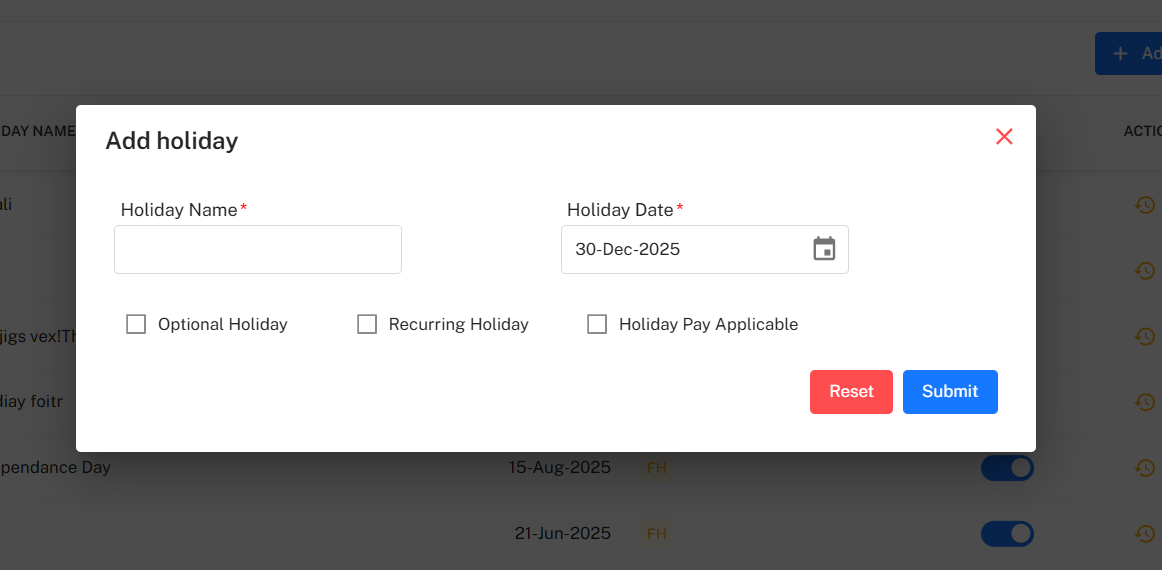
Administrators can create a new holiday using the Add Holiday form.
Mandatory Fields
| Field | Description |
|---|---|
| Holiday Name | Enter the holiday name. |
| Holiday Date | Select the holiday date. |
Optional Attributes
| Option | Description |
|---|---|
| Optional Holiday | Marks holiday as optional (employee may opt to use it). |
| Recurring Holiday | Automatically repeats every year on the same date. |
| Holiday Pay Applicable | Indicates holiday qualifies for payment benefits. |
Actions
- Reset – Clears the form
- Submit – Saves and activates the holiday
Edit Holiday
Existing holidays can be modified using the Edit Holiday form.
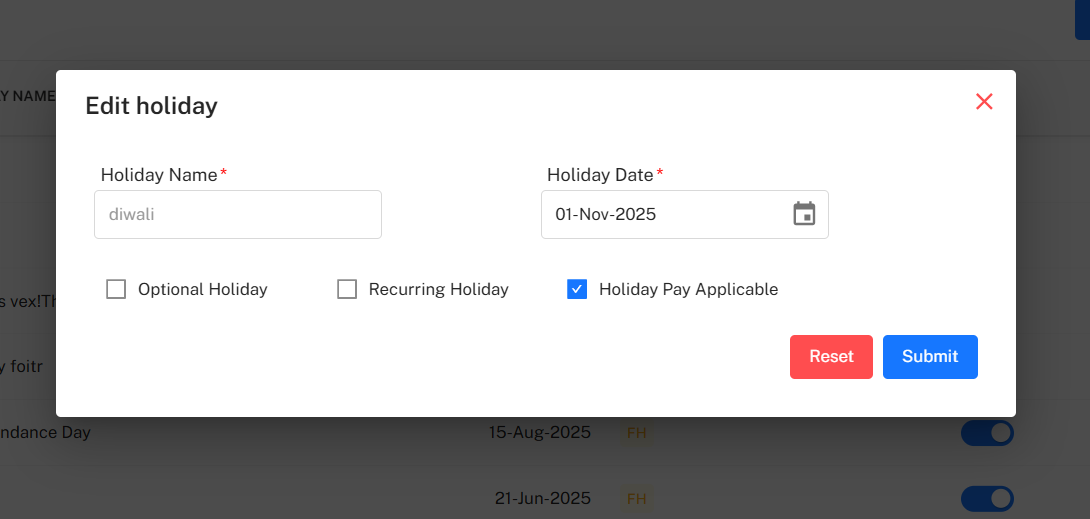
Editable fields include:
- Holiday Name
- Holiday Date
- Holiday attributes (Optional / Recurring / Paid Applicable)
Changes apply immediately after submission.
Holiday Year Configuration
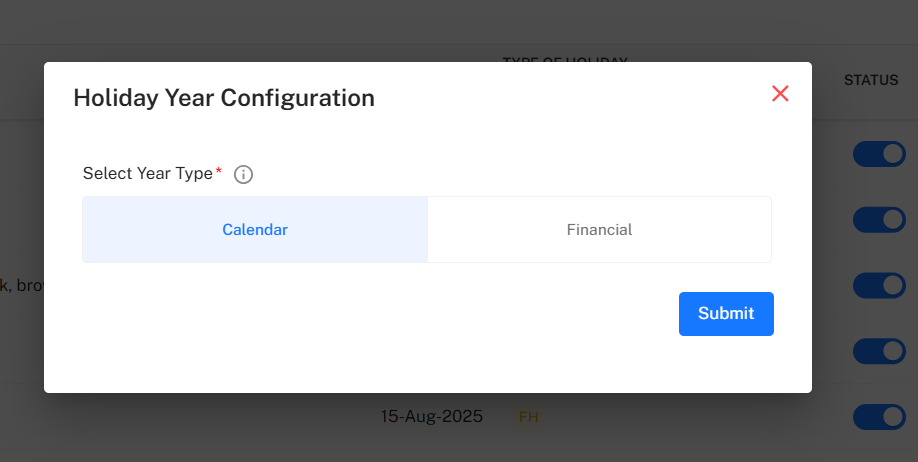
The Holiday Year Configuration determines whether holiday records follow:
- Calendar Year (Jan – Dec)
- Financial Year (Apr – Mar)
Field
| Field | Description |
|---|---|
| Select Year Type | Choose between Calendar or Financial year processing. |
Action
- Submit – Applies the selected year structure to the holiday module
Holiday History List
The system maintains a complete change history for each holiday.
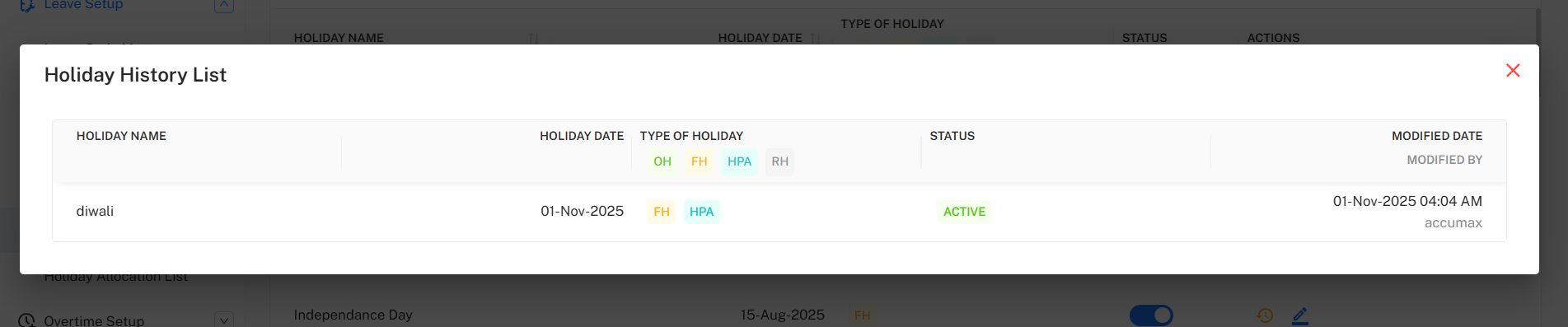
The history record includes:
- Holiday Name
- Holiday Date
- Holiday Type
- Status
- Last Modified Date
- Modified By
This ensures transparency and audit tracking.
Import Holiday (Bulk Upload)
The Import Holiday Wizard allows administrators to upload multiple holiday records at once.
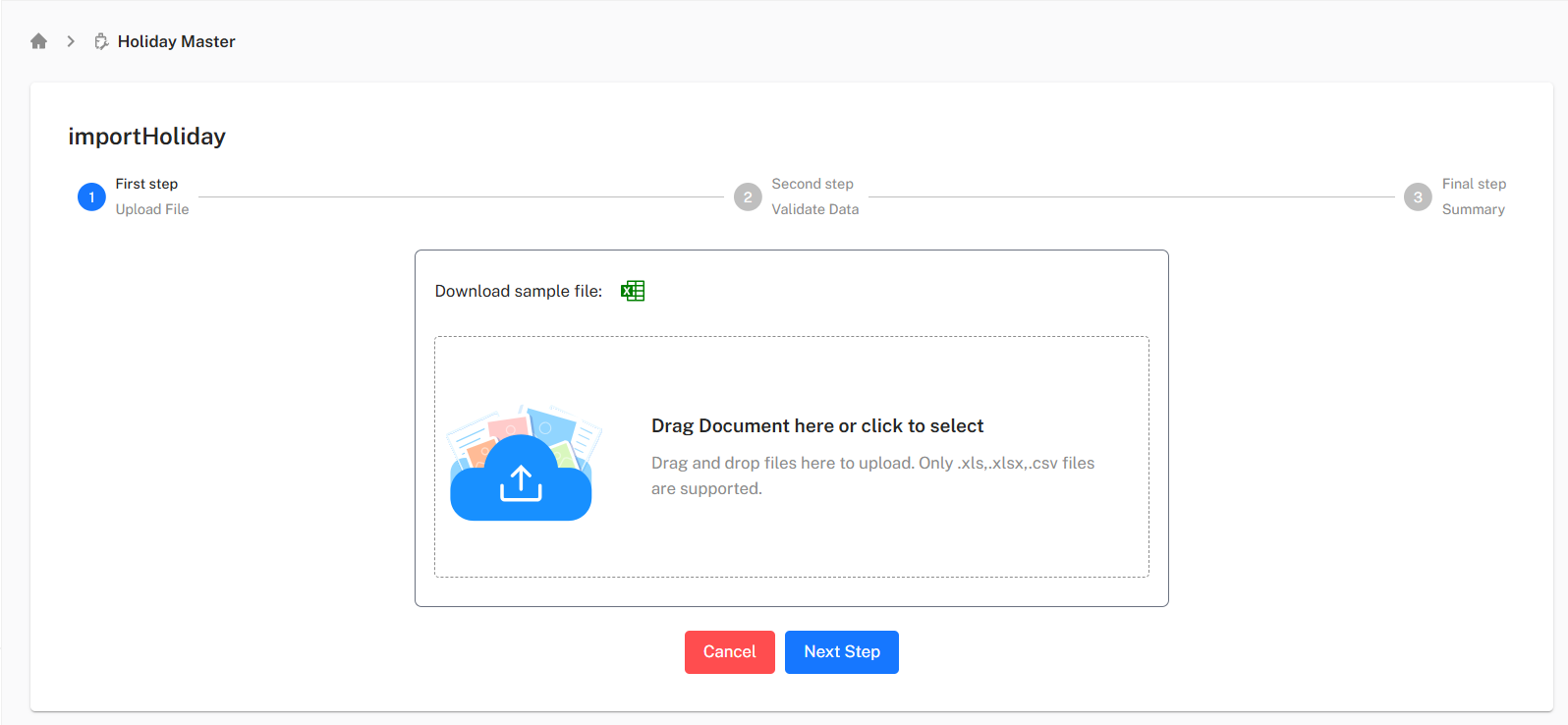
Import Workflow
- Upload File (supports
.xls,.xlsx,.csv) - Validate Data – System checks fields and structure
- Summary & Confirmation – Valid records are imported
A downloadable sample template is available before upload.
Use cases:
- New financial year rollout
- Migration from legacy systems
- Bulk holiday updates
Filter Holidays
The Filter Panel allows narrowing results based on selection criteria.
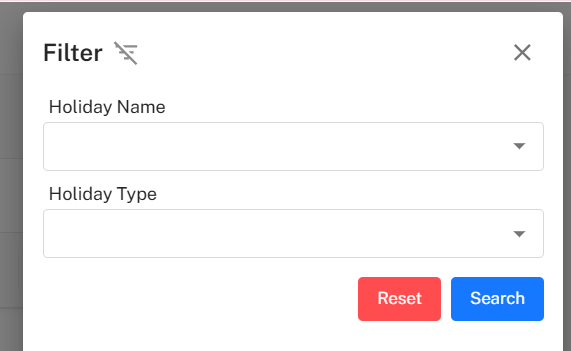
Available Filters
| Filter | Description |
|---|---|
| Holiday Name | Search by holiday title. |
| Holiday Type | Filter based on holiday category. |
Filter Actions
- Search – Applies selected filters
- Reset – Clears filter values and reloads full list
Implementation Guidelines
For HR Administrators:
- Define holiday year type before adding holidays
- Maintain consistency in naming conventions
- Use recurring holiday option only for fixed-date holidays
- Validate data before importing
- Keep unwanted holidays deactivated instead of removing them
For HR Teams:
- Review holiday calendar before publishing
- Ensure payroll dependencies align with holiday type
- Track recurring holidays annually
- Maintain holiday change logs
Common Issues and Solutions
| Issue | Possible Cause | Recommended Solution |
|---|---|---|
| Holiday not visible in calendar | Holiday status set to Inactive | Enable the status toggle. |
| Duplicate holiday entries | Same date added twice | Edit or deactivate duplicate entry. |
| Import upload failed | Invalid template or columns | Re-download sample template and re-upload. |
| Recurring holiday applied incorrectly | Incorrect configuration | Disable recurring flag and update. |
Best Practices
- Finalize yearly holiday list before publishing
- Use Import Holiday for bulk creation only
- Avoid overlapping or incorrect holiday types
- Maintain historical audit logs for compliance
- Review holidays annually during policy updates