HR Letter Setup
Last Updated: October 3, 2025 Document Version: 1.0 Prepared for: Emgage HRMS Implementation Team
HR Letter Setup
The HR Letter Setup module is a powerful tool for creating, managing, and standardizing all official company correspondence. It allows you to design reusable letterheads and build dynamic letter templates for various purposes, such as offer letters, appointment letters, and policy updates.
Process Overview
The process is divided into two main parts, corresponding to the tabs in the interface:
- Letter Heads: First, you create reusable headers and footers for your documents.
- Letter Templates: Then, you create the main content of your letters and link them to a pre-designed letterhead.
HR Letter Workflow
This video provides a complete walkthrough of creating a new letterhead, building a letter template, and managing existing templates.
Part 1: Letter Head Configuration
A Letter Head is a reusable component containing your company's official header, footer, and watermark. Creating these first ensures brand consistency across all documents.
How to Create a Letter Head
- Navigate to the HR Letter Setup module and select the
Letter Headstab. - Click the + Letter Head button.
- Fill in the configuration details:
- Letter Head Name: A unique name for identification (e.g., "Official Company Letterhead").
- Header/Footer Margins: Use the sliders for
Header From TopandFooter From Bottomto set the spacing in inches. - Upload Watermark: Click to upload a background image for the letter. For best results, use an image with dimensions of 850x1000 pixels.
- Header & Footer Content: Use the two rich text editors to design the content for your header and footer.
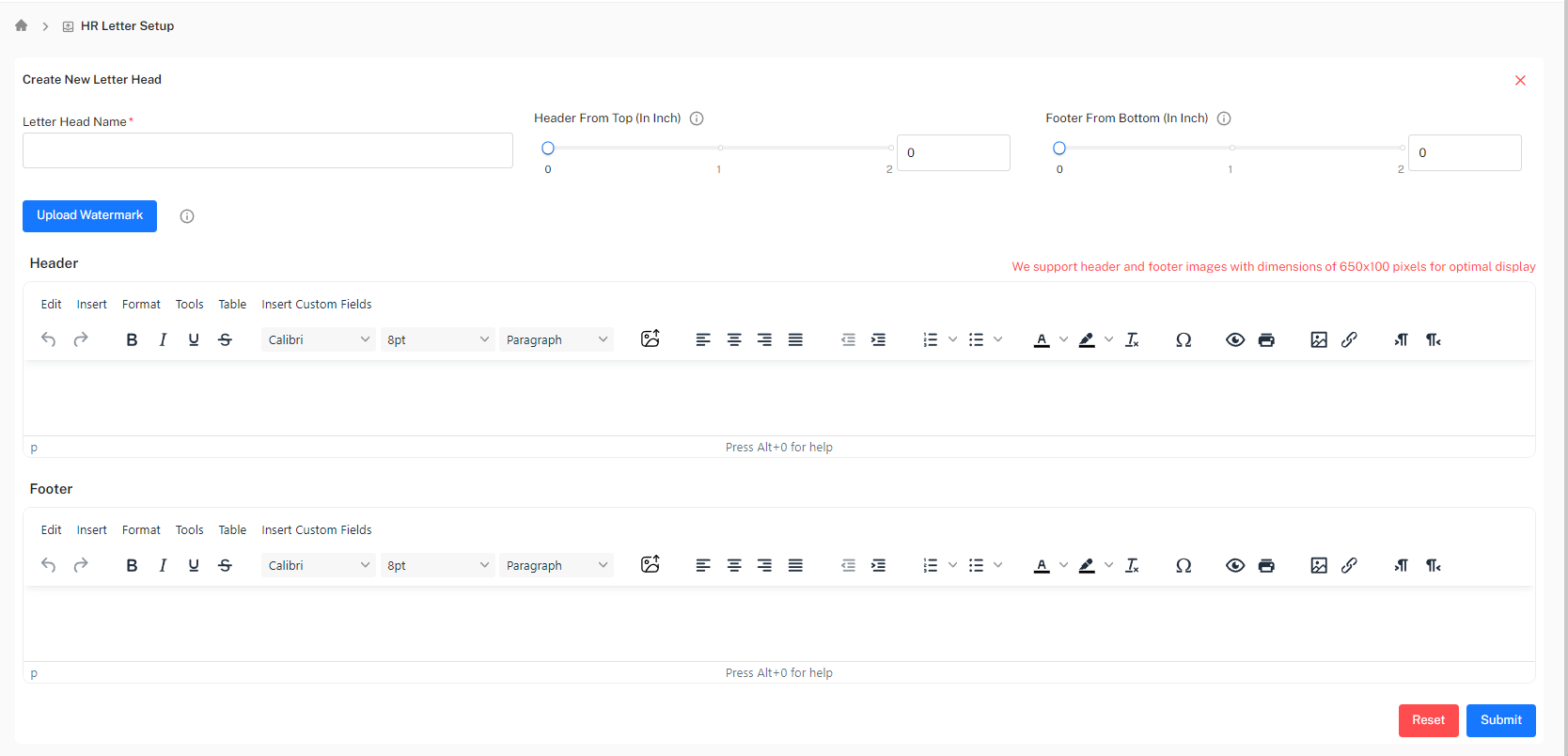 Letter Head creation page showing name field, margin sliders, and rich text editors for header and footer
Use the Insert Custom Fields button within the editors to add dynamic placeholders like {{CompanyLogo}}, {{CompanyName}}, and {{CompanyAddress}}. These fields will be automatically populated with the correct data from your company settings when a letter is generated.
- Click Submit to save the letterhead.
Part 2: Letter Template Management
A Letter Template contains the main body content for a specific type of document. Each template can be linked to a letterhead created in the previous step.
How to Create a Letter Template
- Select the
Letter Templatestab and click the + Template button. - Choose your creation method:
- HTML Editor: Use the built-in rich text editor to compose your letter directly in the system.
- Upload Docx: Upload a pre-formatted Microsoft Word file.
- Complete the template configuration fields:
- Template Name: A descriptive name (e.g., "Senior Developer Offer Letter").
- Select Letter Head: Choose one of your pre-configured letterheads from the dropdown menu to apply its header and footer to this template.
- Publish on ESS / Employee Acknowledgement: Use the toggles to control if the letter is visible on the Employee Self-Service portal and if it requires an employee to acknowledge receipt.
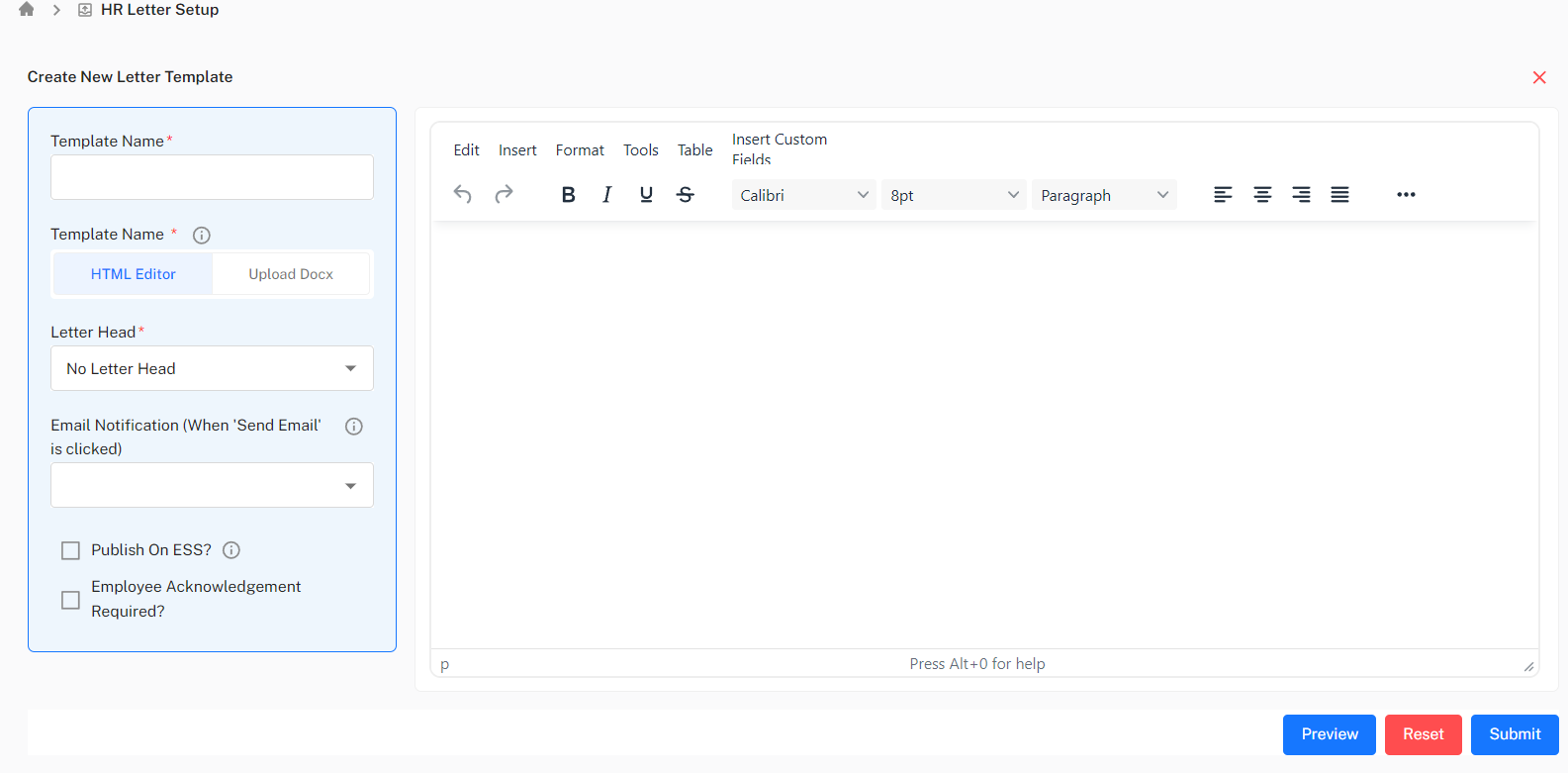 Template creation page showing the HTML editor, template name field, letter head dropdown, and custom fields panel
When using the HTML editor, the Custom Fields panel on the right lists all available dynamic placeholders (e.g., {{EmployeeName}}, {{JoiningDate}}, {{CTC}}). Click the copy icon next to a field and paste it into the editor to personalize the letter for each employee automatically.
Managing Existing Templates
The Letter Templates list view provides several actions for each template:
- Status Toggle: Quickly activate or deactivate a template.
- View (Eye Icon): Preview how the final generated letter will look.
- Edit (Pencil Icon): Modify the template's content or settings.
- Delete (Trash Icon): Permanently remove the template.
- Copy (Copy Icon): Duplicate an existing template to create a new one with minor changes quickly.
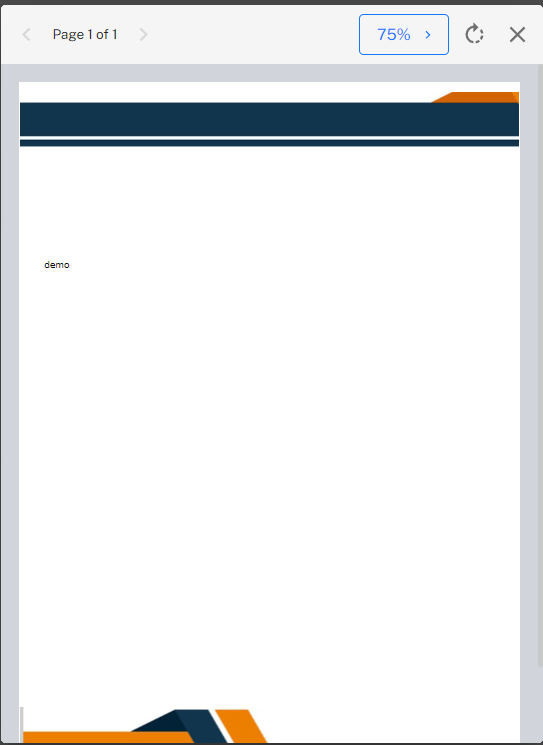 Final letter preview showing the combined header, footer, and body content