Casual Leave
- Casual Leave (CL) is a paid leave that employees can use for short personal needs or unexpected situations.
To make a new leave code policy, click on the + Add button on the Leave Code Policy List page.
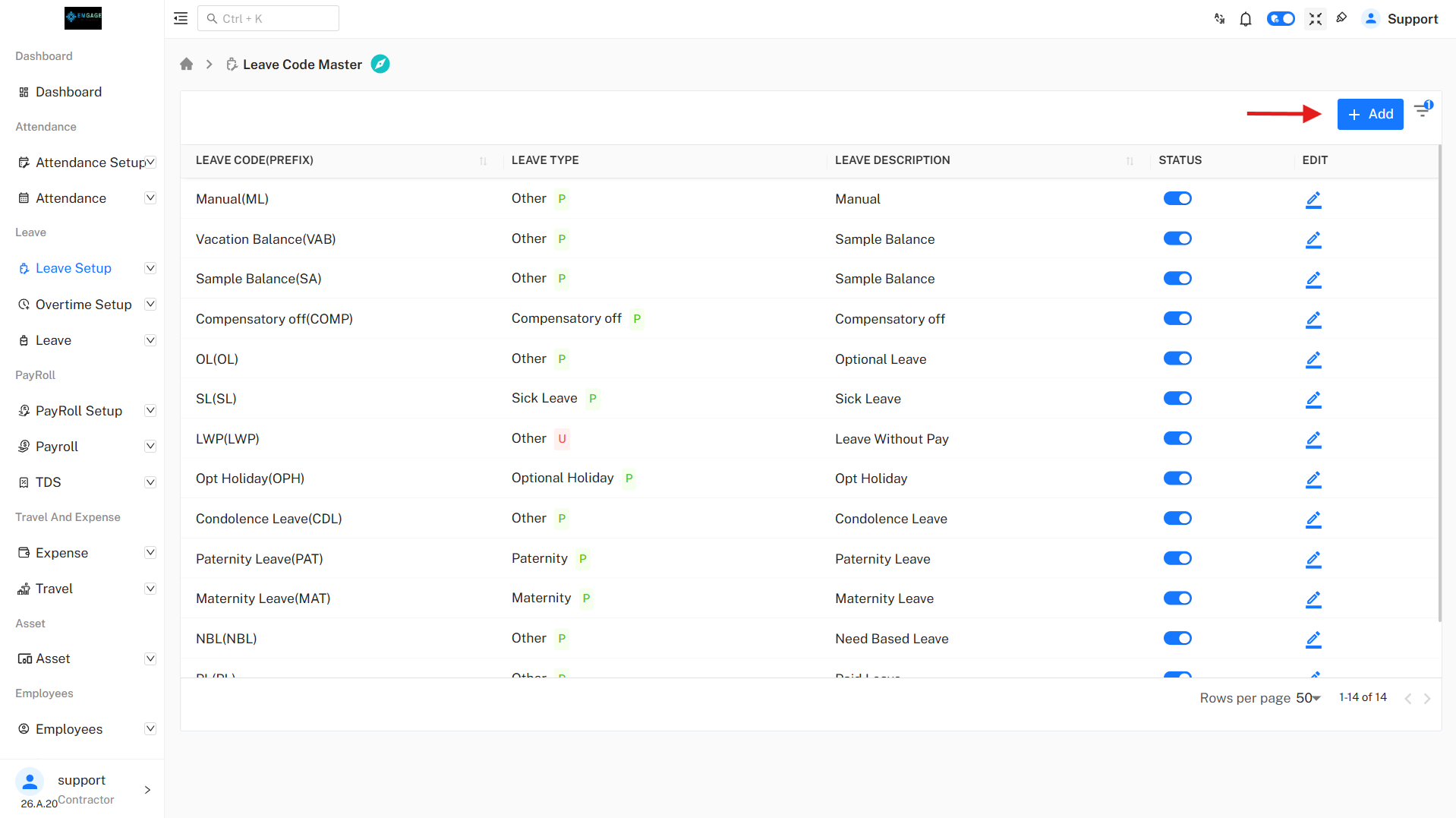
Leave Code Policy Page
After clicking + Add, you will see a page like this:
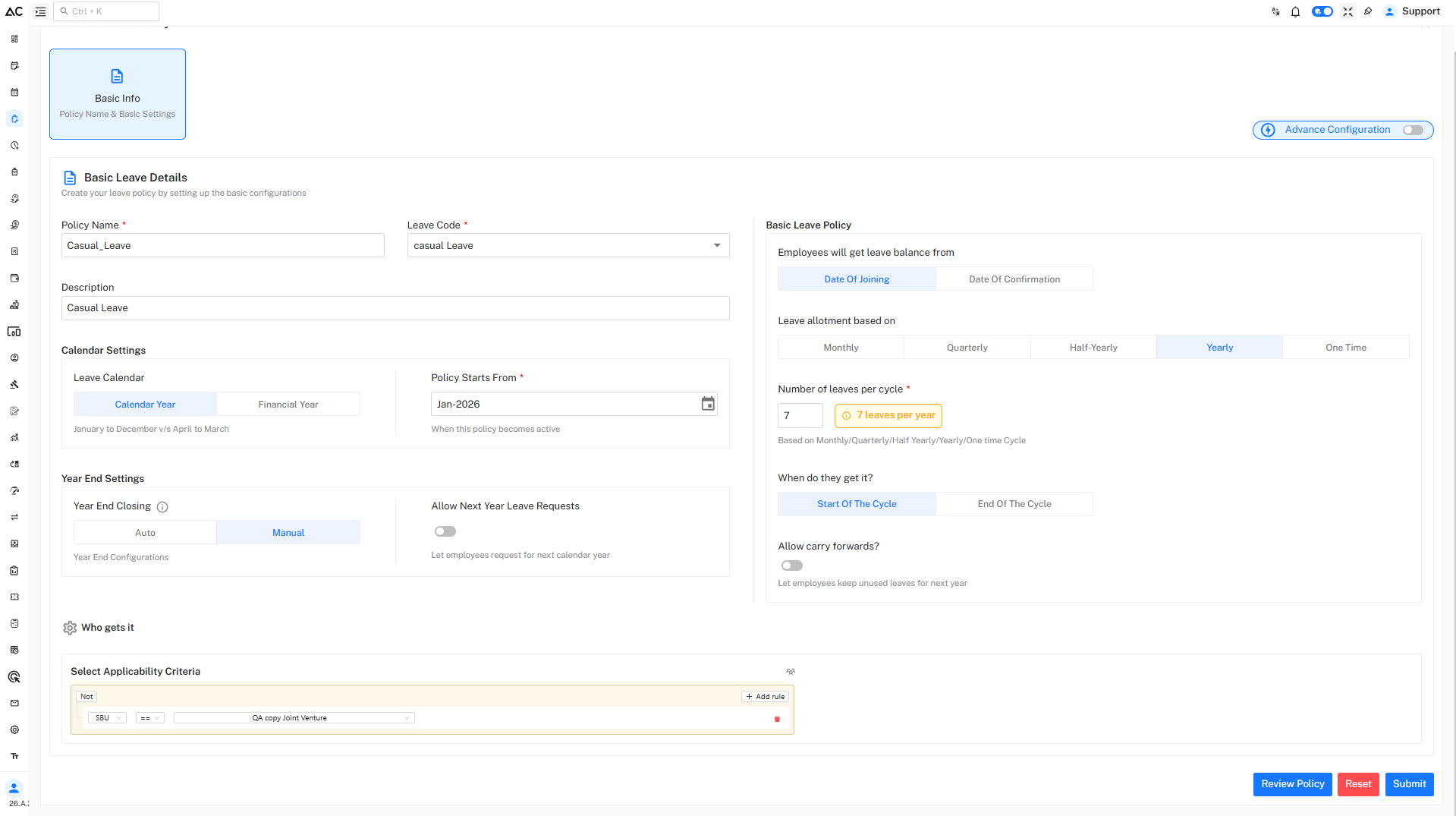
Fill the Details :
Enter the following information:
- Policy Name: Casual Leave
- Leave Code: CL
- Description: Casual leave
Calendar Settings
Under Calendar setting, configure the following options:
Leave Calendar :
- Calendar Year (January to December):
The leave year starts on 1st January and ends on 31st December. All leave usage, balance, and carry forward are calculated in this period.
- Financial Year (April to March):
The leave year starts on 1st April and ends on 31st March of the next year. Leave balance and carry forward are managed in this financial year.
Policy Start Date :
- Defines the month and year from which the leave policy becomes effective.
Year End Settings
Year End Closing:
-
Auto : Balance is auto-updated on the first date of the new year.
-
Manual : Balance is updated after freezing the last month's attendance.
Allow Next Year Leave Requests:
-
Disabled : Employees can apply only for this year’s leave.
-
Enabled : Employees can apply for leave for next year.
Basic Leave Policy Configuration
Leave Balance Entitlement
Choose when employees will receive their leave balance:
-
Date of Joining : Leave balance starts from the employee’s first working day in the organization. Employees can apply for leave from the day they join.
-
Date of Confirmation : Leave balance starts only after the employee is confirmed (post-probation). Leave cannot be availed before confirmation.
Leave Allotment Based On
Select how leaves are credited:
-
Monthly: (You get assigned leave every month. For example, 1 leave on the first day of each month.)
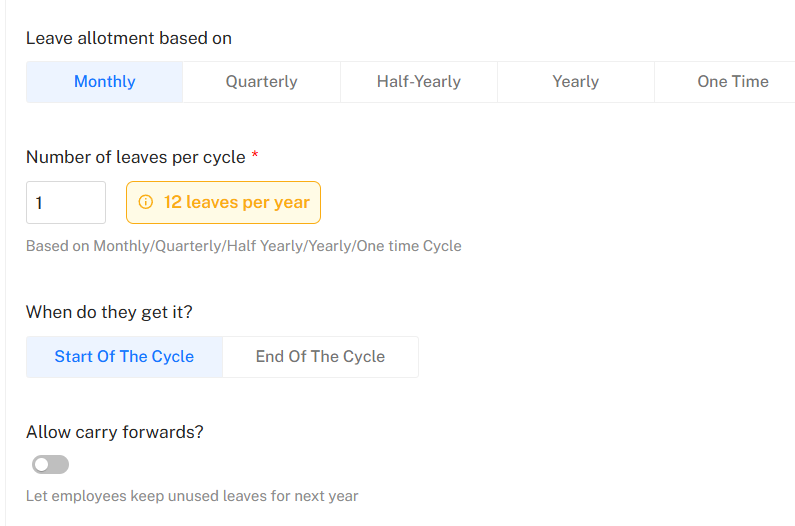
- The image shows how leave is given to employees.
- Employees get 1 leave every month, making 12 leaves in a year, and the leave is added at the start of each month.
- Carry-forward is not allowed, so unused leaves cannot be used next year.
- Leave allotment depends on the selected option: it can be credited at the start of the cycle (beginning of the month) or at the end of the cycle (after the month ends and attendance is processed).
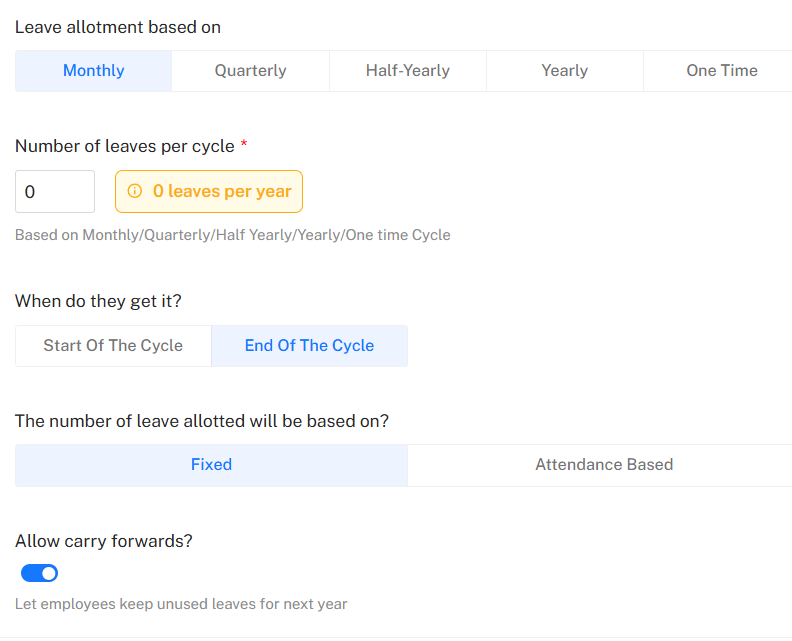
- This image shows a monthly leave allotment setup.
- Employees receive 1 leave per month, making 12 leaves per year, and the leave is credited at the end of each cycle (month).
- End of the cycle means the leave is credited after the monthly attendance is frozen.
- The leave amount is fixed, meaning it is given regardless of attendance. If attendance-based is selected, leave credit depends on the employee’s attendance (for example, present days or meeting attendance rules).
- The image shows how leave is given to employees.
-
Quarterly: (You get leave every three months. For example, 3 leaves in January, April, July, and October.)
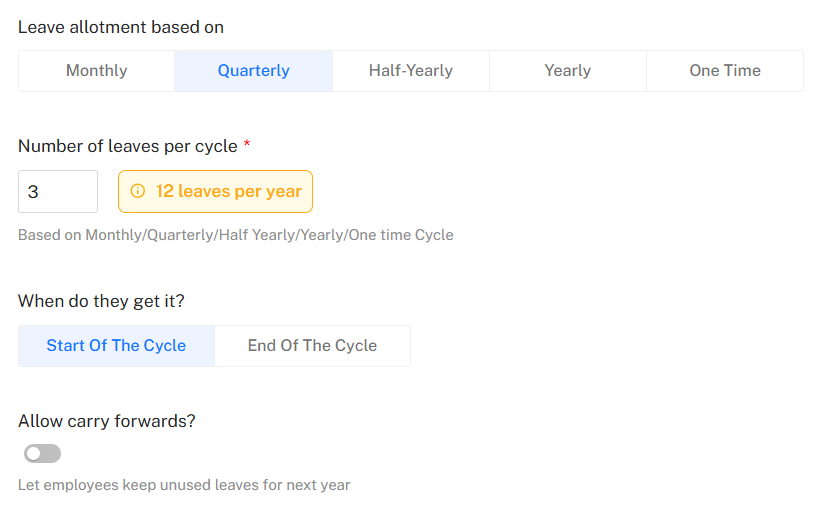
- This image shows a quarterly leave allotment setup.
- Employees receive 3 leaves per quarter, totaling 12 leaves per year, and the leave is credited at the start of each cycle (quarter).
- Leave credit timing (start or end of the cycle) depends on how you configure the leave policy settings.
- Carry-forward is disabled, so unused leaves will not be carried to the next year.
- This image shows a quarterly leave allotment setup.
-
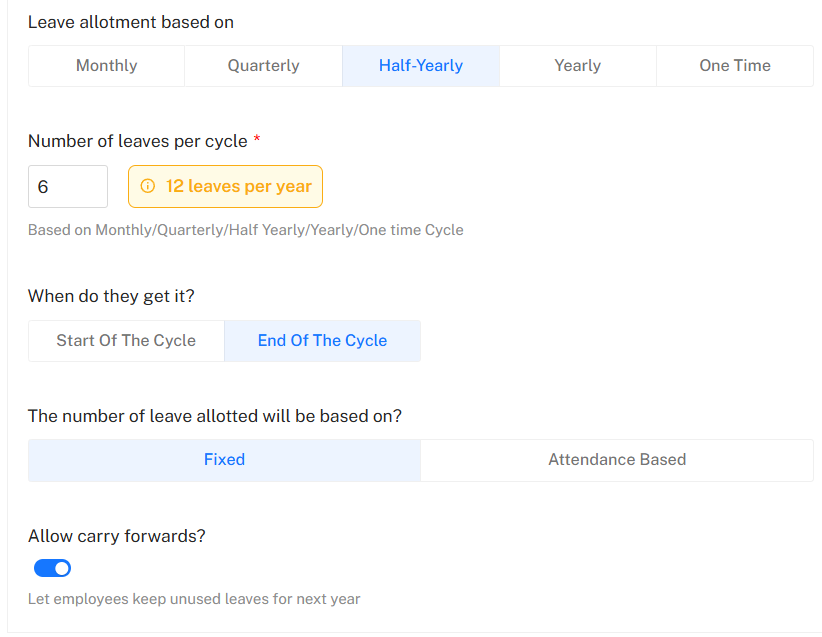
Half-Yearly: You get leave twice a year. For example, 6 leaves in January and 6 leaves in July.
-
This image shows a Half-Yearly leave allotment setup.
- Employees get 6 leaves every half year, which makes 12 leaves in one year. The leave is added at the end of the half-year, after attendance is completed and frozen.
- The leave count is fixed, so it is given even if attendance is low. If attendance-based is selected, leave will be given only after meeting attendance rules.
- The carry-forward option is enabled, so unused leaves can be carried to the next year.
-
-
Yearly: You get all your leave once a year. For example, 12 leaves on January 1.
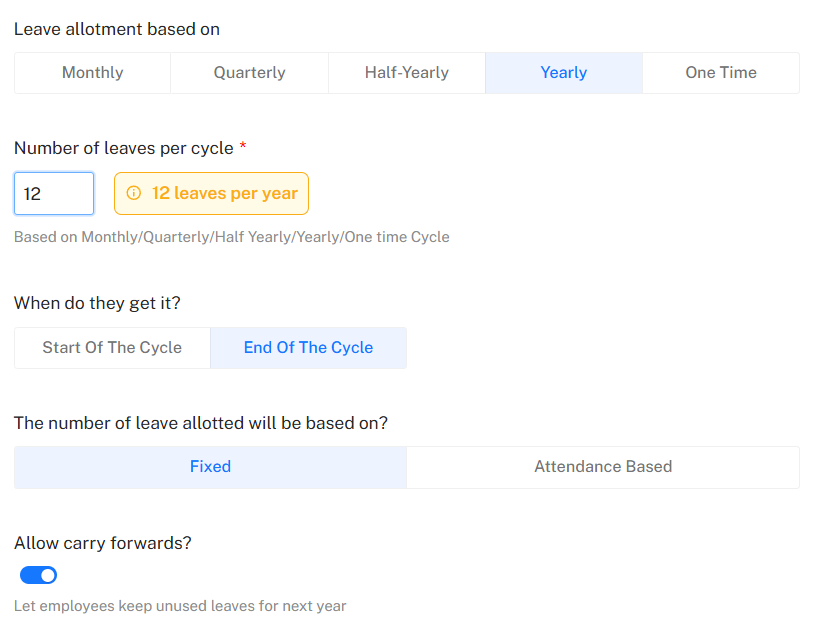
- This image shows a yearly leave allotment setup.
- Employees receive 12 leaves once in a year, and the leave is credited at the end of the cycle, after yearly attendance is completed and frozen.
- The leave count is fixed (not attendance-based), and unused leaves can be carried forward to the next year.
- This image shows a yearly leave allotment setup.
-
One Time: You get leave only one time in the year. For example, 3 condolence leaves given at the start of the year and no more after that.
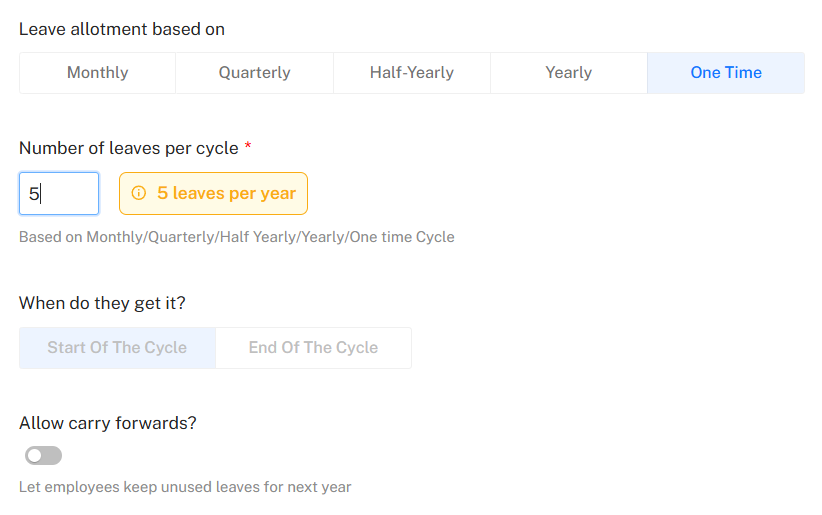
- This image shows a one-time leave allotment setup.
- When One-Time is selected, the leave is credited immediately.
- Even if Date of Confirmation was selected earlier, the system will use the Date of Joining, because one-time leave cannot wait for confirmation.
- The leave is counted on a yearly basis, as it is given in advance for the year.
- This image shows a one-time leave allotment setup.
Number of Leaves per Cycle
-
This field defines how many leaves are given in each selected cycle.
Example shown:
- 1 leaves per cycle
- Result: 12 leaves per year
- This calculation changes automatically based on the cycle selected (Monthly / Quarterly / Yearly, etc.).
When Do They Get It?
Choose when the leave balance is credited:
-
Start of the Cycle: Leave is credited at the beginning of the cycle.
-
End of the Cycle: Leave is credited after the attendence is frozen (at the end).
Carry Forward
-
Allow carry forward? : Disabled
Unused casual leaves will not be carried forward to the next year. -
Allow carry forward? : Enabled
Unused leave will be carried forward to the next year.
Who Gets This Leave
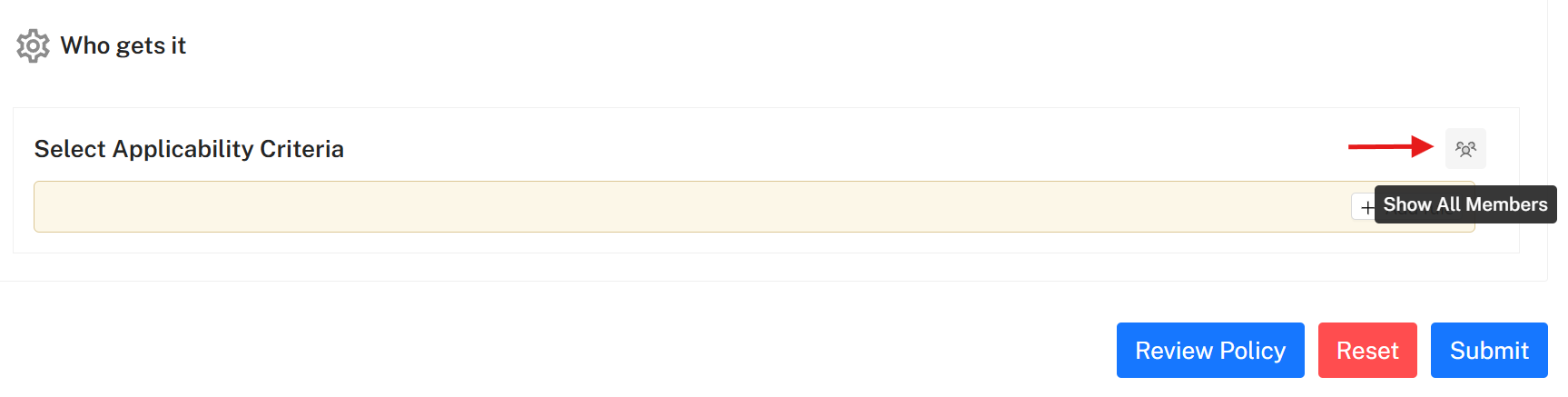
Under Who gets it, define the applicability criteria.
Steps:
- Click on Add rule
- Select criteria such as SBU
- Use Any in or Not conditions
This ensures the policy is applied only to eligible employees.
Show All Members
- This icon shows all policy members with their ID and name, allows you to search the list, and lets you download the data in PDF, Excel, or CSV format.
Review and Submit
- Click on Review Policy to verify all entered details
- Click Submit to create the Casual Leave policy
-15fa24131d9763b67d42c359c54820c7.png)
A success message will confirm that the Casual Leave policy has been created successfully.
Summary
Casual Leave is a fixed yearly leave policy:
- Credited at the start of the calendar year
- Not carried forward
- Configured with controlled eligibility
- Suitable for short-term personal requirements