Optional Holiday (OH)
- Optional Holiday (OH) allows employees to take leave on select optional or festival days based on personal, cultural, or regional preferences.
- These holidays can be availed from the predefined list provided by the organization.
Create Optional Holiday Policy
To create a new Optional Holiday (OH) policy, click on the + Add button on the Leave Code Policy List page.
Leave Code Policy Creation Page
After clicking + Add, the Basic Leave Details page will open as shown below:
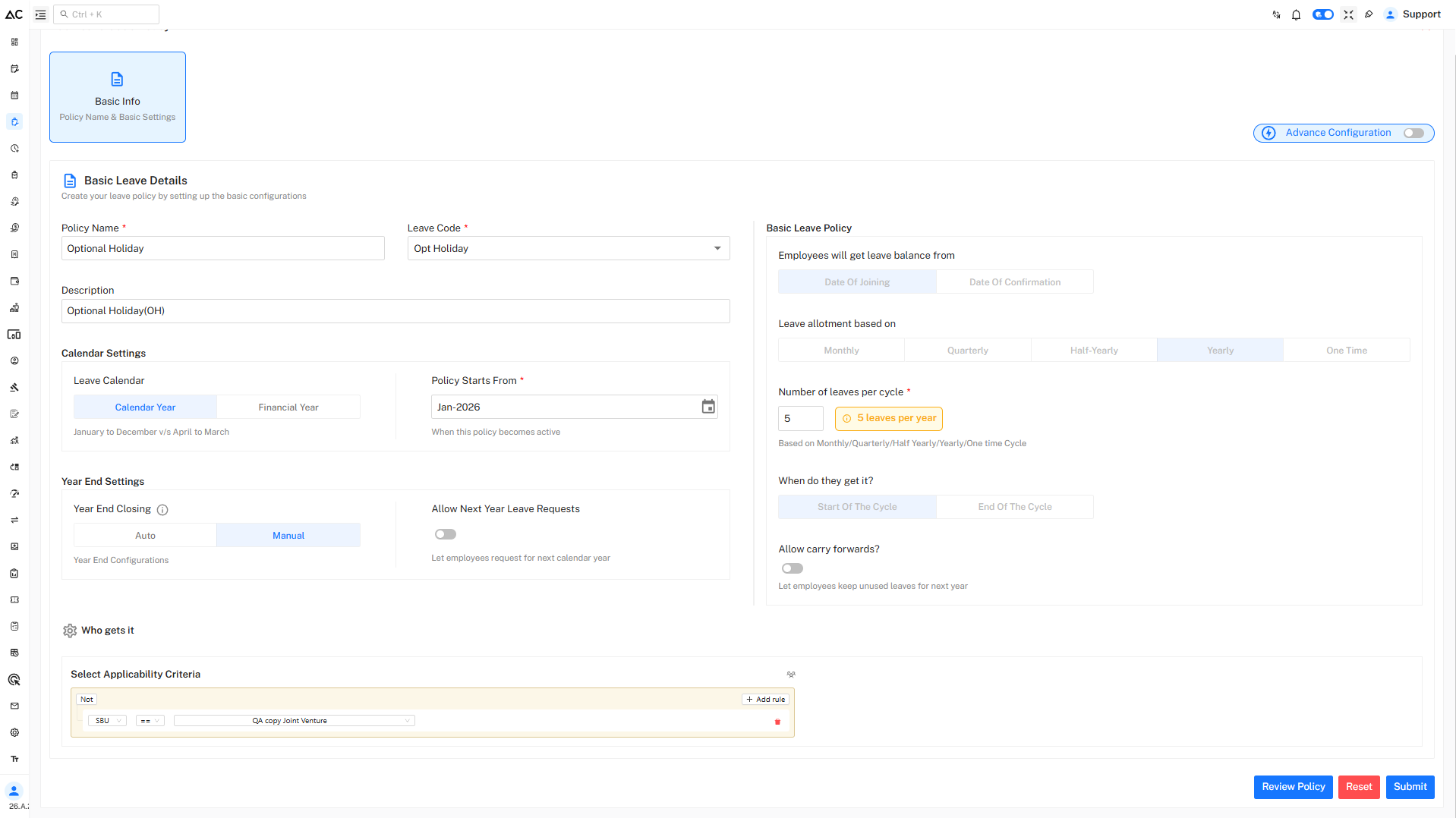
Basic Leave Details
Configure the following fields:
-
Policy Name
Enter the name of the Optional Holiday policy. -
Leave Code
Select or enter a unique code for Optional Holiday. -
Description
Provide a brief description of the Optional Holiday leave type.
Calendar Settings
Under Calendar Settings, configure the following options:
-
Leave Calendar
Choose whether the leave policy follows:- Calendar Year (January to December)
- Financial Year (April to March)
-
Policy Starts From
Select the date from which the policy becomes active.
Basic Leave Policy Configuration
Leave Balance Eligibility
Define when employees become eligible for Optional Holiday:
- Date of Joining
- Date of Confirmation
Leave Allotment Based On
Select how Optional Holidays are allotted:
- Yearly
- One Time
Number of Leaves per Cycle
Specify the number of Optional Holidays allowed per year.
Employees may choose from the approved optional holiday list.
When Do They Get It?
Define when the Optional Holiday balance is credited:
- Start of the Cycle
Carry Forward
Enable or disable carry forward to decide whether unused Optional Holidays can be carried to the next cycle.
Year End Settings
Configure year-end behavior for the Optional Holiday policy:
-
Year End Closing
Choose between:- Auto
- Manual
-
Allow Next Year Leave Requests
Enable this option if employees are allowed to apply for next year’s Optional Holidays in advance.
Who Gets This Leave
Under Who gets it, define the applicability rules for Optional Holiday.
Steps:
- Click Add rule
- Select applicable criteria such as:
- Role , Designation , Department , Employee , Employement-Type , State , Branch , SBU , Pay Cadre , Employee Type
- Use == , != , Any in , Not in , Is null , Is not null conditions to include or exclude employee groups.
Review and Submit
- Click Review Policy to verify all configurations.
- Click Submit to save the Optional Holiday policy.
A confirmation message will appear after successful creation.
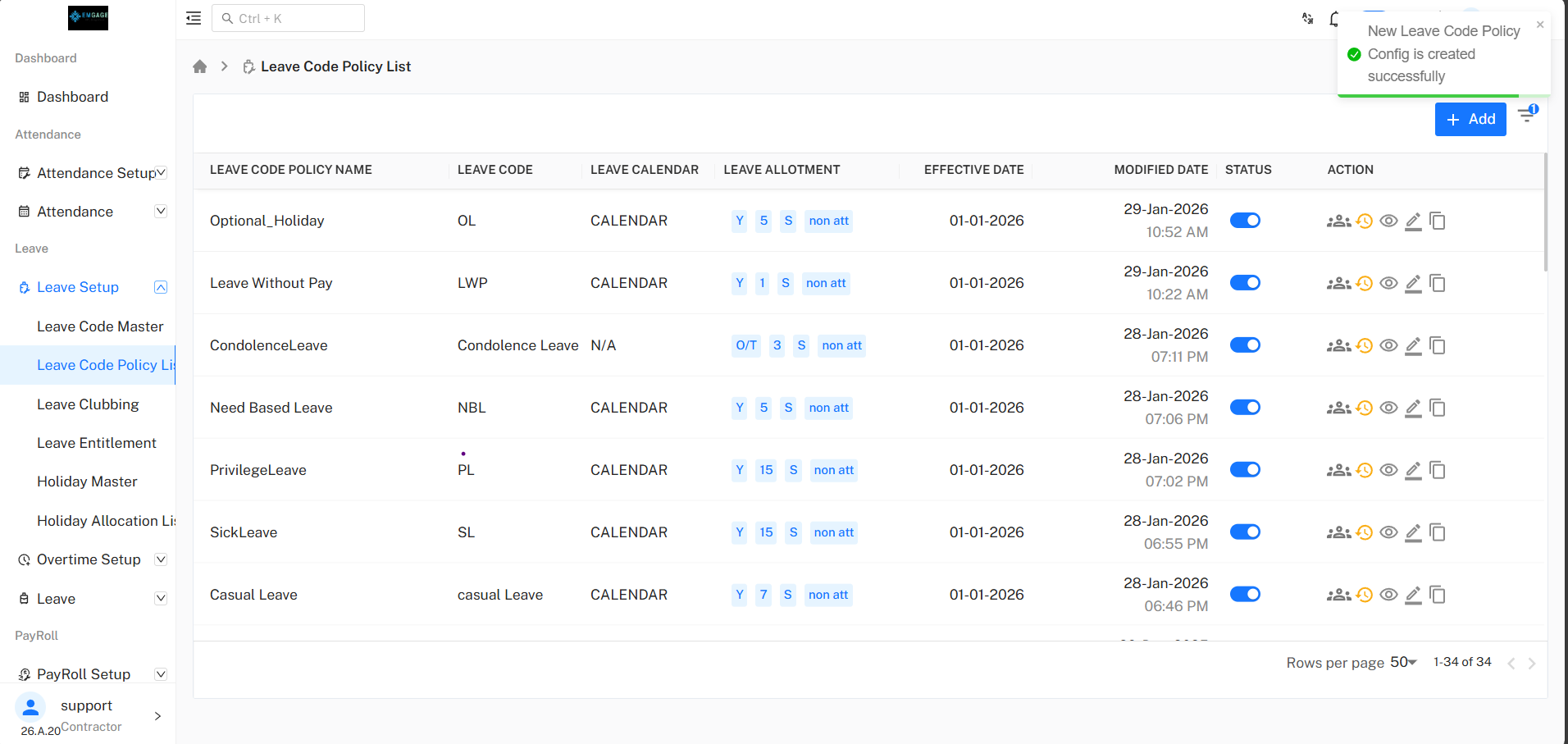
Policy Listing
Once created, the Optional Holiday policy will appear in the Leave Code Policy List, displaying:
- Leave code
- Allotment details
- Effective date
- Status
- Action options: View, Assign, Edit, Copy, History
Summary
- Optional Holidays are defined by the organization
- Employees can choose holidays based on personal or cultural preference
- Limited number of Optional Holidays per year
- Provides flexibility while maintaining a structured holiday policy