Compensatory Off (Comp-Off)
Overview
Compensatory Off (Comp-Off) allows employees to avail leave against extra working hours or days worked on holidays, week-offs, or approved off days.
This document explains the end-to-end process of applying, approving, and cancelling Comp-Off in the Leave module.
Step 1: Raise Extra Working Request
Employees must first submit an Extra Working Request to earn Comp-Off.
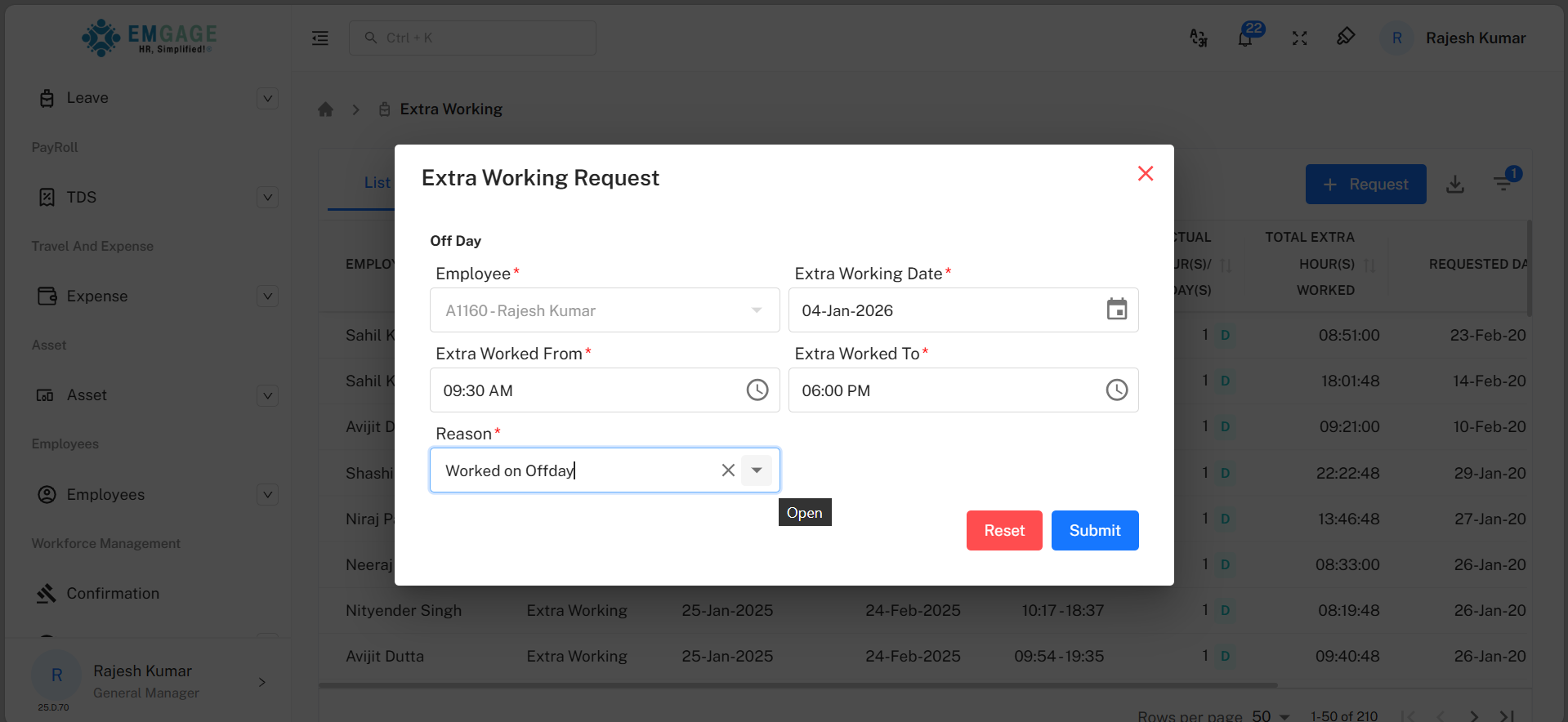
Fields:
- Employee – Name of the employee requesting extra working.
- Extra Working Date – Date on which extra work was performed.
- Extra Worked From – Start time of extra working.
- Extra Worked To – End time of extra working.
- Reason – Reason for extra working (mandatory).
Click Submit to raise the request.
Step 2: Approve / Reject Extra Working
Managers review extra working requests for approval.
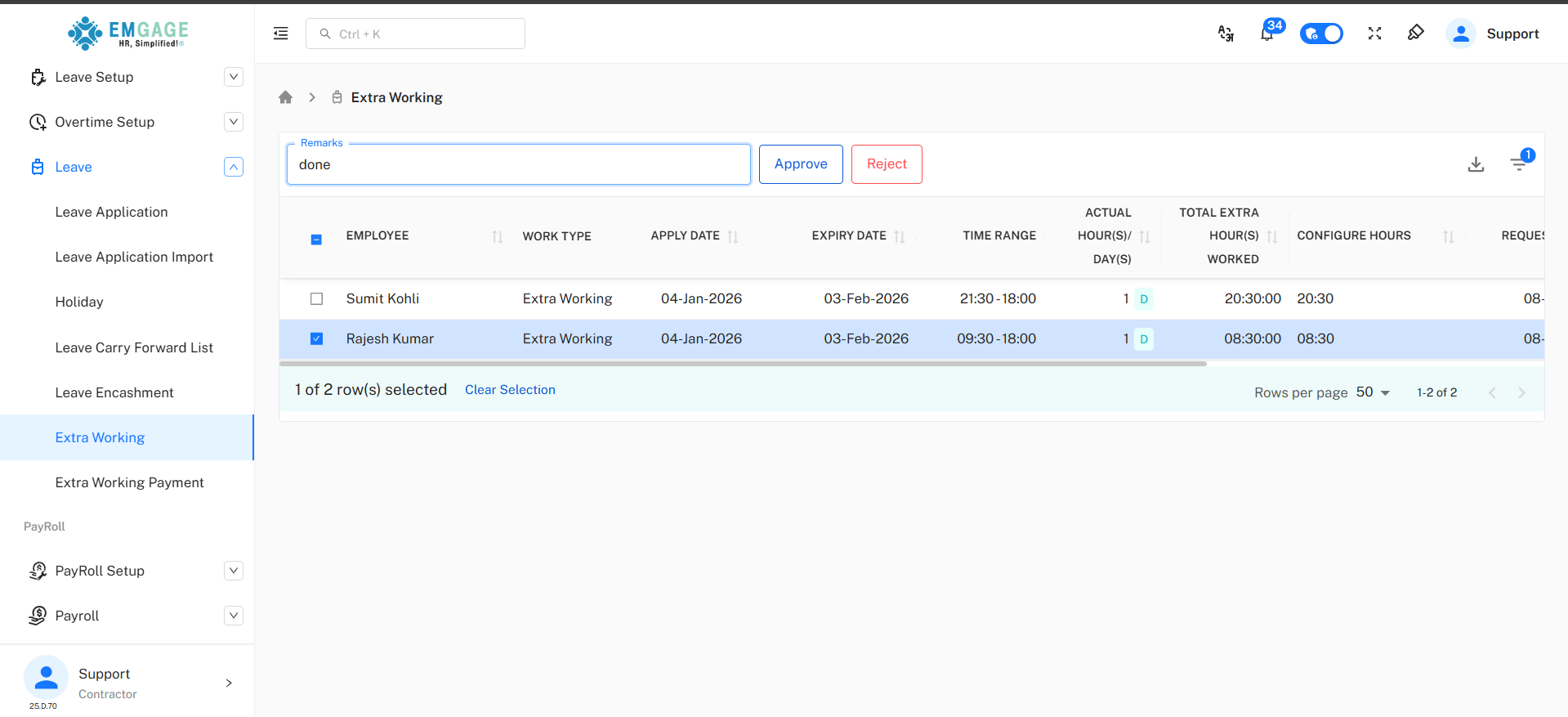
Actions:
- Approve – Approves the extra working request.
- Reject – Rejects the request with remarks.
- Remarks – Mandatory comments while approving or rejecting.
Once approved, the employee becomes eligible for Comp-Off.
Step 3: Apply Comp-Off Leave
After approval, employees can apply for Comp-Off leave.
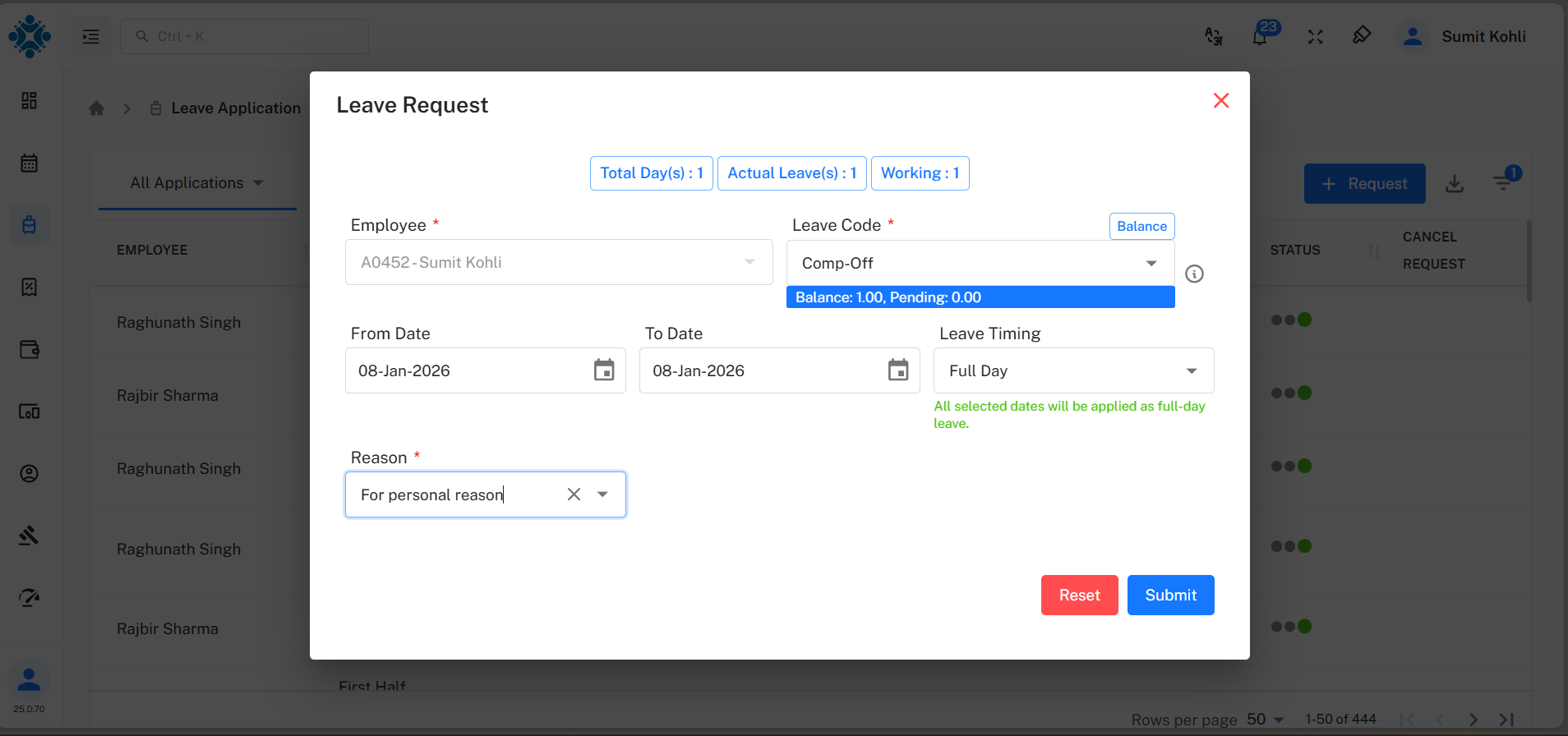
Fields:
- Employee – Auto-selected employee name.
- Leave Code – Select Comp-Off.
- From Date / To Date – Select leave date(s).
- Leave Timing – Full Day / Half Day.
- Balance – Displays available Comp-Off balance.
- Reason – Mandatory reason for leave.
Click Submit to apply.
Step 4: Comp-Off Leave Status
Submitted Comp-Off requests appear under Leave Application List.
Key Columns:
- Employee – Name of employee.
- Type / Code – Leave type (Comp-Off).
- Start Date / End Date – Leave duration.
- Total Leaves – Number of days applied.
- Requested Date – Date of request.
- Reason – Leave reason.
- Status – Approval status.
- Cancel Request – Option to cancel pending requests.
Step 5: Approval of Comp-Off Leave
Managers can approve or reject Comp-Off leave requests.
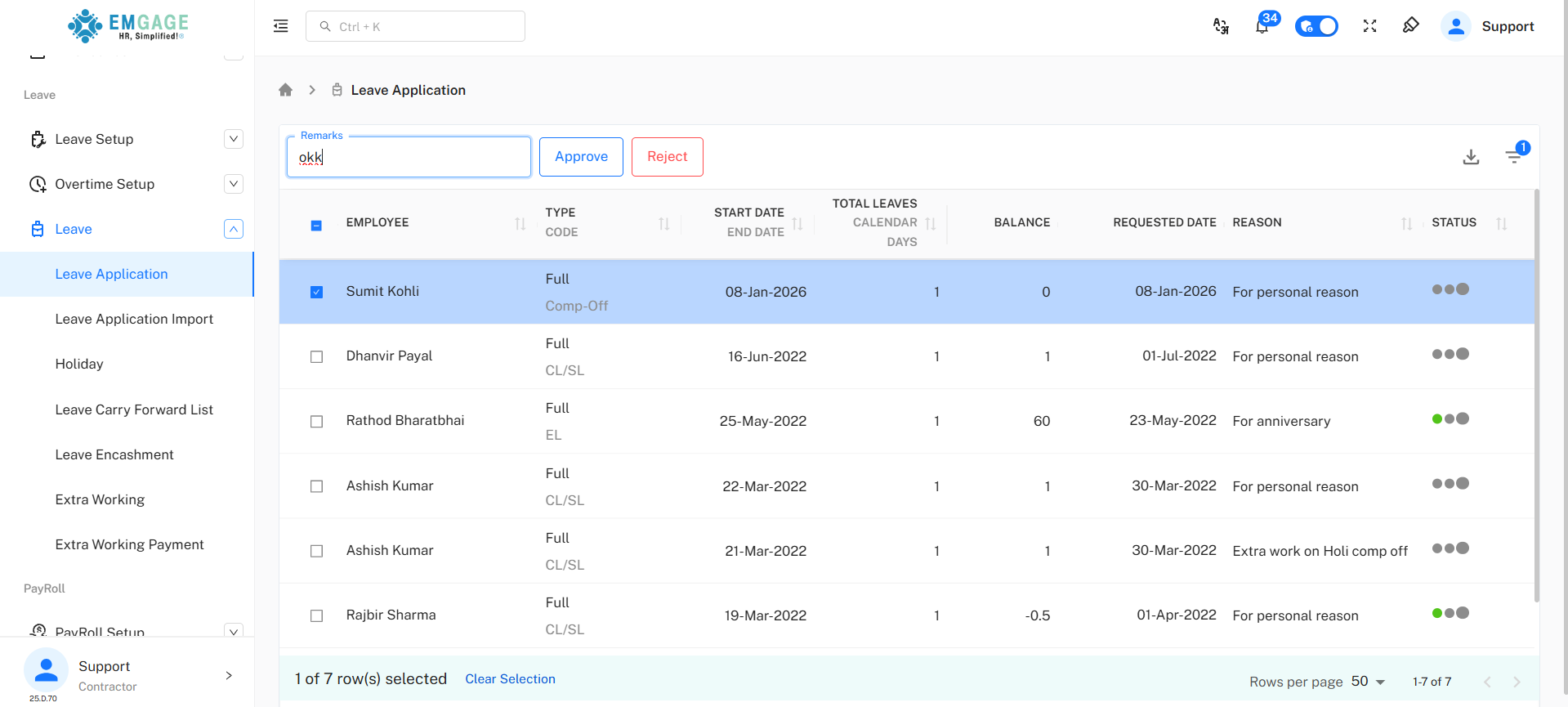
Actions:
- Select one or more requests.
- Enter remarks.
- Click Approve or Reject.
Step 6: Cancel Comp-Off Leave
Employees can cancel Comp-Off leave before or even after approval by clicking on the x.
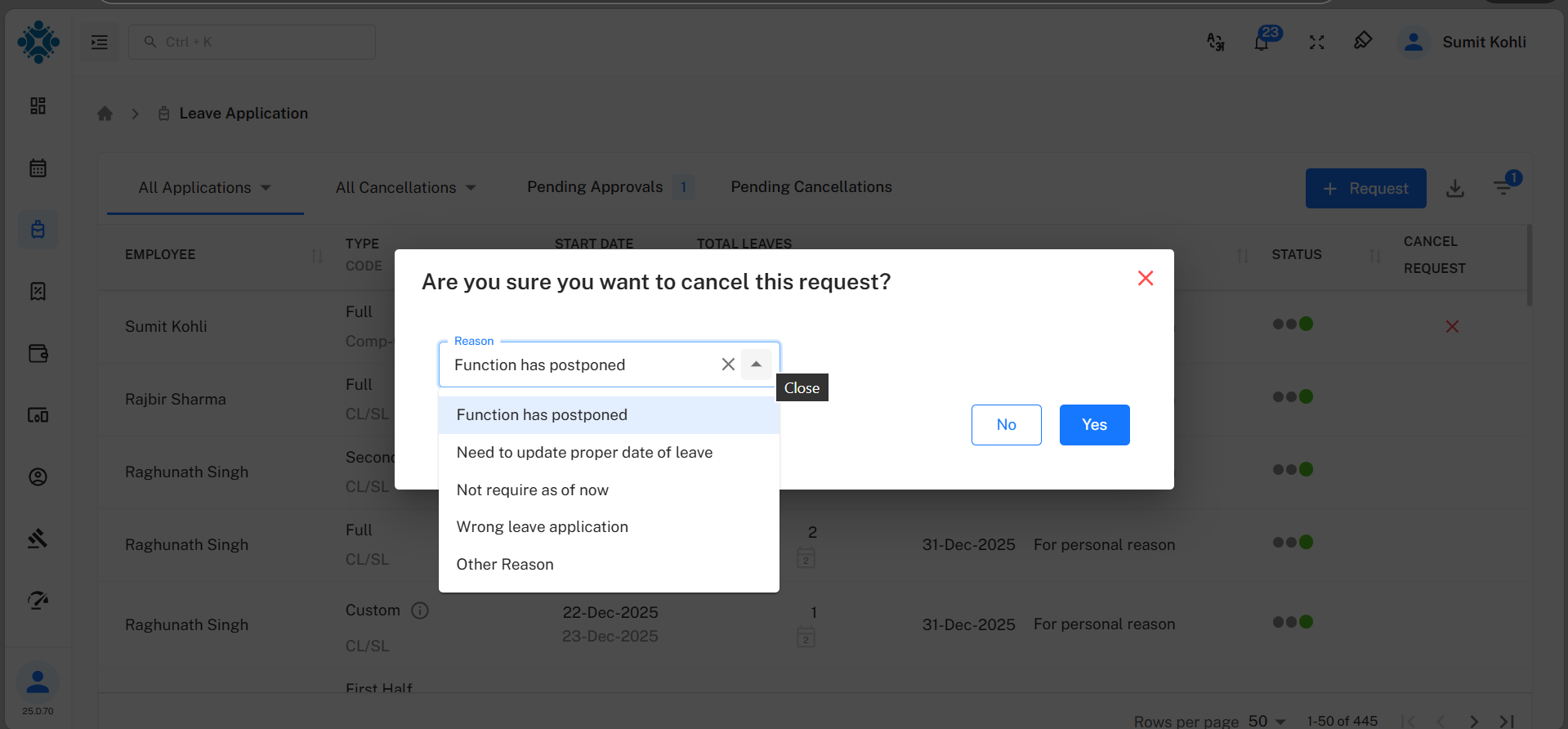
Cancellation Reasons:
- Function postponed
- Need to update proper date of leave
- Not required as of now
- Wrong leave application
- Other reason
Click Yes to confirm cancellation.
Important Notes
- Extra Working approval is mandatory to earn Comp-Off.
- Comp-Off balance is shown at the time of leave application.
- Comp-Off validity depends on company leave policy.
- Approved Comp-Off reduces available balance.
- Cancelled requests restore the balance if applicable.
Conclusion
The Compensatory Off feature ensures fair compensation for employees working beyond regular schedules, while maintaining transparent approval and tracking mechanisms.
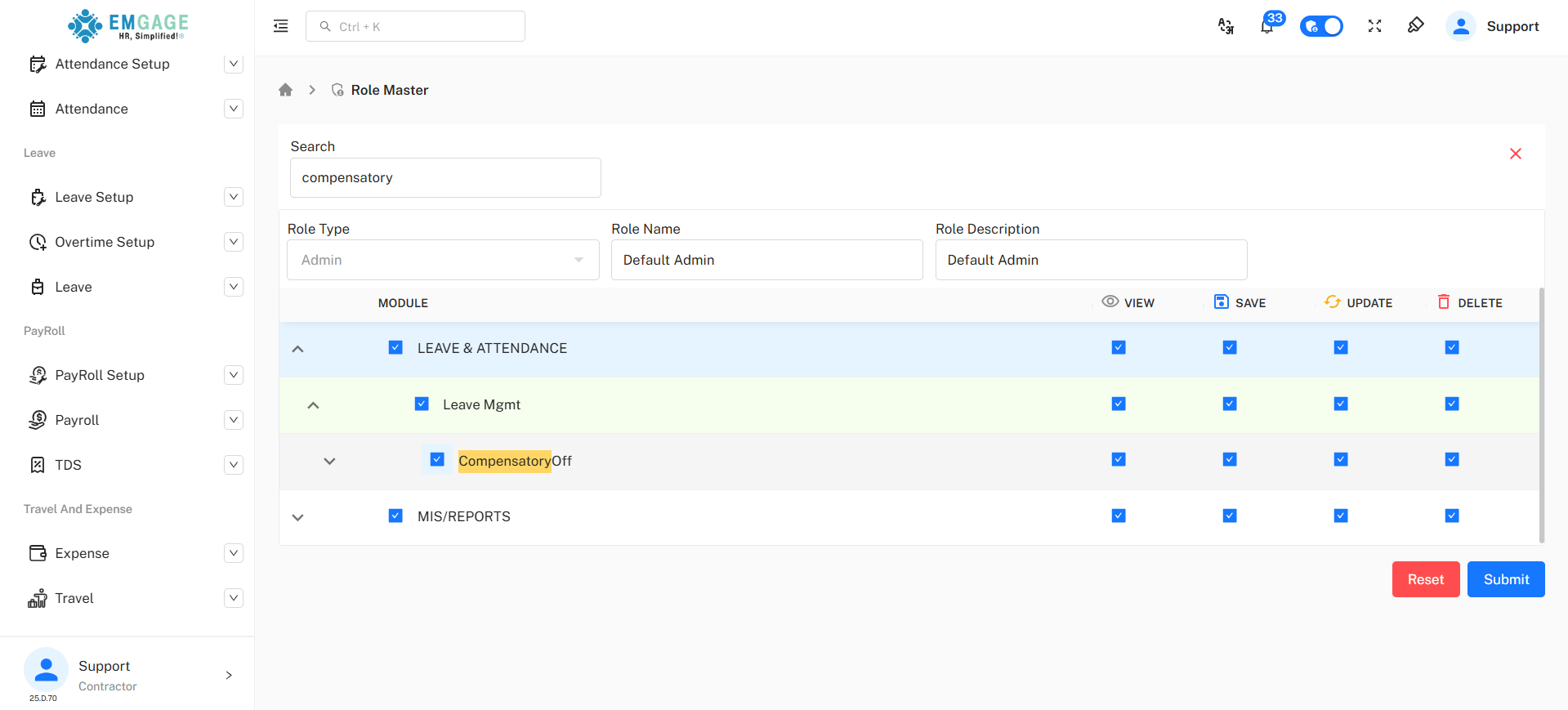
Turn on the permission :
Prerequisites
- Logged in to the EMGAGE Dashboard
- Access to Admin
- Permission to manage Role Master
Accessing Role Master
Use the Search option in the EMGAGE dashboard and search for Role Master.
Edit Admin Role :
- From the Role Master list, Find & Edit Admin.
- Search for compensatory off(available under the leave module)
This section displays all available compensatory off in checkbox format.