Leave Code Master
Last Updated: October 7, 2025
Document Version: 1.0
Prepared for: Emgage HRMS Implementation Team
The Leave Code Master module enables administrators to define and manage leave codes, prefixes, leave types (Paid / Unpaid), and associated leave reasons.
It ensures standardized leave structures across the organization and plays a key role in leave entitlement, approval workflows, and reporting.
This module supports creation, editing, activation/deactivation, and filtering of leave codes for streamlined HR operations.
System Overview
The Leave Code Master system is built around four key components:
- Leave Code List Table – Central view of all configured leave codes
- Toolbar Actions – Options to add, filter, and manage leave codes
- Add / Edit Leave Code Form – Configuration interface for defining leave attributes
- Leave Reason Mapping Panel – Allows attaching and managing leave reasons for each code
This structured design ensures accurate and standardized leave configuration across departments.
Leave Code List Table
The Leave Code List Table acts as the main dashboard displaying all created leave codes along with their configuration status.
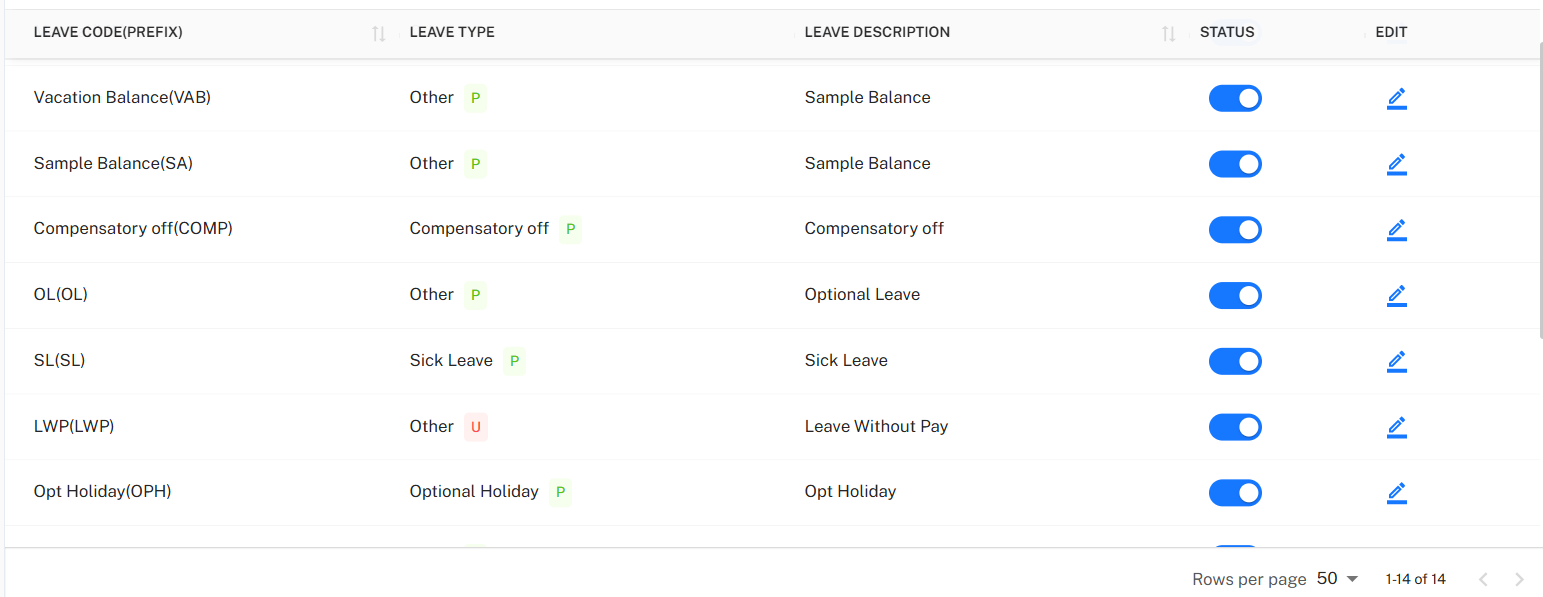
Table Columns
| Column | Description |
|---|---|
| Leave Code (Prefix) | Unique leave identifier along with its prefix. |
| Leave Type | Category of the leave (Paid, Unpaid, Other, Compensatory, etc.). |
| Leave Description | Functional meaning or purpose of the leave. |
| Status | Toggle to mark leave as Active or Inactive. |
| Edit | Opens the leave configuration in edit mode. |
Toolbar Actions
The toolbar provides quick access to configuration features located above the Leave Code List.

Available Options:
- + Add – Opens the Add Leave Code form
- Filter – Allows filtering leave records based on status
- Pagination Controls – Manage visible rows and page navigation
These options support efficient creation and maintenance of leave master records.
Add Leave Code
Administrators can create a new leave configuration using the Add Leave Code form.
The form allows defining leave identity, type, and descriptive details.
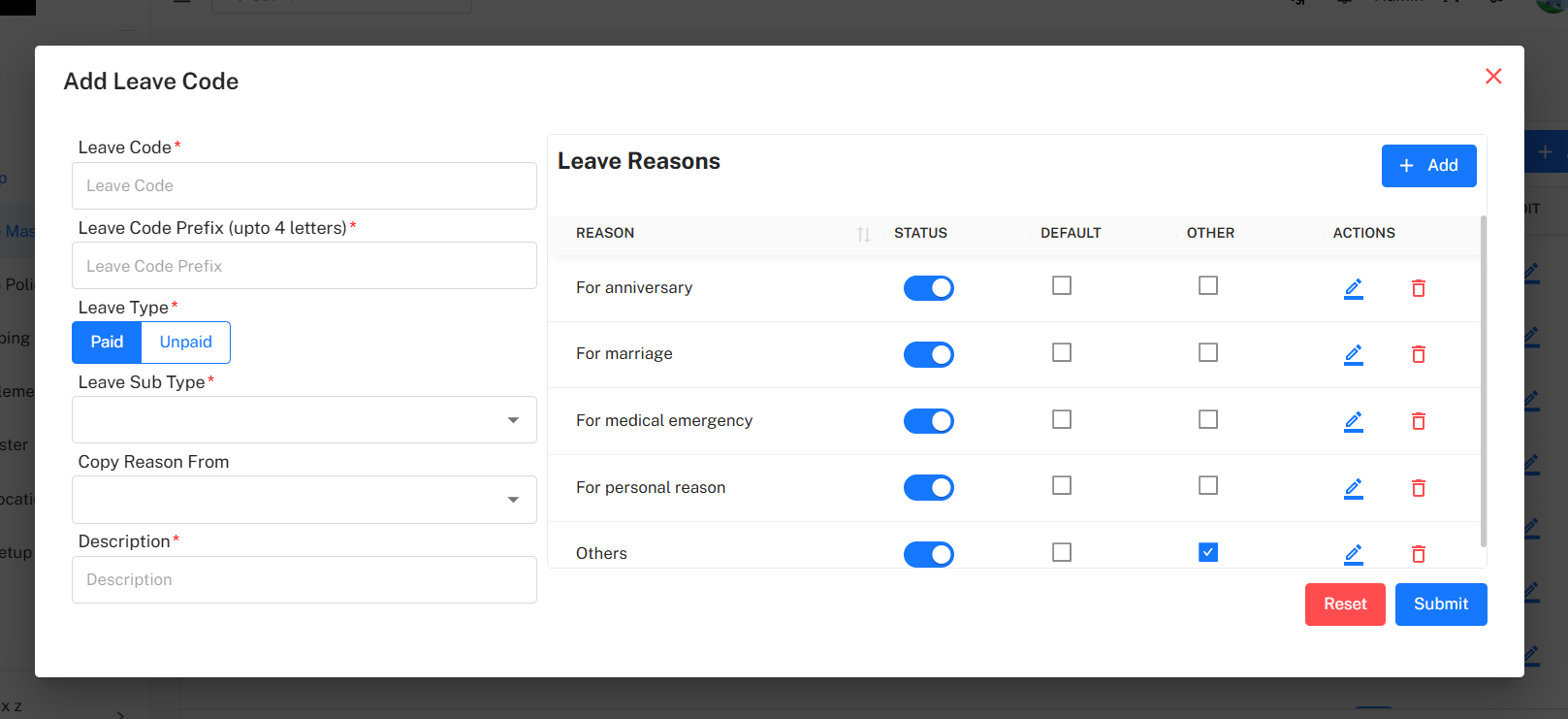
Mandatory Fields
| Field | Description |
|---|---|
| Leave Code | Full descriptive name of the leave (e.g., “Sick Leave”). |
| Leave Code Prefix (up to 4 letters) | Short identifier used in system records. |
| Leave Type | Select whether the leave is Paid or Unpaid. |
| Leave Sub Type | Category or classification of the leave. |
| Description | Brief purpose or explanation of the leave. |
Optional Field
| Field | Description |
|---|---|
| Copy Reason From | Allows copying existing leave reasons from another leave code. |
Actions
- Reset – Clears the form entries
- Submit – Saves the leave code and activates it in the system
Leave Reason Mapping
The right-side panel allows mapping multiple Leave Reasons to a leave code.
Each mapped reason can be activated, disabled, or marked as default.
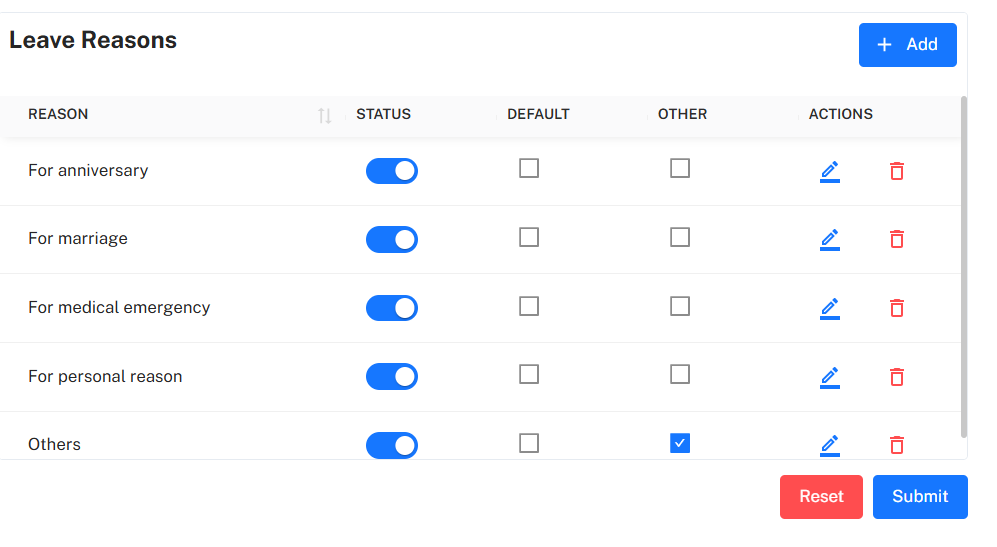
Reason Fields & Controls
| Field | Description |
|---|---|
| Reason | Text describing the reason for leave (e.g., Medical Emergency). |
| Status Toggle | Enables or disables the reason. |
| Default Checkbox | Marks the reason as the default selection. |
| Other Checkbox | Marks reason as optional (non-default but selectable). |
| Actions | Save, Edit, or Delete mapped reasons. |
Additional Controls
- + Add Reason – Adds a new reason row
- Reset – Clears all unsaved changes
- Submit – Saves mapped reasons with the leave code
Editing a Leave Code
Administrators can modify an existing leave configuration when required.
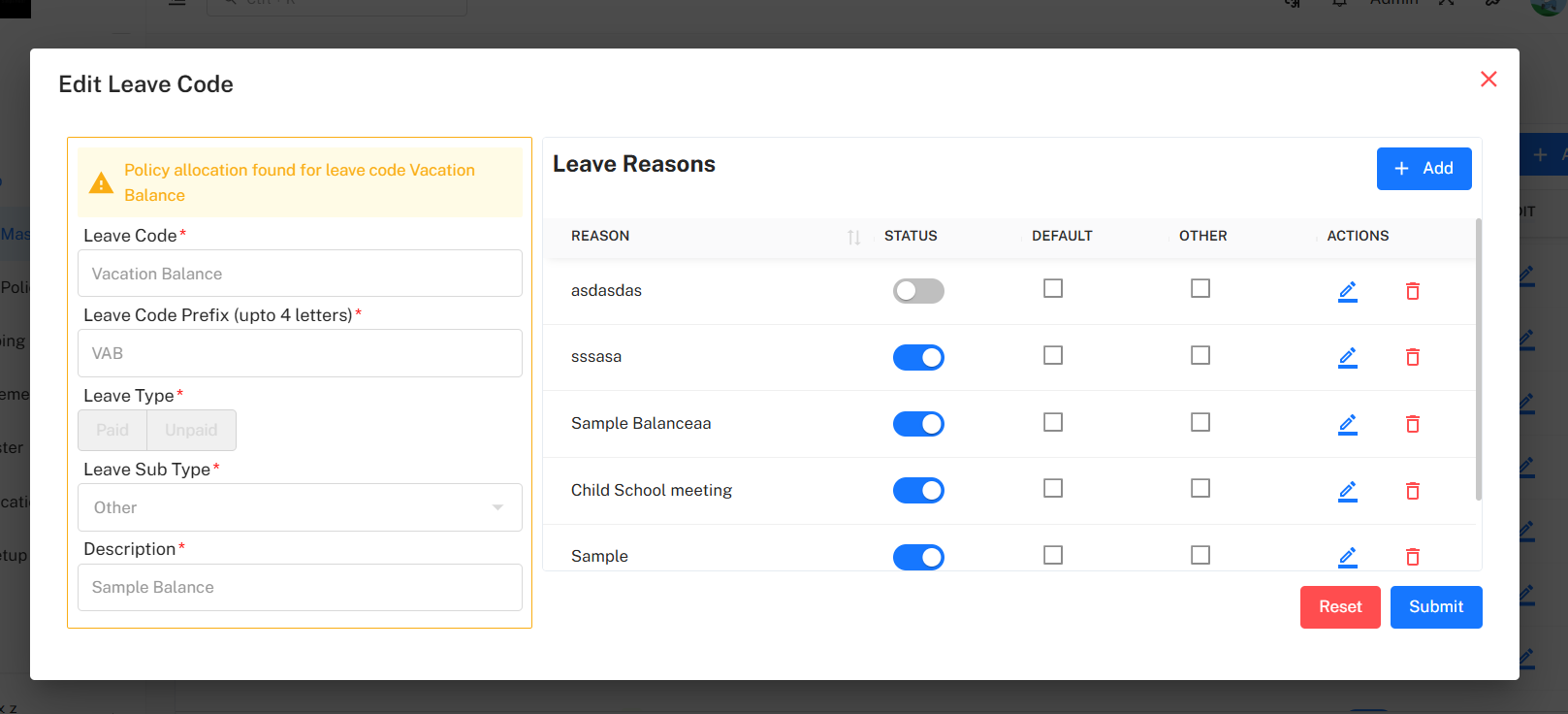
Editable Components:
- Leave Description
- Leave Sub Type
- Leave Reasons (activation / modification)
Core identifiers such as Leave Code and Prefix may be restricted based on configuration policies.
Upon saving, the updated leave details are immediately applied across the HRMS.
Activating & Deactivating Leave Codes
- The Status Toggle controls whether a leave code is active in the system.
- Inactive leave codes:
- Do not appear in employee leave applications
- Remain stored for audit and reference
- Reactivating makes the leave available again.
Filter Leave Codes
The Filter option allows narrowing results based on leave status.
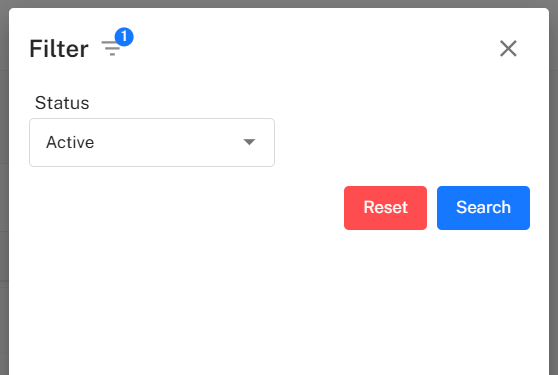
Available Filter
| Filter Type | Description |
|---|---|
| Status | Displays Active or Inactive leave codes only. |
Filter Actions
- Search – Applies selected filter criteria
- Reset – Clears filters and reloads full list
Implementation Guidelines
For HR Administrators:
- Use meaningful prefixes when creating leave codes
- Maintain standardized naming conventions
- Map reasons only when applicable
- Keep unused leave codes deactivated instead of deleting
- Validate leave category before publishing
For HR Teams:
- Review leave codes periodically for relevance
- Ensure descriptions align with company policy
- Avoid duplicate or overlapping codes
- Verify mapped reasons before enabling
Common Issues and Solutions
| Issue | Possible Cause | Recommended Solution |
|---|---|---|
| Leave not visible during application | Leave status set to Inactive | Enable the status toggle. |
| Duplicate leave code error | Same prefix or name already exists | Use a unique leave code / prefix. |
| Mapped reason not appearing | Reason disabled in mapping panel | Enable reason status toggle. |
| Incorrect leave category | Wrong type selected during setup | Edit leave code and update type. |
Best Practices
- Create leave codes based on HR policy structure
- Avoid unnecessary reason mapping unless required
- Use short & meaningful prefixes
- Perform testing before enabling new codes
- Maintain documentation for audit compliance