Leave Entitlement
Last Updated: October 7, 2025
Document Version: 1.0
Prepared for: Emgage HRMS Implementation Team
The Leave Entitlement module enables administrators to allocate, adjust, and maintain leave balances for employees.
It supports manual adjustments, entitlement credit/debit transactions, balance import, and reporting for audit and compliance purposes.
This module plays a critical role in ensuring accurate leave accounting and transparent leave history tracking.
System Overview
The Leave Entitlement system is structured around five key components:
- Leave Entitlement Table – Displays all employee leave entitlement records
- Toolbar Actions – Options to request adjustments, import balances, or upload C-Off data
- Add Leave Balance Form – Used for manual balance adjustment or credit/debit entry
- Import Leave / C-Off Balance Wizard – Step-by-step bulk upload workflow
- Advanced Filter Panel – Multi-criteria employee entitlement search
This modular design supports operational accuracy and efficient leave data maintenance.
Leave Entitlement Table
The Leave Entitlement Table provides a centralized view of leave balance transactions and entitlement records for employees.
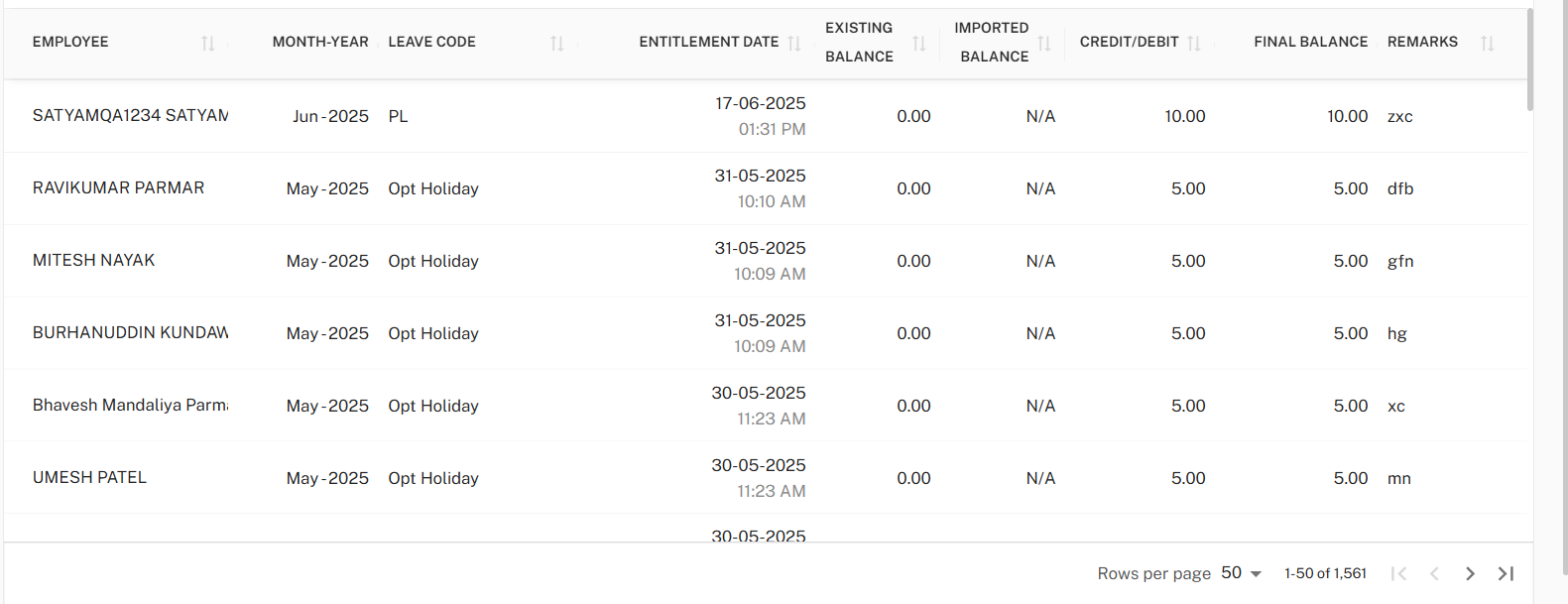
Table Columns
| Column | Description |
|---|---|
| Employee | Name of the employee for whom leave entitlement is recorded. |
| Month-Year | Period for which entitlement or adjustment is applied. |
| Leave Code | Leave type associated with the transaction. |
| Entitlement Date | Date and time when balance was updated or credited. |
| Existing Balance | Leave balance available before adjustment. |
| Imported Balance | Balance value uploaded via import (if applicable). |
| Credit/Debit | Leave units added or deducted. |
| Final Balance | Updated balance after credit/debit. |
| Remarks | Notes or reason for the entitlement change. |
Toolbar Actions
Located above the entitlement table, the Toolbar provides key balance management options.

Available Options:
- + C-Off Import – Opens the Compensatory Off balance import wizard
- + Import – Opens the Leave Balance import wizard
- + Request – Opens the manual Leave Balance Adjustment form
These options enable operational flexibility across bulk and manual updates.
Add Leave Balance (Manual Adjustment)
Administrators can manually credit or debit leave using the Add Leave Balance form.
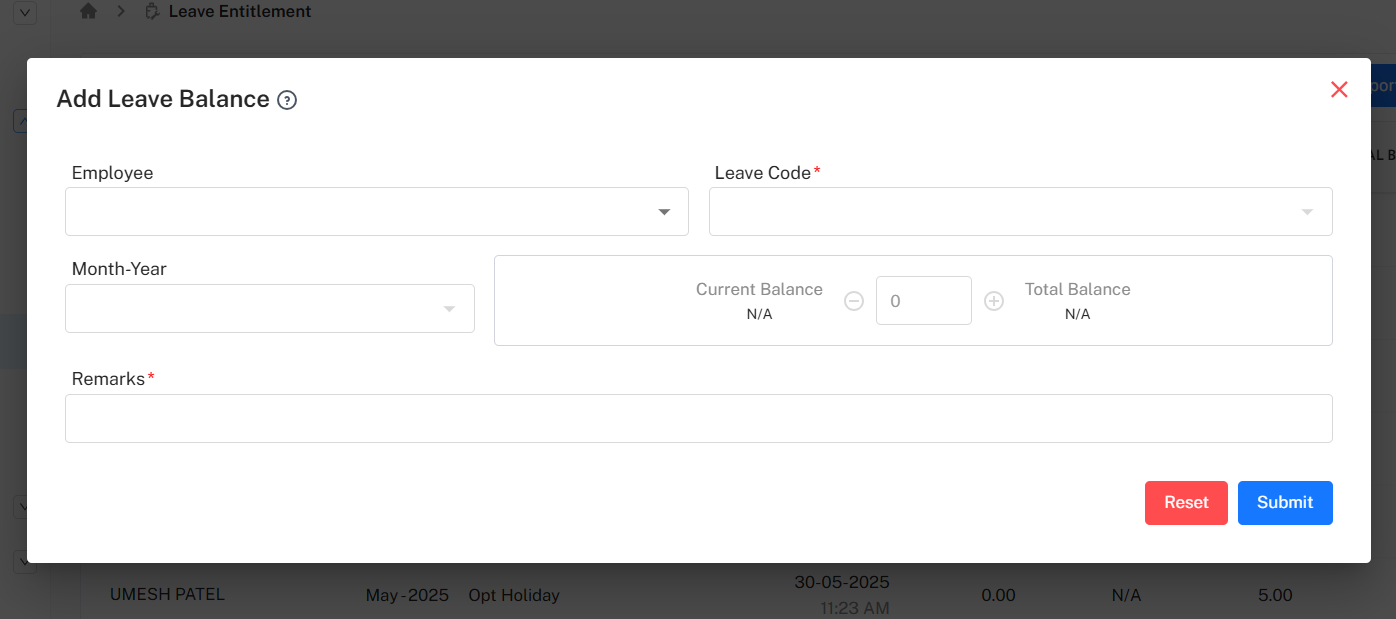
Mandatory Fields
| Field | Description |
|---|---|
| Leave Code | Select the leave type to be adjusted. |
| Remarks | Enter the reason for adjustment. |
Other Fields
| Field | Description |
|---|---|
| Employee | Select employee to whom balance applies. |
| Month-Year | Period during which balance is applied. |
| Current Balance | Displays existing balance before adjustment. |
| Total Balance | Displays balance after adjustment. |
Adjustment Actions
- Credit (+) – Add leave balance
- Debit (−) – Deduct leave balance
- Reset – Clears form input
- Submit – Applies leave balance transaction
Import Leave Balance (Bulk Upload)
The Import Leave Balance Wizard allows administrators to upload leave balance adjustments in bulk.
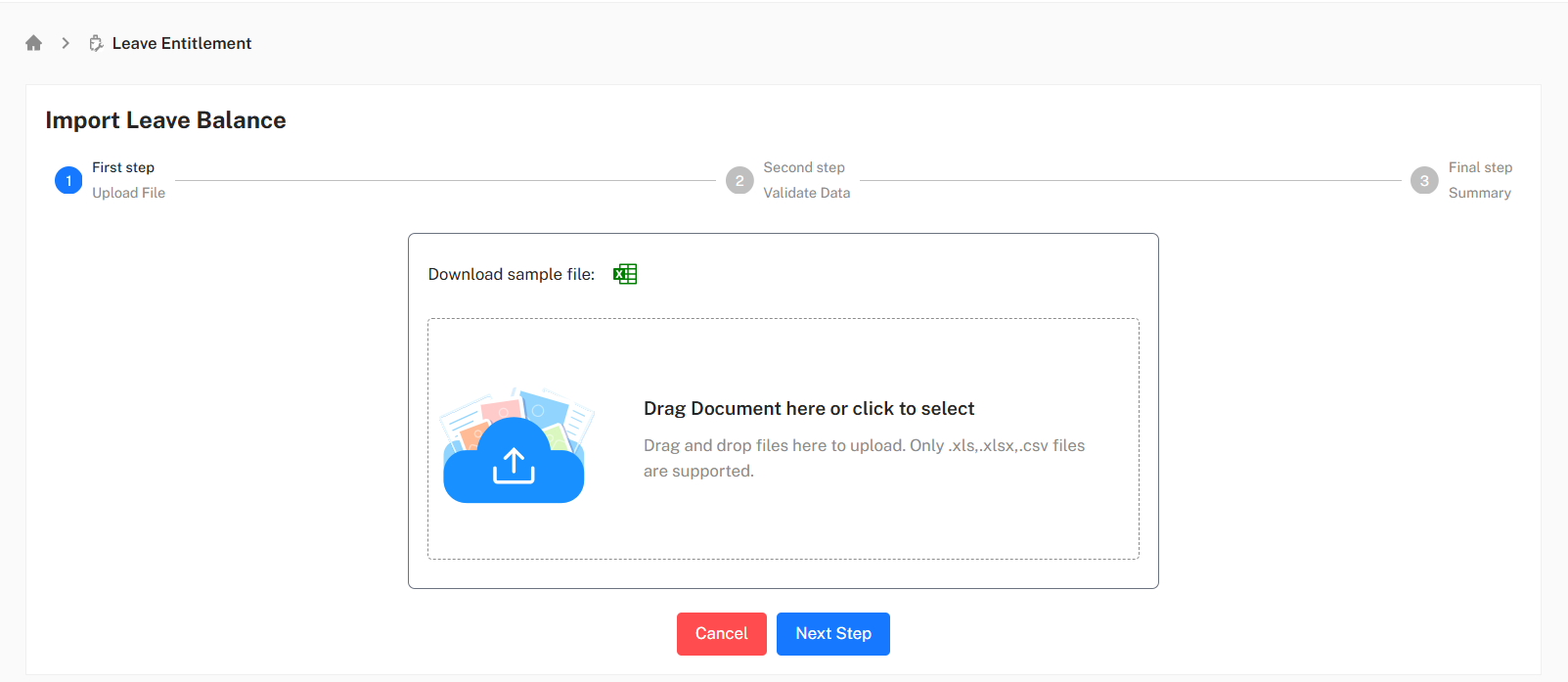
Import Workflow
- Upload File (XLS / XLSX / CSV)
- Validate Data – System scans format and values
- Summary & Confirmation – Successful records are posted
A downloadable sample template is provided before upload.
Supported use cases:
- Opening leave balances
- Periodic bulk updates
- System migration imports
Import C-Off Balance
The C-Off Import Wizard follows the same structured upload flow as Leave Balance Import.
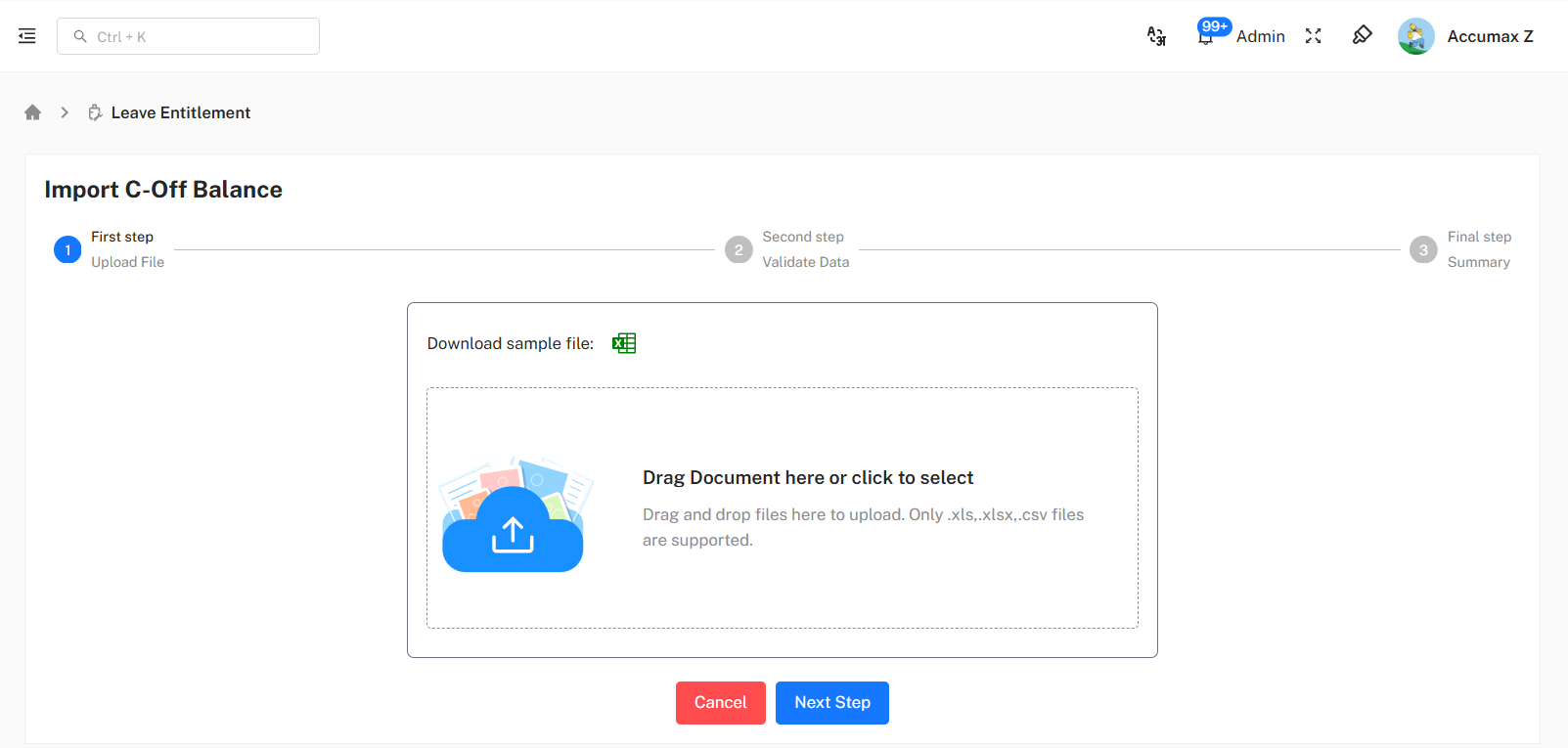
Typical scenarios:
- Credit compensatory off after overtime approval
- Bulk C-Off balance adjustments
- Historical C-Off upload during onboarding
Advanced Filter Panel
The Filter Panel allows precise entitlement search based on employee and organization attributes.
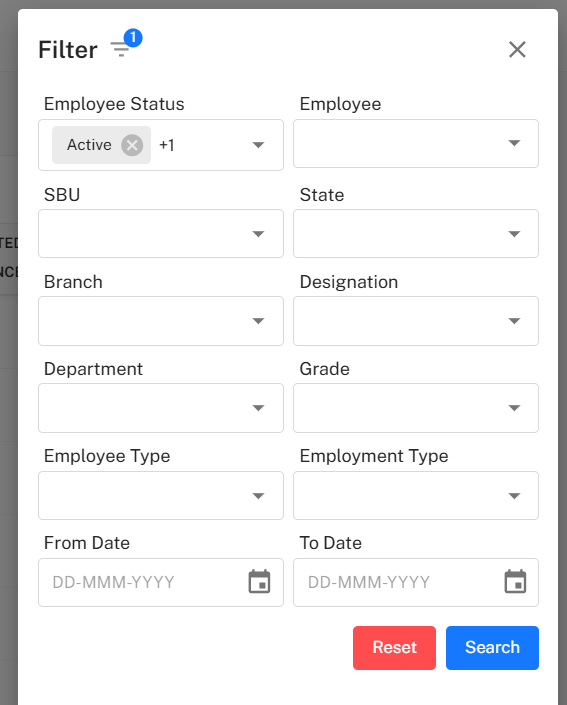
Available Filters
| Filter Type | Description |
|---|---|
| Employee Status | Filter by Active / Inactive employees. |
| Employee | Search entitlement for a specific employee. |
| SBU / State / Branch | Filter records based on organization structure. |
| Department / Grade / Designation | Role-based entitlement filtering. |
| Employee Type / Employment Type | Contractual vs permanent entitlement filtering. |
| From Date / To Date | Filter entitlement history by date range. |
Filter Actions
- Search – Displays matching entitlement records
- Reset – Clears all selected filters
Implementation Guidelines
For HR Administrators:
- Use Import functions for bulk transactions only
- Validate templates before uploading
- Maintain remarks for audit traceability
- Avoid duplicate balance posting for same period
- Review entitlement logs monthly
For Finance / Payroll Teams:
- Cross-verify balances before payroll locking
- Track manual adjustments separately
- Export entitlement logs when required
Common Issues and Solutions
| Issue | Possible Cause | Recommended Solution |
|---|---|---|
| Wrong balance posted | Incorrect upload file | Re-upload corrected file or reverse using adjustment. |
| File rejected during import | Invalid format or columns | Re-download sample template and re-upload. |
| Balance not visible | Wrong employee / date filter | Adjust filter parameters and search again. |
| Incorrect final balance | Duplicate entitlement entry | Review transaction log and correct entry. |
Best Practices
- Maintain single source of truth for entitlement updates
- Prefer import upload for mass adjustments
- Always add remarks for every transaction
- Perform data validation before final submission
- Keep an audit trail of manual adjustments