Extra Working Payment
Last Updated: October 6, 2025 Document Version: 1.0 Prepared for: Emgage HRMS Implementation Team
This module provides payment and compensatory off (Coff) management for employees working extra hours, with detailed approval and recalculation flows.
Tab Navigation
- List: All overtime payment records and statuses.
- Coff Approval: Compensatory Off approval and tracking.
- OT Approval: Overtime payment approval.
List Dashboard
View, filter, and manage all overtime payment records.
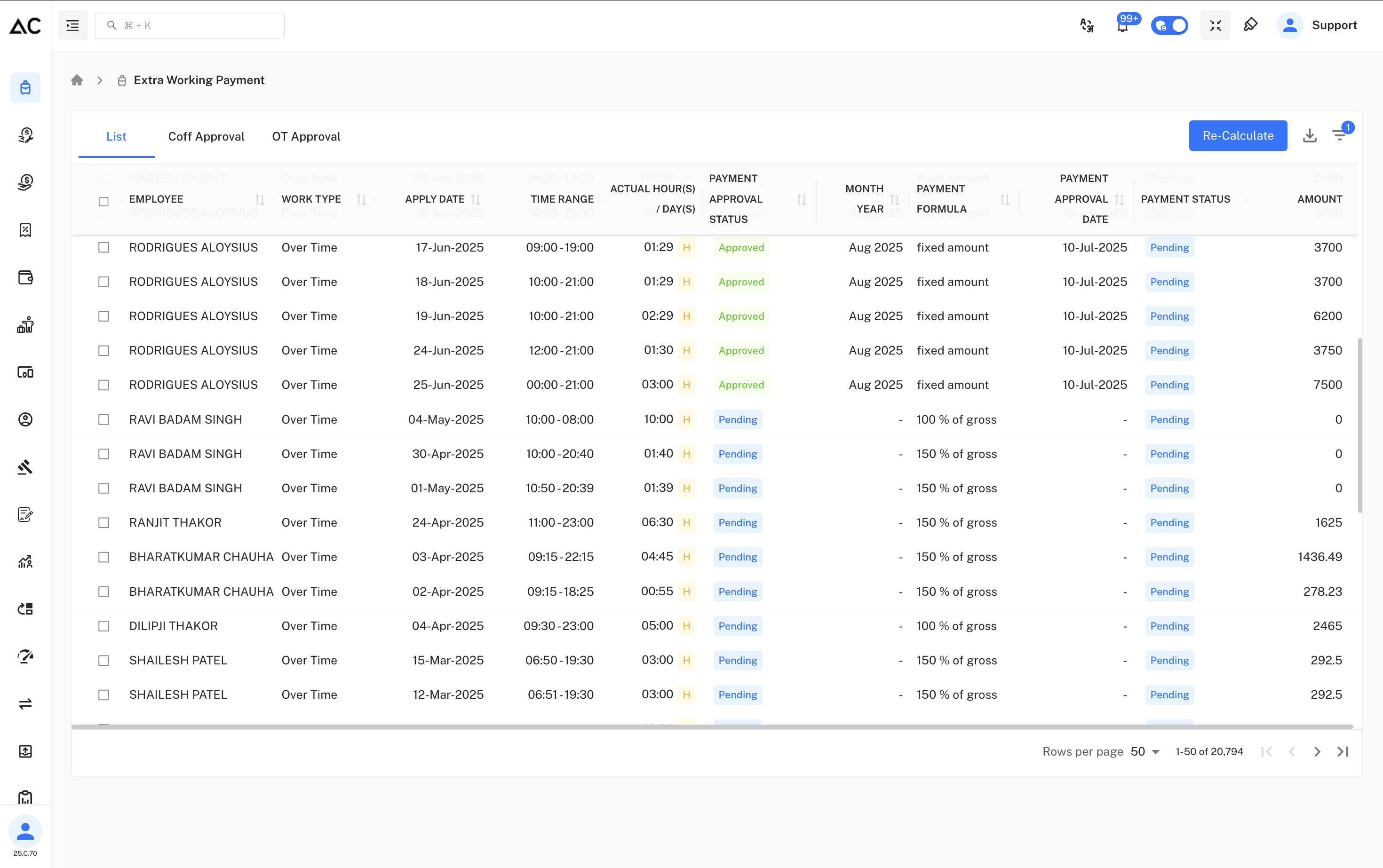
Columns:
- Employee: Name of employee.
- Work Type: Type (Over Time).
- Apply Date: When overtime was requested.
- Time Range: Working hours (start-end).
- Actual Hour(s)/Day(s): Calculated time with H (hour) indicator.
- Payment Approval Status: 'Approved' or 'Pending'.
- Month Year: Period of payment.
- Payment Formula: Payment method (e.g., fixed amount, % of gross).
- Payment Approval Date: Date of final approval.
- Payment Status: Pending or Paid.
- Amount: Final payable amount.
Re-Calculate Extra Working Amount
Click the blue Re-Calculate button to open a modal for updating payment amounts due to salary revision or corrections.
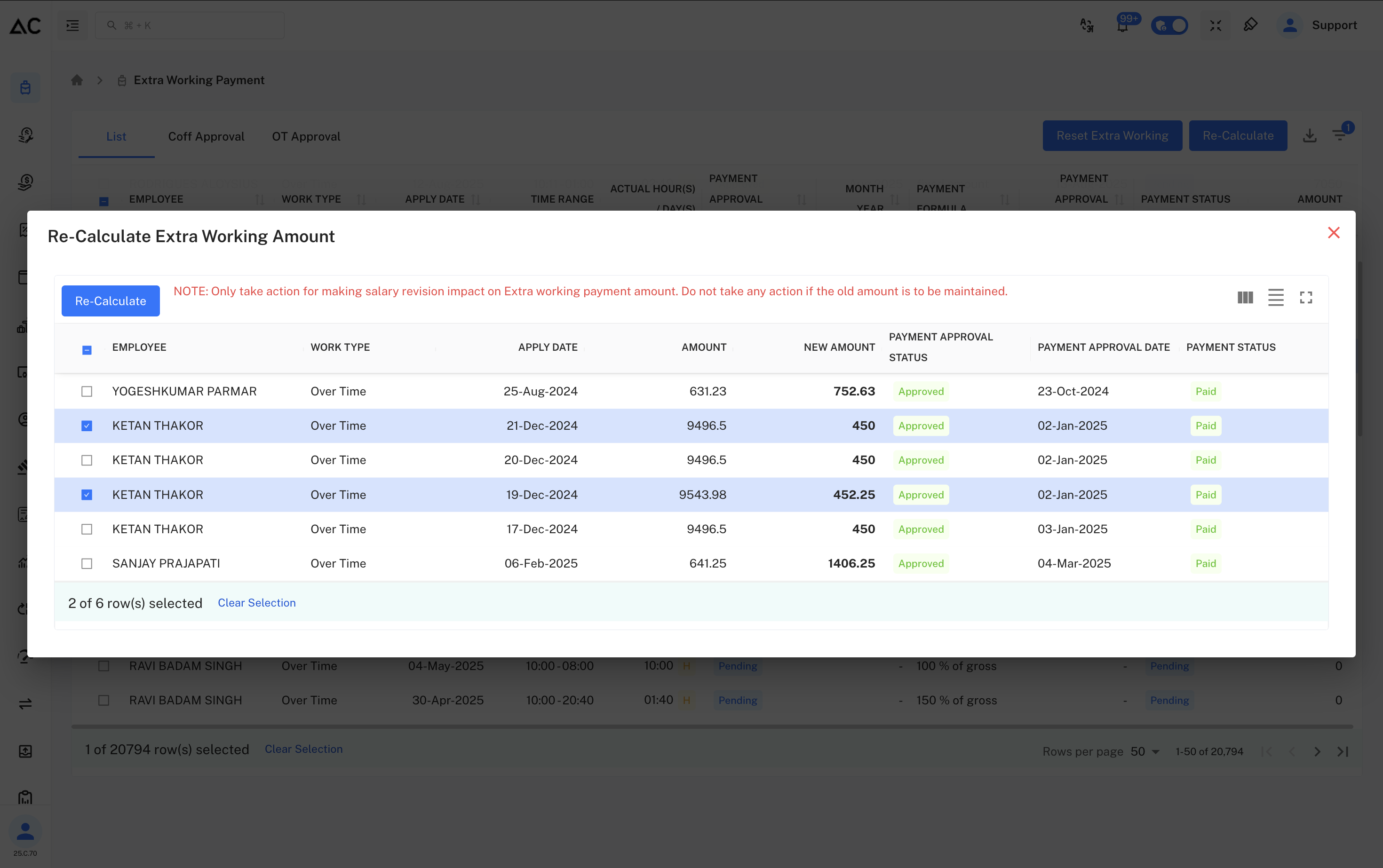
Popup Fields:
- Employee: Name.
- Work Type: Overtime type.
- Apply Date: Request date.
- Amount: Previously calculated.
- New Amount: Revised after recalculation.
- Payment Approval Status/Date: Current status and approval date.
- Payment Status: Pending/Paid.
Note: Only adjust if salary revision impacts payment. Leave unchanged if the original amount stands.
OT Approval Tab
Bulk approve overtime payments for processed extra working hours.
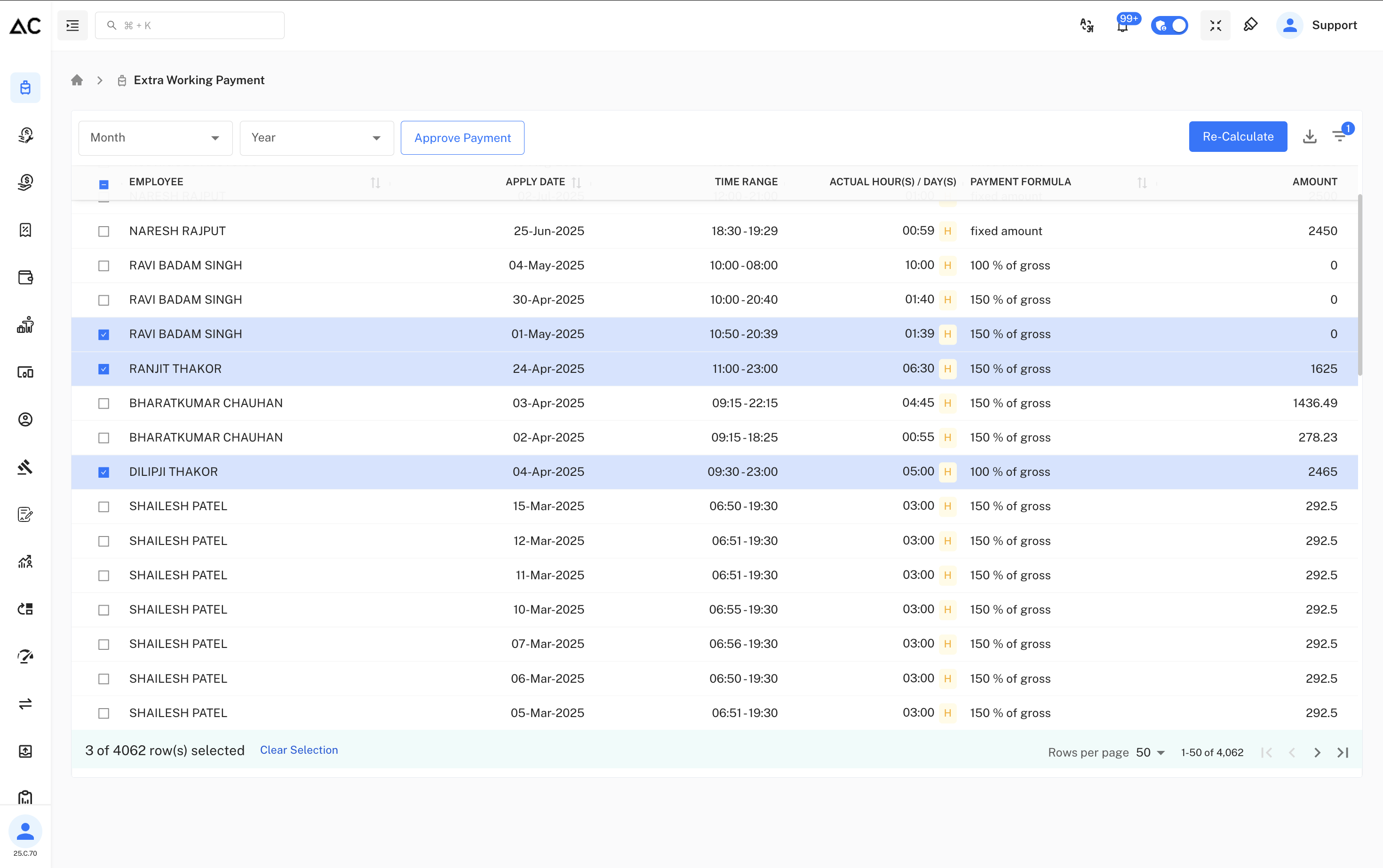
Functions and Fields:
- Filter by Month/Year.
- Approve Payment: Button for mass-approval.
- Employee: Select employees.
- Apply Date/Time Range: Original work details.
- Actual Hour(s)/Day(s): System-calculated working time.
- Payment Formula: How pay is computed (e.g., 150% of gross).
- Amount: Computed payout per entry.
Coff Approval Tab
Approve or reject employee compensatory off requests as an alternative to monetary overtime.
Columns:
- Employee: Applicant name.
- Apply Date: Coff request date.
- Time Range: Comp-off eligible work period.
- Actual Hour(s)/Day(s): Time worked.
- Amount: Number of Coff hours/days earned.
Key Details:
- Requests shown if employees have chosen Coff instead of payment for extra work.
- Approvers review and either approve or reject these requests.
- Once approved, Coff balance updates for use as future leave.
General Workflow
- Employee completes overtime and submits request.
- System calculates payment and/or Coff earned.
- Manager/HR reviews and approves in relevant tab (Coff Approval or OT Approval).
- HR may recalculate payment if salary revision occurs, using the modal.
- Once approved, payment status updates to 'Paid' or Coff accrues to employee balance for future use.
Key Features
- Bulk Approval: Handle multiple requests together via checkboxes and bulk actions.
- Status Visibility: Easily track progress via status (Approved/Pending/Paid).
- Monthly/Year Filter: Find requests by specific payroll period.
- Re-Calculation: Update payments for revised payrolls as needed.