Leave Application
Last Updated: October 6, 2025 Document Version: 1.0 Prepared for: Emgage HRMS Implementation Team
Overview
The Leave Application module enables employees and managers to systematically handle leave requests, multi-level approvals, cancellations, and to monitor leave balances and workflow status at every step.
System Components
- All Applications List: Complete dashboard of submitted leave requests.
- Request Popup: Intuitive form for applying new leave.
- Cancellations List: Track and review cancelled leaves.
- Leave Cancellation Popup: Simple cancellation submission dialog.
- Pending Approvals: Queue for manager/admin review.
- Pending Cancellations: Queue for manager/admin review of cancellation requests.
1. All Applications List
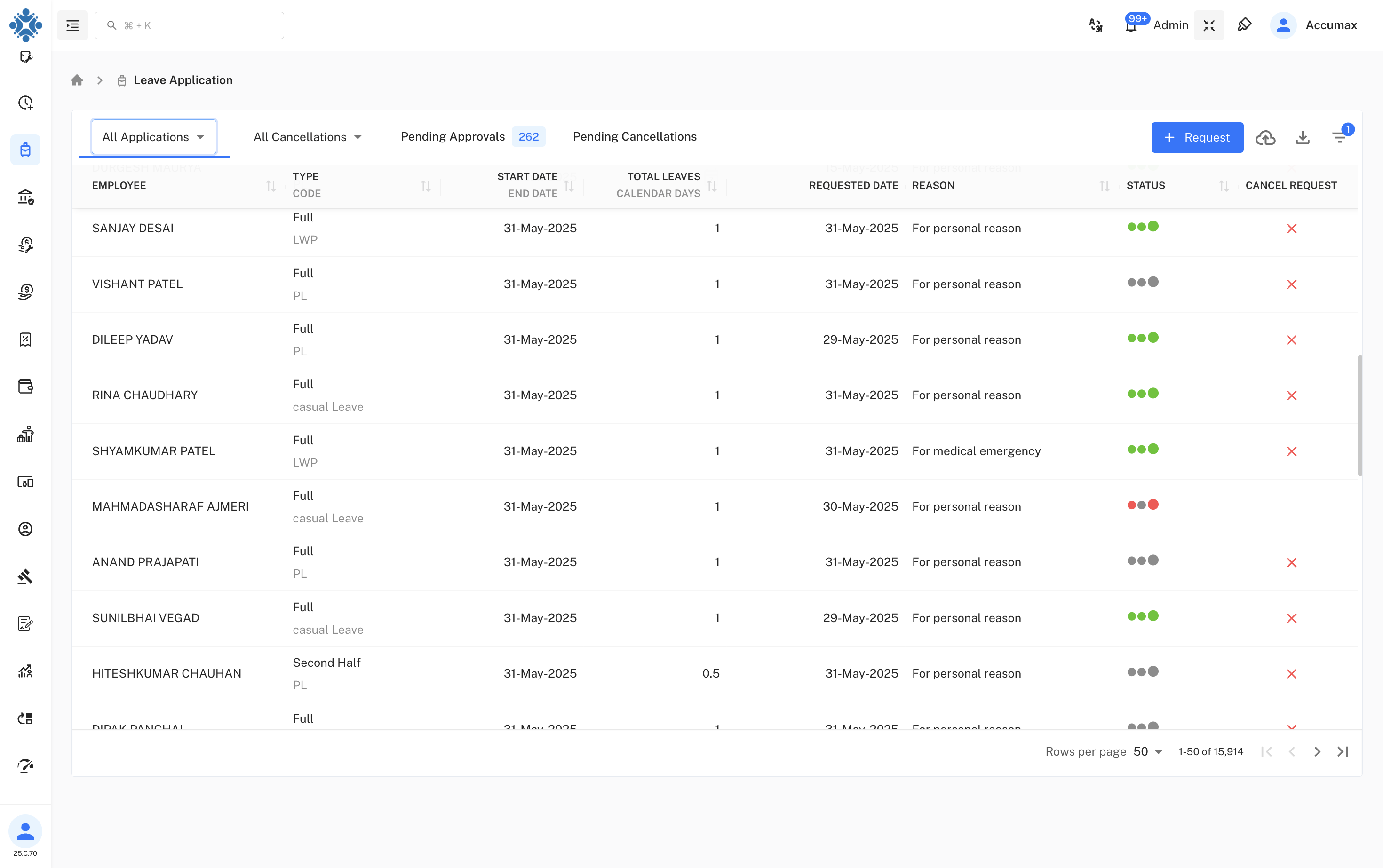 Central dashboard to view all leave requests with a multi-dot approval status. Managers and admins can filter, select, and bulk approve/reject requests.
Columns:
- Employee: Who applied for the leave.
- Type / Code: Full/First Half/Second Half/Custom + Leave code (PL, LWP, etc.).
- Start Date / End Date: Duration of the requested leave.
- Total Leaves: Calendar days/hours applied for.
- Balance: Remaining entitlement for chosen leave.
- Requested Date: When the application was made.
- Reason: Why the leave is needed.
- Status:
- Three-dot system:
- Dot 1: Primary Manager
- Dot 2: Secondary Manager
- Dot 3: Final decision (Admin or completion)
- Green = Approved, Red = Rejected, Grey = Pending
- Flow: If primary manager rejects, it cancels; if secondary manager rejects, it’s denied. Admin can override and approve directly.
2. Leave Request Popup
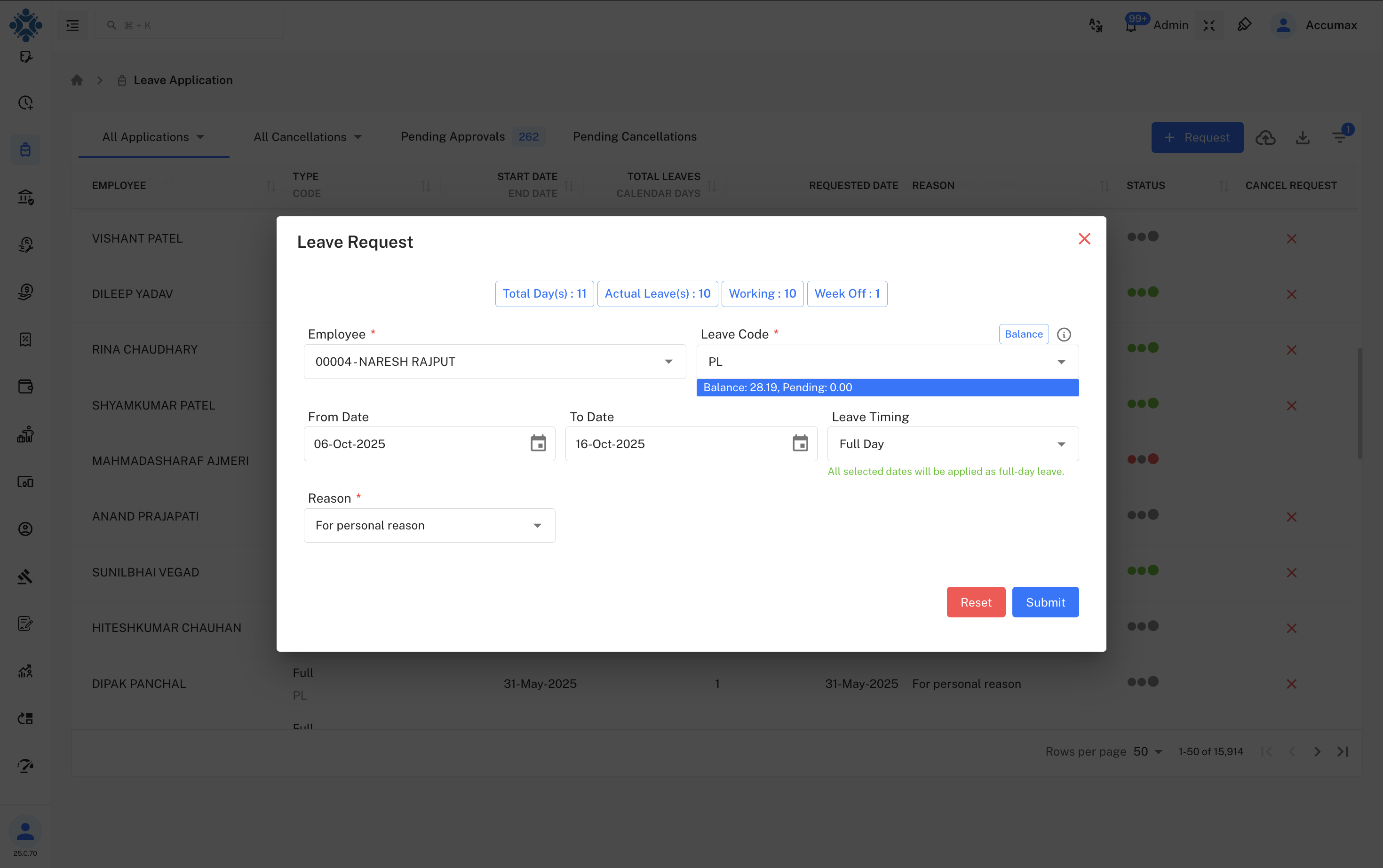
Accessible via the "Request" button, the form allows employees to submit detailed leave requests.
Fields:
- Employee: Select or autofill from system.
- Leave Code: Choose leave type (shows balance and pending).
- From/To Date: Calendar date selection.
- Leave Timing: Choice of full day, first half, second half.
- Reason: Dropdown for reason categories.
- Summary Bar: Displays total days, actual leaves, worked days, week offs.
Actions:
- Submit: Send for approval.
- Reset: Clear all entries.
3. Cancellations List
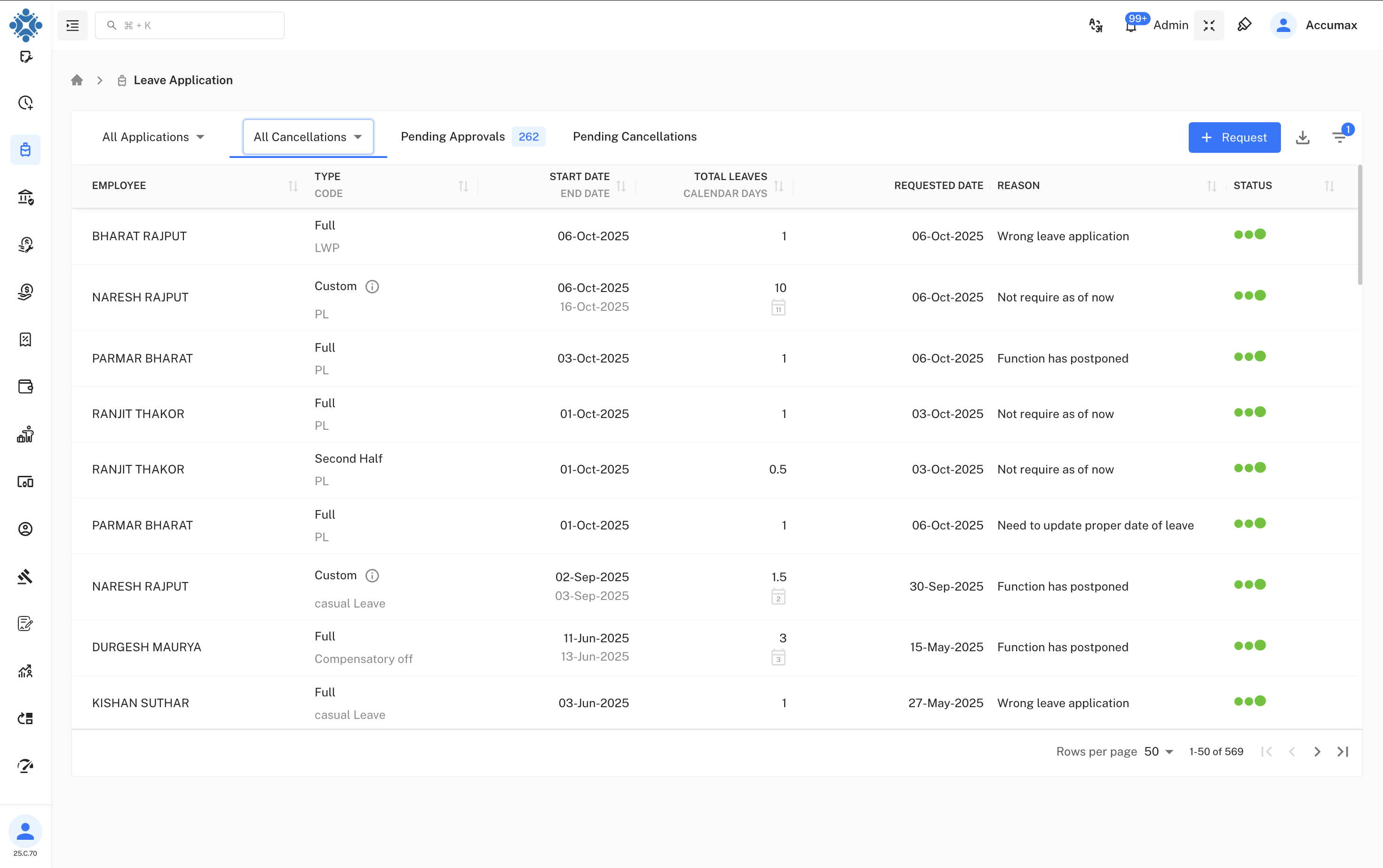
Track all cancelled leave requests, including full details and status for audit purposes.
Columns:
- Employee: Requestor.
- Type / Code: Category/codes for leave.
- Start/End Date: Cancelled period.
- Total Leaves: Count.
- Requested Date: When cancellation was submitted.
- Reason: Provided explanation for cancellation.
- Status: Follows multi-dot approval logic.
4. Leave Cancellation Popup
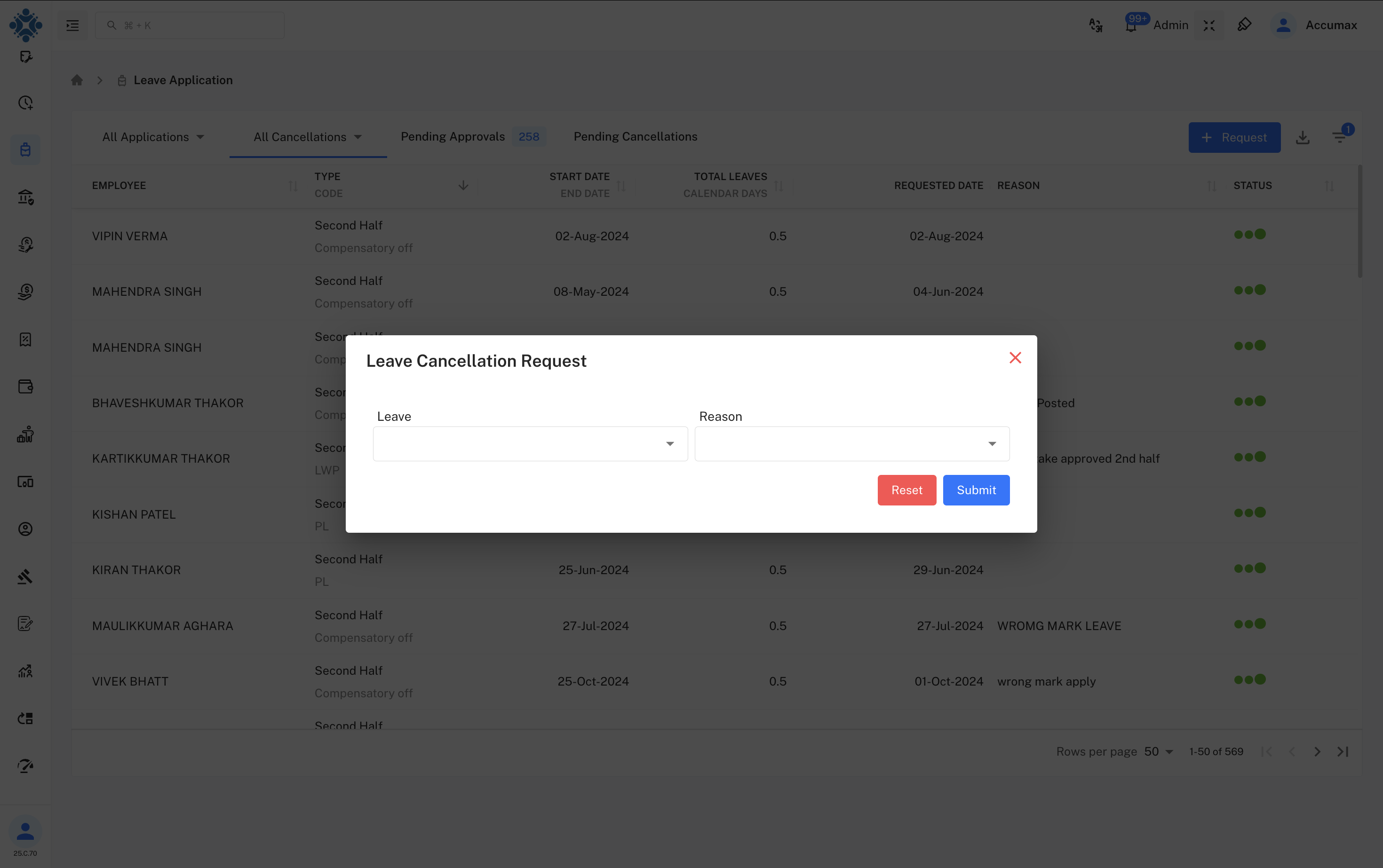
Streamlined form for cancelling leave with mandatory reason.
Fields:
- Leave: Select the leave to cancel.
- Reason: Justify the cancellation.
- Actions: Submit or Reset.
5. Pending Approvals
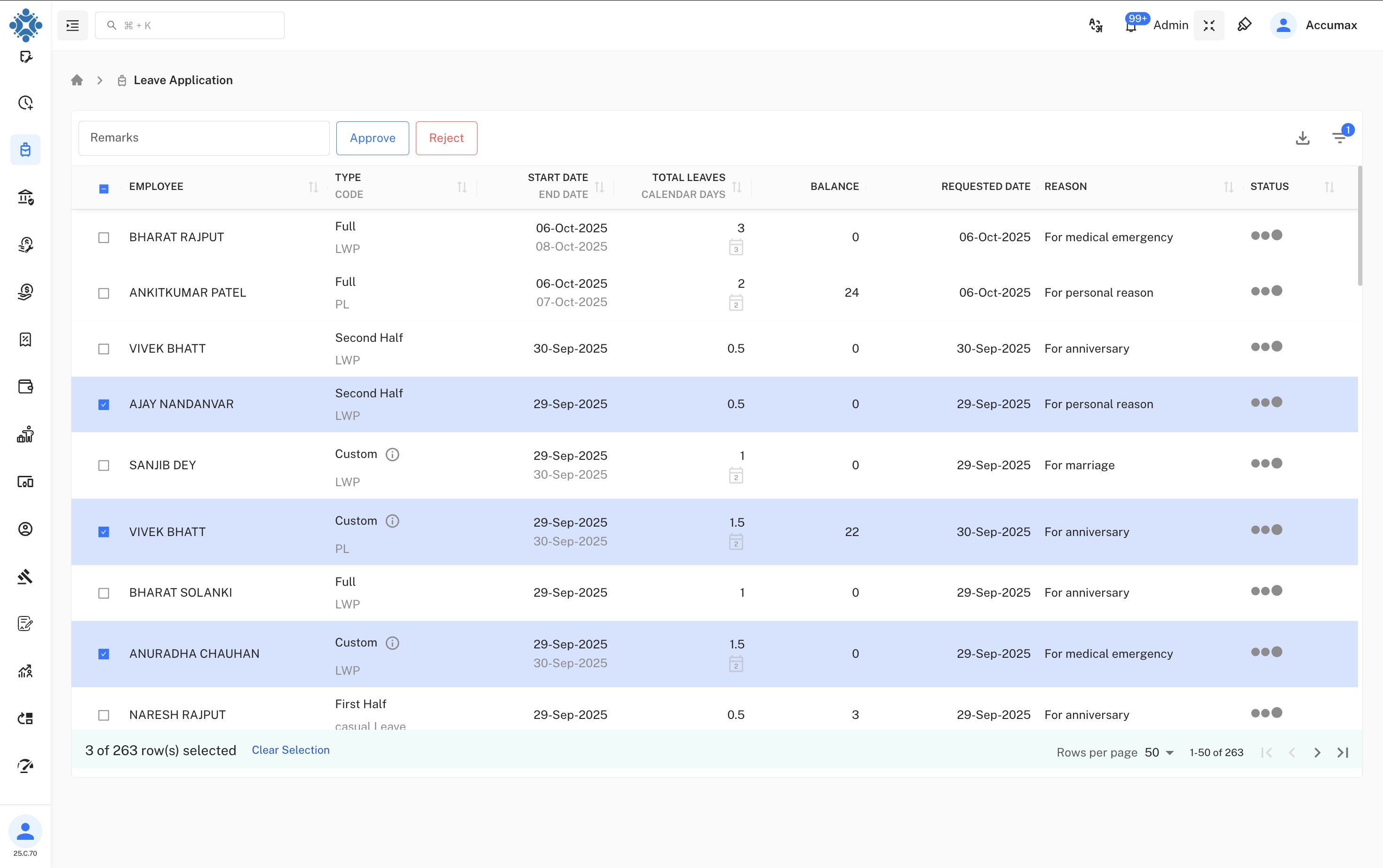
Shows leave applications that require a manager/admin response.
Workflow & Controls:
- Bulk approval/rejection with remarks.
- View status for each step (with dot system, see above).
- Managers can add action remarks, approve, or reject.
6. Pending Cancellations
This section lists leave cancellation requests that are awaiting review and approval by managers/admins.
What you see:
- Only those cancellation requests not yet resolved.
- All fields as in the cancellation list (employee, type, code, start/end date, total leaves, requested date, reason, and status).
- Review & take action:
- Approve: Cancel the leave as requested.
- Reject: Leave remains in scheduled status.
- Remarks required for every action.
Workflow logic:
- Multi-manager routing follows:
- Primary Manager reviews first; if rejected, it does not move to secondary.
- Secondary Manager reviews after primary approval. If rejected, cancellation is denied even if primary approved.
- Admin has override rights for direct resolution.
Best Practices:
- Explain cancellation reasons clearly for faster approvals.
- Pending cancellations provide full transparency—all parties see status movement.
Status Indicator Reference
- Dot 1: Primary Manager
- Dot 2: Secondary Manager
- Dot 3: Final Approval (or Admin action)
- Green Dot: Approved
- Red Dot: Rejected
- Grey Dot: Pending
Advanced Features
- Bulk Operations: Process multiple applications/cancellations at once.
- Leave Balance Preview: See entitlements when selecting leave type.
- Partial Leave Options: First/Second half and custom leave durations.
- Audit Trail: All actions, decisions, and remarks logged for compliance.
- Admin Override: For urgent or special cases.
Tips & Best Practices
- Always provide complete and specific reasons for leave and cancellations.
- Check leave balance and type before submitting.
- Track your application’s progress with the simple dot indicator system.
- Contact HR/Admin if you need urgent resolution.