Leave Application Import
Last Updated: October 6, 2025 Document Version: 1.0 Prepared for: Emgage HRMS Implementation Team
The Leave Application Import feature allows HR personnel to import multiple leave applications at once using Excel or CSV files. This streamlines the process of adding historical leave data or bulk leave requests.
System Overview
The leave import process consists of two main steps:
- File Upload - Upload Excel/CSV file with leave application data
- Data Validation - Review and confirm leave applications before import
Import Process
Step 1: File Upload
Upload your Excel or CSV file containing leave application data. The system supports standard file formats with predefined column structures.
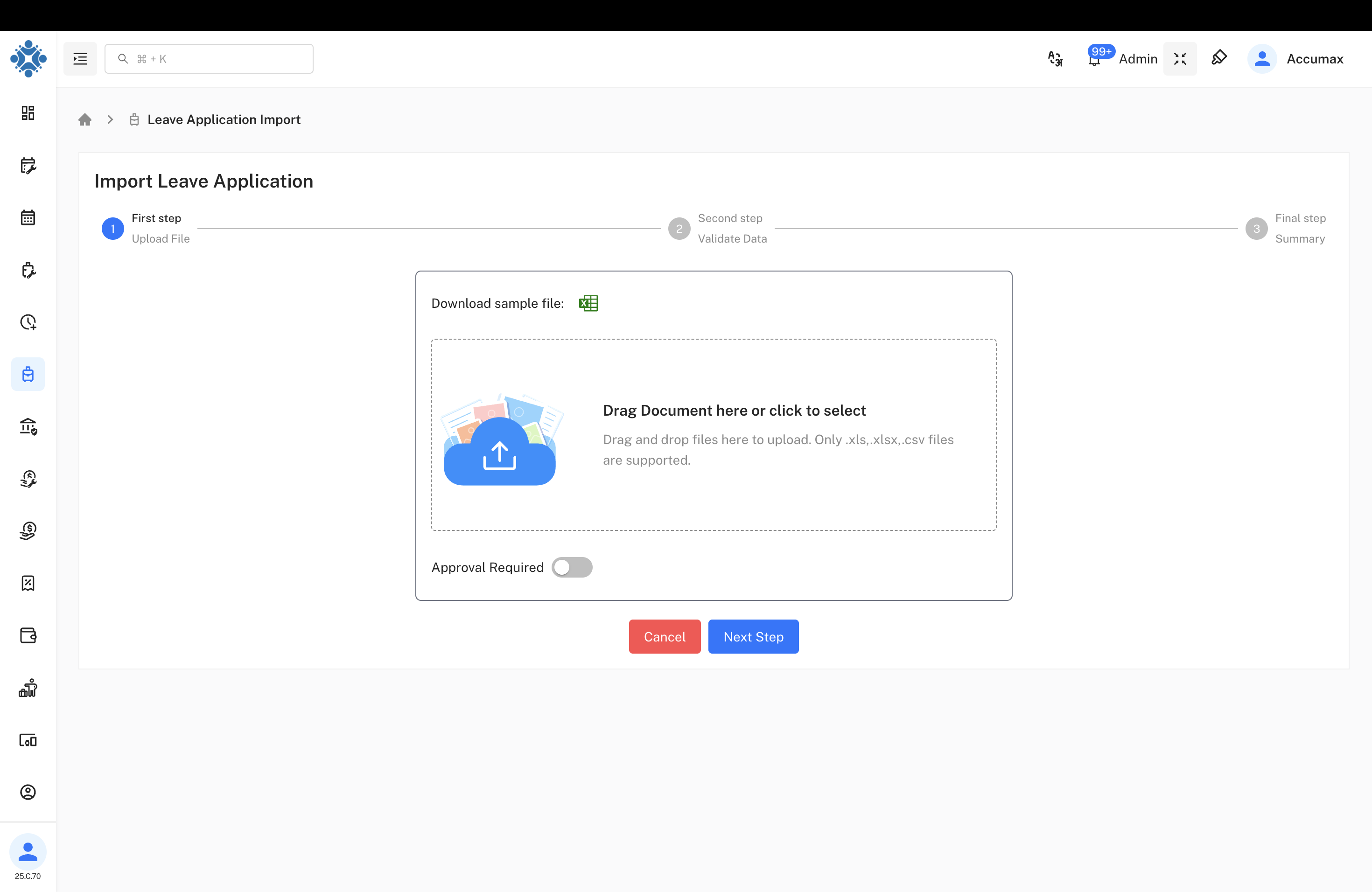
Supported File Formats:
- Excel (.xlsx, .xls)
- CSV (.csv)
Required Columns:
- Employee ID/Email
- Leave Type
- Start Date
- End Date
- Reason/Description
Approval Settings:
The system includes an Approval Required toggle that determines the workflow for imported leave applications:
- Approval Required (ON) - All imported leave applications will be sent to the approval section for manager/HR review before being finalized
- Approval Required (OFF) - Leave applications are directly submitted and processed without requiring additional approval
Step 2: Data Review & Import
Review the imported data before final submission. The system validates employee information, leave types, and date ranges.

Validation Features:
- Employee verification
- Leave type validation
- Date range checking
- Conflict detection
- Balance verification
File Format Guidelines
Data Requirements:
- Valid employee IDs or email addresses
- Correct leave type names as configured in system
- Proper date format (YYYY-MM-DD)
- Reasonable leave duration
- Clear reason description
Approval Workflow
The Leave Application Import system supports two workflow modes:
Direct Submission Mode
When Approval Required is disabled:
- Leave applications are immediately processed and approved
- Applications appear directly in employee leave records
- No additional approval step required
- Suitable for historical data imports or trusted bulk uploads
Approval Required Mode
When Approval Required is enabled:
- All imported leave applications are sent to the approval queue
- Managers/HR personnel must review each application
- Applications remain in "Pending" status until approved
- Provides additional control and oversight for bulk imports
- Recommended for employee-submitted bulk requests
Common Issues
File Upload Problems:
- Ensure file format is Excel or CSV
- Check column headers match required format
- Verify file size is within limits
Data Validation Errors:
- Employee not found: Check employee ID/email
- Invalid leave type: Use system-configured leave types
- Date conflicts: Check for overlapping leave periods
- Insufficient balance: Verify employee leave balance
Best Practices
- Data Preparation:
- Use system employee IDs for accuracy
- Validate leave types before import
- Check date formats and ranges
- Include clear reason descriptions
- Import Process:
- Review validation results carefully
- Resolve all errors before import
- Import in smaller batches for large datasets
- Backup existing data before bulk imports
- Choose appropriate approval setting based on import context
- Approval Settings:
- Use Approval Required for employee-submitted requests
- Disable approval for trusted historical data imports
- Consider organizational policies when setting approval requirements
- Communicate approval workflow to relevant stakeholders
- Post-Import:
- Verify imported leave applications
- Check employee leave balances
- Notify affected employees if required
- Update leave calendars and schedules
- Process pending approvals if approval workflow is enabled