Overtime policy - Basic Configuration
Overview
The Overtime Policy Setup module in Emgage HRMS is used to create, view, manage, and control overtime policies for employees. It allows administrators to define different overtime rules, activate or deactivate policies, and manage their applicability.
Screen Overview
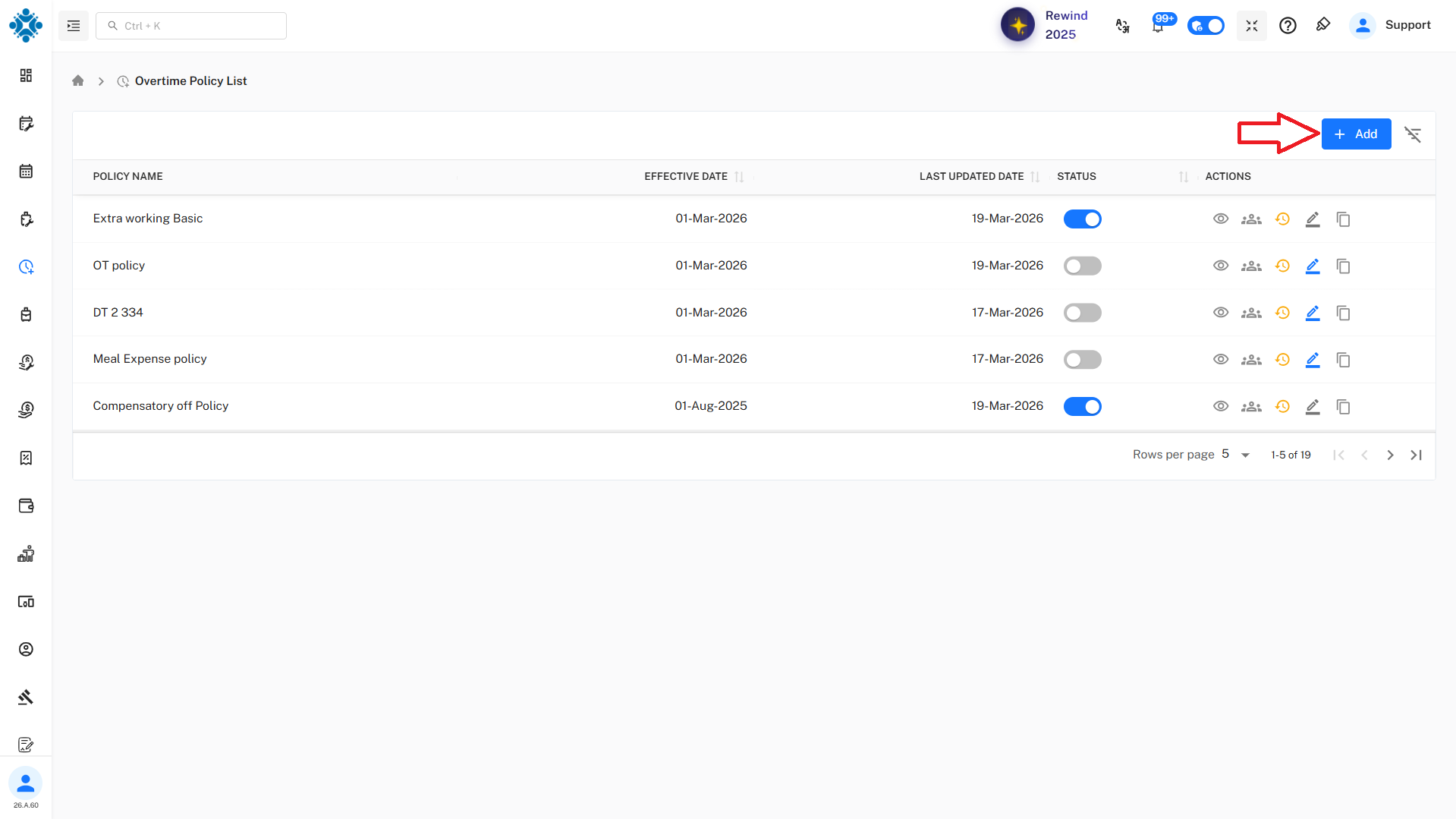
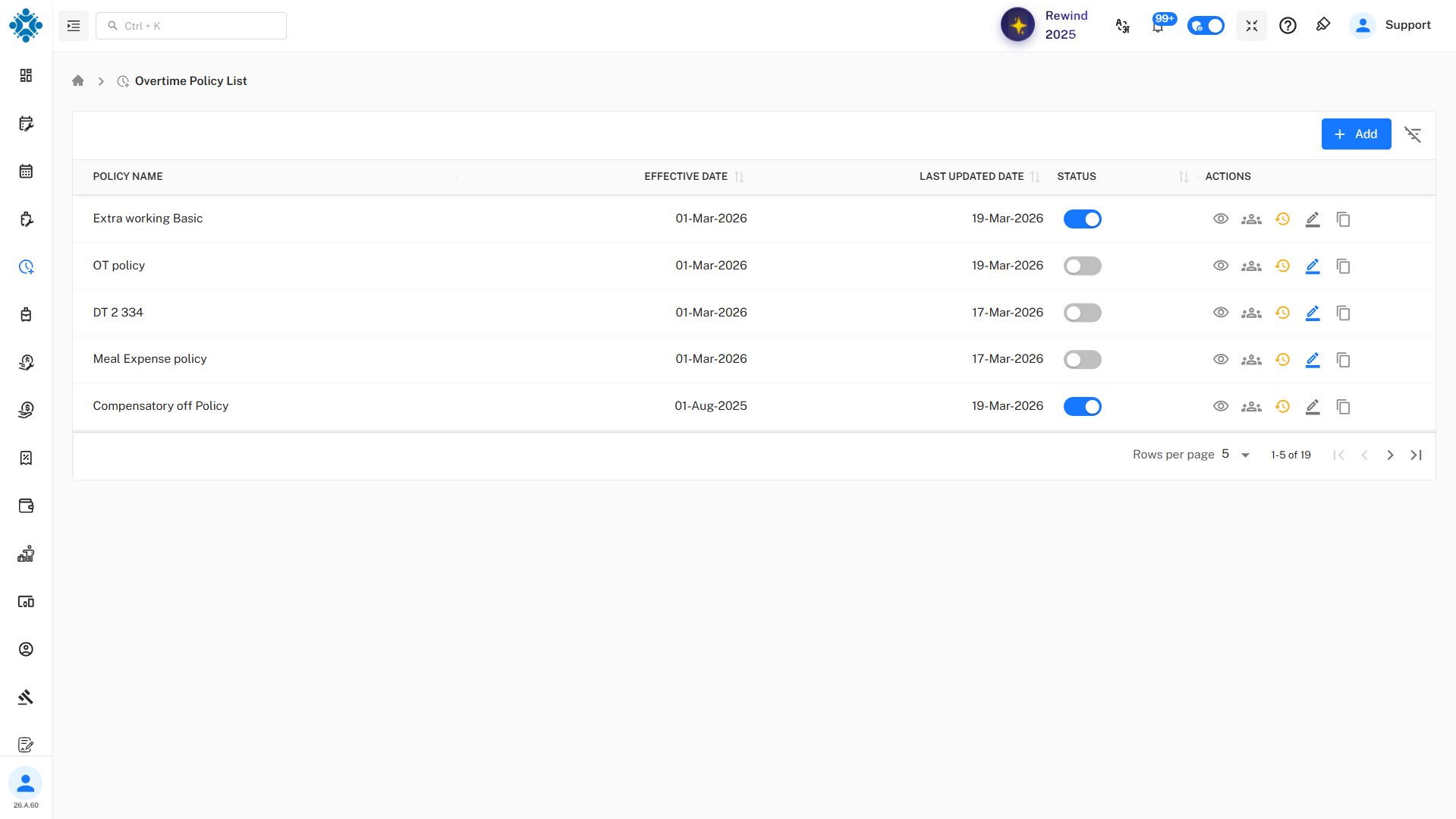
- The Overtime Policy List screen displays all configured overtime policies along with their key details such as effective date, last updated date, status, and available actions.
Screen Components
1. Add Button
- Label: + Add
- Purpose: Used to create a new overtime policy.
- Location: Top-right corner of the screen.
2. Filter Option
- Purpose: Allows users to filter and search overtime policies based on specific criteria.
- Helps in quickly locating a required policy when multiple records exist.
- Location: Beside add button
3. Status Toggle
- ON (Blue): Policy is active and applicable.
- OFF (Grey): Policy is inactive and not applicable.
- Admins can enable or disable policies using this toggle.
4. Action Icons

- Each policy row includes multiple action icons, which may include:
- View – View policy details
- Assign – Assign policy to employees or groups
- History
- Edit – Modify policy details
- Copy – Duplicate the policy
1. Basic Information
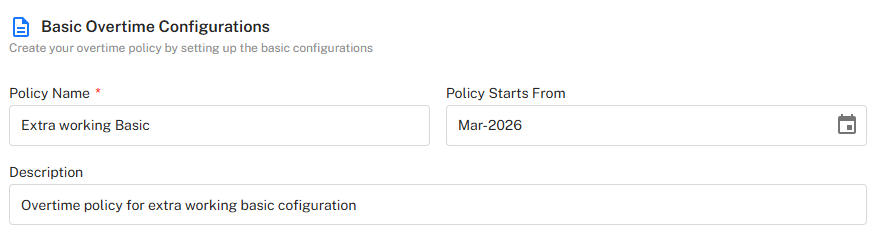
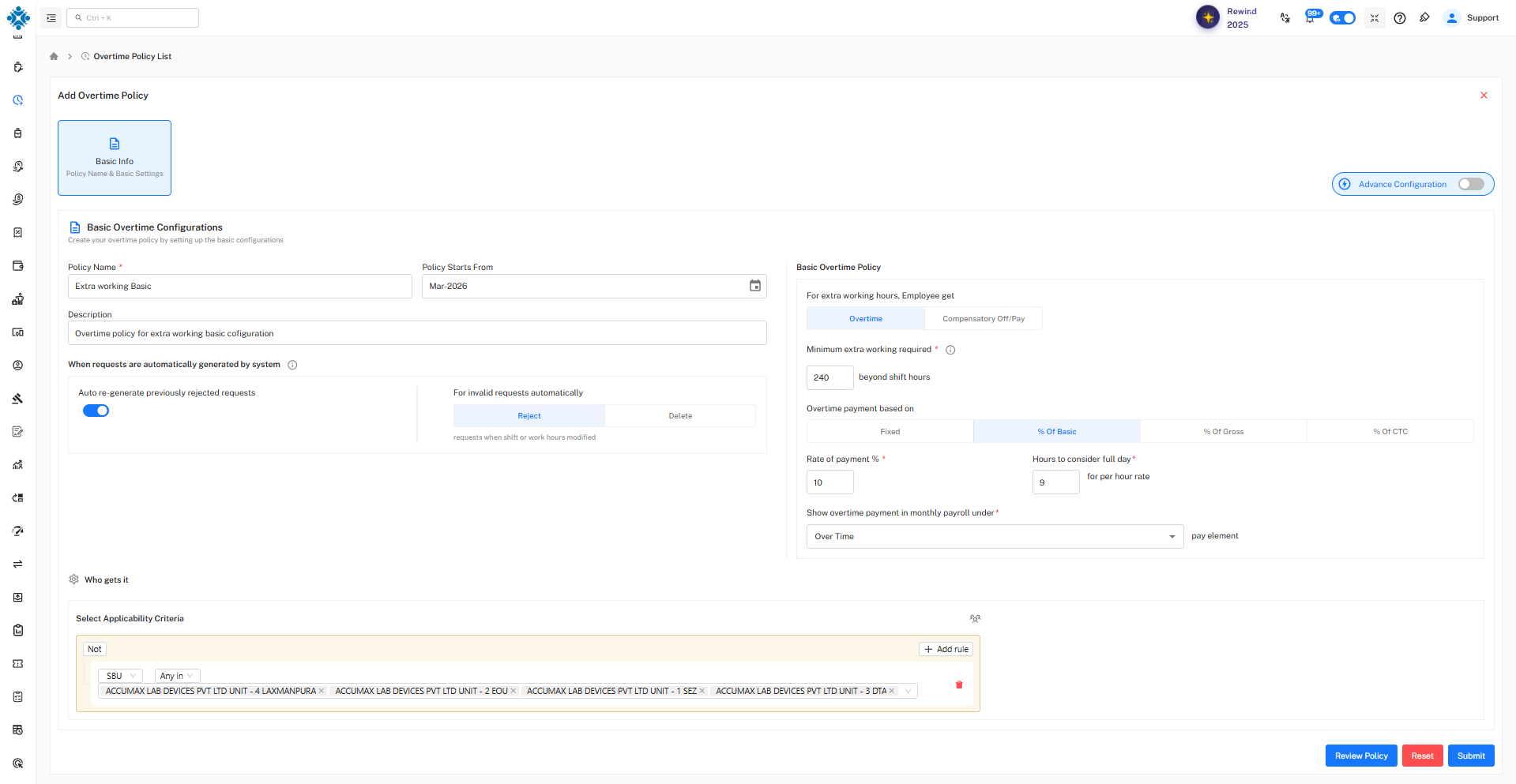
Policy Name
- The unique name used to identify the overtime policy.
- Field: Policy Name
- Example: Extra working Basic
Policy Starts From
- Defines the effective date from which this policy will be applicable.
- Field: Policy Starts From
- Example: Mar-2026
Description
- A short explanation of the purpose of the policy.
- Field: Description
- Example: Overtime policy for extra working basic configuration
2. Request Automation Settings
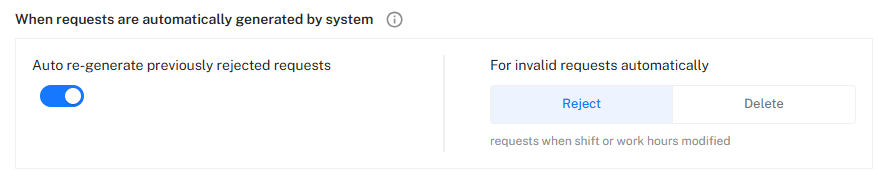
Auto Re-generate Previously Rejected Requests
- If enabled, the system will automatically regenerate previously rejected overtime requests when shift or work hours are modified.
- Type: Toggle (On/Off)
For Invalid Requests Automatically
- Defines the system behavior when invalid overtime requests are detected:
- Reject: Keeps the request but marks it as rejected.
- Delete: Removes the request completely.
- Options:
- Reject
- Delete
3. Basic Overtime Policy
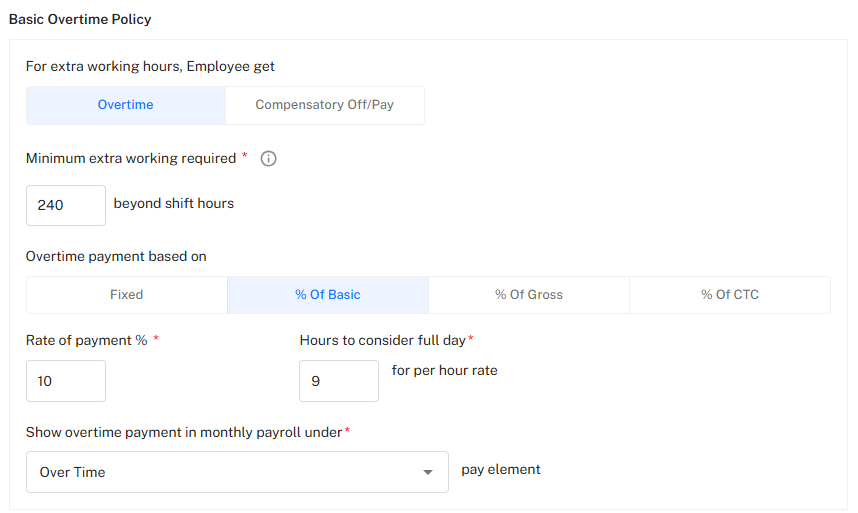
Compensation Type
- Defines how employees are compensated for extra working hours.
- Options:
- Overtime
- Compensatory Off/Pay
Minimum Extra Working Required
- Minimum extra working time beyond shift hours required to qualify for overtime.
- Field: Minimum extra working required
- Example: 240 (minutes)
Overtime Payment Based On
- Determines how overtime payment is calculated.
- Options:
- Fixed
- % of Basic
- % of Gross
- % of CTC
- Selected: % of Basic
Rate of Payment (%)
- Defines the percentage used to calculate overtime pay.
- Field: Rate of payment %
- Example: 10
Hours to Consider Full Day
- Number of working hours considered as a full working day, used to calculate hourly rate.
- Field: Hours to consider full day
- Example: 9 hours
Payroll Mapping
- Specifies the payroll component under which overtime payments will be recorded.
- Field: Show overtime payment in monthly payroll under
- Example: Over Time
4. Applicability (Who Gets It)
Select Applicability Criteria
- Defines which employees are eligible or not eligible for this policy.
- In this case:
- The policy is applied only to the employees who are in selected SBUs.

5. Actions

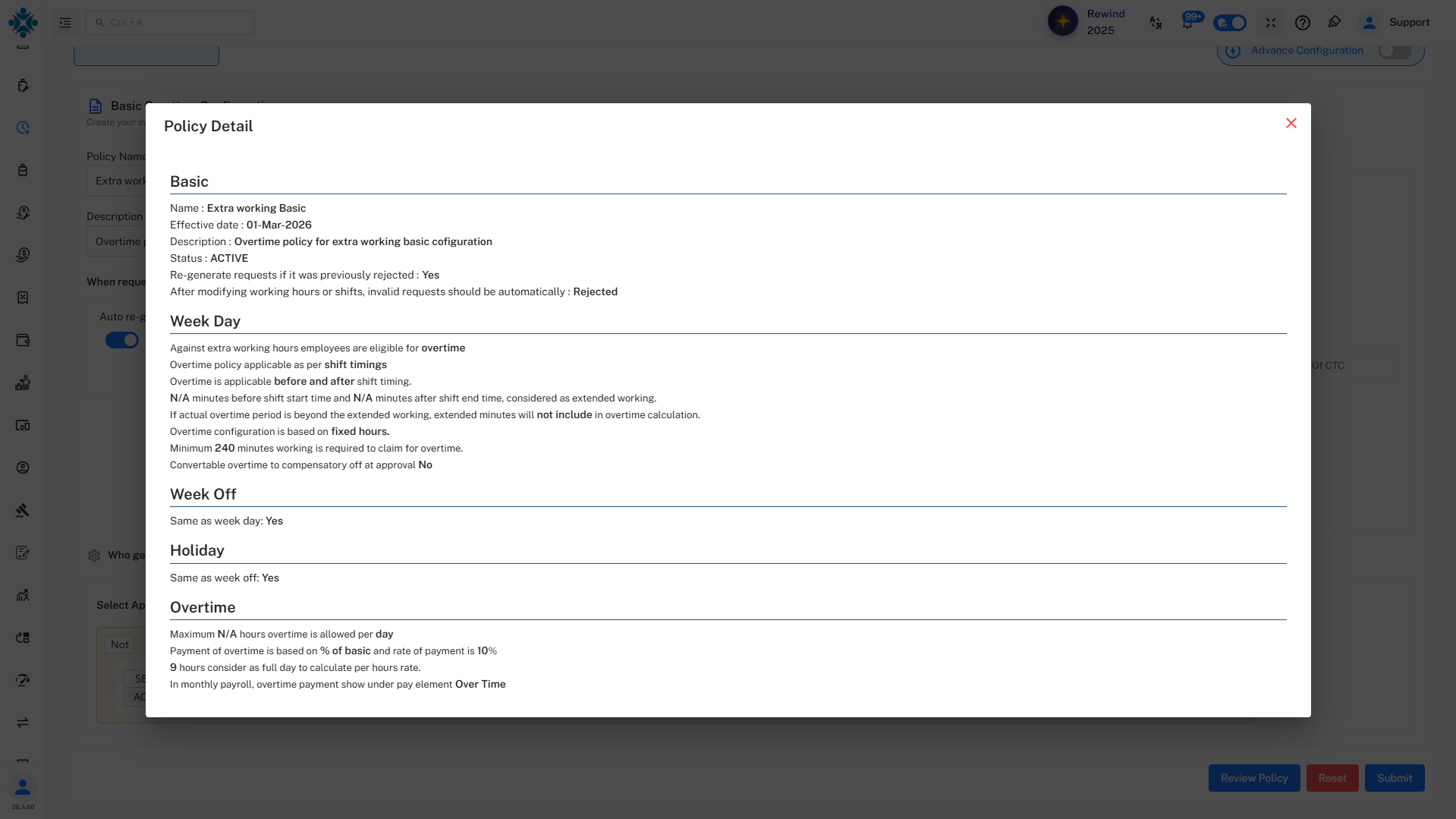
Review Policy
- Opens a summary of the configured policy before submission.
Reset
- Clears all entered data and resets the form.
Submit
- Saves and activates the overtime policy.
6. Advanced Configuration
- Enables additional advanced settings for overtime calculation and rules.
- Toggle: Available (currently OFF)
Notes
- Ensure payroll mapping is correctly configured to avoid differences.
- Carefully define applicability rules to prevent incorrect policy assignment.
- Validate minimum working hours to align with company standards.